I work with photos fairly often as part of my job — various images for social media, illustrations for articles, video thumbnails, and other materials. For most of that, I've been used to doing manual editing in the free graphics editor GIMP. On top of that, most tasks are pretty repetitive: remove an unwanted object, fix a small flaw, change the background, or just bring a shot to the look I need. So I never actually planned on doing any big deep-dive research into AI photo editors.
It all started with a fairly ordinary situation, when I needed to quickly prepare a few photos for some materials, and every one of them turned out to have small but noticeable flaws. In one, an extra person had wandered into the frame; in another, I wanted to remove a small object; in a third, the photo just needed a bit of a touch-up.
If it had been just one or two photos, there'd be no problem — open GIMP, select the area, work with layers, and get a decent result in a few minutes. But once you realize you'll have to repeat that same kind of work over and over, you start looking for a way to automate at least part of it.
That's the point where I decided, for the first time, to try editing photos with AI tools. I was curious whether a neural network could genuinely save time, or whether I'd still end up opening a traditional editor afterward and fixing half the results by hand.
The main issue is that generative AI works differently. It doesn't just modify existing pixels — in many cases, it regenerates part or all of the image from scratch. So the same request can produce several very different outcomes: one editor removed people from photos beautifully but ruined faces in the process; another did a great job retouching portraits but could barely handle complex objects; a third impressed me with the quality of its generation but required uploading photos to the cloud.
As a result, the search for the best AI photo editor gradually turned from a comparison of software specs into an attempt to find the tool best suited to real, practical tasks.
Requirements for AI photo editors
In my own subjective view, for an AI photo editor to fully replace traditional editing tools, it needs a whole set of capabilities. Ideally, it should cover the entire processing cycle, from initial culling of RAW negatives to complex retouching and compositing.
That said, it's important to be realistic — finding the perfect photo editor with AI features is simply not possible. So instead, I put together a list of requirements a tool should meet.
Generative fill and boundary expansion. The service or program should be able to analyze the meaningful context around the frame and generate removed or missing areas based on text prompts or the image's own context.
Adjustable editing. The ability to choose between manual and generative processing. Manual work is essential for preserving the original identity of objects. Generative mode is useful for realistic micro-details (skin pores, fabric texture, architectural molding) that are hard to achieve by hand.
"Smart" selection and background removal. Ideally, the model should be able to accurately recognize and isolate people, individual facial features, hair, clothing, the background, the sky, and building elements.
Intelligent portrait retouching. Automatic removal of skin flaws (acne, wrinkles, pigmentation) while keeping the natural micro-texture intact. A bonus is the ability to adjust anatomical facial features, expressions, and body shape.
Relighting and color correction. The ability to change a frame's lighting map, move light sources, even out harsh shadows, and fix exposure in underexposed areas without introducing color noise. Also, automatic color correction and colorizing of monochrome photos.
RAW format support. Full support for working with uncompressed digital camera negatives. The AI tools need to correctly read camera profiles, suppress digital noise at high ISO, and recover detail in deep shadows.
These are the exact criteria I used to look for AI photo editors that would work for me. I didn't expect any single editor to be perfect and check off every requirement on the list. It was far more interesting to see which features actually work in practice, where developers have already managed to replace familiar tools with AI, and where classic editing is still unavoidable.
Adobe Photoshop
I decided to start my search with the graphics editor considered the industry standard — Adobe Photoshop. According to Adobe's own claims, they've made significant progress using generative models, while still preserving the traditional use of masks, adjustment layers, and blending modes. Most importantly, all changes are saved in a PSD file, which can be edited at any point afterward.
The first test I chose for Photoshop was a task requiring me to remove a person from the background of a photo. It seemed like exactly the kind of situation generative AI should handle perfectly. I even deliberately picked a photo where another model was standing right next to the person being removed.
I wanted to see not just whether the unwanted object would disappear, but also what would happen to the surrounding details. In real work, it's not enough to just get an image without the unwanted person — what matters is that removing them doesn't change the face of the person who's supposed to stay in the frame.
This is exactly where Photoshop gave me an unpleasant surprise.
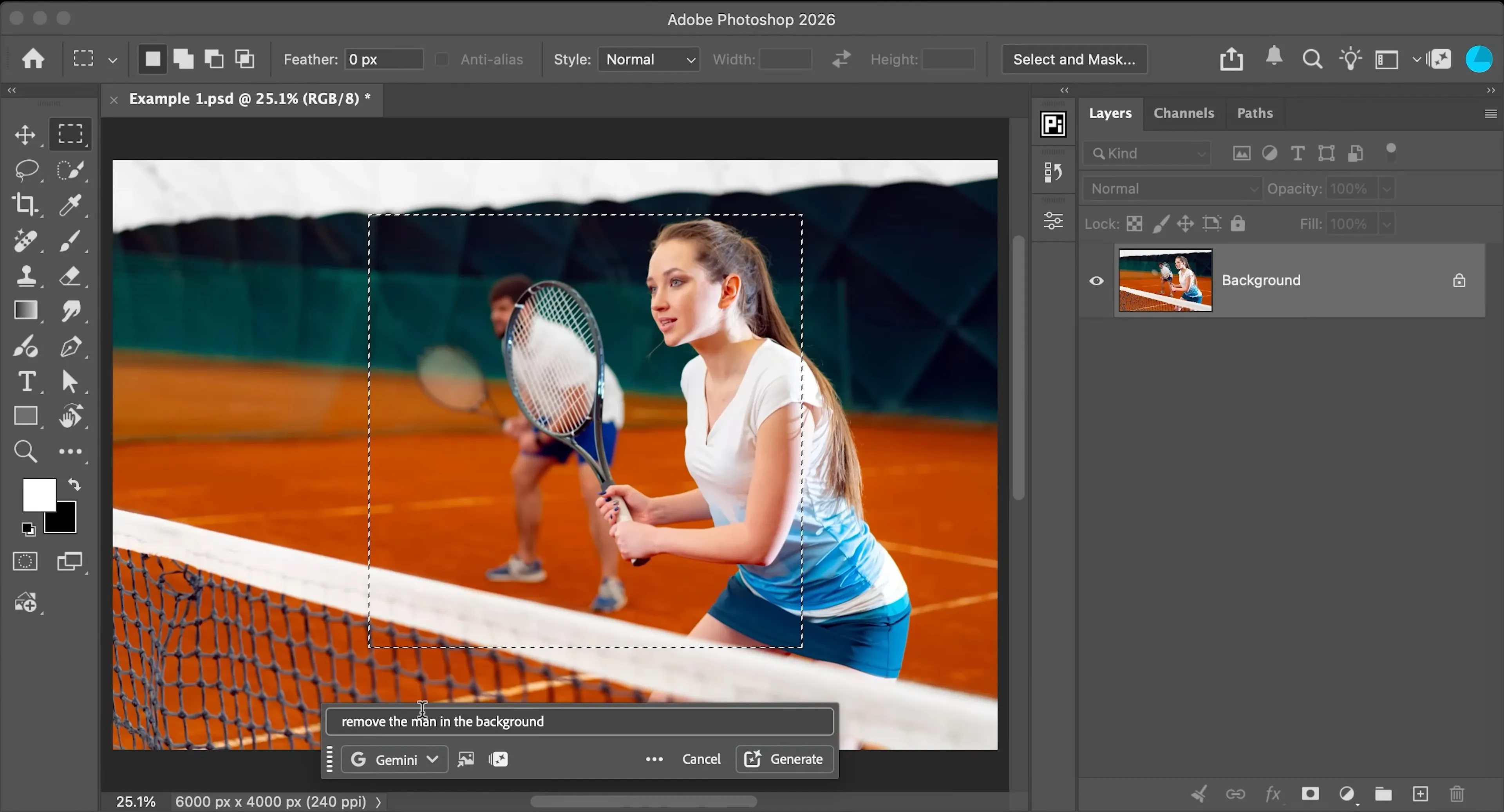
The neural network offered me two variants of what the final image could look like.
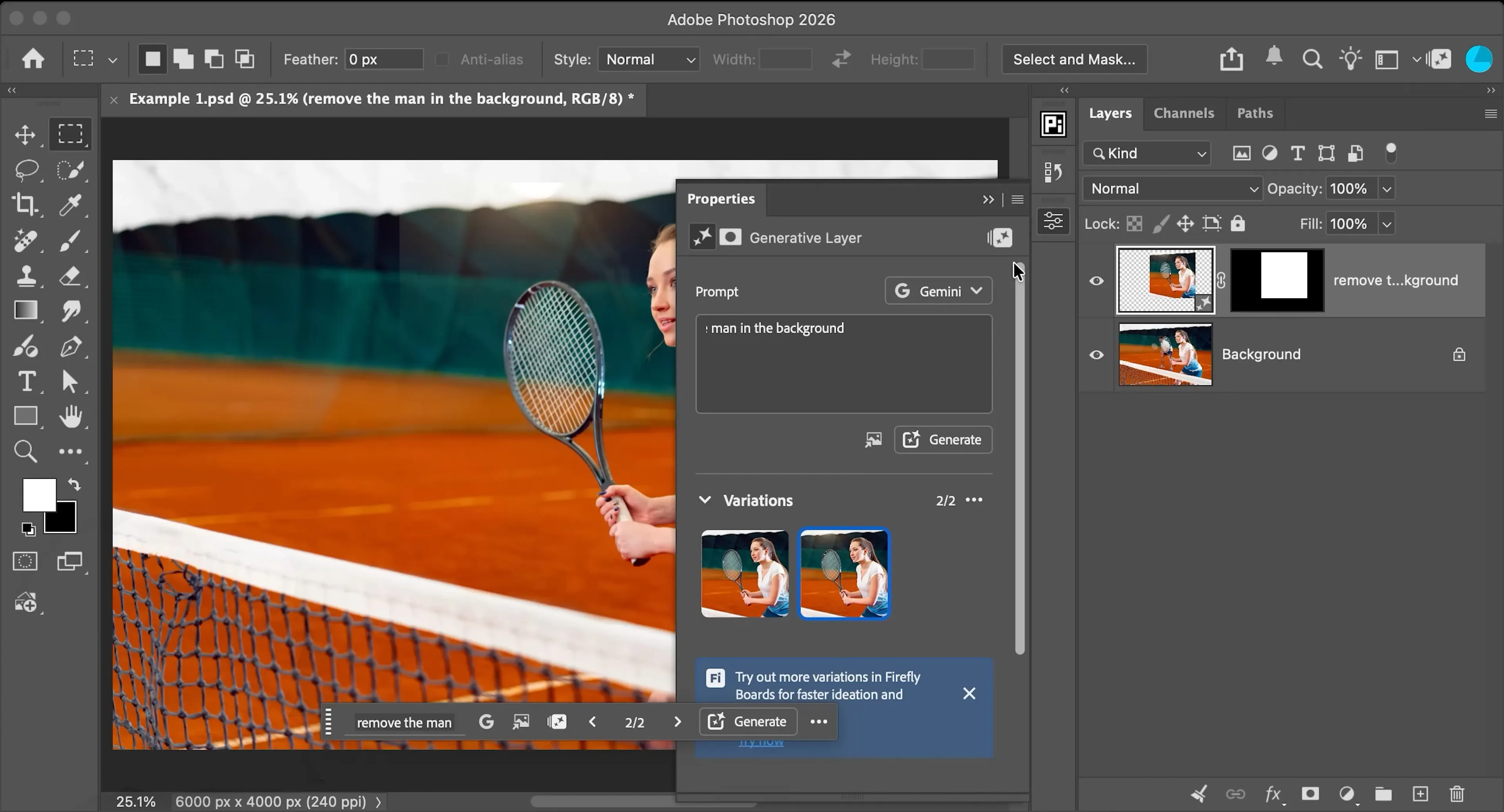
At first glance, it might look like everything was done perfectly. The program even added a sun flare to make the photo look more appealing.
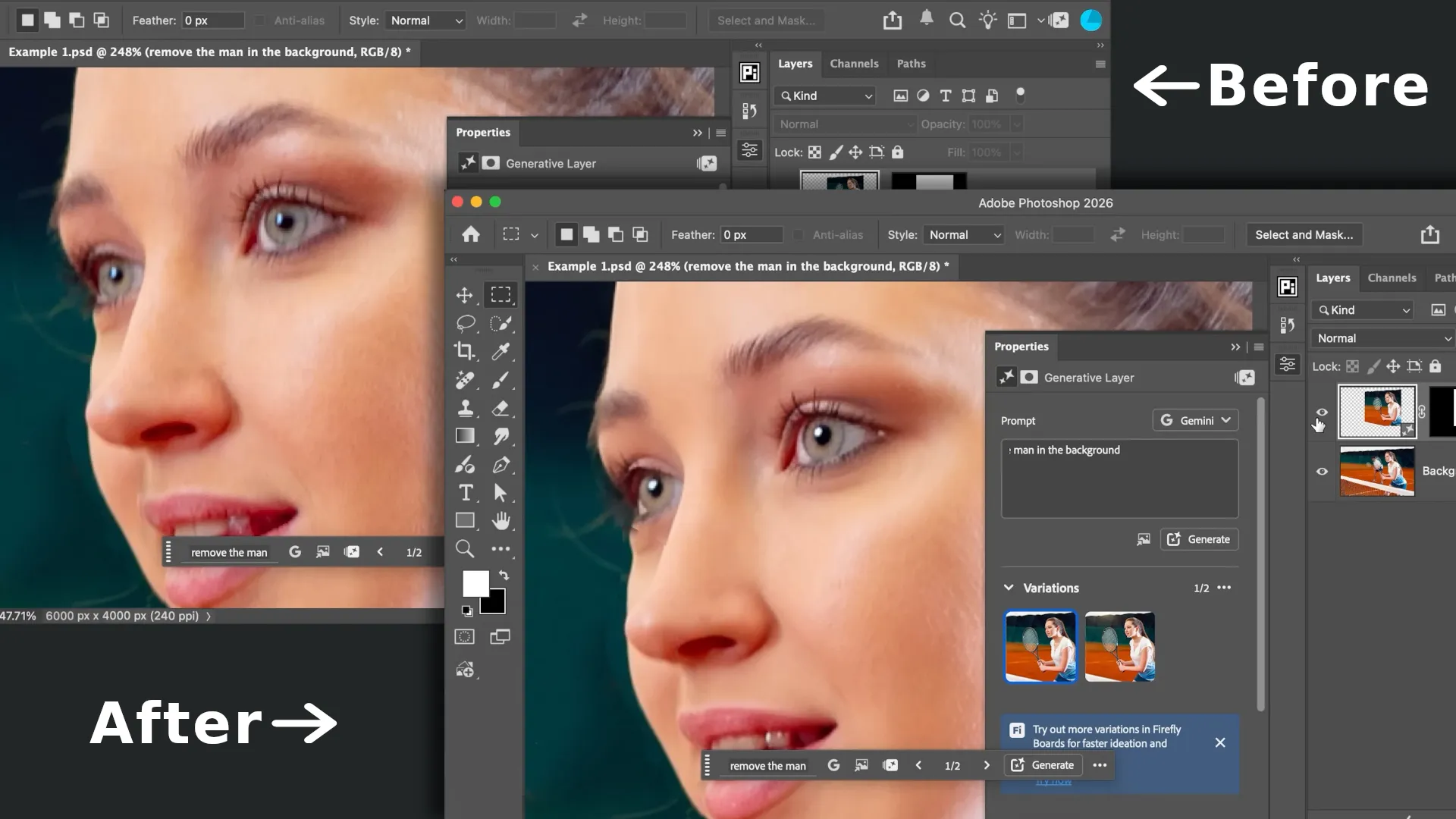
But on closer inspection of the neural network's results, it's clear the face of the model in the foreground had been redrawn. The changes were subtle, but enough to distort the person's features.
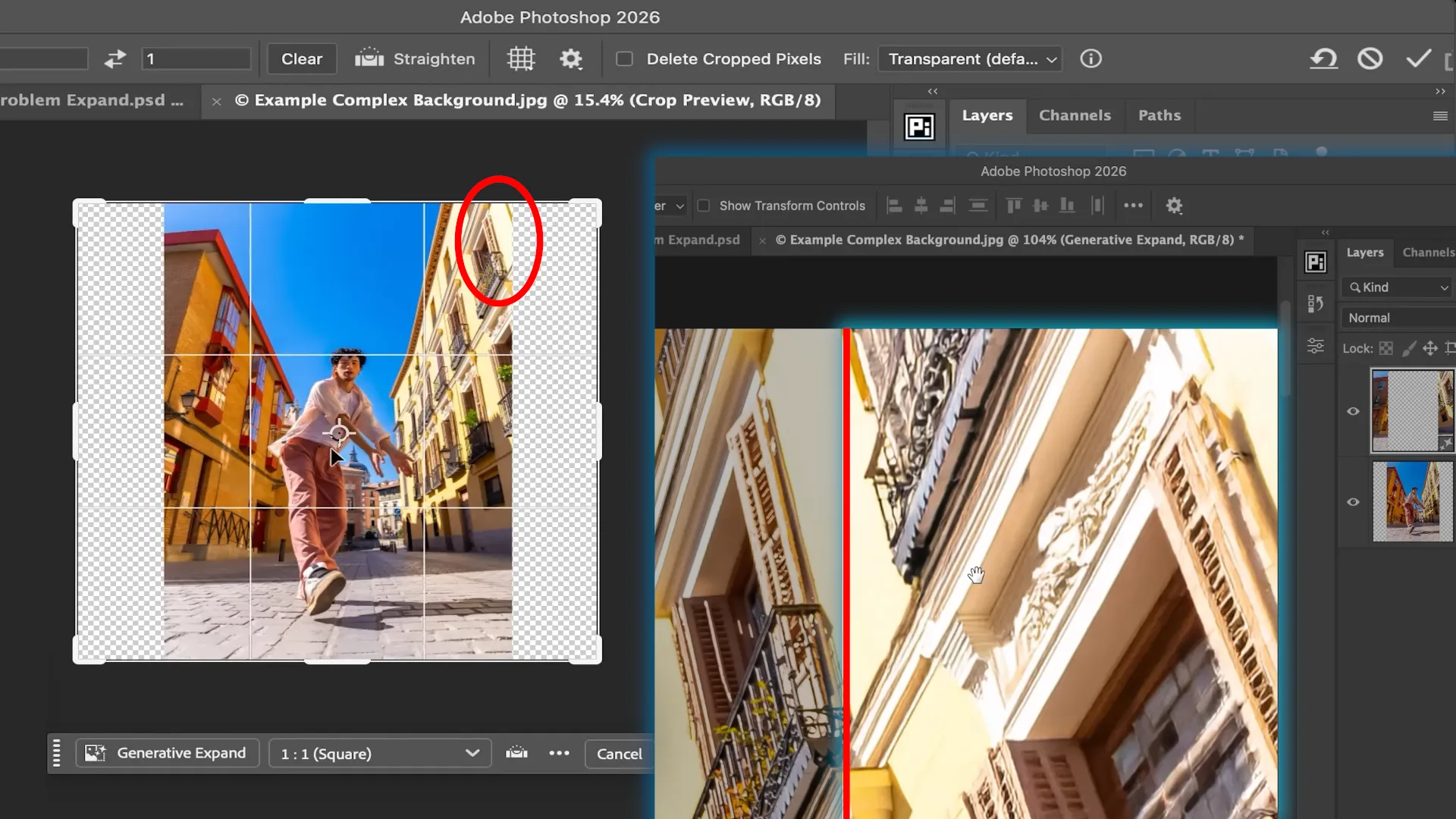
The result was even worse when filling in a missing section of a photo featuring complex architectural elements. The AI simply produced hallucinated structures.
Where Photoshop's built-in AI tools genuinely excelled was in visualizing how clothing and accessories look when worn. Here's roughly what the process of "trying on" this necklace with a pendant would look like if done manually.
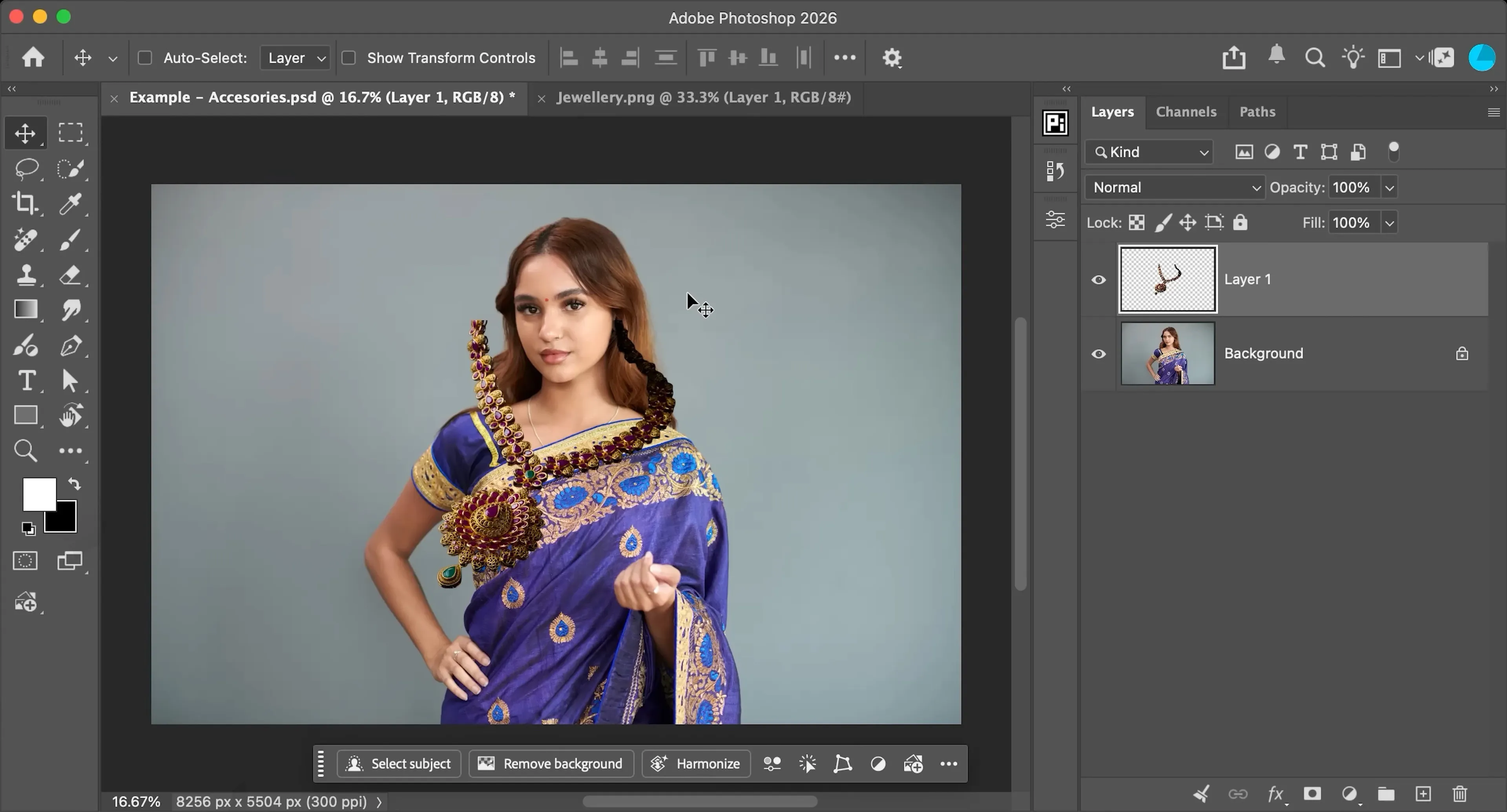
But using the program's AI tools, the result came out much better. Notably, this time not only the accessory details were preserved, but the model's appearance as well.
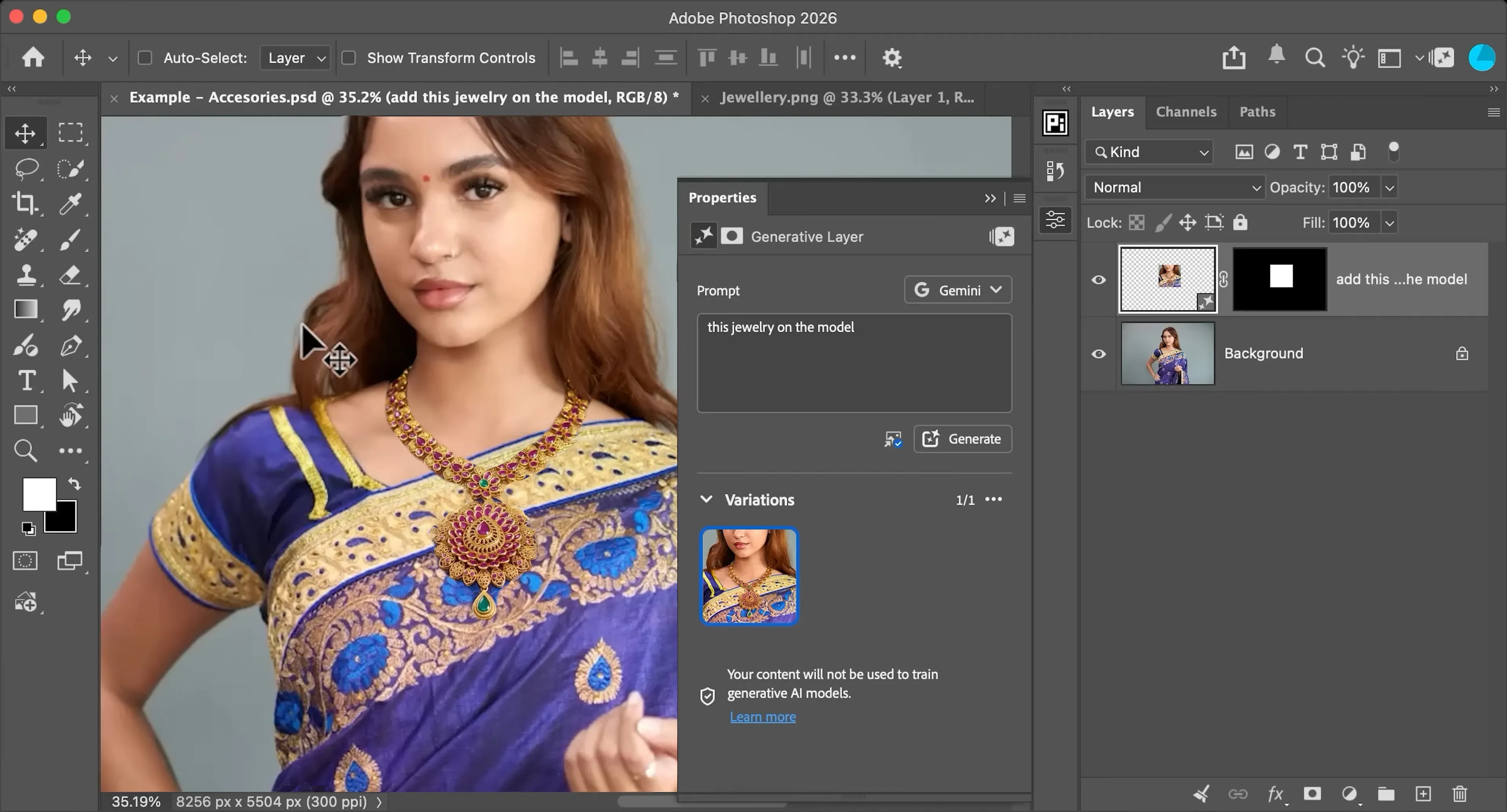
Pros of editing photos with Adobe Photoshop's AI
A blend of AI and classic control. Unlike fully generative services, Photoshop integrates AI tools directly into the familiar ecosystem of layers, masks, and blend modes. All results are saved to an editable PSD file.
High-quality seamless compositing. Tools built on Adobe Firefly are excellent at integrating new objects and accessories into a frame. The model correctly adapts lighting, shadows, and depth of field to match the original image.
Intelligent selection of even the most complex objects. Automatic selection algorithms let you isolate an object, hair, clothing elements, or the background in a single click, significantly cutting down the time spent preparing masks.
Context-aware frame expansion. The program does a good job filling in simple to moderately complex backgrounds when changing a frame's aspect ratio, while preserving the image's overall style and color correction.
Versatility. Having neural networks alongside manual tools means you don't need to export files to third-party AI services. The entire processing cycle happens in one window.
Cons of editing photos with Adobe Photoshop's AI
Distortion of fine details and facial features. When removing objects locally or using generative fill, the neural network often affects neighboring pixels. If a person's face falls within that area, the AI introduces subtle but real changes to their anatomy and individual features.
Artifacts and AI hallucinations. When trying to fill in or restore fragments containing complex architecture, repeating patterns, or strict geometric lines, the generator often produces distorted structures and unrealistic textures.
No 100% predictability. Like most generative models, Photoshop's AI redraws areas from scratch each time, which means the exact same text prompt can produce results of wildly varying quality.
Paid subscription and a generative credit system. Access to the more advanced AI features requires an ongoing Adobe Creative Cloud subscription plus extra spending on generative credits.
A high barrier to entry and demanding hardware requirements. Running the local AI tools and cloud generation smoothly and quickly requires powerful hardware, and the interface itself remains overloaded for anyone just looking for quick, simple edits.
Adobe Lightroom
Lightroom is another industry-standard tool from Adobe in this lineup. Interestingly, it uses the same AI models for photo editing as Photoshop, but because of how the editor is built, they behave differently here. Lightroom is designed for working with light, color, basic retouching, and cataloging hundreds of photos at once — not for complex graphic manipulation.
One thing worth praising Adobe for is how well they've implemented consistency between the cloud and native versions of Lightroom — the tools are fully identical. I saw this firsthand when I edited some photos while traveling, without my main computer on hand.
All I needed was to make small adjustments to a photo, check the result, and move on. So being able to select an object or area and simply move a slider turned out to be far more useful than dozens of complex tools. Once I got home, I picked up work on the very same photos in the desktop version.
I'll note that even in its current state, Lightroom's AI tools turn photo editing into something almost like a simple game. To get a good result, you don't even really need a deep understanding of exposure, color, and proper light/shadow distribution — you just check a box and use a slider to dial in the strength of the neural network's effect until the result looks right.
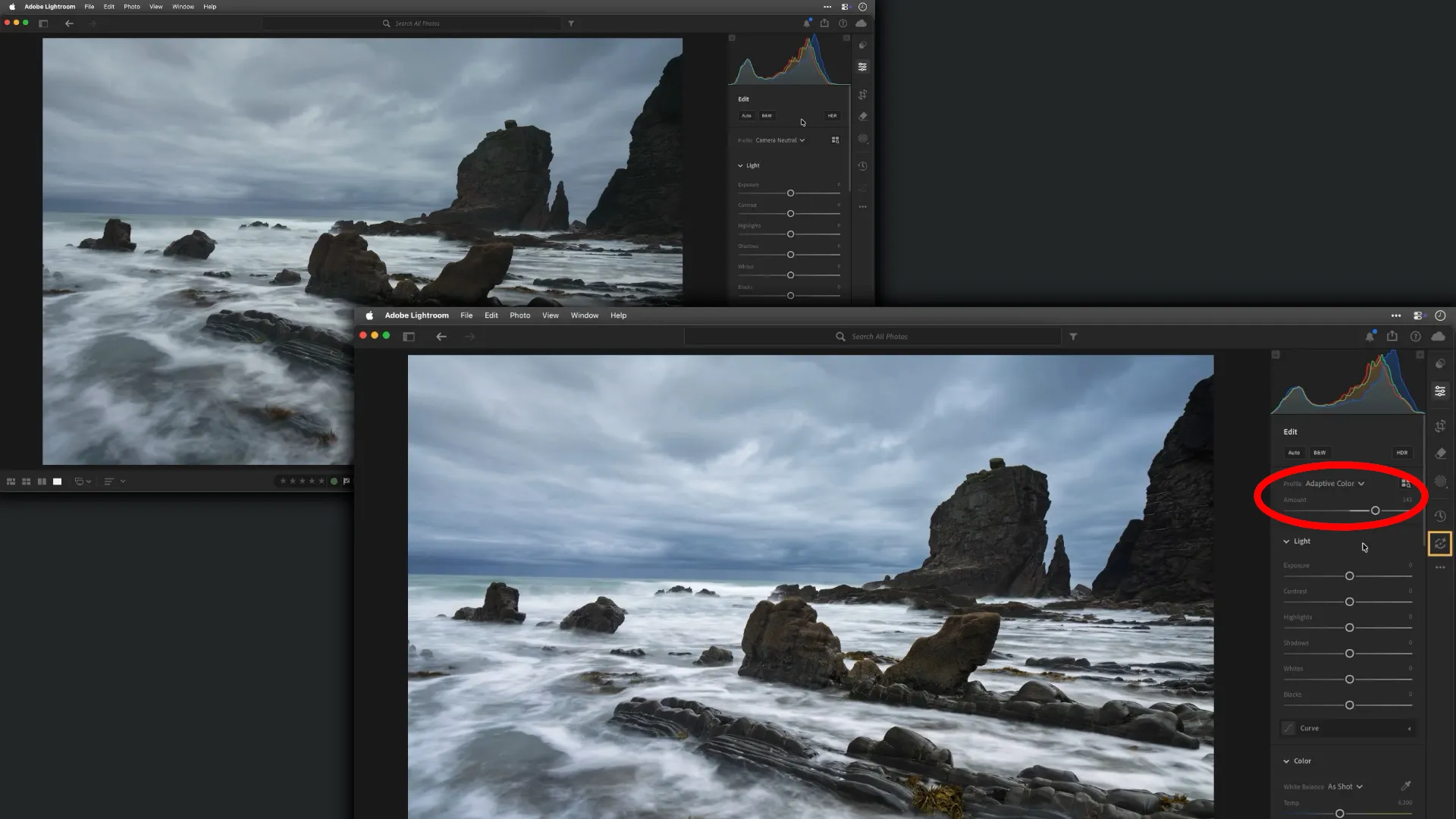
If you need to adjust a specific object in a photo using the "Mask" tool, you no longer have to manually paint it out with a brush. You just tell it to create a mask, and the neural network selects all the objects, sorting them into thematic categories.
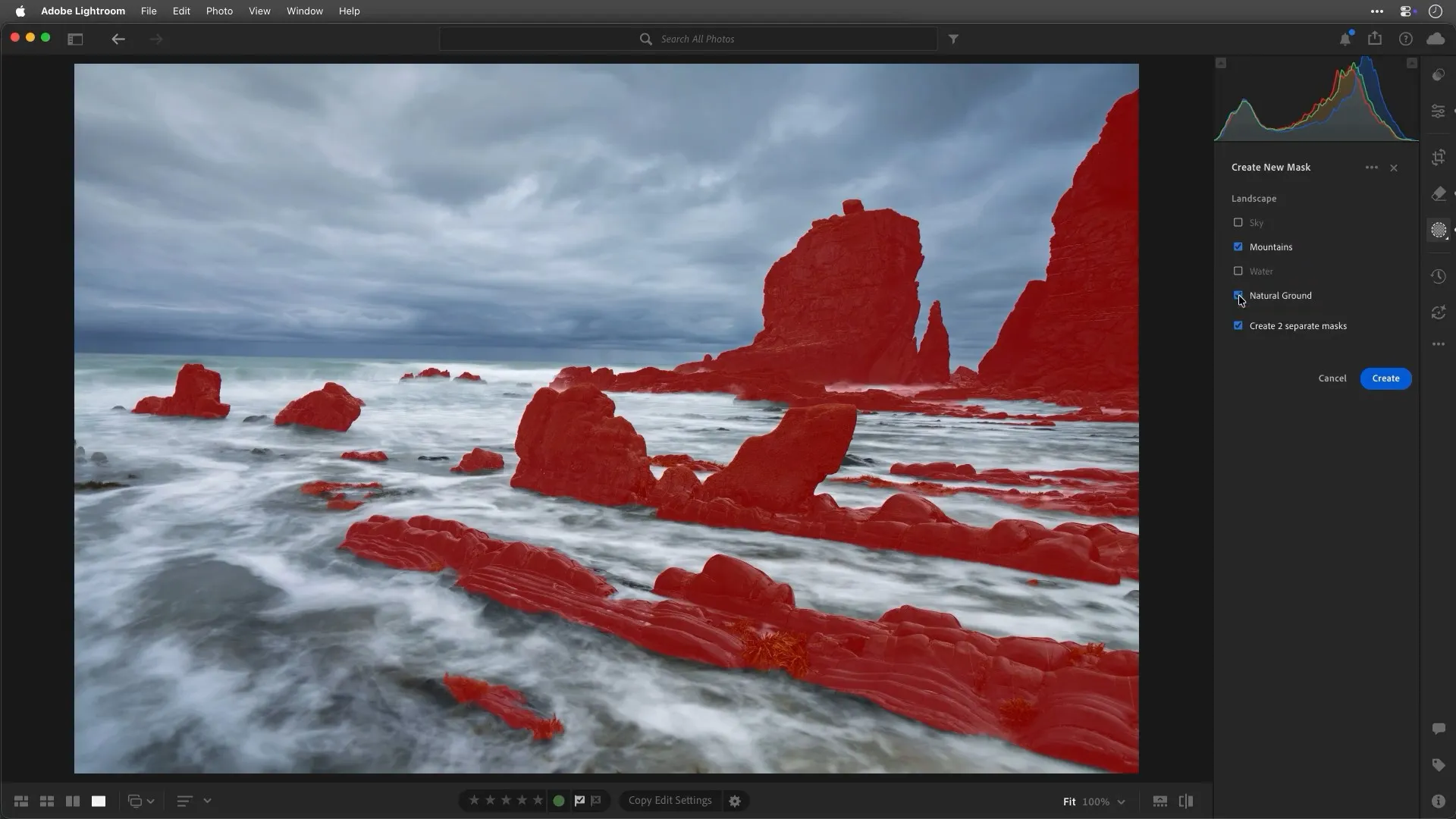
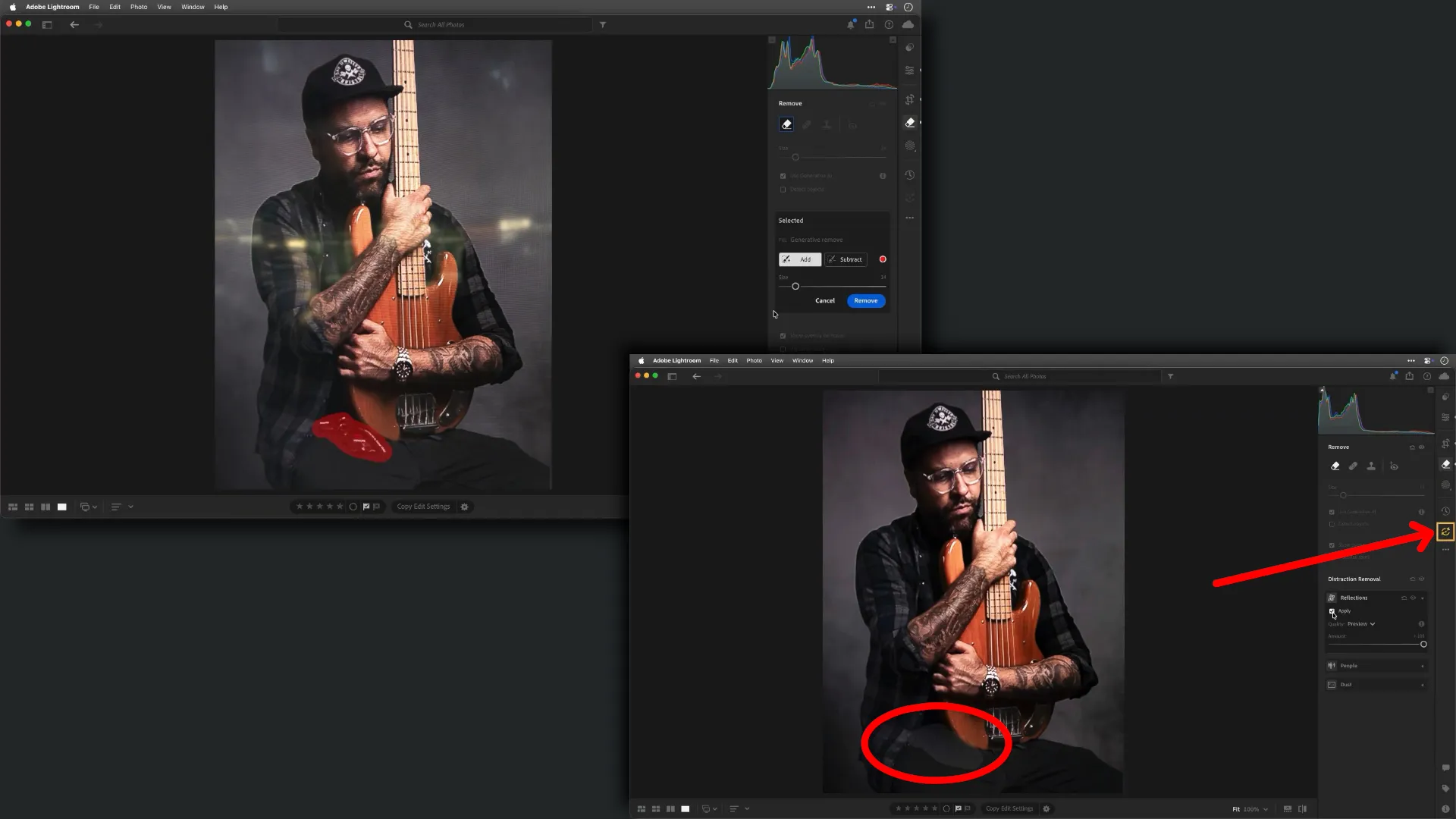
There's one thing to keep in mind when using Lightroom's AI tools, though: order of operations. For example, if you first remove an object from a photo and then apply glare removal, the spot where the object was removed becomes strongly noticeable. In that case, the AI tool usage indicator will turn yellow.
Pros of editing photos with Adobe Lightroom's AI
Intelligent masking and frame segmentation. The neural networks automatically and accurately recognize the background, sky, subject, and even individual portrait features. This lets you apply local color and light corrections in a single click, without manually painting masks with a brush.
Clear automation with flexible control. AI-based automatic color and light correction tools reduce complex exposure and contrast work down to simple sliders. Unlike generative AI, Lightroom's algorithms adjust the frame's physical parameters, keeping the outcome predictable.
Built for batch processing. A neural-network-generated mask (say, a face or sky selection) can be copied and applied across dozens or hundreds of similar photos in a series, with the AI automatically recalculating the selection boundaries for each individual shot.
Cons of editing photos with Adobe Lightroom's AI
Sensitive to the order of steps. Lightroom's AI algorithms are extremely sensitive to the order in which tools are applied. If you first remove an unwanted object with the neural network and then apply AI correction for optical defects or glare removal, the program shows a warning (a yellow indicator), and obvious seams and artifacts appear where the generation took place.
Limited AI editing capabilities. Unlike Photoshop, Lightroom's AI isn't designed to create new objects "from scratch" based on a text prompt. Its tools are limited to correcting material that was actually captured in the original shot.
Artifact issues with complex overlaps. When generatively erasing objects against a background of fine repeating textures or complex gradients, the neural network can produce a "mushy" blur or smear the sharp edges of nearby objects.
Constraints from working within the Adobe ecosystem. An internet connection is required to access the AI tools, and their use is also limited by the number of available credits.
Pixelmator Pro
Pixelmator Pro isn't the industry standard for photo editing and graphics work, but for Mac and iPad users, it's the main alternative to Photoshop. The app can do color correction, retouching, remove unwanted objects using AI, and work with layers.
Personally, I think Pixelmator Pro's interface deserves special mention — it's more compact and intuitive. Mastering the full feature set still takes time, of course, but it's faster and easier than learning Photoshop.
I should note that Pixelmator Pro can be used on subscription as part of other apps bundled in Apple Creator Studio, or purchased separately with a lifetime license. Regardless of which option you choose, the AI tools for photo editing run locally. This guarantees your work is never sent to a third-party server or used to train future models.
That said, while testing Pixelmator Pro I found myself asking a question: am I really looking at an AI tool here, or just a well-automated classic algorithm?
I specifically compared the results of automatic object selection and background removal with what you can get in free GIMP. And the longer I looked at the photos, the more it felt like the underlying principle here is much closer to ordinary intelligent selection and area-fill than to a generative neural network.
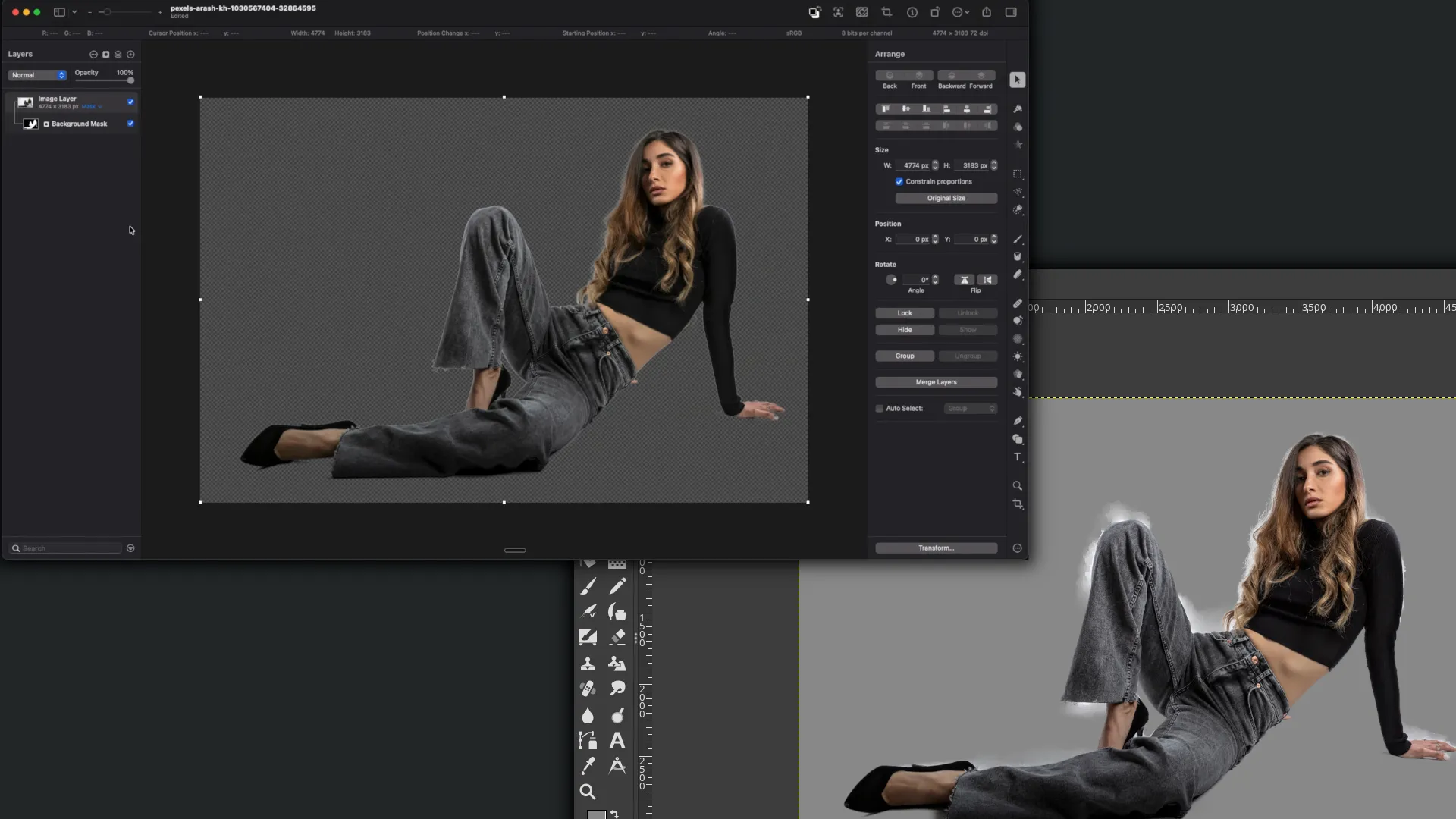
These days the term "AI" gets used almost everywhere, but the mere presence of that label in an interface doesn't really tell you how different the underlying technology actually is from familiar tools. So in this review, I tried to focus not on what a feature is called, but on the actual result.
It's especially noticeable that Pixelmator Pro relies on pixel-level mathematical calculations when isolating the foreground in a photo with a complex composition.
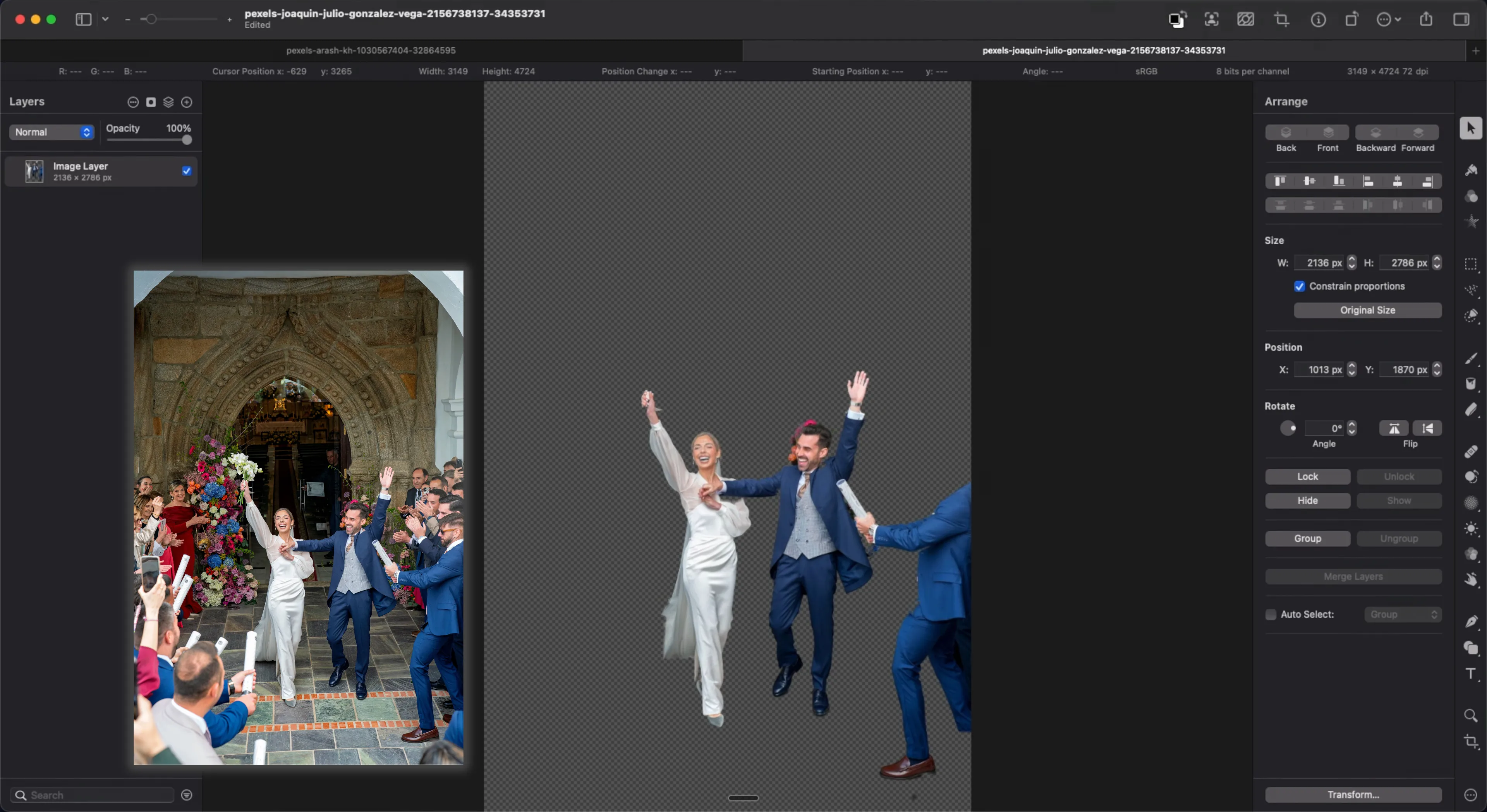
Why did I suspect a mathematical approach to calculating the foreground specifically? Based on what I observed, a genuine AI handled this task very differently. Gemini, for instance, redrew the image and its details don't quite match the original, but the background removal itself came out much cleaner.
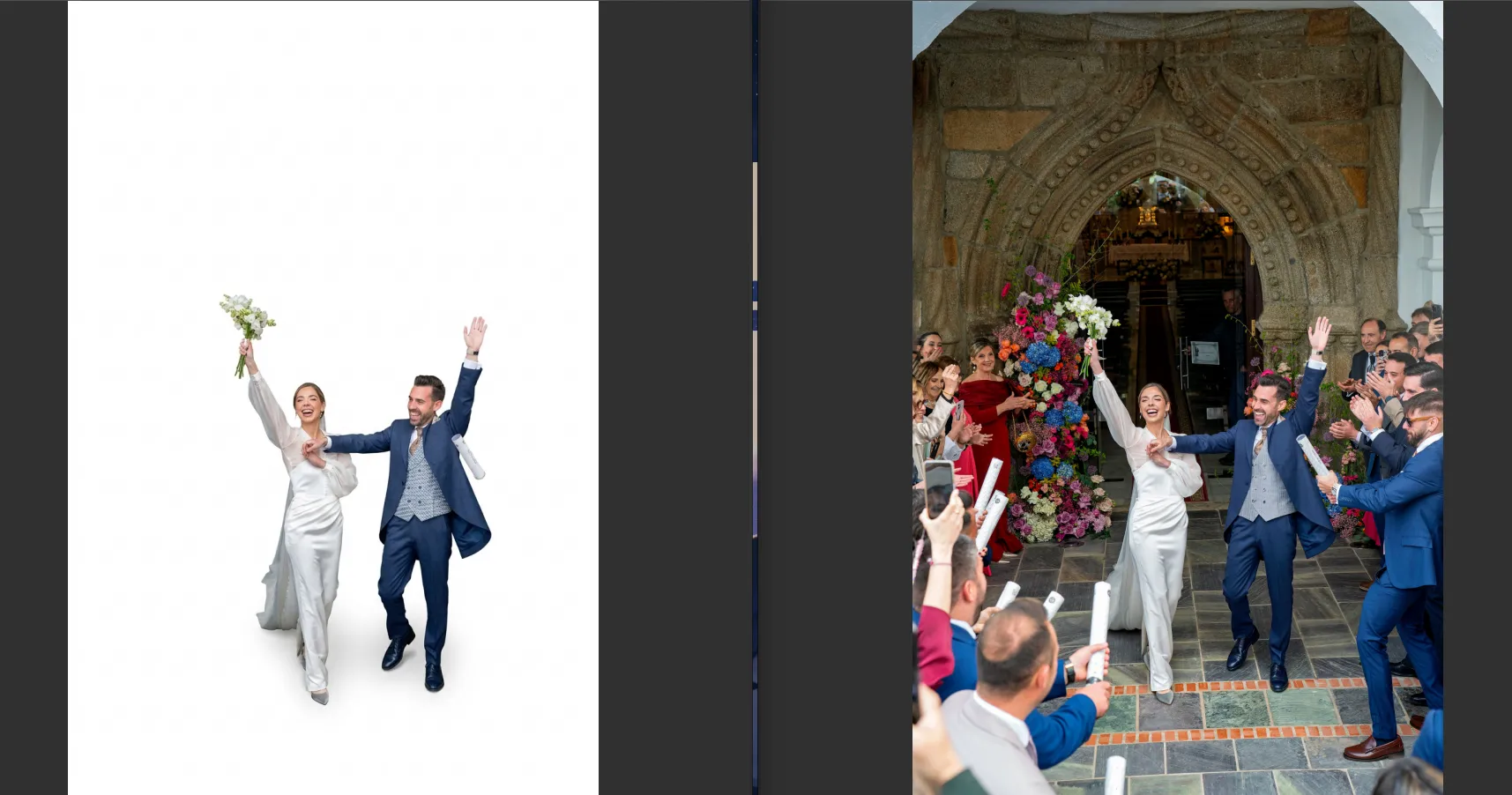
But unlike Gemini, the flaws in Pixelmator Pro's output are easy to fix using the similar-area selection tool and by adjusting the mask's area of effect.
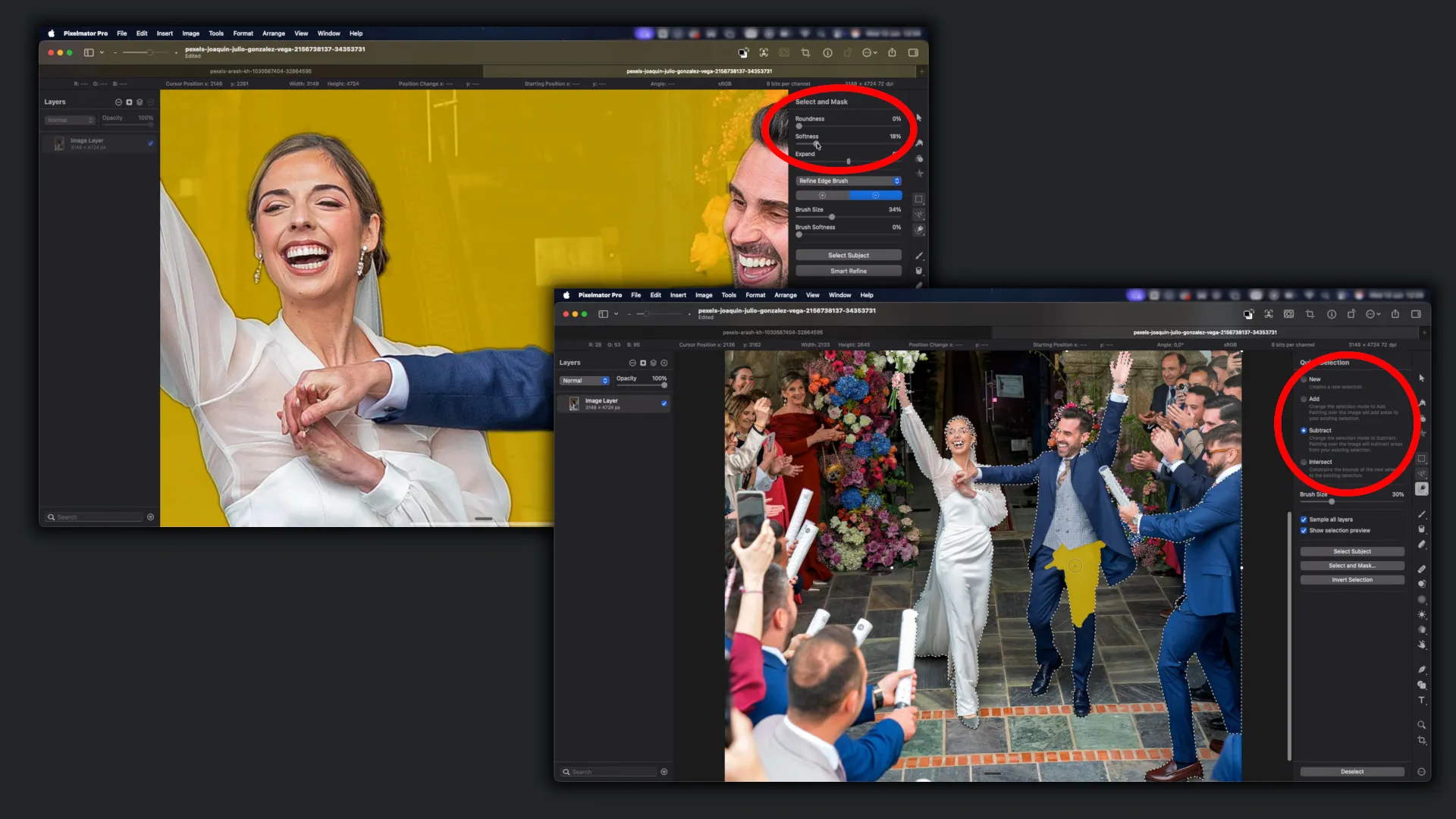
Now, about the "Remove Objects" feature, which in Pixelmator Pro is also billed as an AI tool.
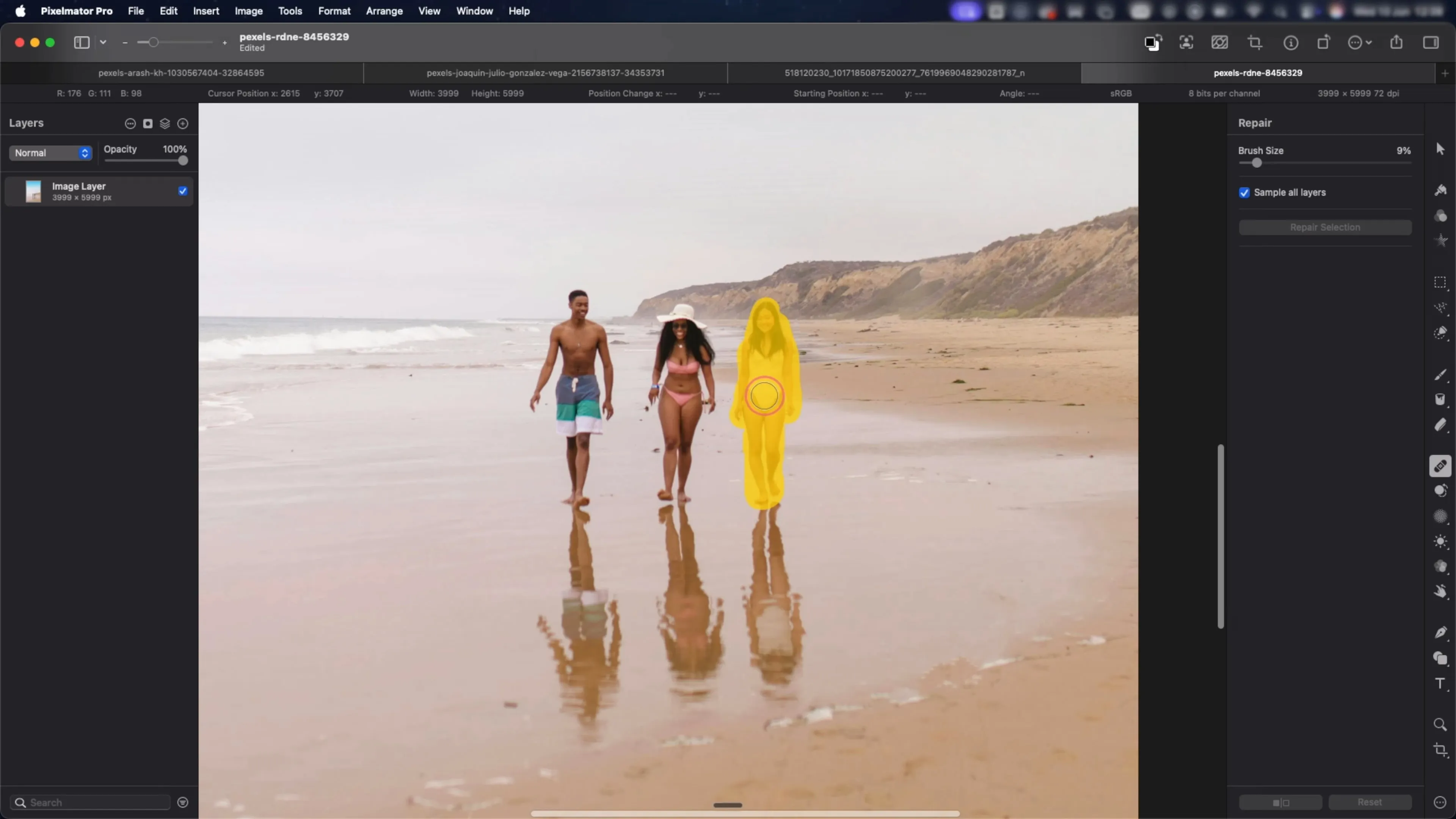
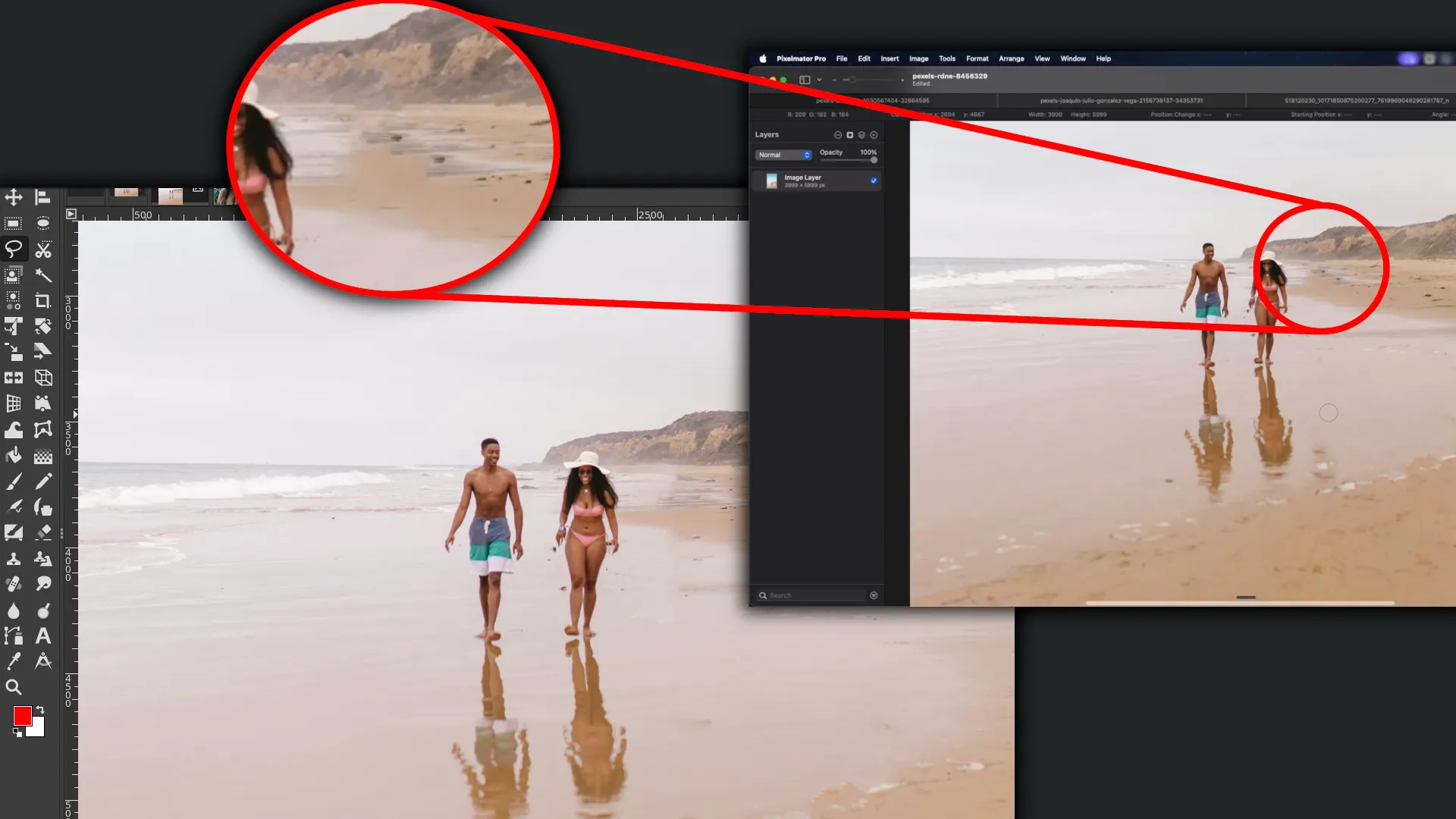
I noticed that, just like with background removal, its effectiveness doesn't match up to how, say, the equivalent tool works in Photoshop or Lightroom. Again, it feels much more like the Resynthesizer plugin in free GIMP than a full-fledged AI. This is especially clear if you look closely at the details around where the selected object was removed — it feels like it used a Healing Brush or simply a "Clone Stamp" tool from a classic editor.
In my view, where Pixelmator Pro's AI genuinely delivers is in photo upscaling. For example, here's how the program handled improving a photo of the famous ballerina Anna Pavlova performing in Berlin.
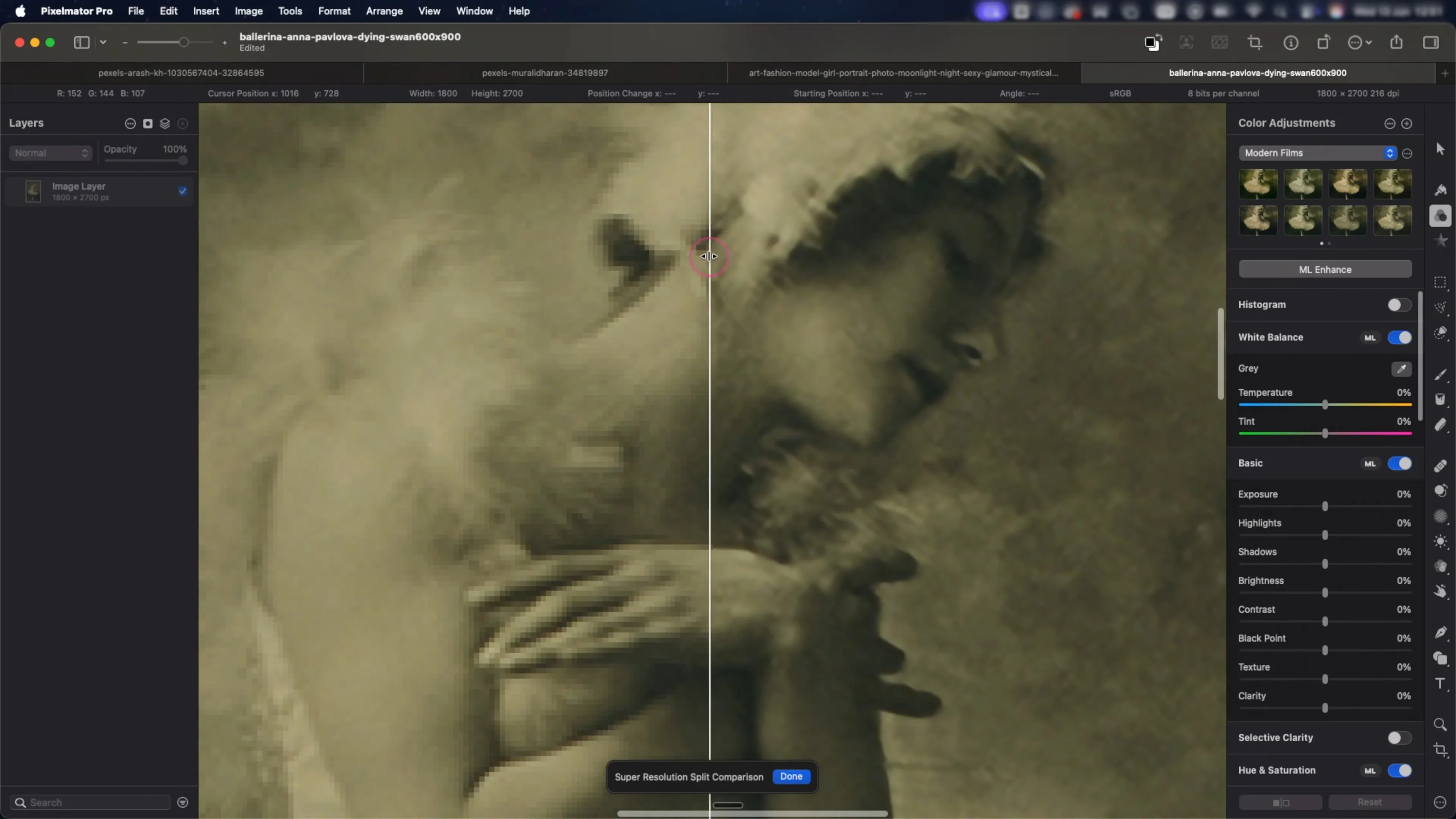
Yes, the blur in the image couldn't be removed, but the pixelation was significantly reduced.
Pros of editing photos with Pixelmator Pro's AI
Local processing. All of Pixelmator Pro's AI tools run directly on the device. Images are never sent to third-party cloud servers or used to train models, which guarantees full privacy and fast performance even without an internet connection.
Native integration into the Apple ecosystem. The app fits perfectly into the macOS and iPadOS interface. Unlike overloaded traditional professional editors, Pixelmator Pro offers a clean, compact, and visually clear design.
Flexible pricing model. Apple offers a one-time purchase of Pixelmator Pro with a lifetime license, as well as access through subscription app bundles.
High-quality AI upscaling. The tool effectively restores detail and smooths out pixelation even in archival or heavily compressed low-resolution photos.
Editing flexibility. Even though automatic masks and foreground selection don't always work perfectly, Pixelmator Pro provides convenient classic tools. This lets you polish AI-processed results to the quality you want in just a couple of clicks.
Cons of editing photos with Pixelmator Pro's AI
A weak object-removal algorithm. In practice, the tool for erasing unwanted elements works more like a traditional smart clone stamp or the Resynthesizer plugin from GIMP than a full generative AI.
Errors in automatic background removal. The foreground selection tool often relies on mathematical contrast-based edge detection rather than a genuine understanding of the frame's context. On complex shots, the program leaves jagged edges or cuts off parts of the object.
No generative fill. Pixelmator Pro lacks proper text-prompt-based generative tools. The program can't paint in missing elements from scratch or change objects in a photo based on a description.
Strictly tied to Apple. The app is available exclusively on macOS and iPadOS. Windows or Android users have no way to use this editor in their work at all.
Skylum Luminar
Like Pixelmator Pro, Luminar is a "new school" photo editor. Even factoring in its early development dating back to 2017, it's still nowhere near as established as Photoshop (1990) or Lightroom (2007). The modern version of Luminar that actually gained widespread recognition only dates back to 2022.
This is where, for the first time, I genuinely got the sense that AI actually cuts out routine work rather than just being a marketing gimmick to justify a higher price.
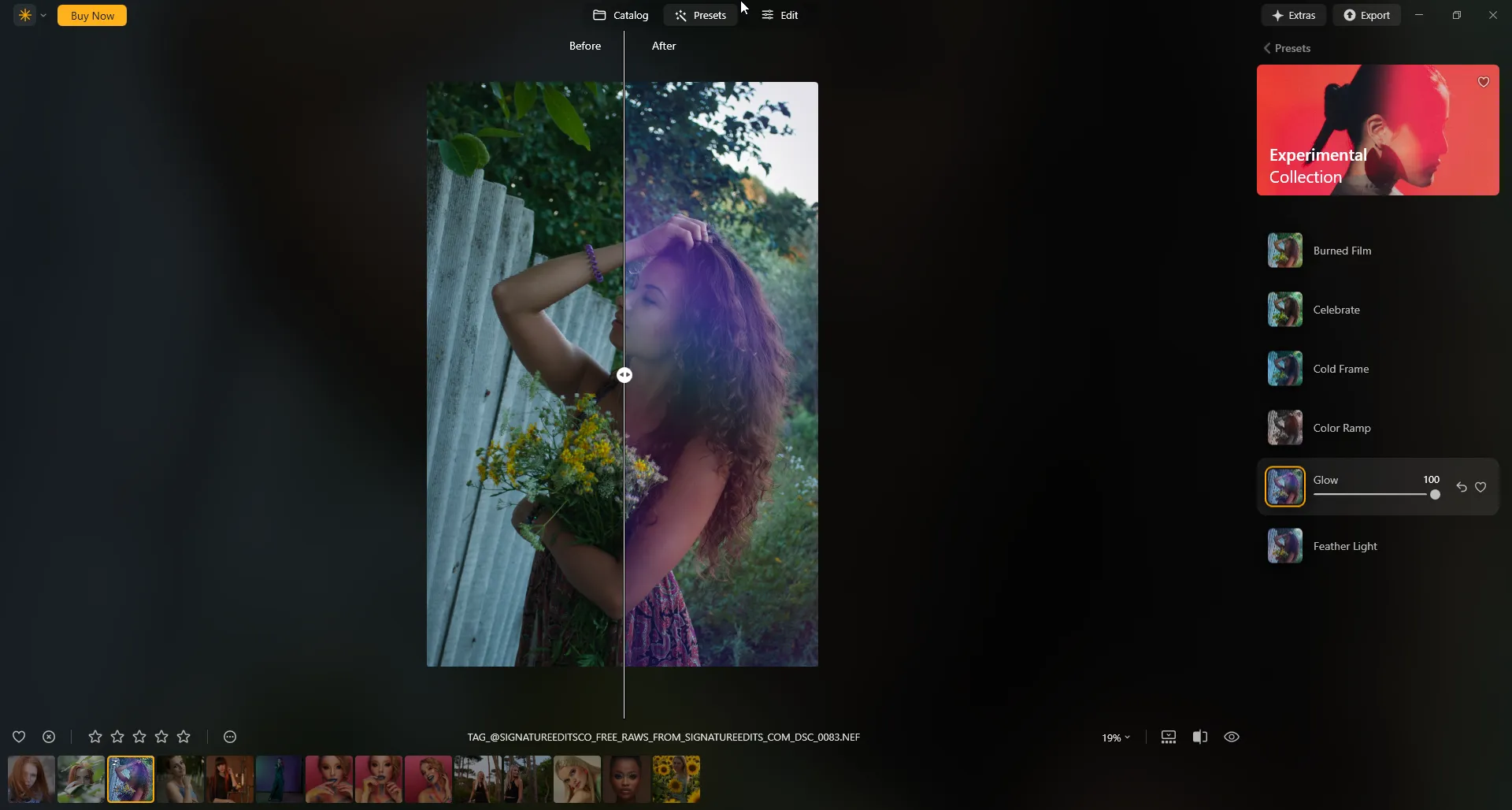
The program is designed primarily for editing RAW negatives, so it really does have a lot of tools for color correction, exposure, light, and shadows. That said, some of its features clearly show the developers took inspiration from the simplicity of mobile apps — the "Presets" section, for example, lets you completely transform a photo in a single click.
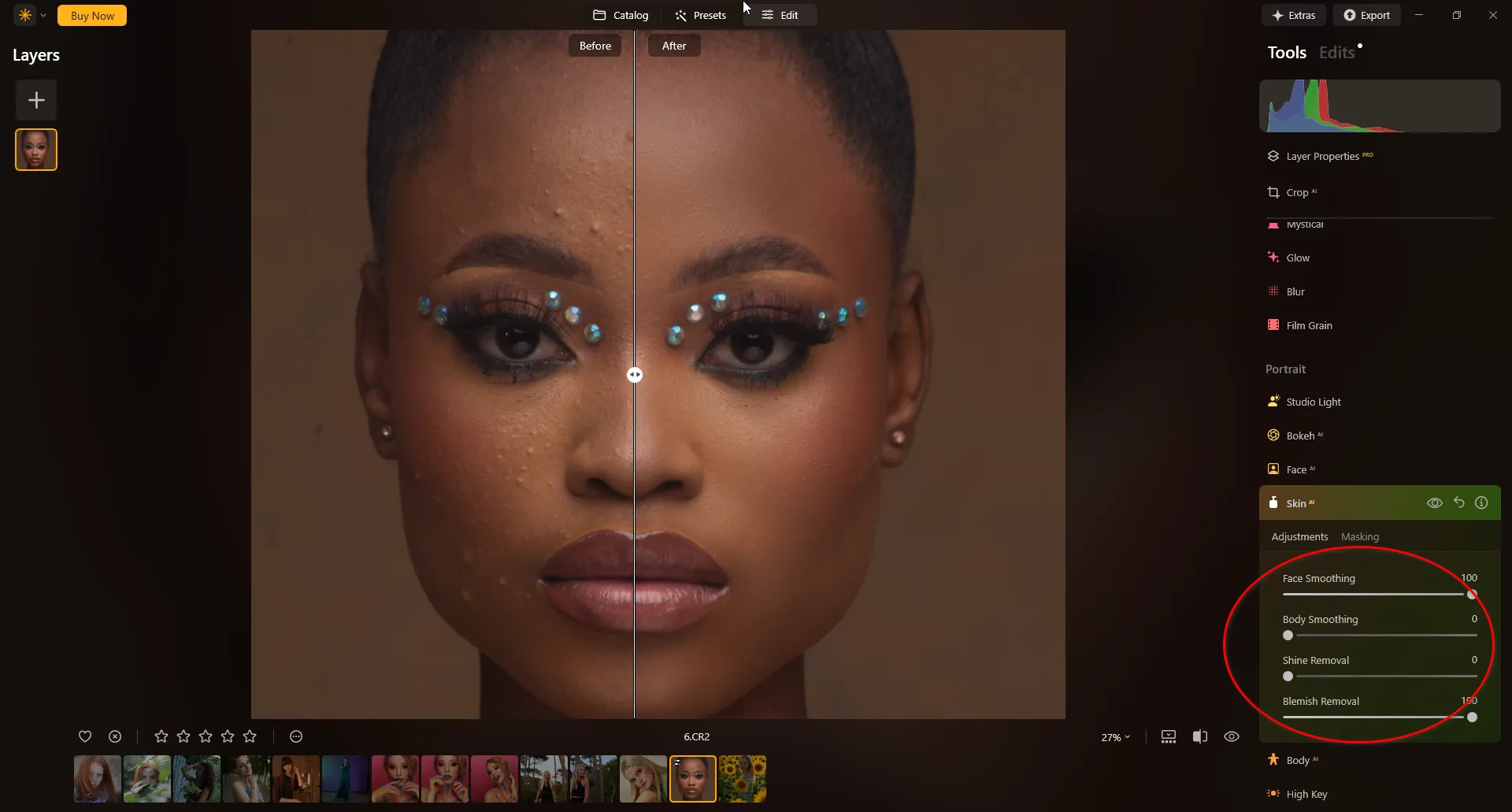
What impressed me was how well Luminar's AI tools work in portrait retouching. Doing it all manually turns even a small skin correction into a whole sequence of operations: zoom in, find the flaws, pick a tool, carefully work the area, check the result, and go over the photo again. Tolerable for one photo, but when you have dozens of them, the process gets tedious fast.
In Luminar, I tried doing the exact same thing but using the automated tools instead. Instead of manual work, all it took was adjusting a handful of parameters. The result wasn't absolutely perfect, but the important thing is that most of the routine work disappeared in a matter of seconds.
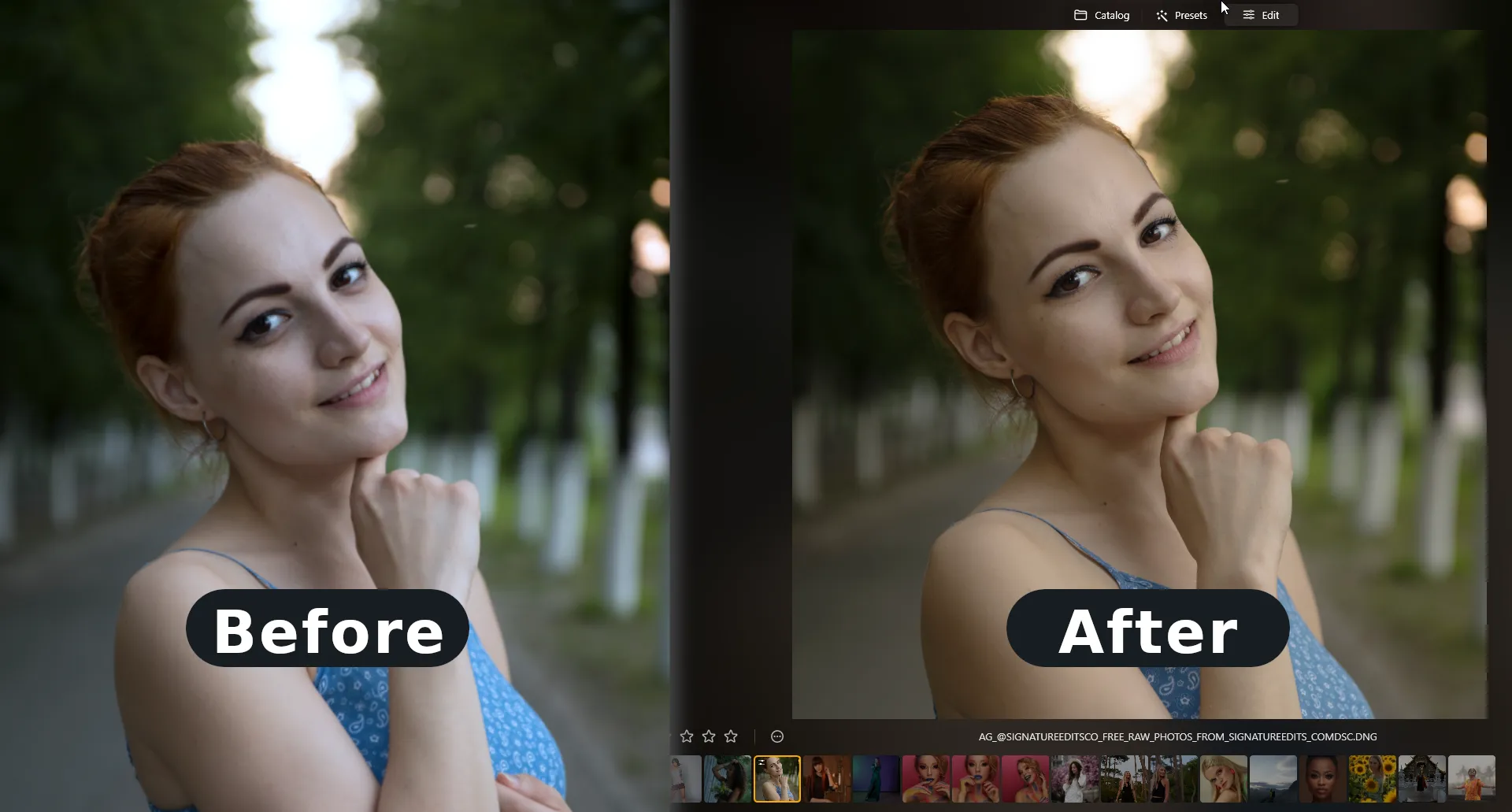
Luminar is now going to be my go-to app whenever I need to get rid of dark circles, puffiness, or just make eyes look more expressive, since all of that can be done in a couple of mouse clicks here, without manual retouching tools, layers, or filters.
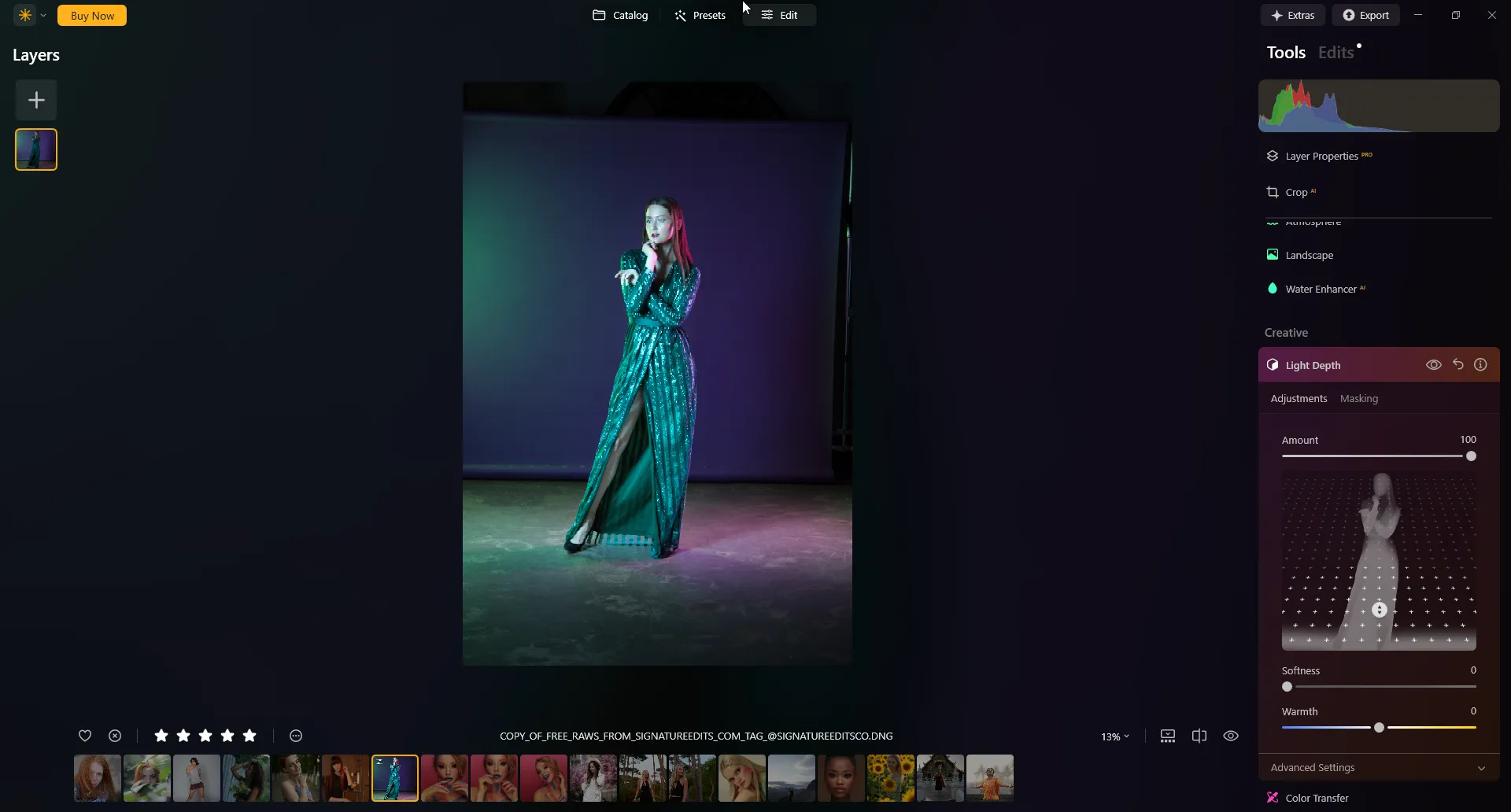
What's especially impressive is how the AI handles light-depth editing. The neural network accurately determines the position of the foreground subject and builds a complete 3D depth map of the shot. That lets you control lighting in three-dimensional space, accounting for perspective — and the whole editing process comes down to simply moving sliders and a control point.
Pros of editing photos with Luminar
Deep AI retouching. Automatic skin retouching, skin-tone correction, dark-circle removal, and body reshaping tools deliver a natural-looking result in seconds using just a couple of sliders, saving the time it would take to draw masks and layers by hand.
Intelligent light control. The program's algorithms build a complete 3D depth map of the shot, letting you move a light source within the frame's perspective, evening out harsh shadows and locally adjusting exposure based on the distance to objects.
Flexible usage options. Luminar can be used as a standalone app or as a plugin for Adobe Photoshop or Lightroom.
Cons of editing photos with Luminar
Demanding on system resources. Because of the complex computational algorithms, the program puts a heavy load on the CPU and GPU.
Aggressive marketing strategy. Skylum frequently changes product concepts and lineups (Luminar 4, Luminar AI, Luminar Neo), periodically forcing users to pay for major updates or separate AI extensions.
Automatic processing quality depends heavily on the source. With photos that have a lot of digital noise or complex object overlap, the AI algorithms can get depth maps and masks wrong, creating "mushy" patches or unrealistic glow gradients.
Evoto AI
Evoto AI is an AI editor specifically built for automating the processing of commercial portrait photography. Automation here covers not just editing, but also culling shots — and it was this culling functionality that particularly caught my interest.
Up to this point, I'd mainly thought about how AI could improve a photo that had already been chosen. Evoto AI made me look at the process from a different angle: what if the neural network could help decide, from the start, which photos are even worth editing?
This seemed especially logical when you have a lot of shots that differ only in small details. Some frames might be technically fine, but in one the person blinked, in another they made an awkward expression, and in a third the shot just isn't sharp enough.
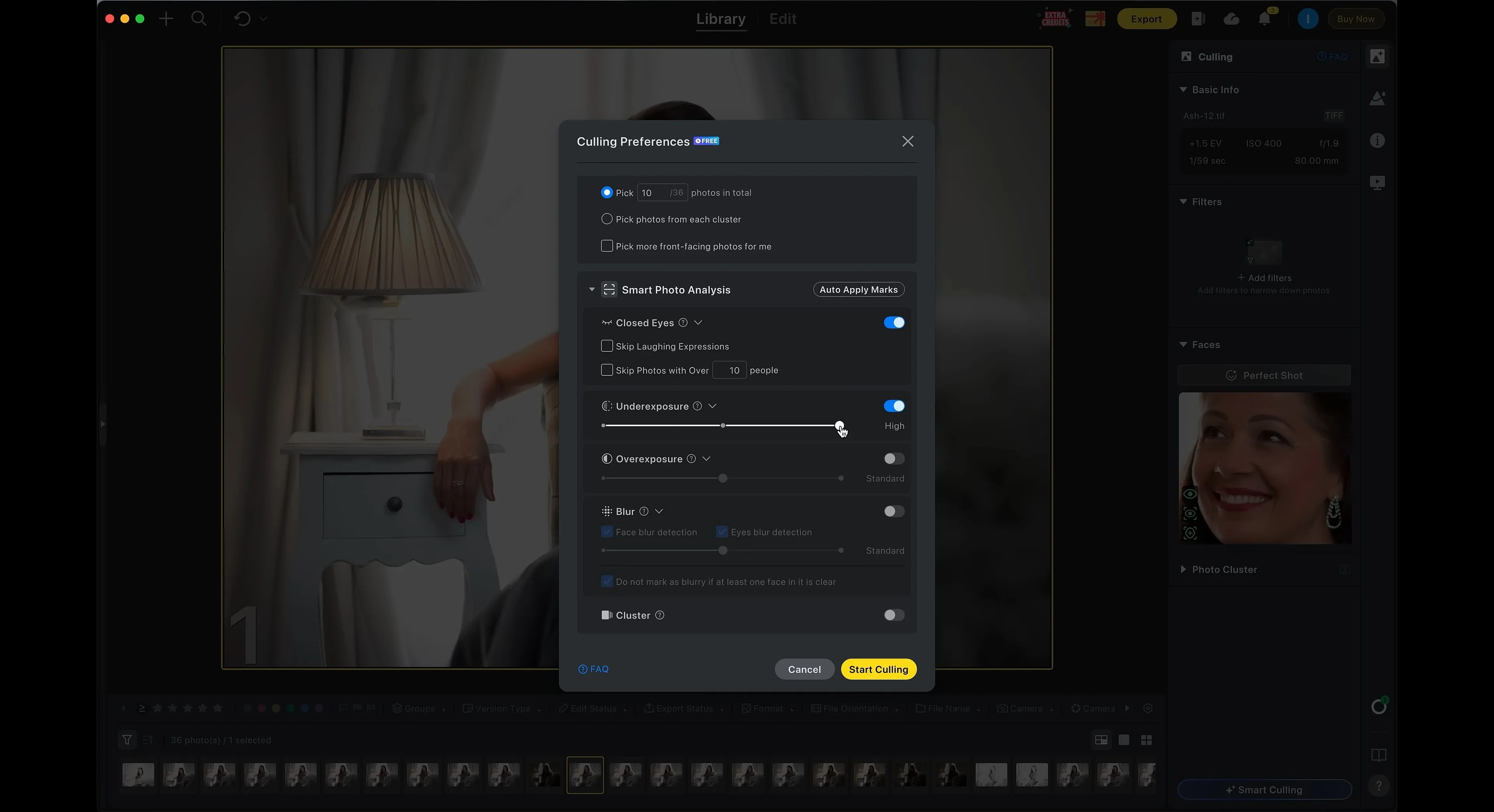
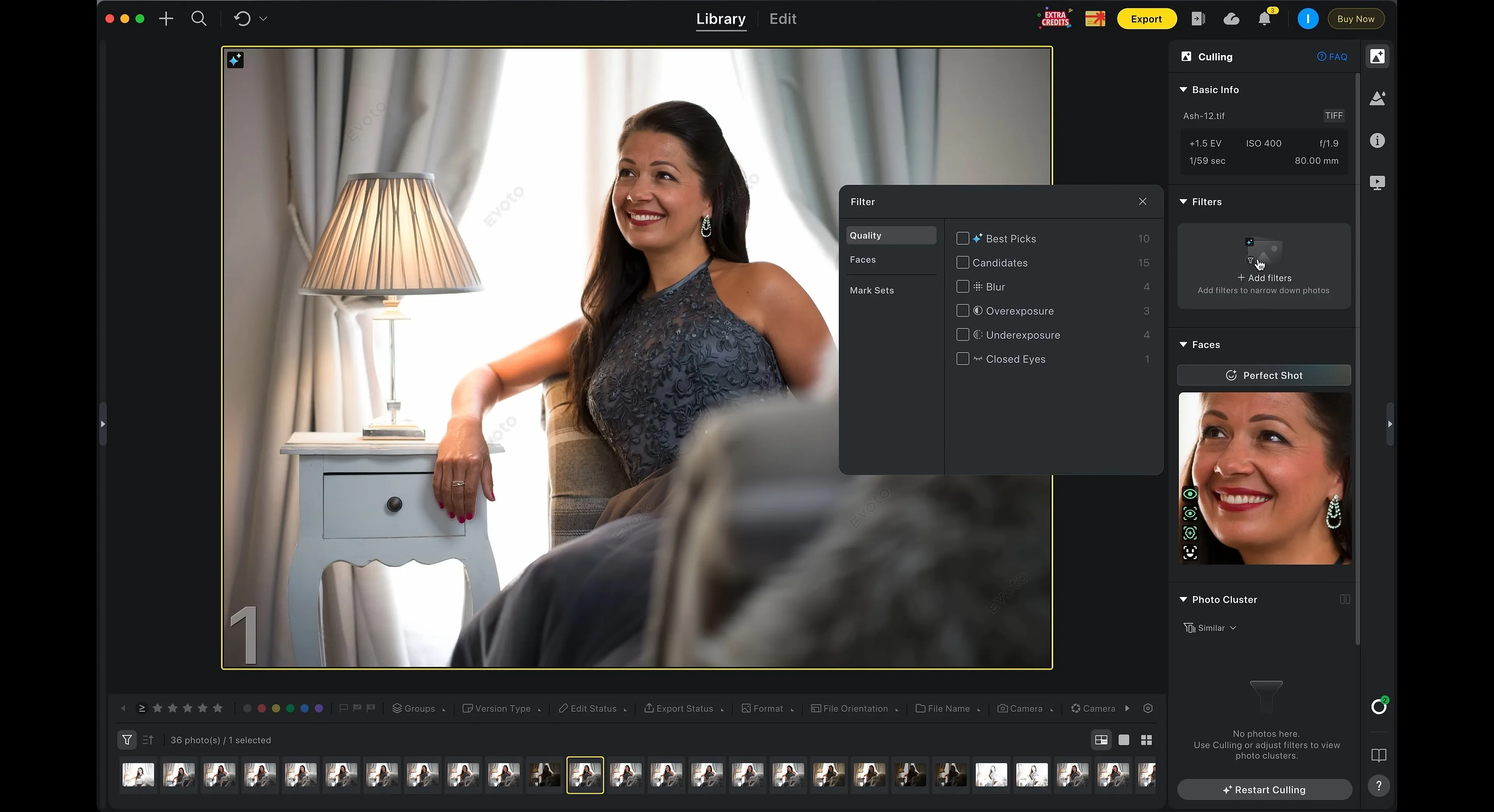
The most interesting part is that the AI here doesn't try to make the final call instead of you. It compiles an initial shortlist and leaves any borderline photos for manual review. For me, this approach turned out to be far more practical than the idea of fully automatic processing.
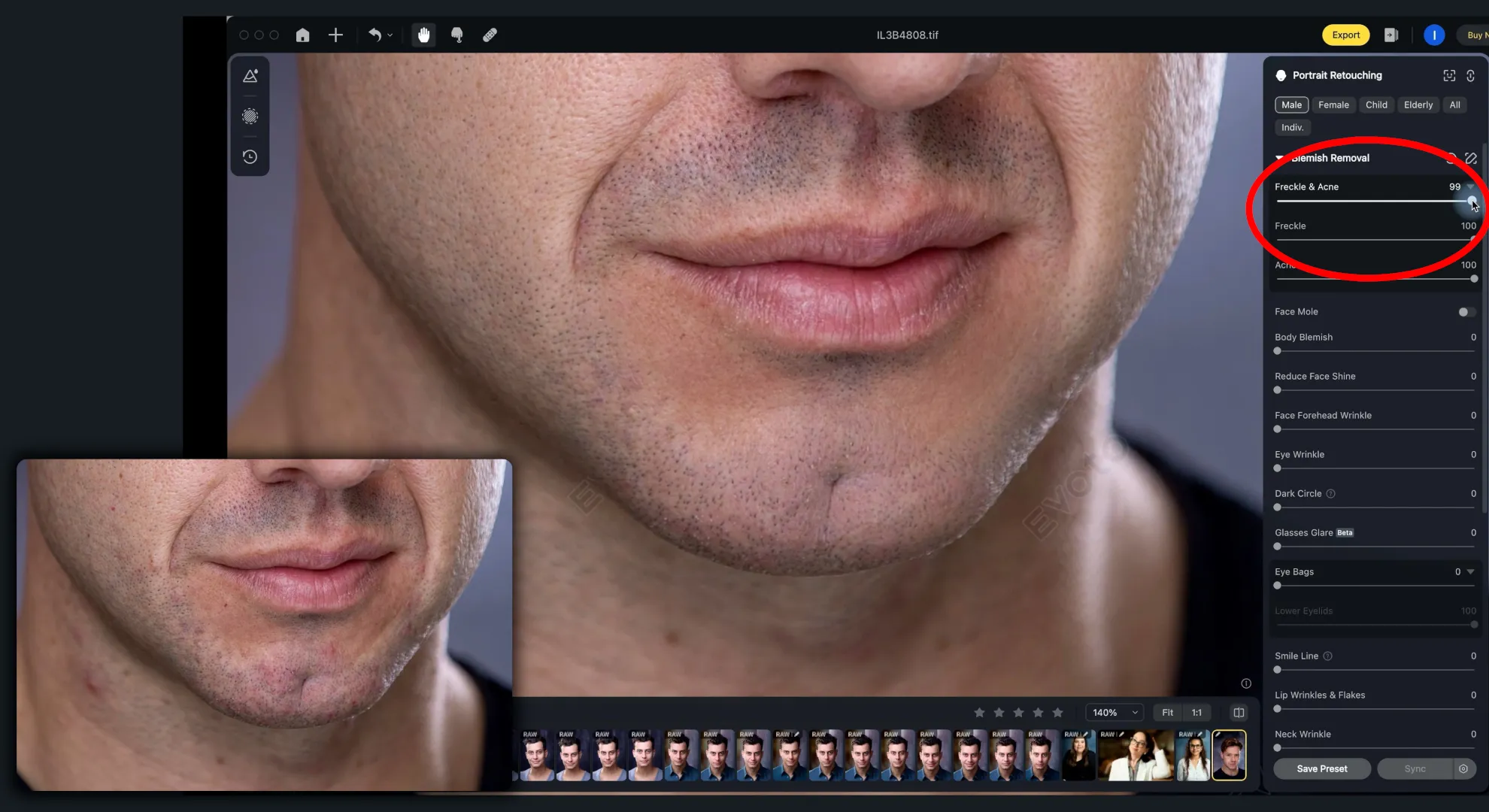
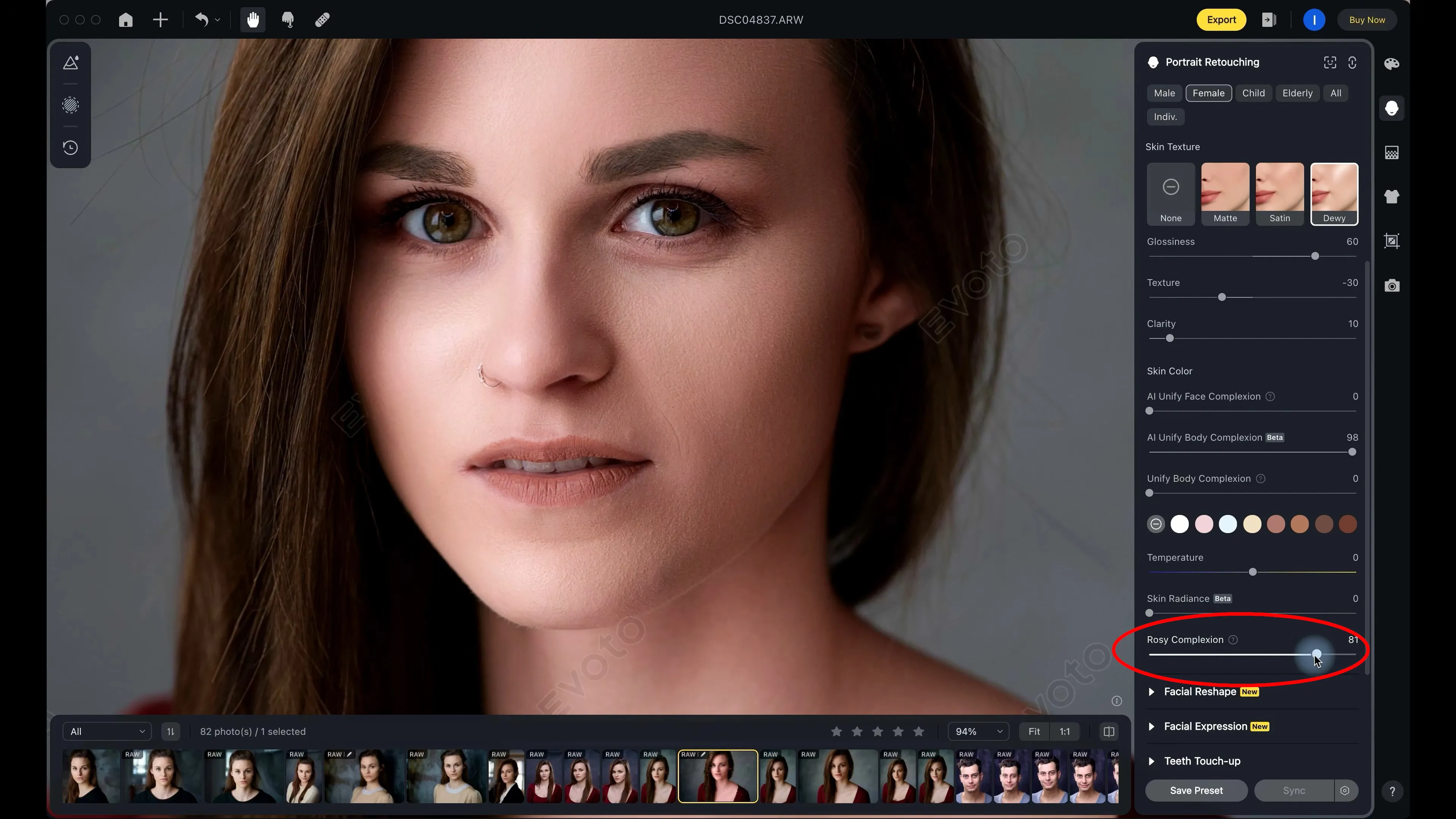
The program handles retouching well, even with tricky shots like men's portraits. The AI editing removes flaws while keeping the natural features of the face intact.
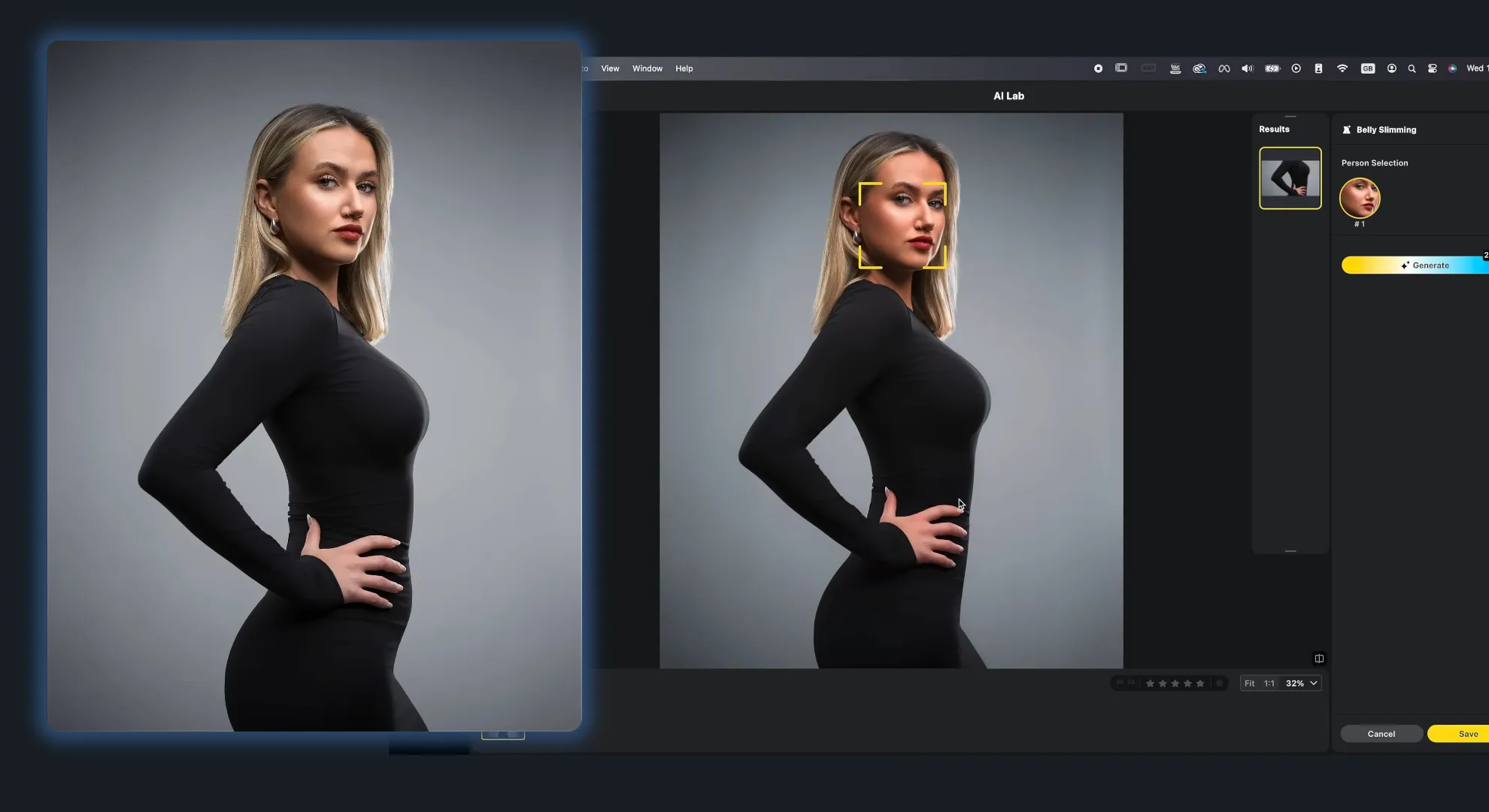
That said, Evoto AI's capabilities aren't limited to portraits. It also includes several body-related features. For example, you can perform body-shape correction in a single click.
Or you can even out skin tone on the body or face without needing masks or the "Contour" tool — just move a slider until you get the best result.
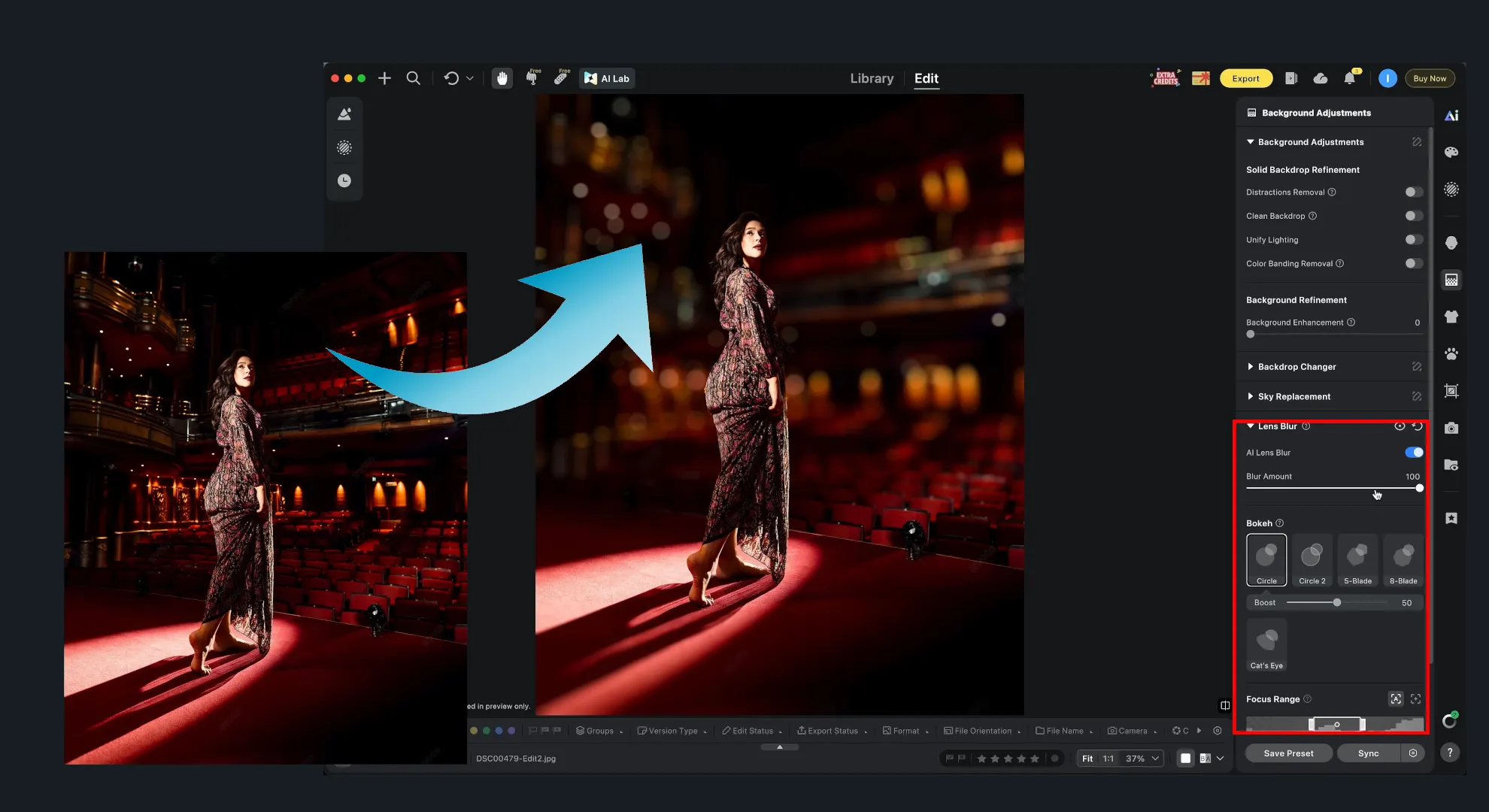
Another tool that significantly cuts down on tedious photo work is lens blur. This effect mimics the soft, out-of-focus background you get from a real camera shooting with a wide-open aperture.
To achieve this effect with traditional tools, you'd first have to select the foreground subject, place it on a separate layer, and only then apply blur. In Evoto AI, though, you just need to set three parameters: intensity, focal point, and bokeh shape.
At this stage, though, I started thinking more and more about what actually happens to a photo after you hit "Process." While you're testing tools on random images, you don't really think about it. But when it's your personal photo archive or work materials you'd rather not send off somewhere unknown, the situation changes.
Take Evoto AI. The app itself sits on your computer, but the actual heavy computation happens in the cloud. It creates an interesting paradox: the program feels fast and convenient precisely because all the heavy lifting is done by a remote server. But that same thing also becomes its biggest limitation for cases where you'd rather not upload a photo anywhere at all.
Pros of editing photos with Evoto AI
Automated culling and sorting of shots. The built-in AI model can perform an initial selection of photos based on quality, sharpness, and even facial expression criteria.
Deep control over body anatomy and tone. The program offers specialized tools for correcting body shape and evening out skin tone on the face and body, without needing to manually draw masks or use the vector "Contour" tool.
Simulated optics physics. The background-blur tool automatically builds a depth map and lets you adjust intensity, focal point, and bokeh/glare shape in a couple of clicks, eliminating the need to manually separate the subject onto a new layer.
High processing speed. Retouching presets and settings can easily be applied to hundreds of similar photos, and most of the computation is handled by cloud infrastructure, sparing your local hardware.
Cons of editing photos with Evoto AI
"Cloud dependency." The Evoto AI desktop app is essentially just a graphical shell. All analysis and retouching happen on remote servers, so processing is impossible offline or with an unstable connection.
Credit-based payment system. The service uses a financial model where you buy credits for exported photos. Unlike traditional programs with a lifetime license or a fixed monthly subscription, here you pay for every single processed final shot.
Narrow scope of tools. Evoto AI isn't well suited for complex artistic compositing, working with architecture, or creating illustrations.
Comparison Table of AI-Powered Photo Editors
| Program | Processing Type | Main Purpose & Key Features | Payment Model |
|---|---|---|---|
| Adobe Photoshop | Cloud (Firefly) + Local control | Complex compositing, generative fill and boundary expansion, layers, masks, and PSD support | Subscription (Adobe CC) + generative credit system |
| Adobe Lightroom | Hybrid | Batch color and light correction, cataloging, intelligent object masking | Subscription (Adobe CC) + generative credit system |
| Pixelmator Pro | Local | High-quality classic editing, AI upscaling, auto-selection, macOS/iPadOS integration | One-time purchase (lifetime license) or Apple Creator Studio |
| Skylum Luminar | Local/Hybrid | Automated portrait retouching, 3D light-depth map generation, RAW processing | One-time license purchase/Subscription/Separate AI extensions |
| Evoto AI | Cloud | Automating commercial portrait shoots, AI photo culling, body reshaping, and physically-based bokeh | Pay per exported shot (credit system) |
Conclusion
By the end of my testing, I never did find that one universal AI editor I could install and then forget about every other tool. And honestly, at this point, I no longer see that as a downside.
Through this search, I arrived at a fairly simple realization: different programs solve different problems. Photoshop turned out to be useful wherever generation and complex compositing were needed. Lightroom shines when you need to quickly process a large series of photos. Pixelmator Pro won me over with its local processing and convenient interface. Luminar proved especially useful for automating portrait retouching and lighting work. Evoto AI showed just how far you can push automation in culling and commercial portrait processing.
At the same time, almost every tool had at least one moment where the developers' promises didn't match what actually happened in practice. In one place the neural network altered a person's face, in another it created strange architectural details, and in yet another, a nice "AI" label was hiding a fairly conventional algorithm underneath.
That's why predictability remains very important to me: whether a tool's mistakes can be fixed, where the processing actually happens, and how well the program fits into my usual workflow.
Privacy is a separate issue I care about a lot. Given a choice between a cloud-based tool and a local one, I'll pick the local option every time. A local neural network might run slower, need a more powerful graphics card, or occasionally fall a bit short of a cloud model's generation quality — but in exchange, the original photos stay on my computer, the program can be used without a constant internet connection, and the result doesn't depend on whether the developer keeps supporting a particular web service.
Frequently Asked Questions (FAQ)
Is it safe to upload photos to AI editors?
The answer depends on how the program processes images. With local editors, all computation happens on your own computer's CPU and GPU — images are never sent over the network, which guarantees 100% privacy. With cloud-based editors, processing happens on a remote server. As a result, your shots may be used to further train generative models, and processing itself is impossible without a stable internet connection.
Will AI photo editors replace traditional programs like GIMP or Photoshop?
Not at this point. AI is excellent at speeding up routine work (removing skin flaws, selecting objects, rough color correction, culling), but it isn't predictable. For precise control, complex compositing, print preparation, and fixing generation errors, you'll still need classic tools: layers, masks, a spot healing brush, and manual selections.
Why does AI distort faces and "hallucinate" on complex objects?
Generative AI doesn't "fix" pixels — it creates a new image based on mathematical probabilities and text prompts. When removing objects near a person, the neural network tries to fill in the freed-up space, and in doing so can end up altering nearby facial features. On objects with strict geometric lines (architecture, molding, textures), the model doesn't have enough context, which leads it to generate unrealistic patterns.