From the very beginning, OneDrive was focused primarily on storing documents and corporate data rather than users' photo collections. As a result, the service works very well for work files and is deeply integrated into Microsoft Office products, but for a long time it lagged behind competitors when it came to storing and managing photo archives.
That is why OneDrive still lacks a truly convenient tool for working with photos. Even the Windows app, which is still available in preview mode, is more of a web wrapper for accessing cloud storage than a full-fledged program.
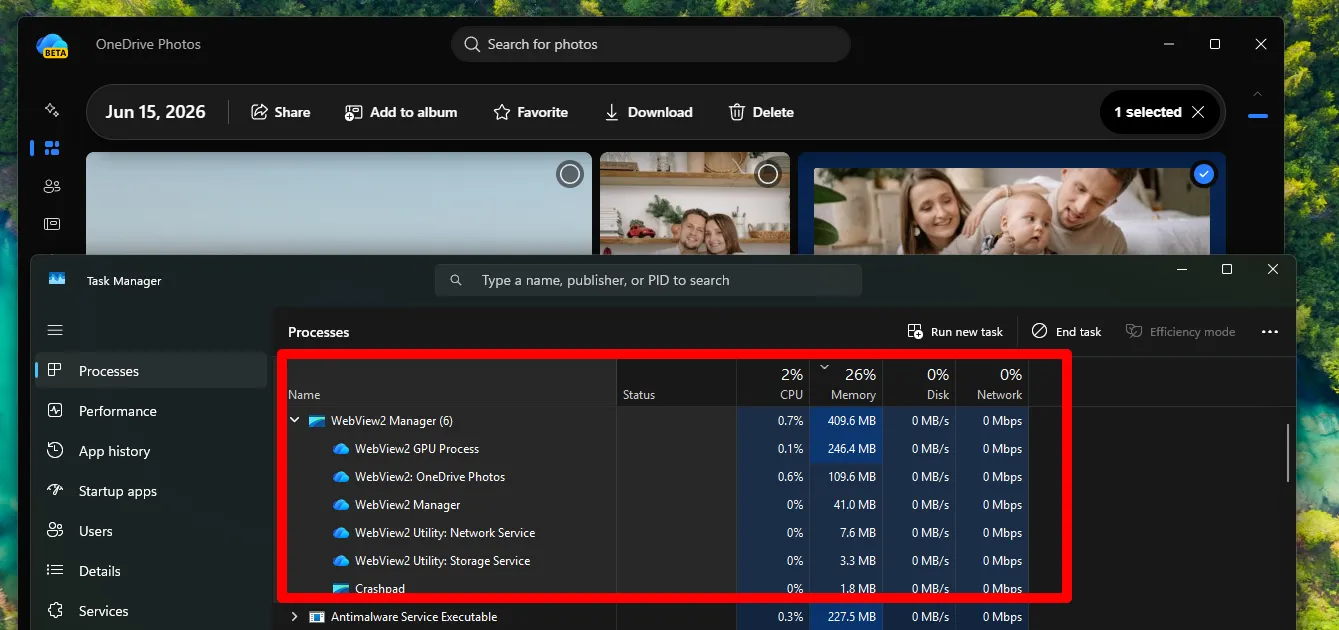
Face recognition and content-based photo search are available, but they work slowly. This is because processing is performed on Microsoft's server side, so photo analysis takes time. In some cases, even photos uploaded long ago may never reach the indexing queue and, as a result, fall out of the overall photo archive database.
As a result, looking for an alternative to OneDrive is a perfectly reasonable decision.
Criteria for Choosing a OneDrive Alternative
Both cloud services and local applications were considered when selecting alternatives to OneDrive. At the same time, we used clear criteria that help address most of the shortcomings of Microsoft's cloud when it comes to storing and working with photo archives:
Convenient photo management. A full-featured gallery and an intuitive interface.
Search and intelligent organization. Support for face recognition, tagging, and automatic photo grouping.
Processing and indexing speed. Fast processing even for photo archives containing thousands of images.
Mobile upload and automatic backup support. The ability to automatically upload photos from a phone without complicated settings or delays.
Ease of organization. A flexible structuring system that supports different ways of sorting photos according to various criteria.
File format support. The tool should index both standard JPG images and RAW negatives equally well.
Privacy and control over data. A transparent storage policy, data encryption, and no use of photos for advertising or other purposes without the user's consent.
Offline access support. The ability to view and work with selected photos without an internet connection.
It may seem that only professional solutions can meet these requirements. However, we were able to find strong candidates among consumer services and applications as well.
Tonfotos
Tonfotos is a powerful photo manager with all the essential features needed to organize photo archives of any size. Its interface is not overloaded with buttons and various switches, as is often the case with professional solutions.
The program works fully locally, including the built-in face recognition algorithm. This means that the only factor limiting photo indexing speed is the hardware capability of a particular computer. In practice, if your PC or laptop is not older than 8-10 years, you are unlikely to encounter serious performance issues.
A useful advantage is support for CUDA technology, which allows Tonfotos to use the computing power of the graphics card for photo processing.
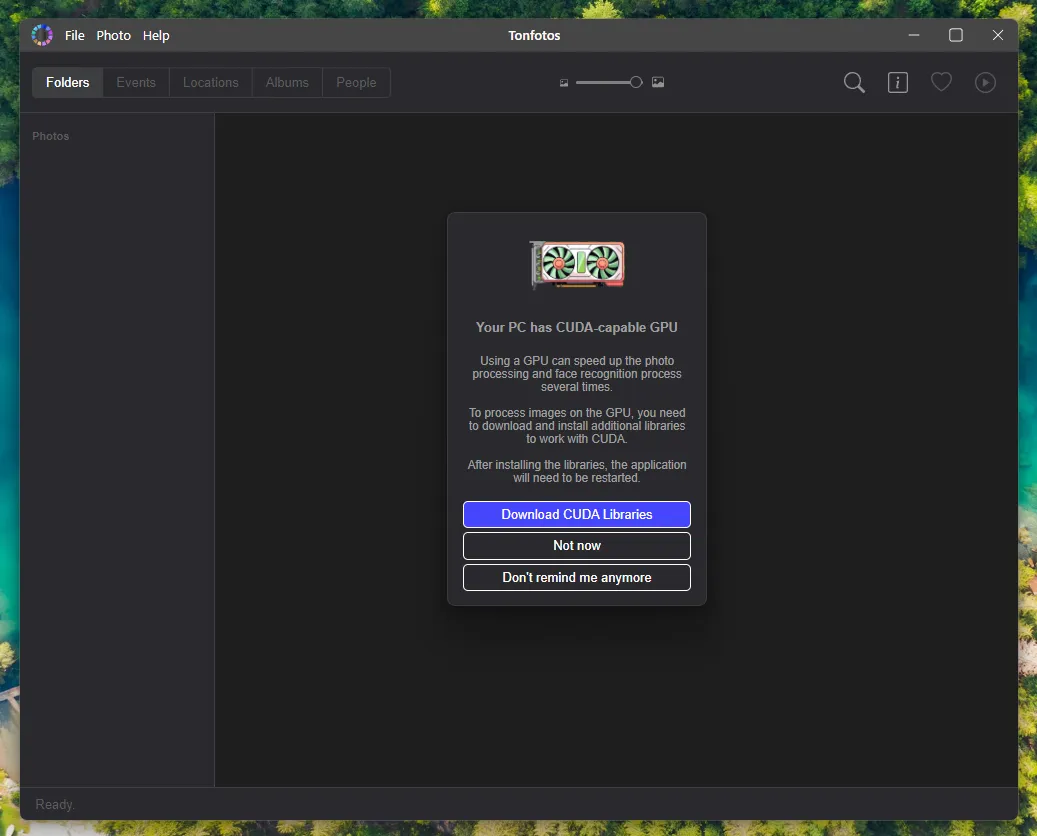
Preparing Tonfotos to Import Photos from OneDrive
It is worth noting that, in order to get a neatly grouped photo catalog by year when importing from OneDrive, you need to remove all recommended folders in the Tonfotos setup wizard in advance and create one new empty folder.
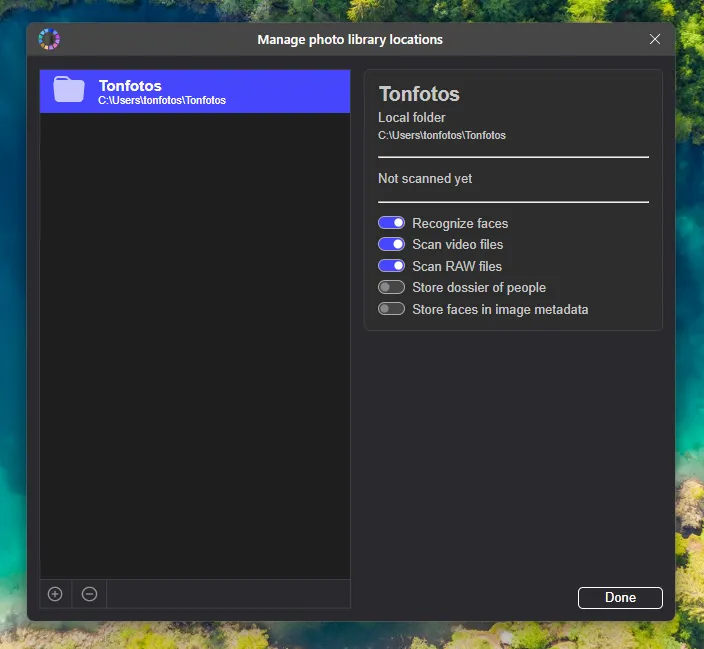
If you simply add the OneDrive folder, all photos and folders will be displayed exactly as they are in the cloud storage: without sorting or organization.
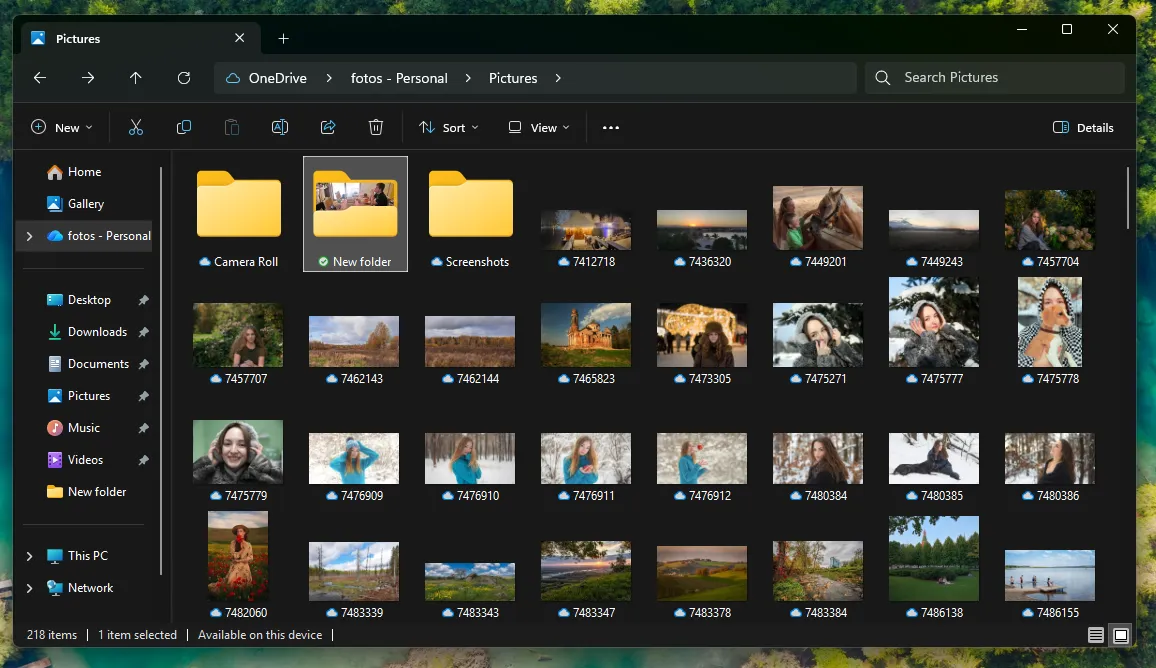
Importing and Organizing Photos from OneDrive in Tonfotos
To start the import process, click File - Import and select the OneDrive photo folder as the source.
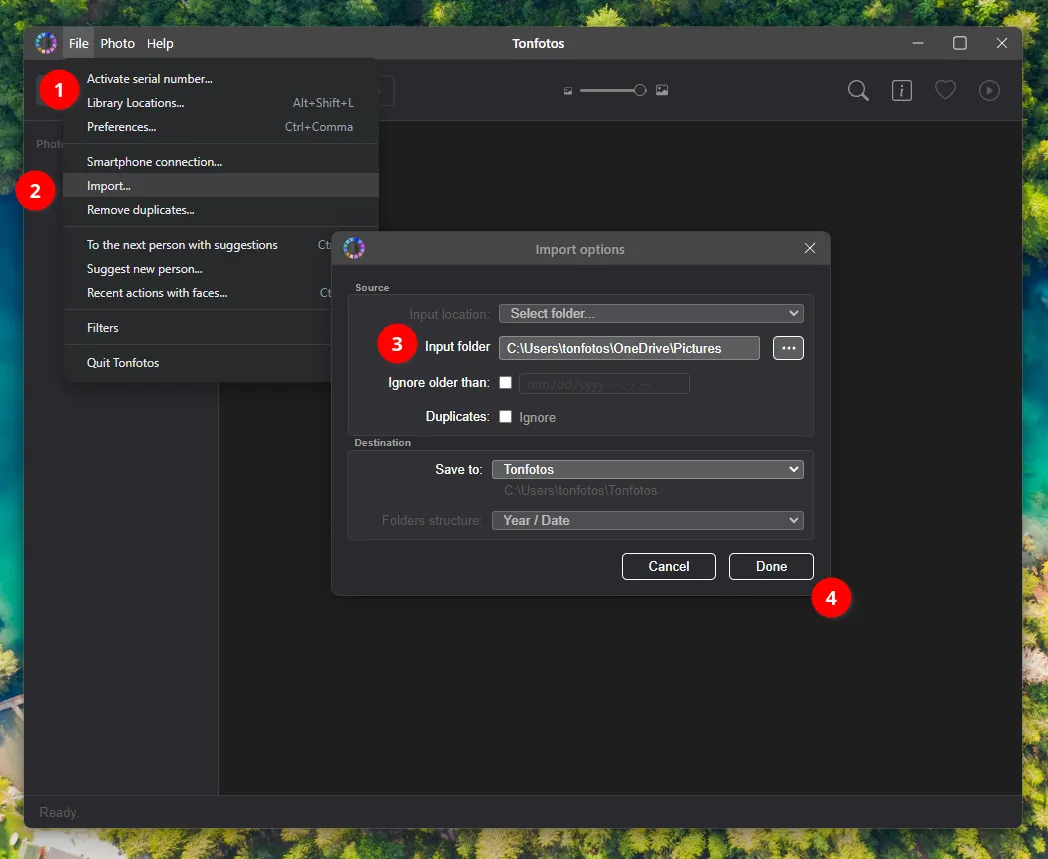
Please note that there is no need to download photos from Microsoft's cloud storage in advance. They will be downloaded gradually as Tonfotos accesses the files. At the same time, all photos will automatically be placed into folders corresponding to the shooting date, using the format: year/year-month-day.
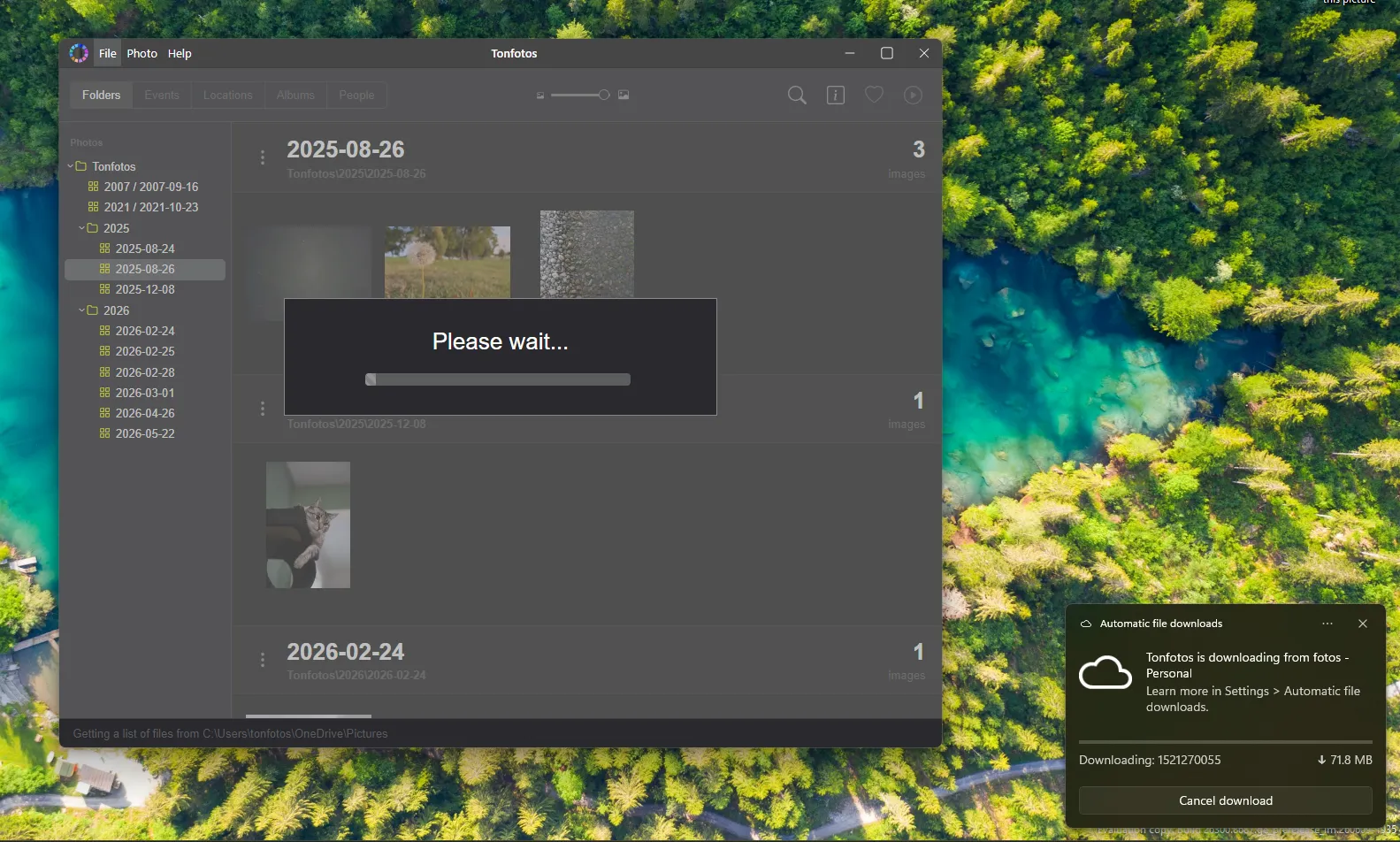
After import, Tonfotos provides the following options for sorting and organizing photos:
Folders. Displaying the directory structure where photos are stored.
Events. Viewing photos in chronological order and sorting them by tags.
Location. Visualizing photos on a map using GPS coordinates from metadata.
Albums. Creating thematic collections without moving files between folders.
People. Automatic recognition and grouping of faces in photos.
The People section is worth looking at in more detail. Here you can quickly view all photos where a specific person has been tagged, add information about that person (birth/death date, contacts, address), and specify how they are related to other people.
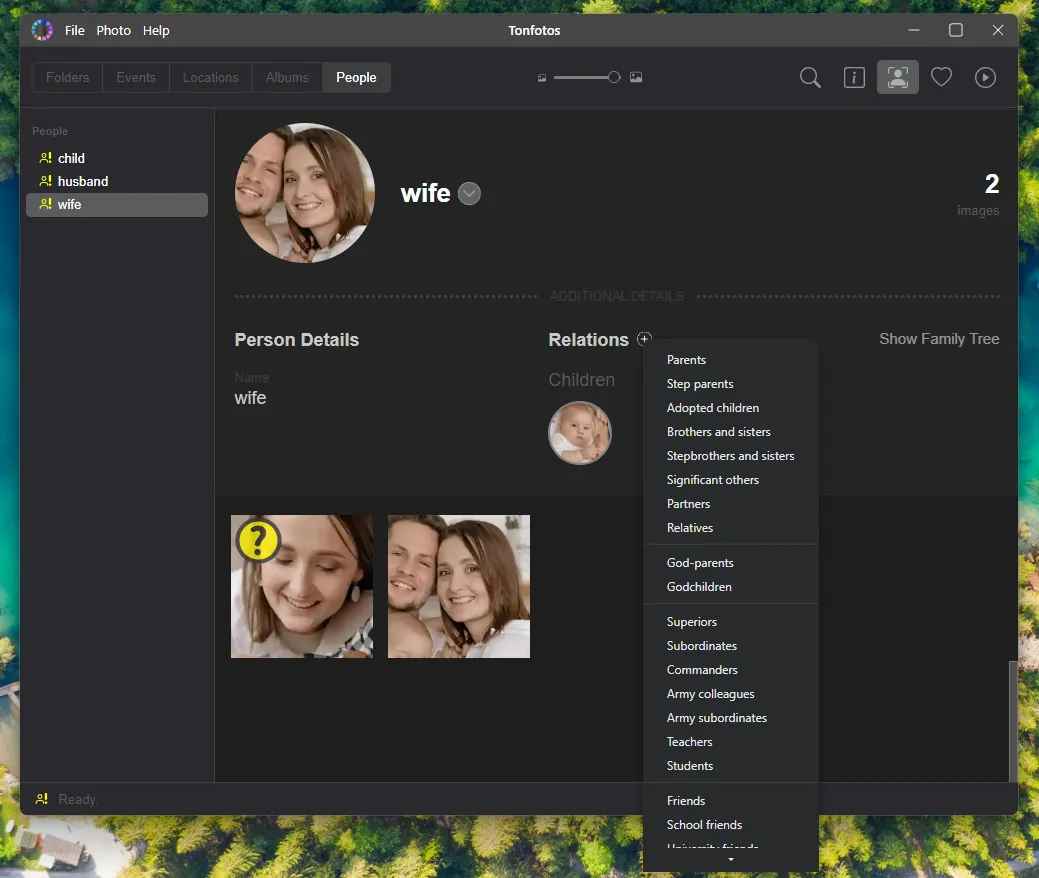
Family relationships can be visualized as a tree, which is especially useful for genealogical research.

Syncing Tonfotos with a Phone
Automatic photo synchronization is an advantage offered by all cloud storage services. You simply install an app, and newly taken photos are automatically sent to the server when an internet connection is available.
Tonfotos does not have its own cloud, but it does have a separate app for syncing photos from a phone to the main photo archive via the local network: TonfotosSync.
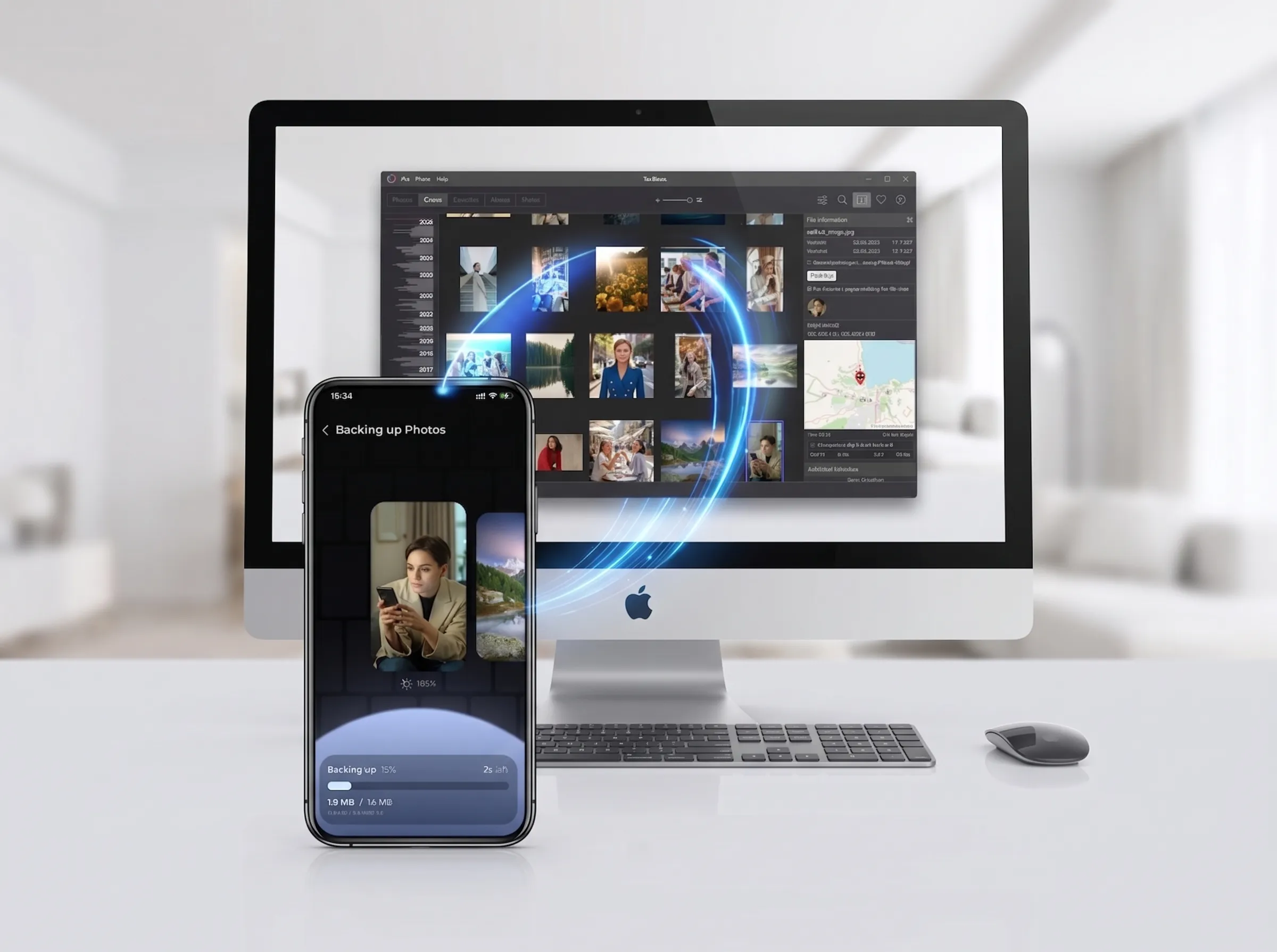
To set up automatic copying of photos from your phone to your computer, install the app on your smartphone and scan the QR code by opening it in the corresponding section of Tonfotos.
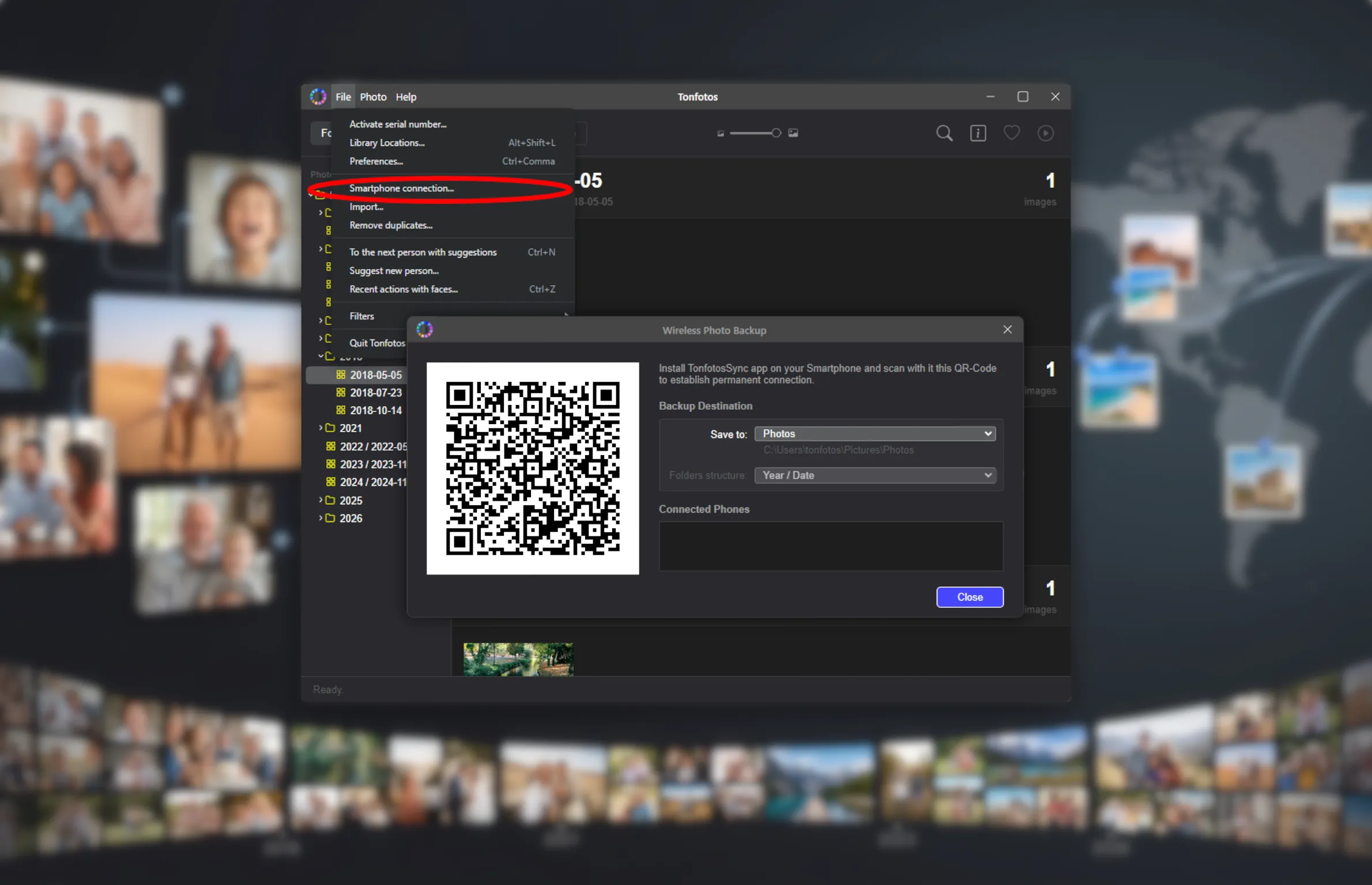
New photos are automatically transferred from the phone to the shared photo archive on the computer when both devices are connected to the same network. This makes it possible to keep the photo collection up to date without manual copying or uploading files to the internet.
DigiKam
DigiKam is the best-known free and open-source photo manager. Like Tonfotos, the program offers powerful tools for sorting and organizing photo archives, including face recognition.
The problem with DigiKam is that it was originally developed by photographers, for whom functionality came first and ease of use came second. For beginners, therefore, the program's interface may seem complicated. This is the price of freedom: if you want something free, you pay with the time needed to learn it.
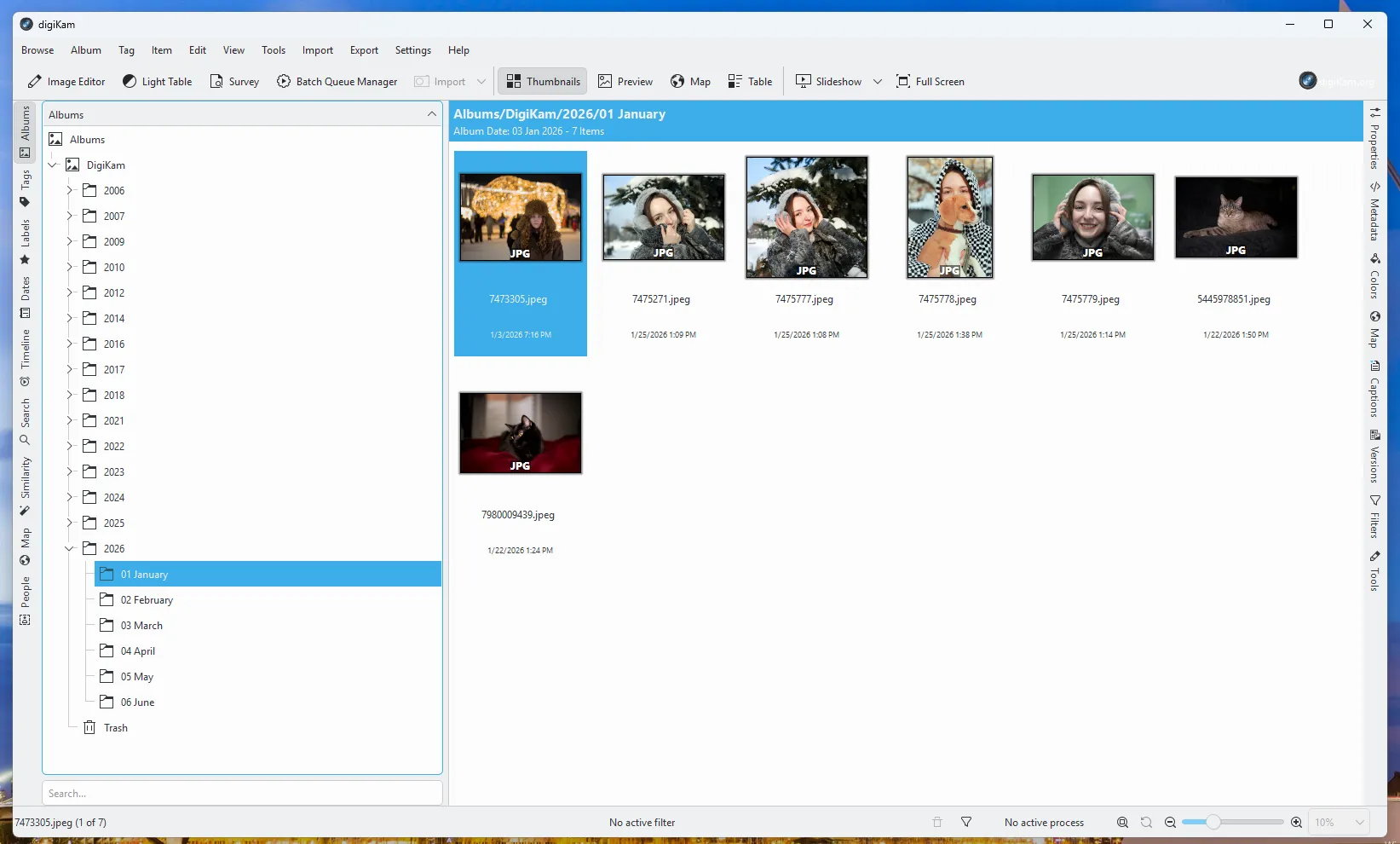
Importing Photos from OneDrive into DigiKam
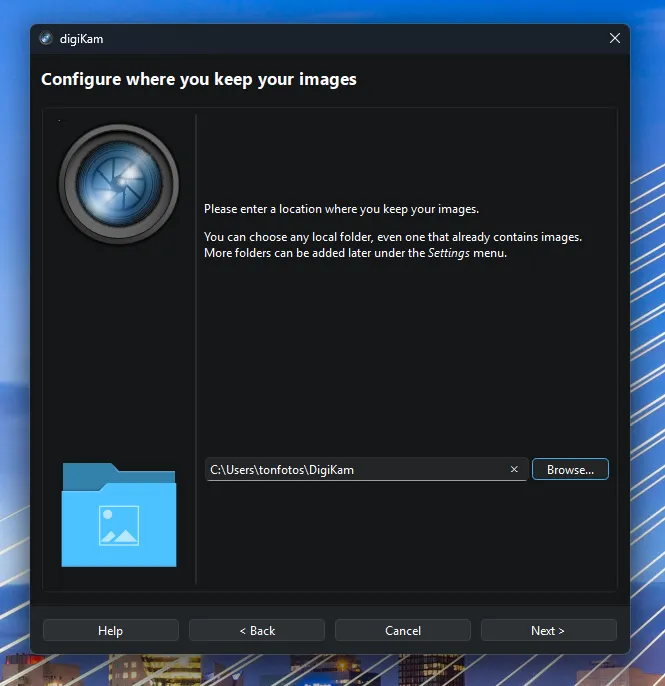
Creating a structured photo archive works in a similar way to Tonfotos: first, you create the main folder, and then you import photos from OneDrive.
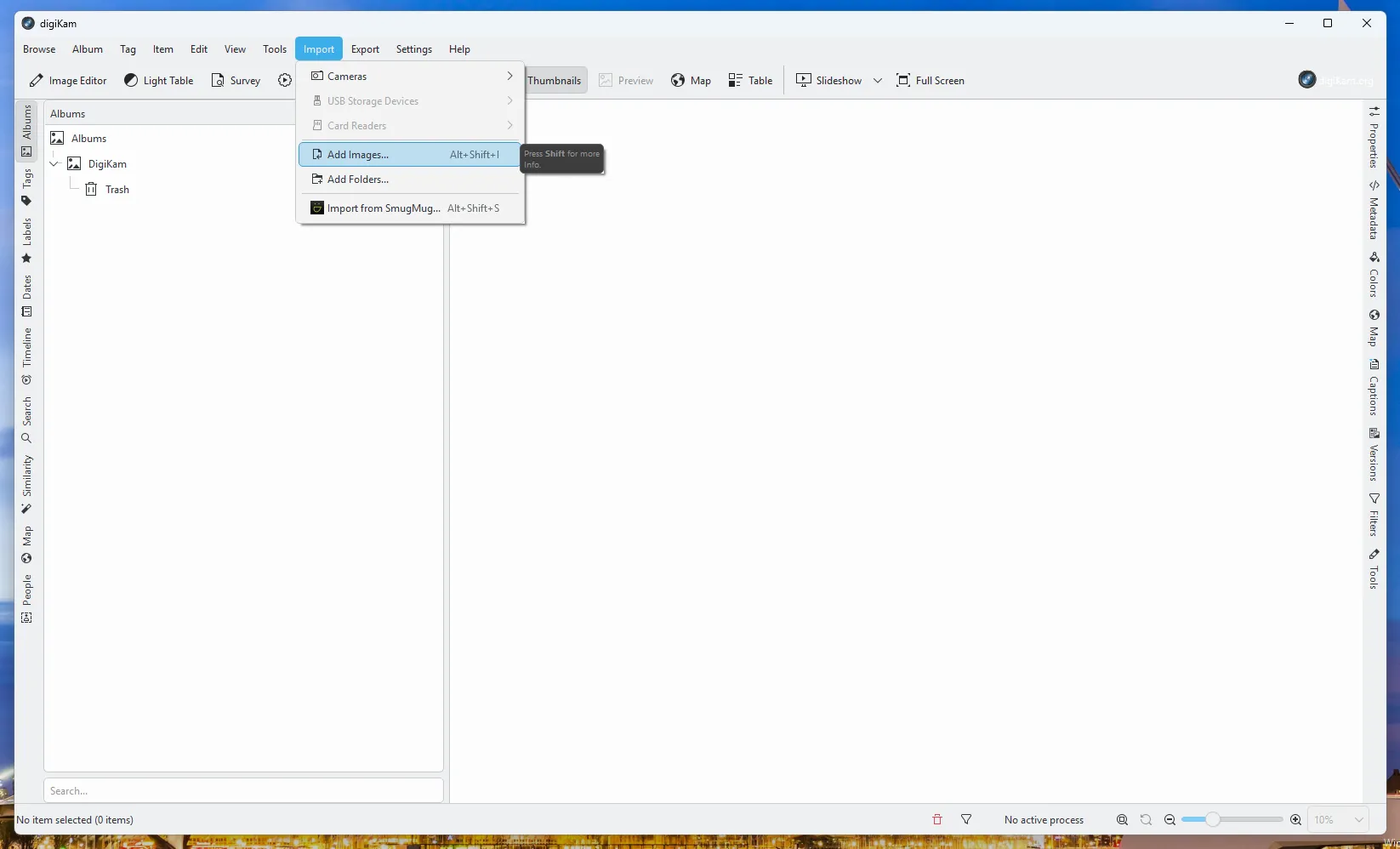
Note: Although DigiKam supports importing both files and folders, you need to choose the first option to create a hierarchical photo archive structure.
Next, a dialog window will appear for configuring import parameters. Here it is important to specify which hierarchy the program should follow when copying photos. You can choose one of the standard options or configure manual cataloging.
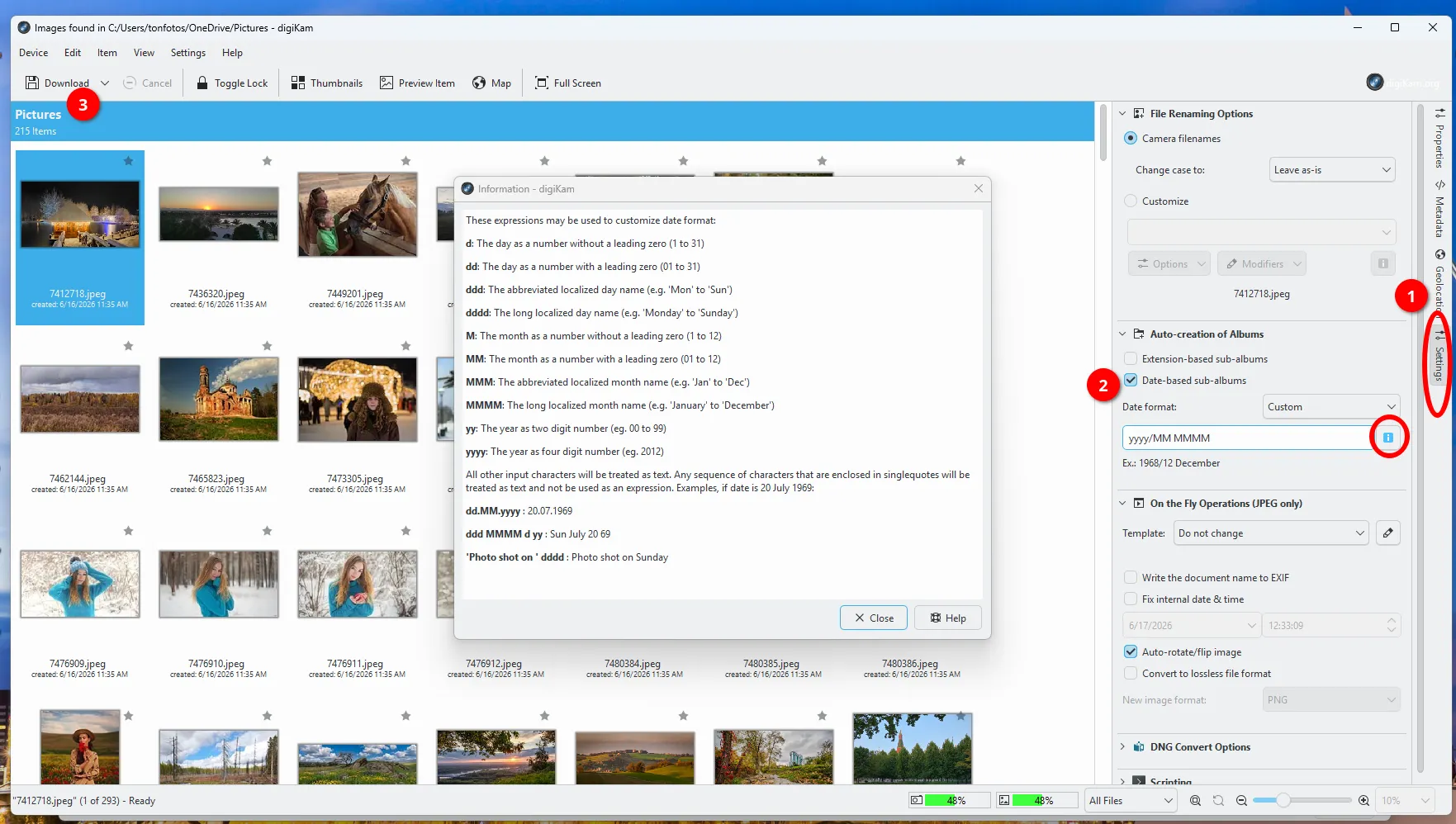
Once the process is complete, you will have a structured photo archive where each image is distributed into folders according to the shooting date.
Photo Organization Features in DigiKam
After import, DigiKam provides one of the most powerful sets of tools for working with photo archives among free programs:
Albums. Viewing photos by folders and directories on the disk.
Tags. Creating a multi-level tagging system.
Labels and ratings. Assigning ratings, color labels, and statuses.
Metadata search. Filtering by EXIF parameters.
Map. Displaying photos by GPS coordinates.
Similarity search. Detecting duplicates and similar photos.
Like Tonfotos, DigiKam supports automatic face recognition. After the initial scan, the program automatically finds people and suggests grouping photos of the same person together.
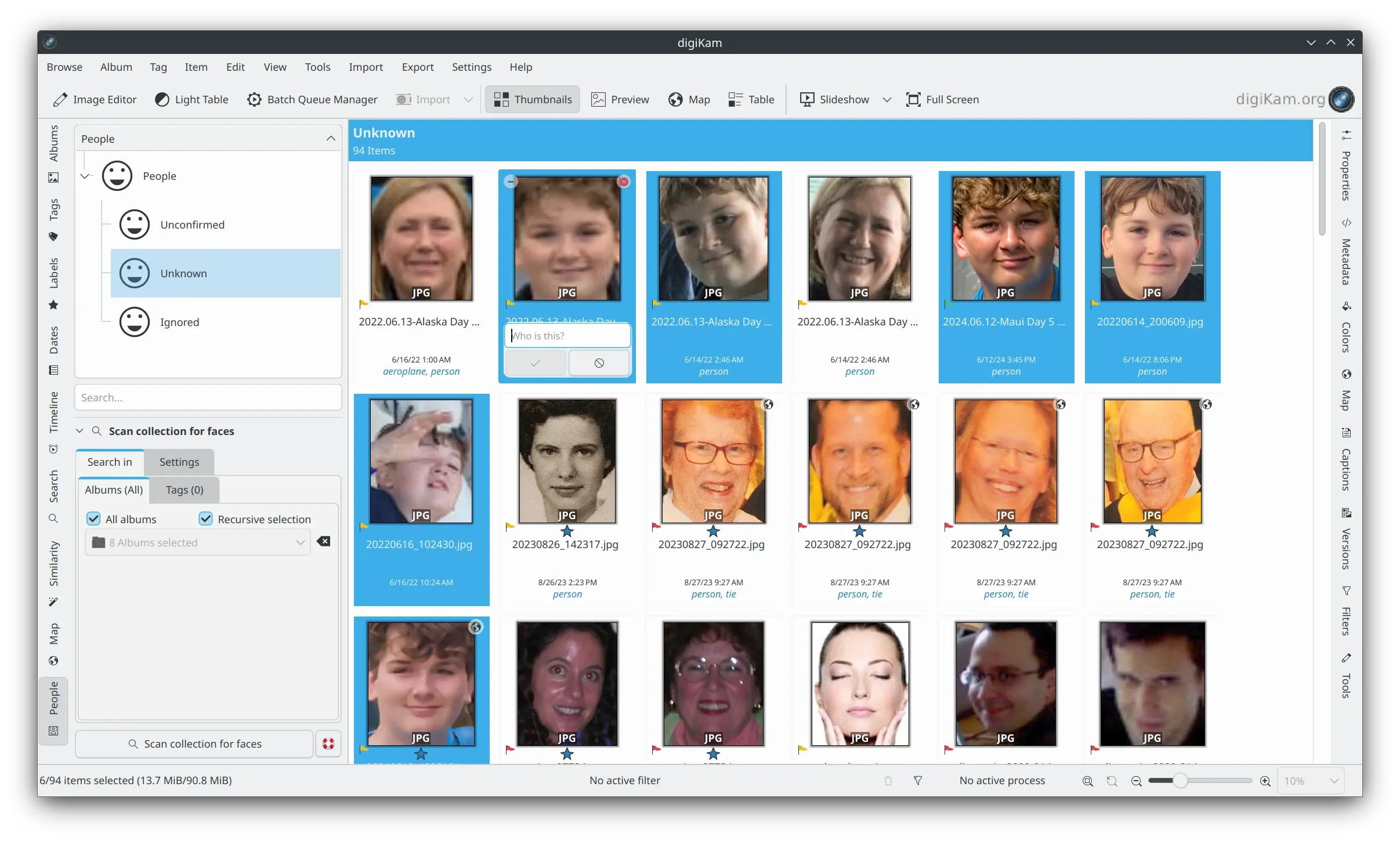
Users can also adjust the recognition accuracy settings.
Apple Photos
Photos is an exclusive application within the Apple ecosystem and is considered a benchmark for photo management. Its advantage over OneDrive is that face recognition, indexing, and the creation of Memories are performed not in the cloud, but on the user's device.
Notably, all AI features are available both on iPhone and MacBook. You do not have to upload photos to iCloud at all; this will not affect the functionality of Photos. Images can be transferred via cable or AirDrop.
Importing and Organizing Photos from OneDrive in Apple Photos
Since not all iPhone users also own a MacBook, it makes sense to look at the process of importing photos from OneDrive into Apple Photos on a phone.
Unfortunately, Microsoft does not provide convenient tools for exporting photos, so the process has to be done manually. Open the OneDrive app on your iPhone and, in the photos section, select the images one by one and choose Download.
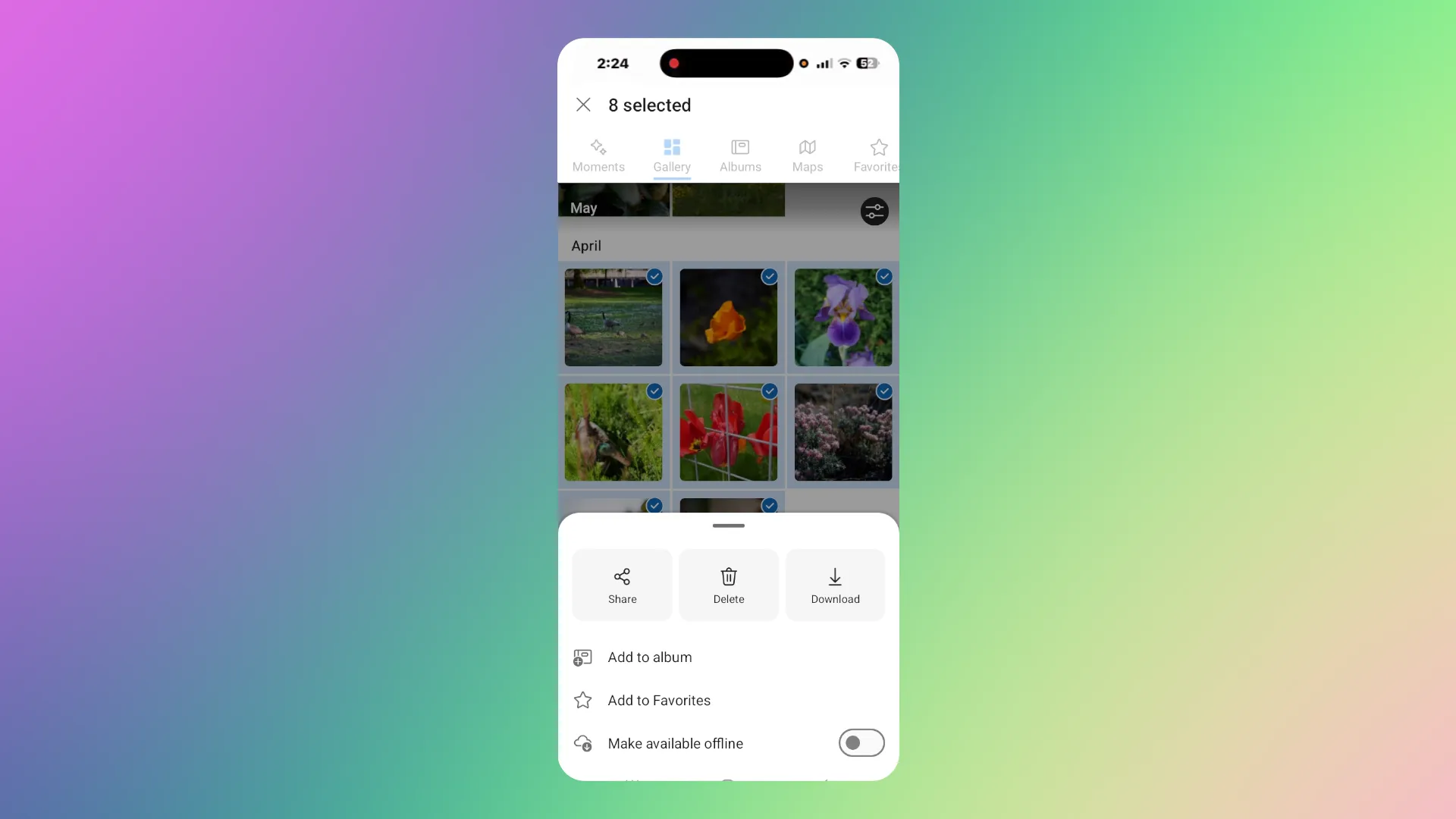
After downloading, the photos will automatically appear in the Apple Photos library. Face recognition and contextual search will need some time for indexing. The exact time depends on the number of photos and may take anywhere from a couple of hours to several days.
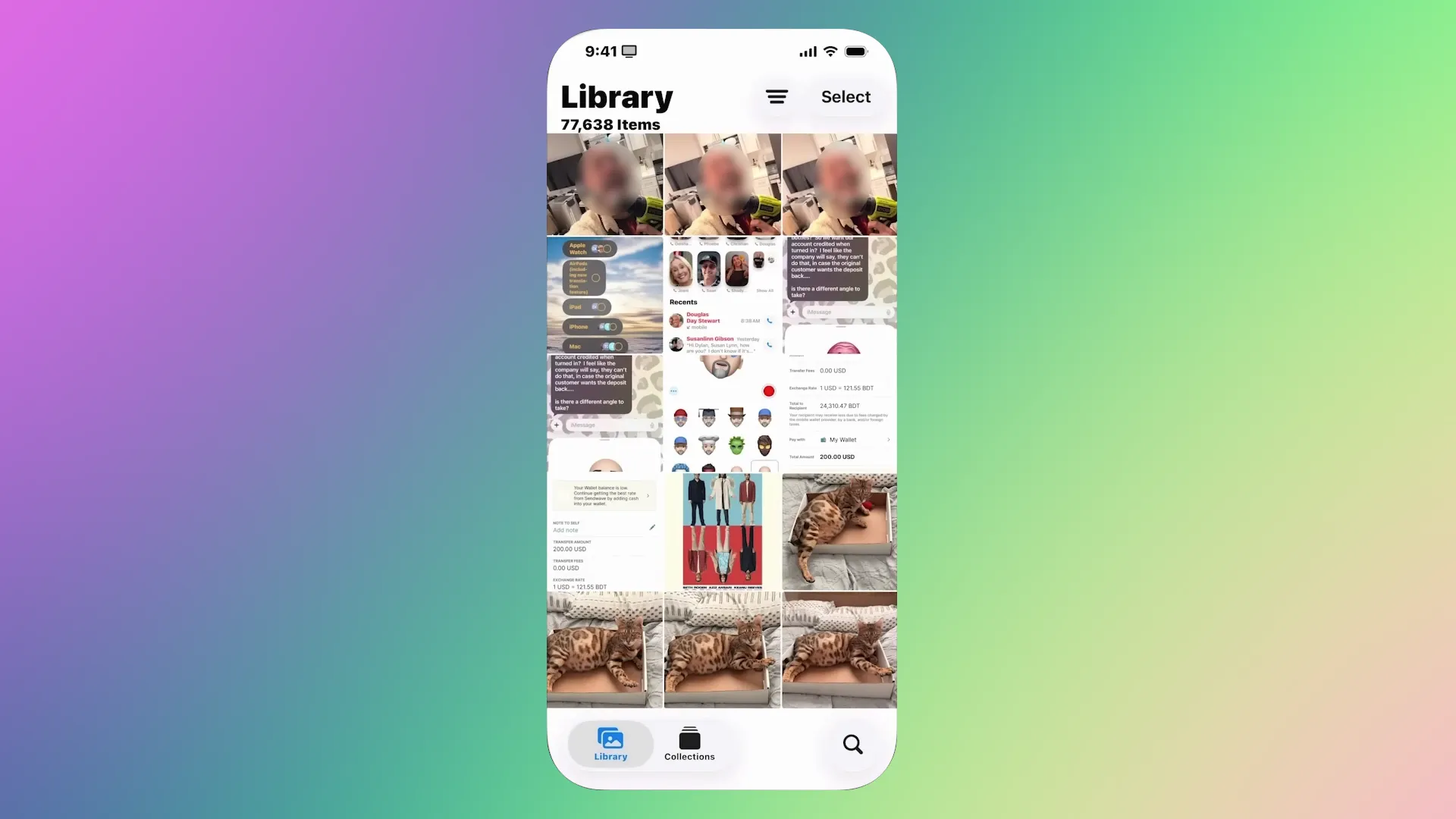
As the built-in algorithms process the images, selected photos will start appearing in the Memories and On This Day sections.
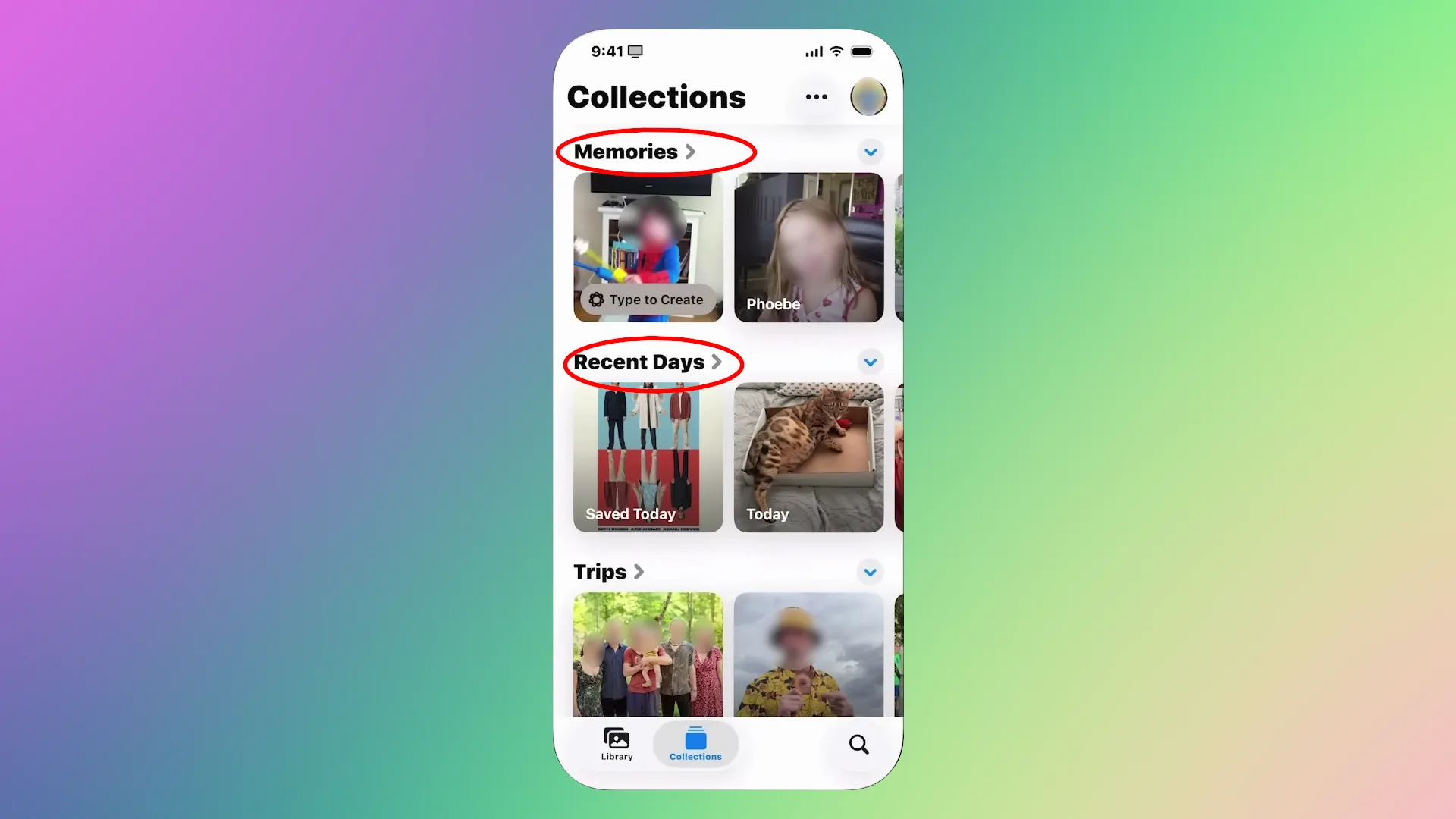
The app automatically detects people, cats, dogs, and other pets in photos, then groups them into separate categories.
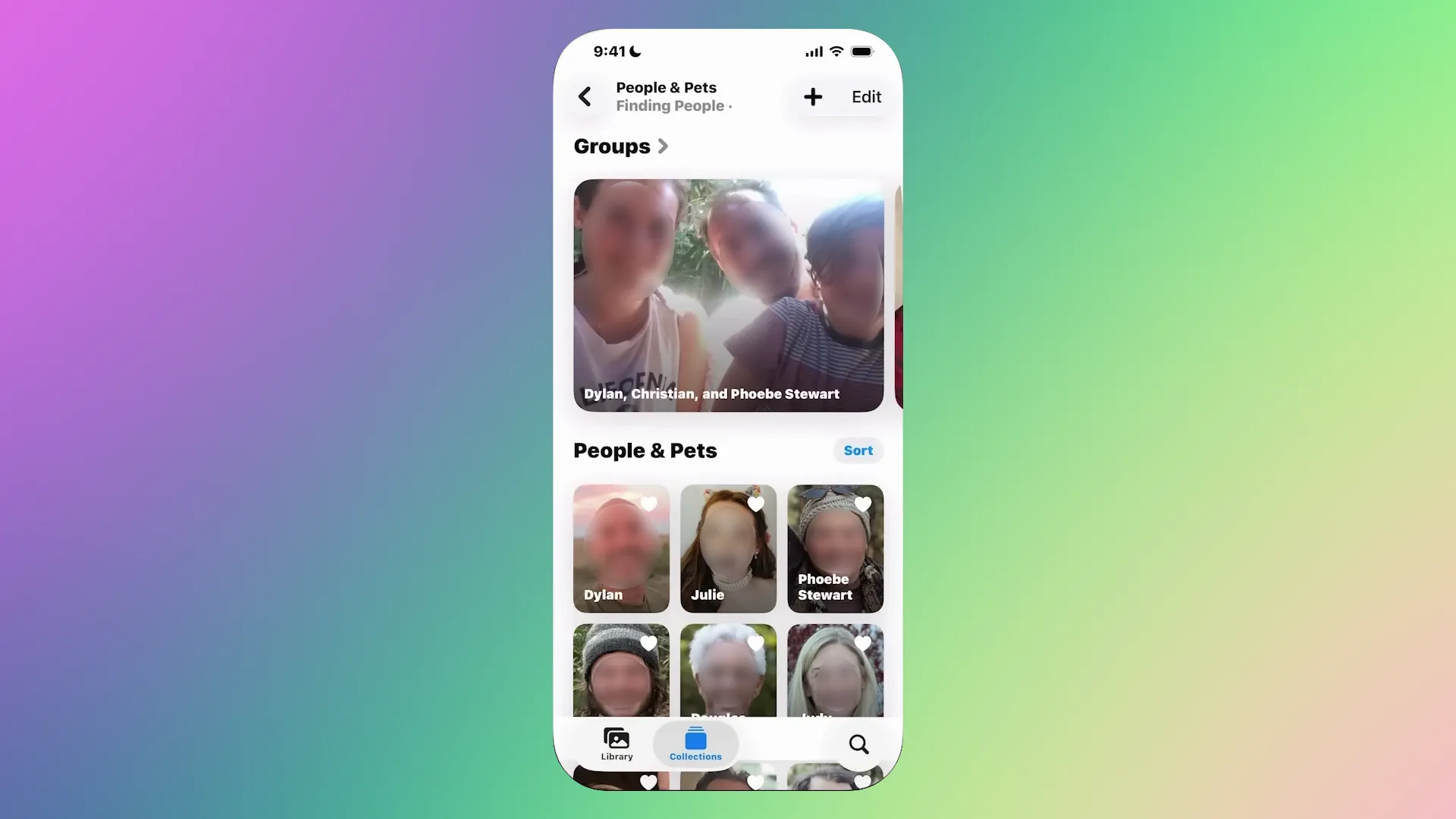
After a name is assigned, Photos automatically adds images to the corresponding group. This makes it possible to find all photos of a specific family member, child, or pet in just a few seconds, even if the photos were taken in different years.
Standard Galleries on Android Phones
Google Gallery, as well as the built-in Xiaomi Gallery and Samsung Gallery, are managers that provide quick viewing of photos and other images from a phone's memory. However, they use local face recognition algorithms capable of detecting and grouping images of people.
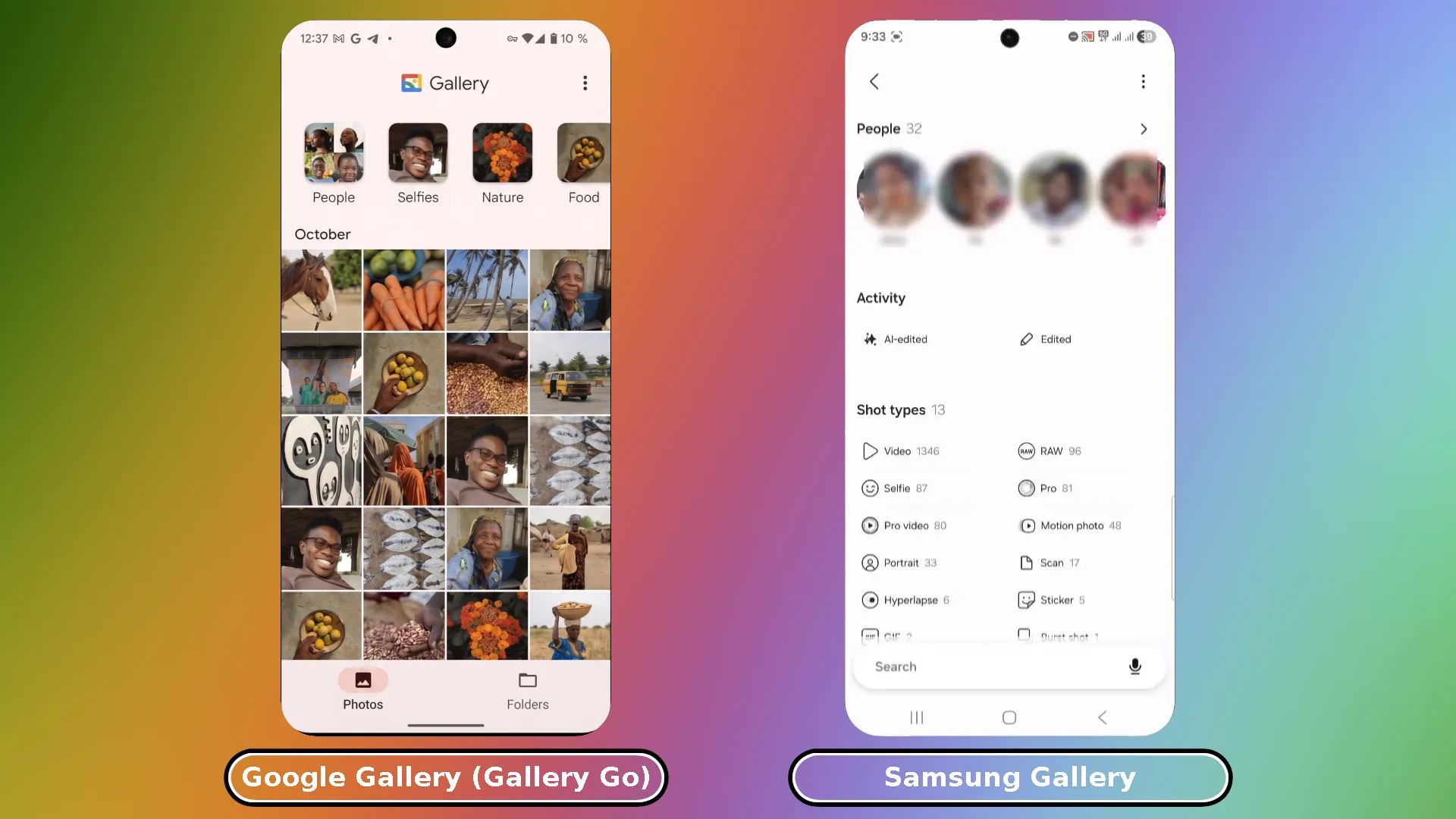
Unlike more advanced solutions, such galleries are limited by the computing resources of the smartphone. As a result, indexing and face detection may take several days.
In addition, recognition accuracy in mobile galleries depends heavily on image quality and shooting conditions. In low light, from side angles, or with low resolution, the system may make mistakes or fail to detect a face at all. There is also no option to fully train the system manually: the user can only confirm or hide matches that have already been found.
Standard galleries are well suited for basic everyday use. They allow users to browse photos in chronological order, sort them into albums, and add tags.
Ente
Ente is a cloud storage service for photos where the main focus is maximum protection of user data and privacy. Unlike OneDrive, it uses end-to-end encryption (E2EE). This means that all photos and videos are encrypted directly on the user's device before being sent to the cloud, so no one, including Ente's developers, can access your media files.
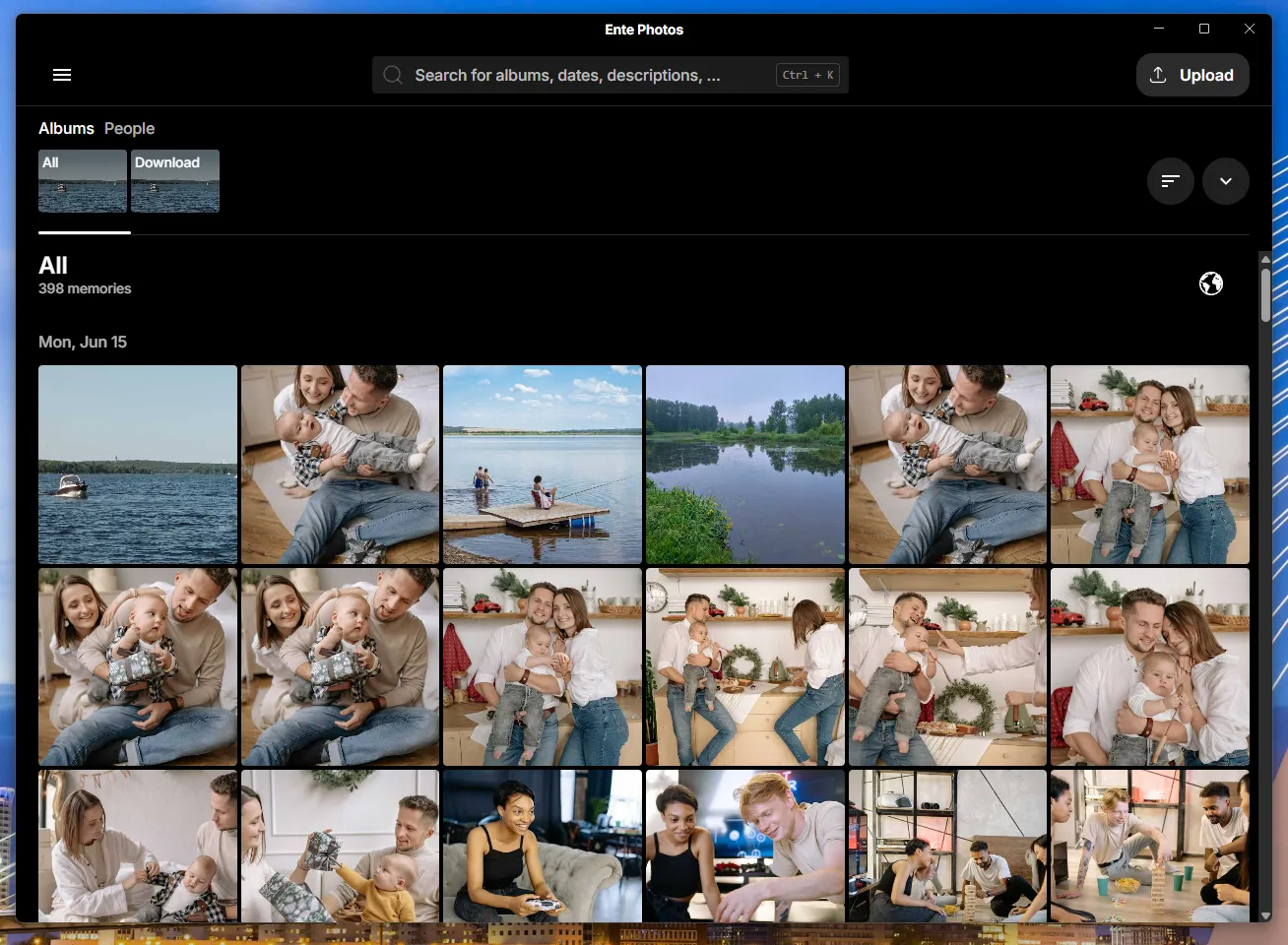
At the same time, the service offers modern smart search and face recognition features. To do this, the Ente app (on a phone or computer) uses local libraries and AI models (YOLOv5Face for face recognition and CLIP for text-based content search). Photo analysis is performed directly on the user's device.
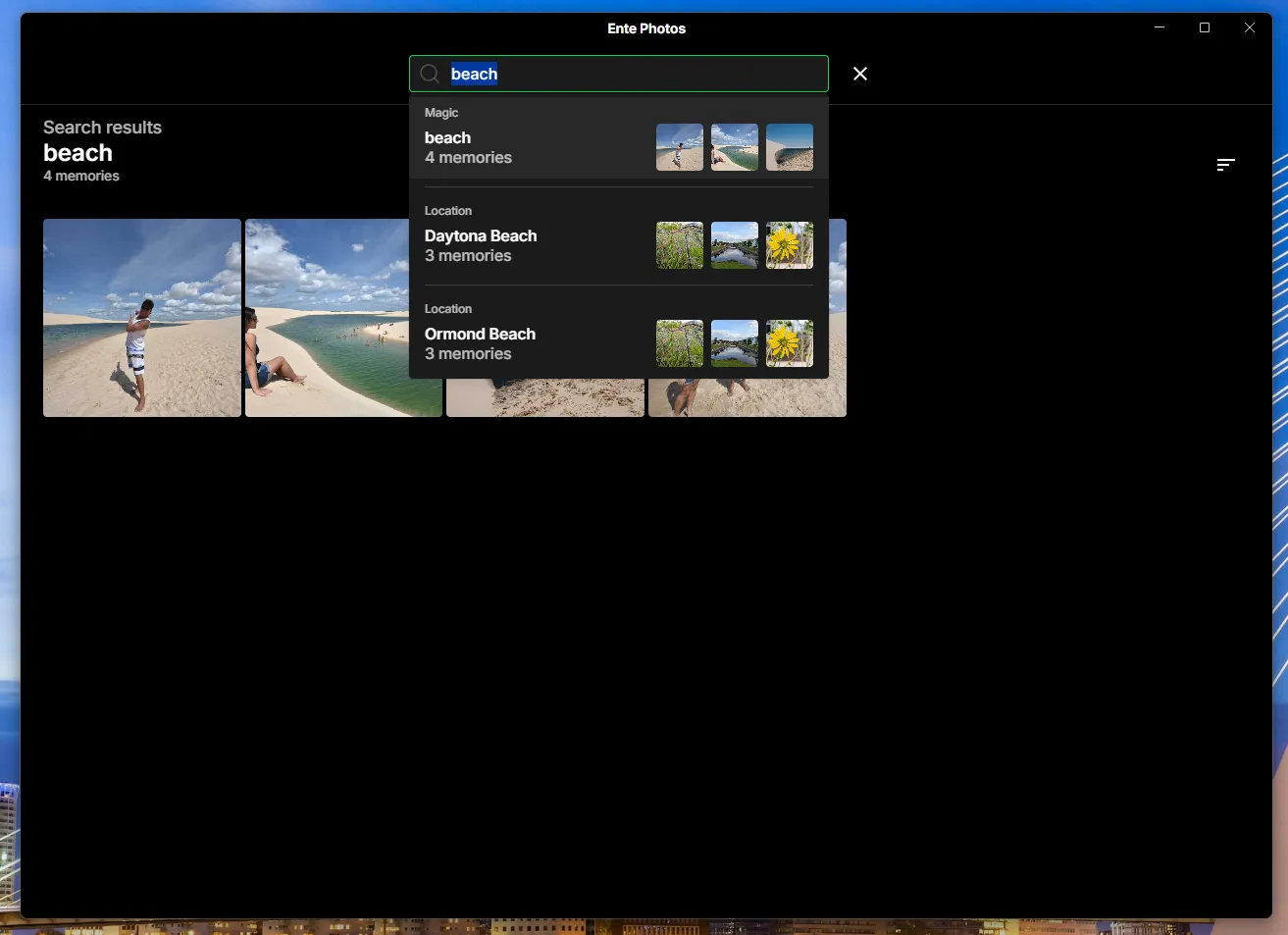
Based on the results of AI analysis, search indexes are created (mathematical markers of what is shown in the photo). These indexes are encrypted with a personal key and uploaded to the server. Other user devices download these encrypted indexes, decrypt them locally, and gain access to the search results. This removes the need to re-index the entire archive on every device: it is enough to run the process once, for example, on a more powerful computer.
However, when using the desktop version of Ente, it is important to keep in mind that access to photos depends on having an internet connection.
Conclusion
OneDrive is well suited for documents, but when it comes to a personal photo archive, trying to use it as the main storage solution often turns into a constant struggle with slow indexing and folder chaos. The right alternative depends on what exactly you expect from working with your photos.
If you want to organize everything properly once, avoid overpaying, and keep your photos out of third-party clouds, choose Tonfotos. The program takes care of the routine work, automatically sorts files by date directly during import from OneDrive, and its face recognition algorithm and person cards are well suited for organizing a family photo archive.
For maximum control and advanced sorting, consider digiKam. It is a powerful, completely free, open-source tool. The interface will take time to learn, but in return you get professional metadata search and flexible filtering tools.
If you use Apple devices, there is no need to complicate things: it is better to use the built-in Apple Photos app. Transfer your archive from OneDrive to your iPhone or Mac once, and the device will handle the organization itself: it will create memories, recognize loved ones, and identify pets.
Ente is a good option for accessing photos from any device. It is a strong compromise for those who do not want to give up the convenience of the cloud but still require maximum privacy through end-to-end encryption (E2EE) and local data processing.
Ultimately, if your photo archive has been accumulating in different places for years, start with Tonfotos. It is the fastest and least painful way to turn scattered OneDrive folders into a neat, structured photo story.