The advent of new technologies, including AI-powered ones, has truly elevated mobile photography. Now anyone can create highly detailed photos. However, this progress also comes with a downside: the ever-increasing number of photos and the shrinking storage space on smartphones.
The easiest way to solve this problem is to periodically delete old footage, but this runs the risk of accidentally deleting truly valuable shots. Therefore, the best solution is to transfer the photos to a computer, where you can sort and organize the archive.
However, when storing data locally, users inevitably face the challenge of choosing the right data transfer tool. Numerous options are available online, from simple built-in operating system tools to cumbersome third-party applications. The choice of a specific option is individual and depends on many factors, including the archive size, the device's operating system, and even technical savvy.
Criteria for choosing tools for transferring photos to a computer
When you need to move or copy an individual file, you can simply open File Explorer and drag it to the desired location, but with photos, things aren't so simple. When choosing a specific solution, it's important to consider the following:
- Ease of use. Basic photo copying doesn't always require complex programs with dozens of settings. If you transfer photos infrequently, it's more convenient to use a simple tool with a clear interface.
- Data transfer speed. When transferring a few photos, the difference is practically imperceptible, but when copying thousands of images, speed becomes critical. This is especially true for RAW photos and high-resolution videos.
- Automatic sorting. After transferring photos, they often become a chaotic collection of files. It would be great if the tool offered at least basic organizational features, such as chronological order.
- Security and privacy. When using photo transfer tools, it's important to consider not only how the files are stored but also how the program handles the images. Apps may have certain features that require uploading data to the internet.
- Photo quality. Some solutions can automatically compress images during transfer to save space or speed up data transfer. The difference may be unnoticeable for casual viewing, but for subsequent processing, printing, or archival storage, it becomes a serious issue.
- Preserving metadata. In addition to the images themselves, photographs contain additional information called metadata. A good photo migration tool should preserve the original tags intact. This is important for subsequent organization, where sorting and searching largely depend on the information in the metadata.
Let's look at Windows' built-in and third-party photo transfer tools, including those with advanced AI-powered features.
Microsoft Photos
Microsoft Photos is the default Windows photo organizer, combining local and cloud storage (OneDrive, iCloud Photos) under a single interface. The primary sorting tool is the chronological feed.

The built-in viewer can display and edit basic photo metadata.

The Microsoft Photos import feature is convenient because it allows you to preview your photos before copying them to your main catalog.
The program displays all images stored in your smartphone's memory at once. Therefore, you don't need to manually navigate to each folder, as you would with File Explorer.
Note: If a photo has already been added to the gallery, it will be highlighted in gray.
To start the import, you should click on the appropriate button and select the device.

Benefits of Microsoft Photos
- Easy photo transfer. The app is built into Windows 11, so users don't need to install any additional software. Simply connect your smartphone via USB and select the import option.
- Supports Android and iPhone. For iOS, simply trust the computer, after which the app will automatically detect your photos.
- Select photos before importing. During the transfer, you can select only the files you need and choose the save folder, which is convenient for partial transfers.
- AI-powered categorization. The program automatically categorizes photos and other images into categories: screenshots, documents, notes.
Disadvantages of Microsoft Photos
- Photo format issues. Some photos from modern phone models may import incorrectly or require additional codecs to view.
- Limited functionality. The app lacks the capabilities of third-party messengers for cataloging, batch processing, and handling large libraries.
- Dependence on the Microsoft ecosystem. The problem is that the company periodically changes its approach to developing its services. Features can be reworked, moved to other apps, or even completely disabled.
Microsoft Phone Link
While Microsoft Photos primarily transfers photos to your computer, Phone Link provides wireless data synchronization. However, full functionality, including the ability to transfer photos, is only available on an Android phone. On iOS, Microsoft Photos only allows viewing and sending messages and making phone calls.
Before you start transferring photos, you need to sync your phone with your computer. To do this, you need to have the Microsoft Phone Link app running on both devices. You need to be signed in to your Microsoft account on your computer. To start syncing, scan the QR code with your phone.

After granting all the necessary permissions, you can interact with your photos without connecting your phone to your computer. The main thing is that both devices are on the same local network and connected via Bluetooth (for calls and notifications).

However, transferring photos within Phone Link isn't very convenient, as it's more of a viewer than a file manager. However, the sync settings do expand File Explorer's functionality. When you open the phone, you can go to the Pictures folder, where all photos will be displayed, regardless of their location in the memory.

Benefits of Microsoft Phone Link
- Wireless connection. No need to find a cable or physically connect your smartphone.
- Windows Explorer integration. The program lets you work with mobile photos just like files on your hard drive. Simply drag and drop the desired frames from the application window or via File Explorer to local folders on your computer.
- Instant access to your latest photos. Unlike manual import, Phone Link displays your latest photos in real time. This is useful when you need to share one or more recent photos or insert them into a document on your PC.
- Additional functionality. In addition to managing your photo archive, you get a single control center for notifications, messages, and calls, eliminating the need to constantly look at your smartphone screen while working on your computer.
Disadvantages of Microsoft Phone Link
- Limited iOS support. Basic photo transfer and management functionality is only available to Android users.
- Network dependency. The speed of displaying and copying photos directly depends on the stability of your Wi-Fi connection.
- Difficulty when working with large archives. Phone Link is great for transferring a few dozen photos, but when trying to copy thousands of files.
- Battery drain. Constant background syncing and a Bluetooth connection to maintain a connection to your computer drain your smartphone's battery faster.
Tonfotos
Tonfotos is a full-featured photo manager that lets you not only transfer all your photos to your computer but also instantly sort them into folders based on shooting date. The program automatically reads the date in each photo's metadata and creates a corresponding folder. The result is a chronologically structured photo archive.
To properly transfer photos, Tonfotos requires some preliminary settings: first, create a folder on your disk with sufficient storage space, which will serve as the foundation for your future photo archive. Be sure to delete all other libraries before adding the newly created folder.

Once the preparations are complete, you can begin transferring photos to your computer. The program supports both cable and wireless import. The choice of method depends on the amount of data being transferred. If this is your first import, we recommend using a cable, and using a wireless transfer to keep your photo archive up-to-date.
To transfer photos for the first time, launch Tonfotos and connect your phone via USB. The app will automatically detect your device and prompt you to import immediately. In the wizard, you can specify the exact date from which to transfer photos, ignore or immediately delete duplicates, and the app's behavior upon next connection.
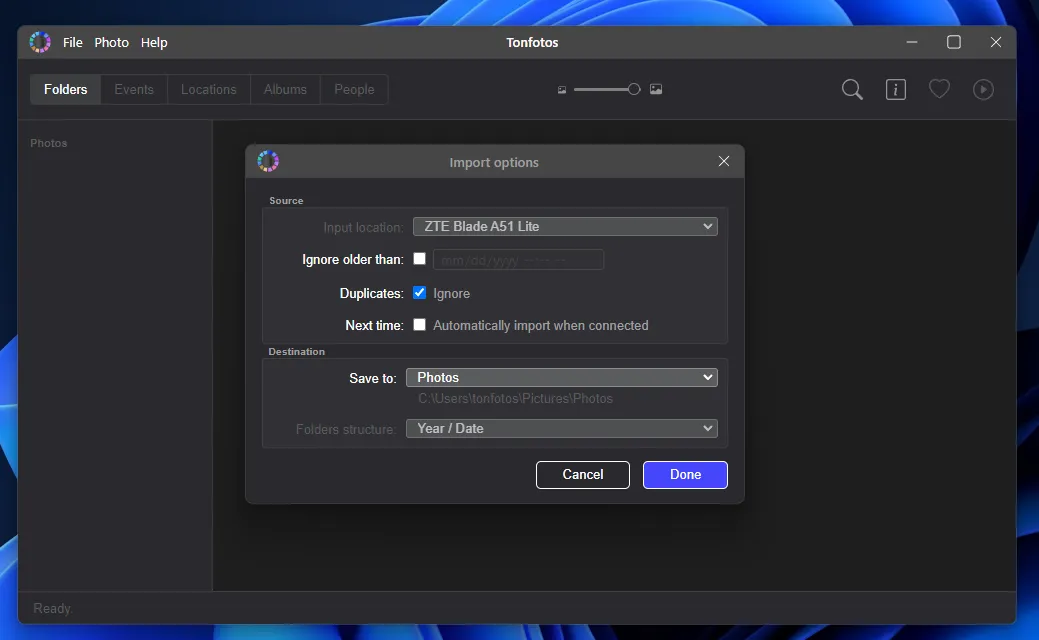
As a result, you'll receive a ready-made library, structured by date. These aren't just virtual albums, but full-fledged folders in your computer's file system.

It's worth noting the advantage of using Tonfotos not only in the automatic transfer, but also in the functions of sorting and organizing photos.
- Preserving original quality and metadata. The program transfers photos without compression, preserving EXIF information: shooting date, camera settings, geolocation, and other service data necessary for further sorting and searching.
- Timeline. Tonfotos allows you to browse your archive chronologically, quickly moving between years and months.
- Tags and albums support. Users can create their own thematic collections, tag photos, and create separate collections without changing the file structure on disk.
- AI-powered facial recognition. Tonfotos can automatically identify people in photos and group them by faces. This significantly simplifies searching for family photos in large archives.
- Map with shooting locations. If photos contain GPS coordinates, the program displays the shooting locations on the map.
- RAW photo supports. The program can display photos in professional RAW formats, making it convenient for both casual users and photographers.
To set up automatic synchronization of your phone's photos with your main library, you'll need a proprietary mobile appTonfotosSync. After installation, you need to scan the QR-code generated in the desktop version of Tonfotos.

The mobile app will scan your phone's memory and automatically import photos that aren't yet in your main library.

Please note that for successful synchronization between the mobile and desktop versions of Tonfotos, ensure that both devices are on the same local network.
Benefits of Tonfotos
- Automatic photo sorting. The program doesn't just copy photos; it instantly organizes them into folders based on the shooting date.
- Preserving original quality and metadata. Tonfotos transfers photos without compressing or modifying the original files.
- Wireless sync support. After initial setup, photos can be automatically transferred over the local network without a cable connection.
- Local photo storage. Unlike cloud services, the library is stored entirely on the user's computer. This reduces dependence on subscriptions and third-party servers.
- Free license. The free version of the program has no functional limitations, only on the number of available person cards.
Disadvantages of Tonfotos
- Increased computer resource requirements. When scanning a large photo archive for the first time, the program heavily utilizes the processor and RAM.
- Duplicate search. Tonfotos only finds duplicates with a complete content match if one of the files has been slightly modified (for example, by increasing or decreasing the size). These copies will be considered different images.
Why you shouldn't transfer photos to your computer via messenger or the cloud
Many people are accustomed to using cloud services or messaging apps as temporary storage. However, from a photo organization perspective, this is the worst solution, and for good reason.
- Quality loss. Most messaging apps compress images to save data and also erase metadata such as shooting date, camera model, and GPS coordinates. As a result, the archive becomes a jumble of files with names like IMG_20240507_WA0001.jpg, which are impossible to sort properly.
- The illusion of free. Cloud storage (Google Photos, iCloud) is convenient until the free limit (usually 5-15 GB) is reached. You start paying for more space. Once you stop, access to your archive is restricted.
- Risk of losing access. Photos in the cloud are photos on someone else's computer. Privacy policy changes, technical glitches, or account blocking due to an algorithm error can instantly deprive you of access to your family history.
Despite the advancement of cloud solutions, local storage on a PC under your control is the only way to ensure that your images will be accessible in 10-20 years.
Conclusion
If you only shoot a few photos a month, the standard Windows import feature will suffice, but if you're trying to sort through years of backlogs, it's best to use automated tools right away. This will save you weeks of time that would otherwise be wasted on manually creating folders and sorting.
Don't turn photo transferring into an annual "feat." If you dedicate fifteen minutes to it once a month, the process will become unnoticeable, and the risk of losing valuable photos when your smartphone suddenly breaks is reduced to zero.