The launch of Google Photos in 2015 was a truly landmark event. It was the first cloud service to offer free unlimited storage, "smart" AI-powered search, and deep synchronization. As a result, users gained a genuinely end-to-end infrastructure that united smartphone, computer, and cloud into a single whole. A photo taken on a phone would appear almost instantly in a local folder on the desktop PC, where it could be processed by third-party apps or local backup systems.
That's why, for a long time, Google Drive and Google Photos were the primary synchronization tools not only for individual private users, but for entire industries. Photographers, realtors, construction inspectors, and field engineers used them to quickly send work photos to local corporate servers for further processing.
However, between 2019 and 2026, Google systematically dismantled this integration. The removal of background data-transfer mechanisms culminated in API quota restrictions in March 2025 and the discontinuation of PC photo backup support in the "Google Drive for desktop" client in August 2026.
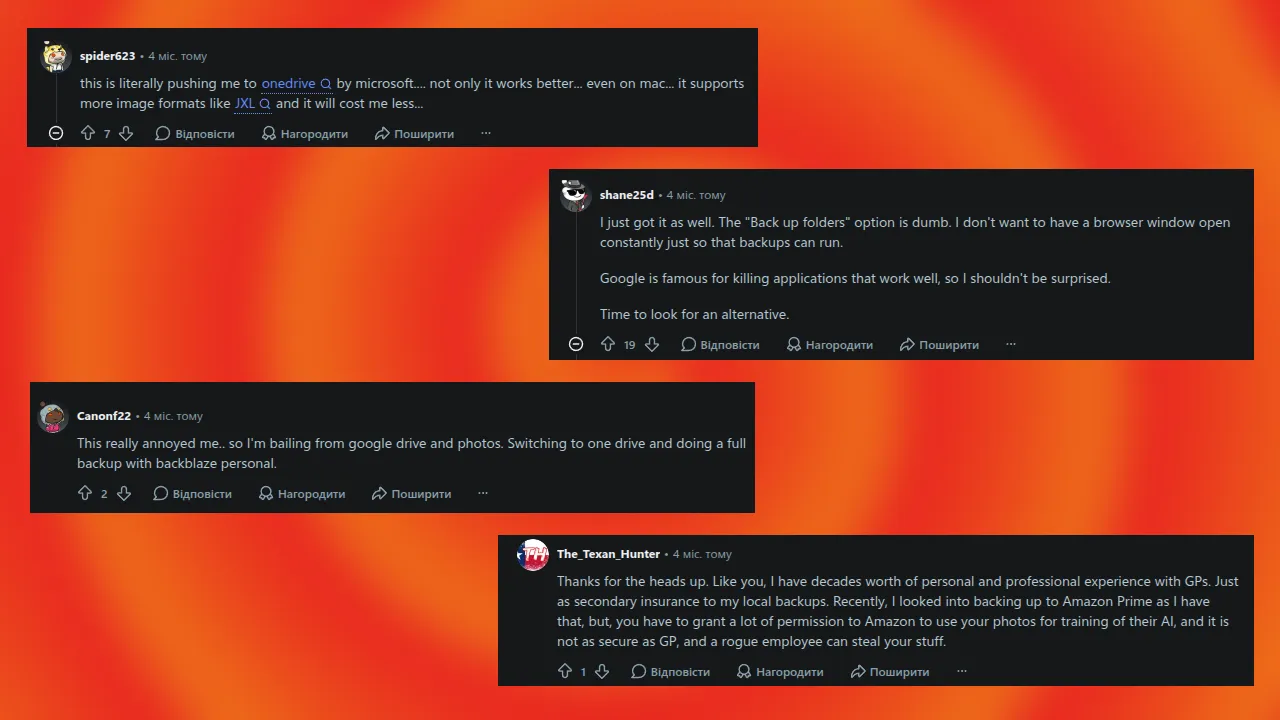
These changes came as a genuine shock! Millions of users had to look for alternative ways to access their photos. Some abandoned Google's cloud services altogether, switching to competitors.
How Google Gradually Tightened the Noose
If you look at the removal of PC photo synchronization not as an isolated event but as part of a whole chain of changes, it becomes clear that limiting desktop sync functionality was not a spontaneous decision. For several years, Google methodically pursued a strategy of capturing the market, followed by locking users into its ecosystem and increasing monetization.
Splitting Google Drive and Google Photos
The alarm bell rang on July 10, 2019, when Google first struck a blow to the everyday habits of millions of users and disabled automatic synchronization between the two services.
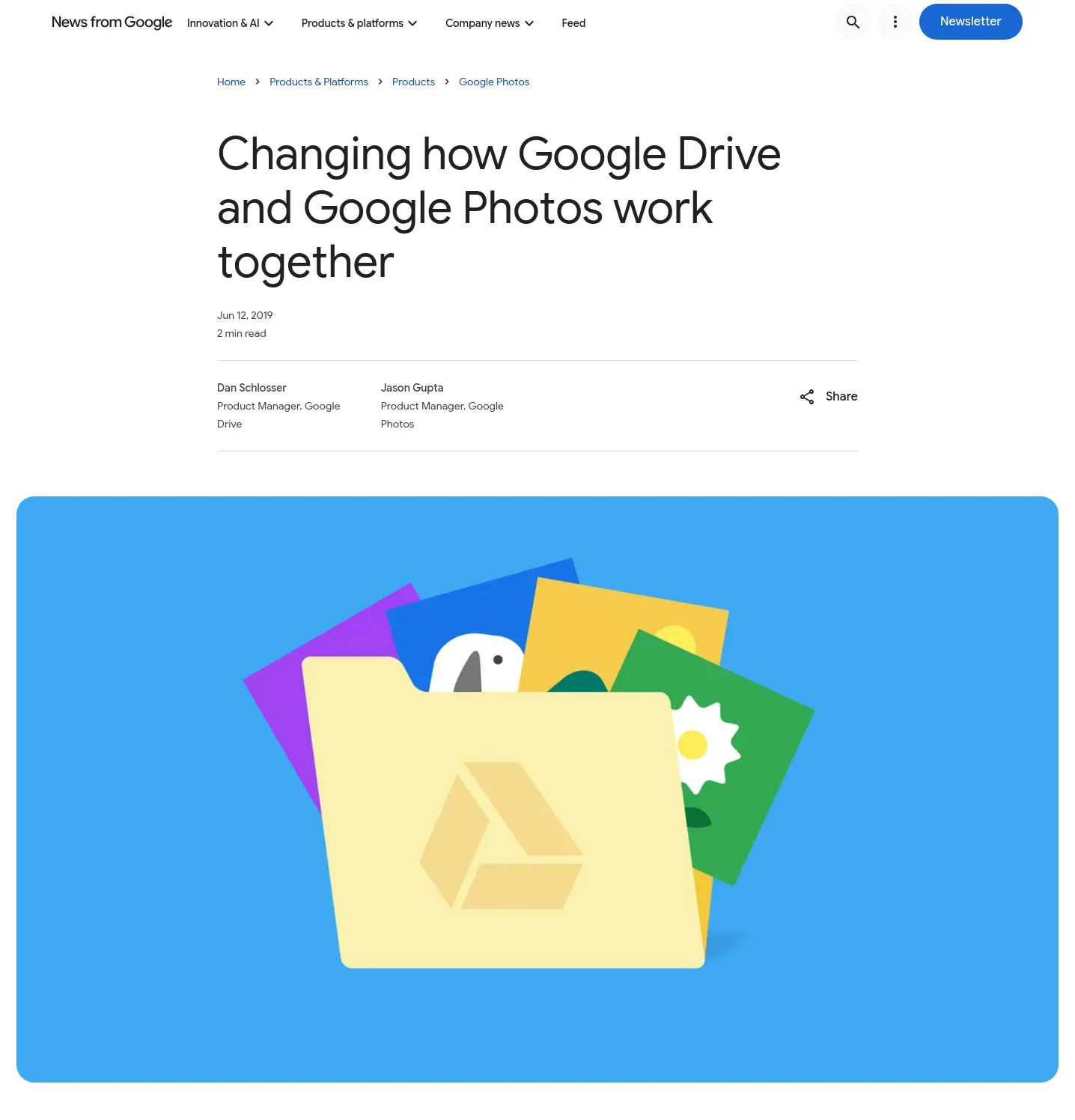
Until that point, files uploaded to Google Photos automatically appeared in a special "Google Photos" folder inside Google Drive and could be downloaded to users' personal computers without any issues via the "Backup and Sync" desktop client.
Naturally, the company's official position explained this move as concern for user experience. Supposedly, the seamless link between the services confused users, and accidentally deleting a photo in one service led to its irreversible loss in the other.
But did the IT giant really care about its customers' comfort? Heated debates quickly flared up on specialized forums and on Reddit. Many analysts and everyday users concluded that behind the nice words about "care" was a simple desire to cut infrastructure costs, since the service's growing popularity was becoming too expensive for the corporation.
With this move, Google eliminated the "free transit buffer." Users had been treating Google Photos as an intermediate cloud storage. Photos were uploaded without limit in "High quality" mode, and thanks to the integration with Google Drive and the Backup and Sync client, they automatically ended up on the computer. In this way, the cloud could be used as an essentially unlimited delivery channel for photos from smartphone to PC.
The changes triggered a wave of negative reviews. Blogs and forums were full of accusations that Google had disabled a genuinely useful feature that solved a variety of user needs.
So now, every time i need to use one of my photos for work, or any of the other countless reasons i need to access my mobile photos on my PC.. easier editing, reviewing, sending to get printed... i now have to intentionally download them. fucking phenomenal. why? why. fucking why?! i bet there is some sort of shady selfish reason for google doing this that we dont understand. and they are so goddamn big, we just have to bend over and take it.
The End of Unlimited Storage and Changes to the Desktop Client
The second stage followed on June 1, 2021, when Google delivered another painful blow and removed one of the service's key advantages — free unlimited storage for photos in compressed quality. Every uploaded photo or video began counting against the base 15 GB of storage, which, on top of that, became shared across Gmail, Drive, and Photos.
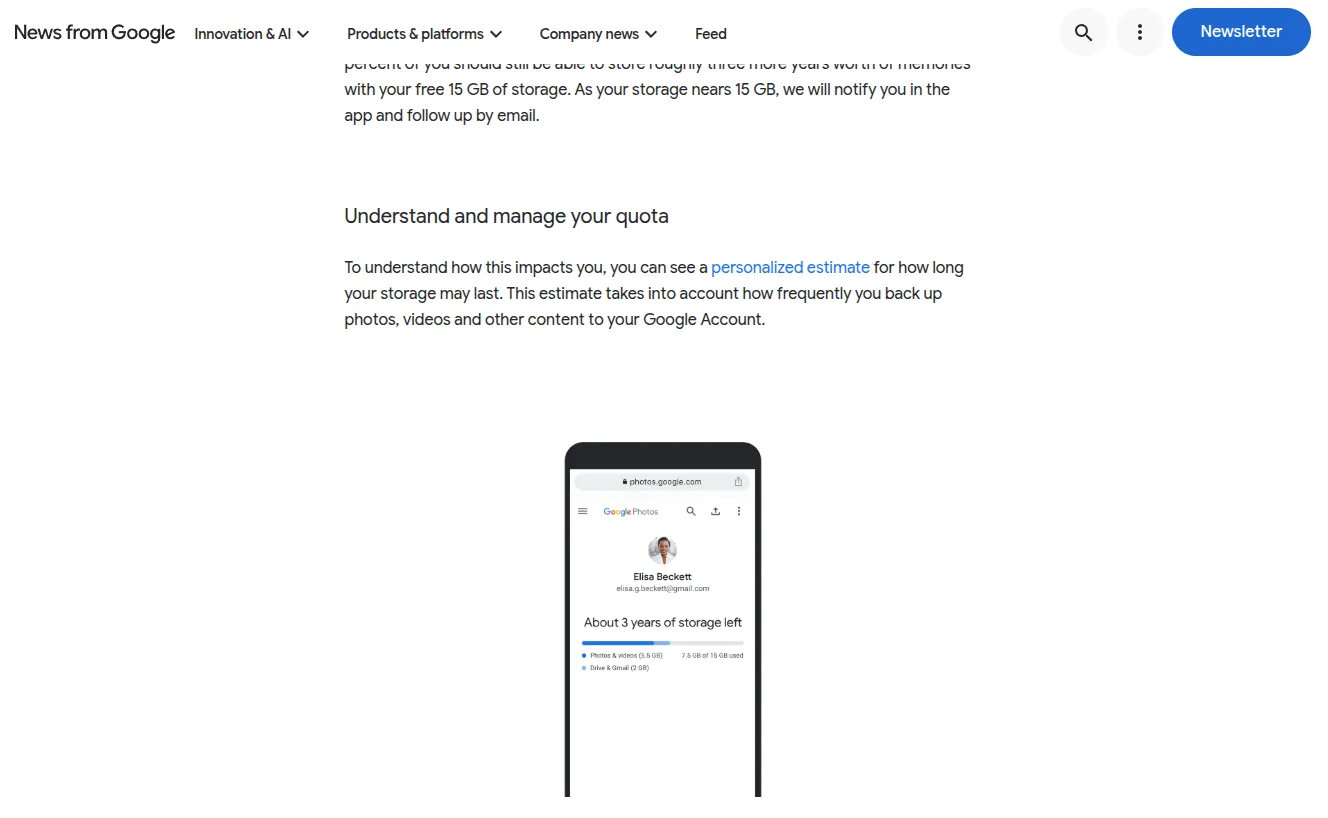
Such a significant change in how the service worked had an obvious commercial effect. If the free 15 GB wasn't enough for a user, Google offered a Google One subscription. On top of that, the service gained tools for estimating remaining storage space and notifications about approaching the set limit.
At the same time, the "Backup and Sync" client was replaced with "Google Drive for desktop," which meant more than just a name change. The new client kept the ability to sync files and photos with the computer, but leaned more heavily toward cloud storage. The app let users work with files stored directly in the cloud without them taking up all the space on the local disk. Users could choose between streaming files from the cloud and fully mirroring them on the computer.
This looks like an improvement to the user experience, but against the backdrop of the removal of unlimited storage in Google Photos and its merger with Google Drive and Gmail, it actually accelerated how quickly the available storage limit was used up. The more actively a person used Google's cloud features and photo backup, the faster the available free space ran out.
The cloud turned from a convenient addition to local storage into the central location for user data, and expanding the available space became a necessity.
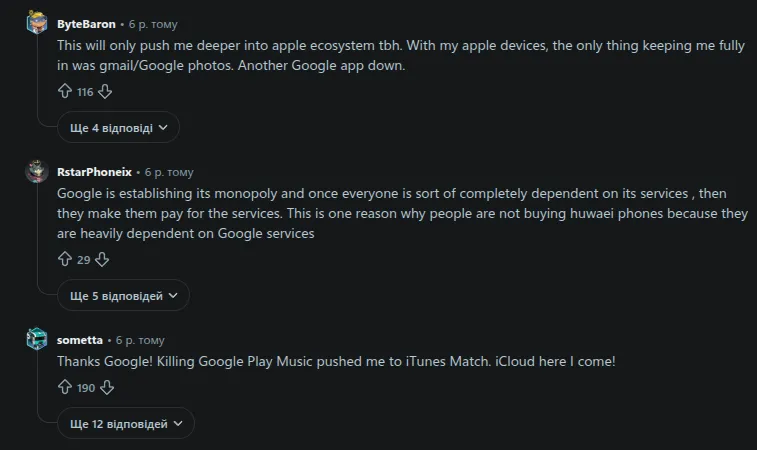
Naturally, users reacted to the changes with disappointment — especially considering that the company first lured its audience with free unlimited storage, turned the service into a monopoly in the mobile-backup market, and then blocked local ways to clear the cloud, forcing people to buy a subscription.
API Restrictions and the Final Shutdown of Background Desktop Synchronization
The final stage, during which the open infrastructure was completely dismantled, can be split into two steps, in 2025 and 2026. The result was a complete lockdown of automation, both for third-party developers and for the official desktop software.
Restricting the Google Photos Library API
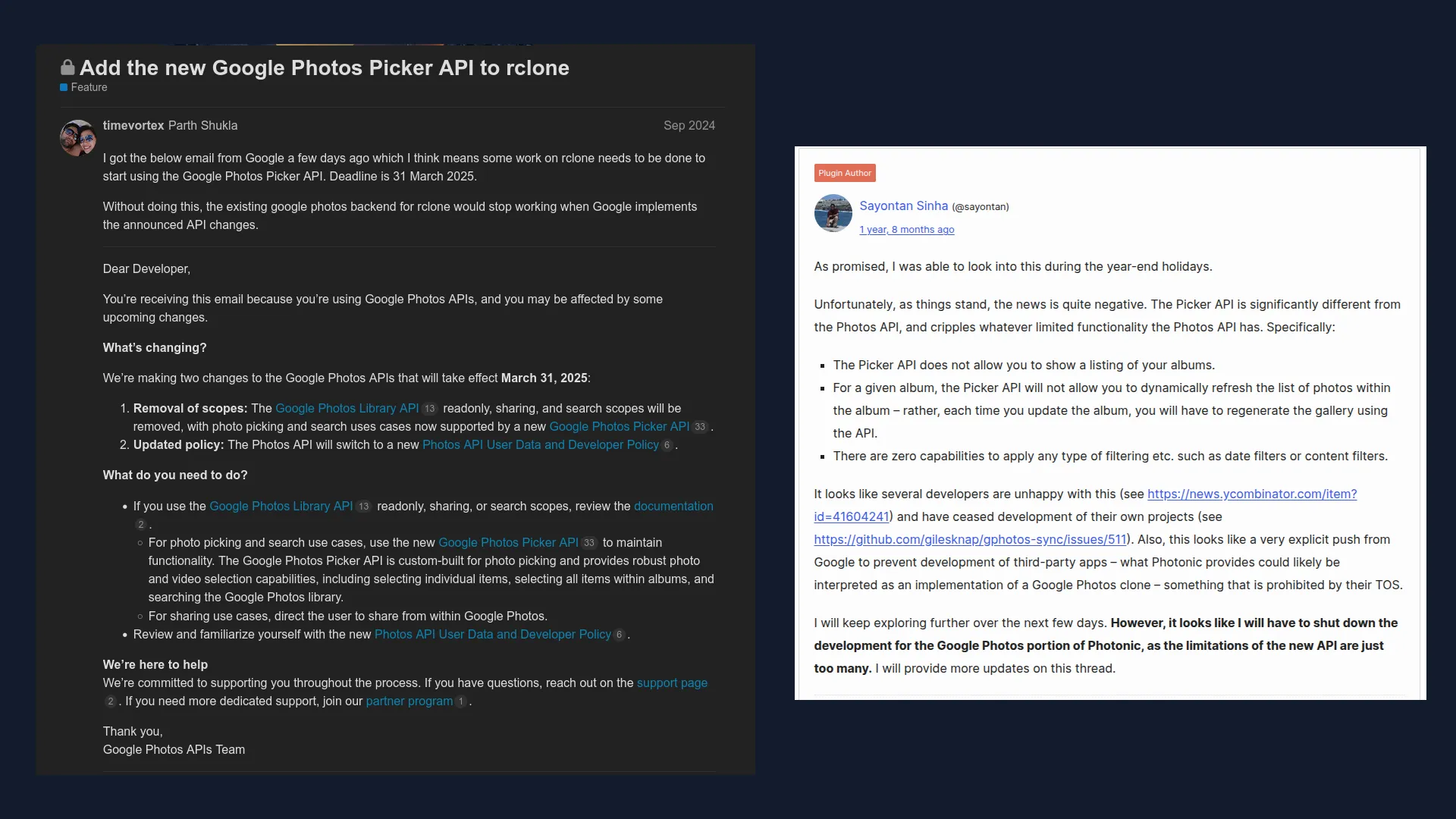
Google made radical changes to the access rules for the Google Photos Library API, which proved devastating for third-party developers.
Third-party apps, NAS devices, CMS platforms, and CLI utilities lost the ability to programmatically read, search, and download photos from a user's library.
The API was switched to work only with "content created by the app itself." This means software can only read a file that it uploaded to Google Photos itself.
As an alternative, Google launched the "Google Photos Picker API," which fundamentally rules out background automatic synchronization. It requires the user to manually open a dialog box and select specific photos in each individual session.
Open-source developers described these changes as a deliberate block on any third-party clients and backup tools.
My app (which uses Google Photos, among other sources, to set desktop wallpapers on Mac/Windows) is a member of the Google Photos affiliate program, and it turns out that the recommendation to 'consider alternative approaches' means no longer using the Google Photos integration. This is genuinely disappointing, and it once again proves that you can never trust Google's products.
Projects that integrated with Google Photos (such as rclone or WordPress galleries) were forced to completely remove this functionality.
Complete Shutdown of Synchronization in "Google Drive for Desktop"
On August 10, 2026, something that many users of the old system had probably long feared finally happened. The automatic PC photo backup feature was completely disabled. The fairy tale of a seamless cloud was finally over.
The official replacement for the background utility became the photos.google.com web interface. The problem is that when using web upload, data transfer only happens while the browser tab is open and active. As soon as the operating system puts the tab into background power-saving mode, or the user closes the browser, the data-transfer process stops.
As a result, the service has essentially lost its value as a backup tool. Many frustrated users rightly note that Google Photos has effectively turned into a mobile app whose main remaining advantage is face recognition — a feature that, however, only works with photos that have been uploaded to the cloud, forcing users to keep buying more and more cloud storage.
| Timeline | Technical restrictions introduced | Google's official position | Actual goals | Impact on the ecosystem and users |
|---|---|---|---|---|
| Stage 1 (July 2019) | Ended auto-sync between Drive and Photos. | Eliminating user confusion and preventing accidental deletions. | Separating disparate data architectures. Removing Drive as a free buffer. Double-counting quotas. | Loss of the ability to automatically download a photo library from smartphone to PC. |
| Stage 2 (June 2021) | Removed unlimited compressed storage. Replaced Backup and Sync with Drive for Desktop. | Growing load on storage infrastructure. | Direct monetization of the service through Google One subscriptions. Turning the desktop app into a sales client. | Hard 15 GB limit. Need for regular monitoring of disk space. |
| Stage 3.1 (March 2025) | Introduced the Photos Picker API. | Improving privacy and security of user data. | Blocking third-party alternative clients and automated backup scripts. | Complete inability for third-party software to automatically download a photo library. |
| Stage 3.2 (August 2026) | Ended background photo backup in "Google Drive for desktop." | Simplifying the desktop app's architecture. | Shifting the load onto the web client. Eliminating seamless import of uncompressed RAW files and video from PC. | Final loss of "set it and forget it" PC backup functionality. |
Reviewing the Official Synchronization Methods
Google has completely removed end-to-end background synchronization between desktop clients and the Google Photos service. The remaining official methods are built around the web and mobile interfaces, which come with certain technical limitations.
Google Photos Web Interface
PC users are offered the option to upload photos through the browser using the "Back up folders" feature.
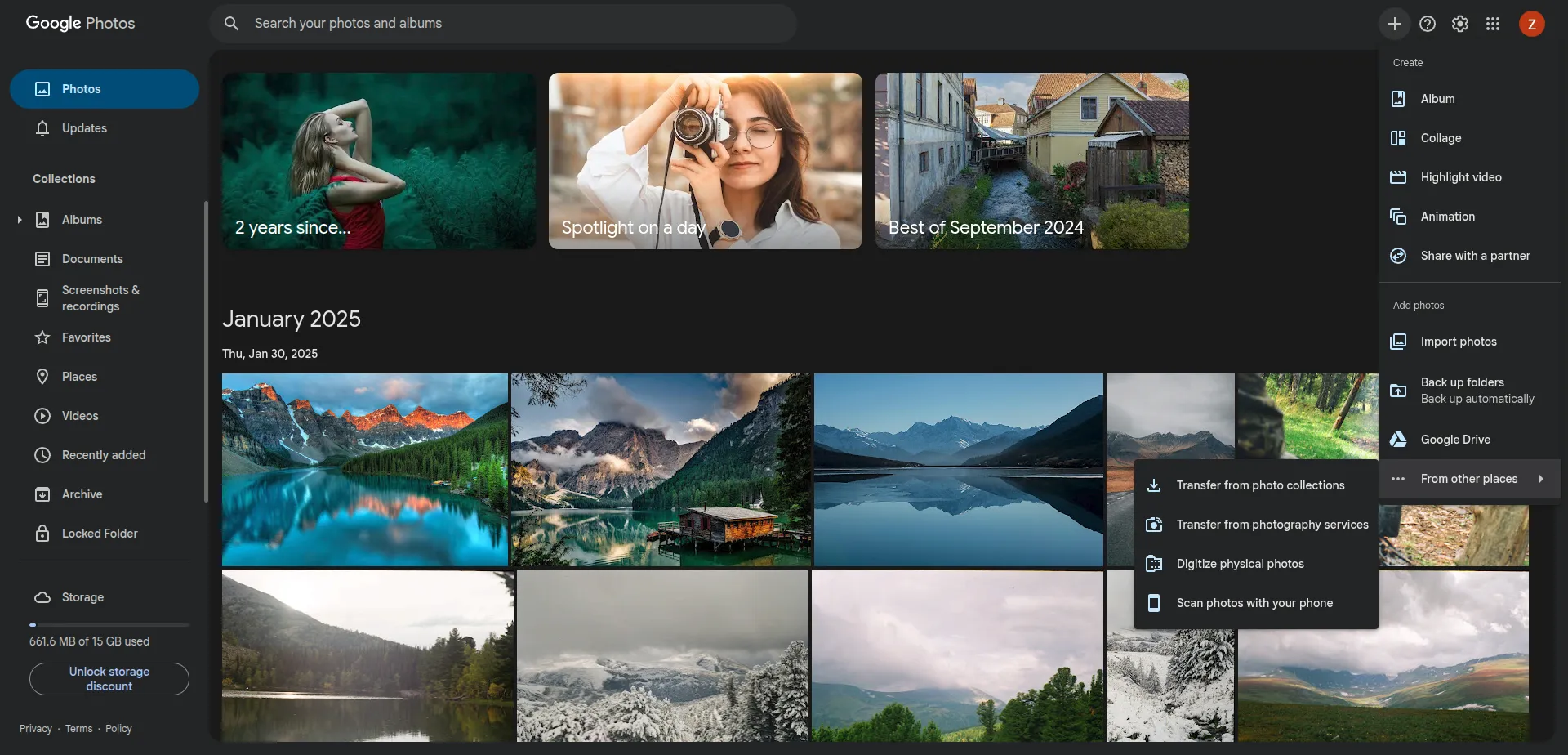
However, using it comes with technical limitations. The data-transfer process is interrupted when the tab is closed, the system restarts, or the PC goes to sleep. There is no two-way synchronization, meaning any changes made to local files on the PC are not reflected in the cloud, and vice versa. Bulk indexing of large catalogs (more than 10,000 RAW files) causes memory overflow and can freeze the computer.
But you'd still have to keep it open and minimized. I guess you could set it to launch at startup, but essentially that's just running another copy of Chrome that takes up several hundred megabytes and clutters up the taskbar," users write in reviews.
The "Back up folders" feature is suitable only for one-off imports of small albums. It is technically incapable of replacing full, system-level backup.
Google Photos Mobile Apps
Native mobile clients remain the only place where Google has kept background automatic uploading.
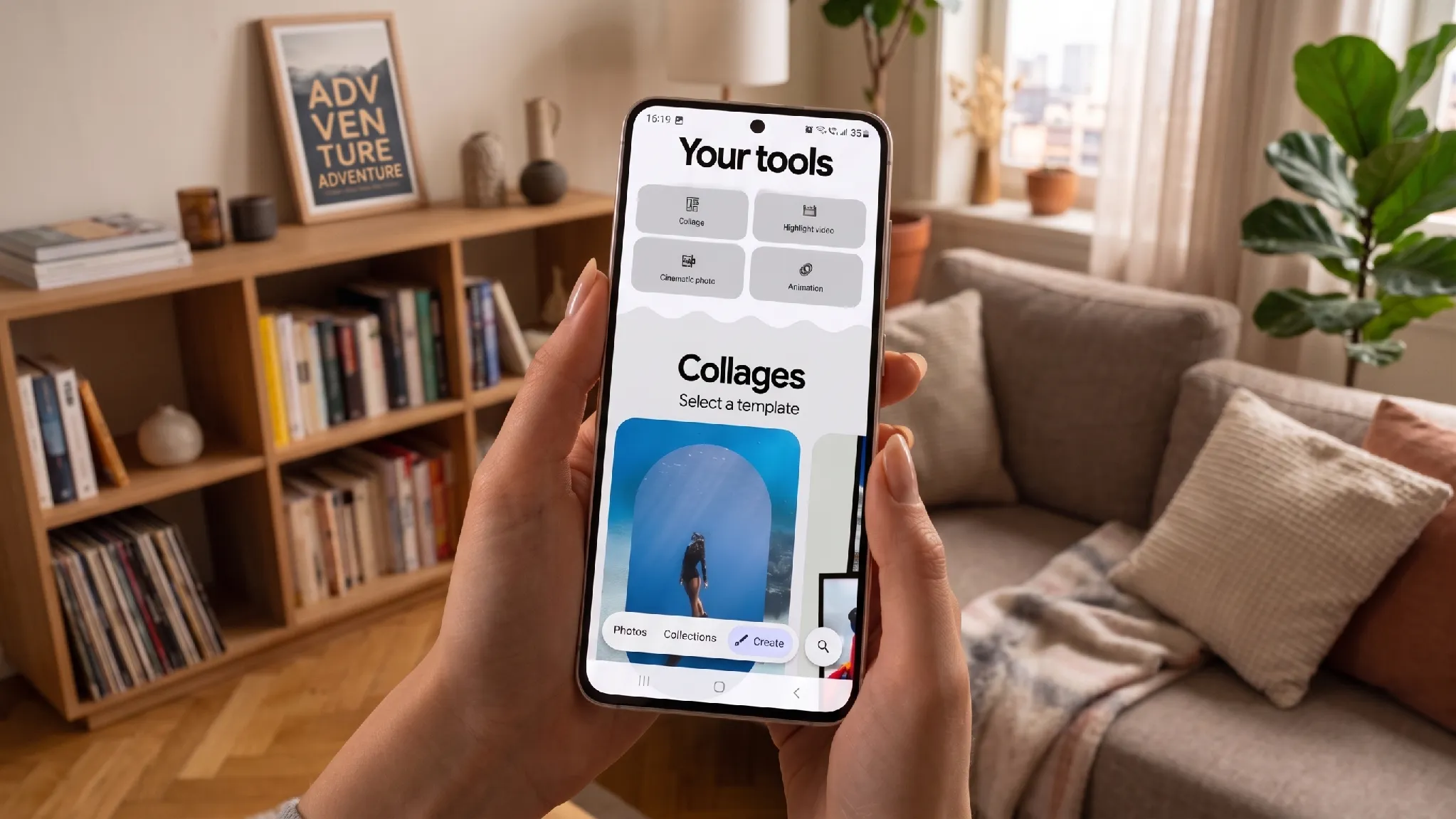
The problem is that photos uploaded from a smartphone to Google Photos cannot be retrieved on a PC as standard files without a complicated manual export.
Google Takeout is the only official tool the company provides for exporting an entire media library from Google Photos to a local device. It's meant for a one-time export, not for synchronization. The export comes as a series of ZIP archives ranging from 2 to 50 GB each, which then still need to be unpacked. If the archive is small, this usually isn't a problem, but when you need to extract 300–500 GB of photos, you need to make sure you have twice that much free disk space — for the archives themselves and for the extracted files.
How to Regain Control Over Your Files: Alternatives and Workarounds
After the significant Google Photos API restrictions, there is no longer a single universal solution that provides seamless photo synchronization across the phone–computer–cloud chain. If you have a paid subscription for extra storage on Google Drive, it makes sense to use that tool specifically instead of Google Photos. But the Google Drive mobile app doesn't have synchronization features.
A solution to this problem can be a combination of Syncthing and a native desktop client. The first app synchronizes specified folders between the smartphone and the computer. The second, installed on the PC, uploads the photos to Google Drive.
However, Syncthing cannot catalog photos. The app is only meant for syncing files between devices. It has no built-in galleries, face-recognition features, tag search, or metadata (EXIF) handling.
That's why it's easier for users to switch to a competitor's cloud storage, but this is more of a temporary fix than a strategic solution. There's no guarantee that these companies won't also want to increase their margins by changing their pricing or terms of use, the way Google did.
At first glance,self-hosting might seem like the most reliable solution — one that completely eliminates the risk of getting locked into a cloud storage "cage." But the setup process itself, and the ongoing maintenance, requires serious technical skill. An easier option is to use specialized photo-management software.
Tonfotos — An Alternative to Google Photos for Photo Sync
Tonfotos is a photo manager that's a great fit for keeping photos synchronized between a smartphone and a computer, with sorting and cataloging functionality close to that of Google Photos. The program stands out for its balanced interface, which combines simplicity and functionality nicely.
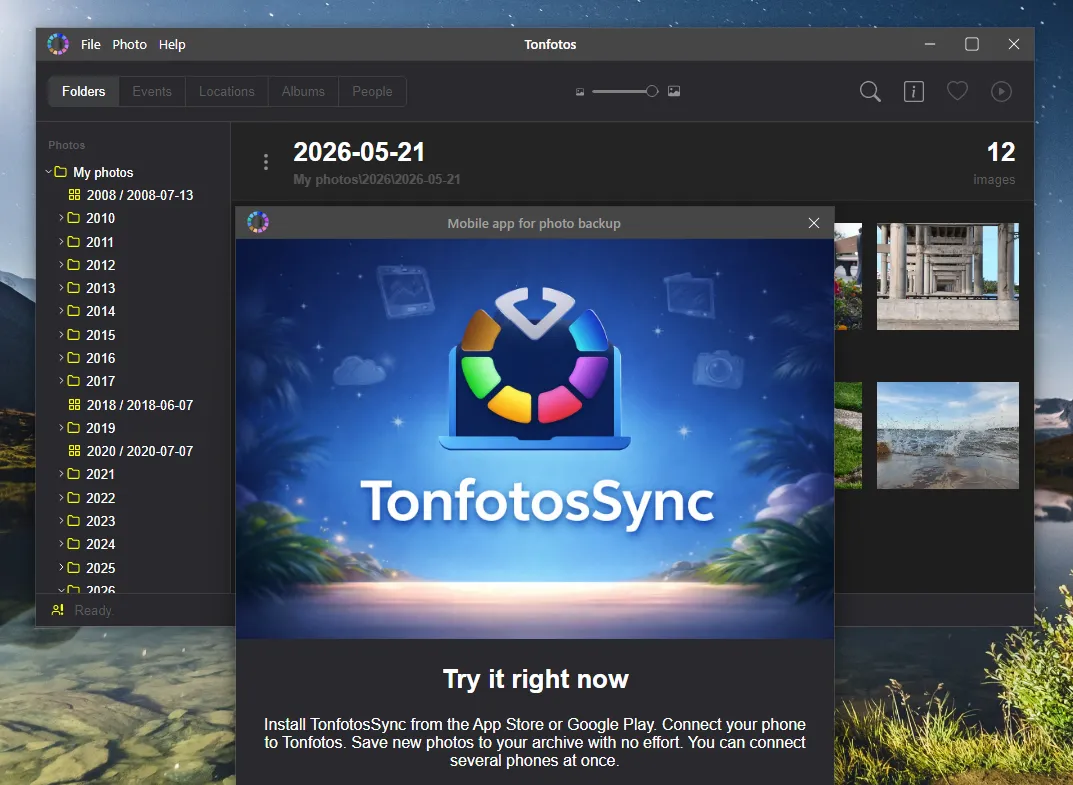
To set up synchronization, you need to install TonfotosSync and use it to scan a special QR code shown in the desktop version.
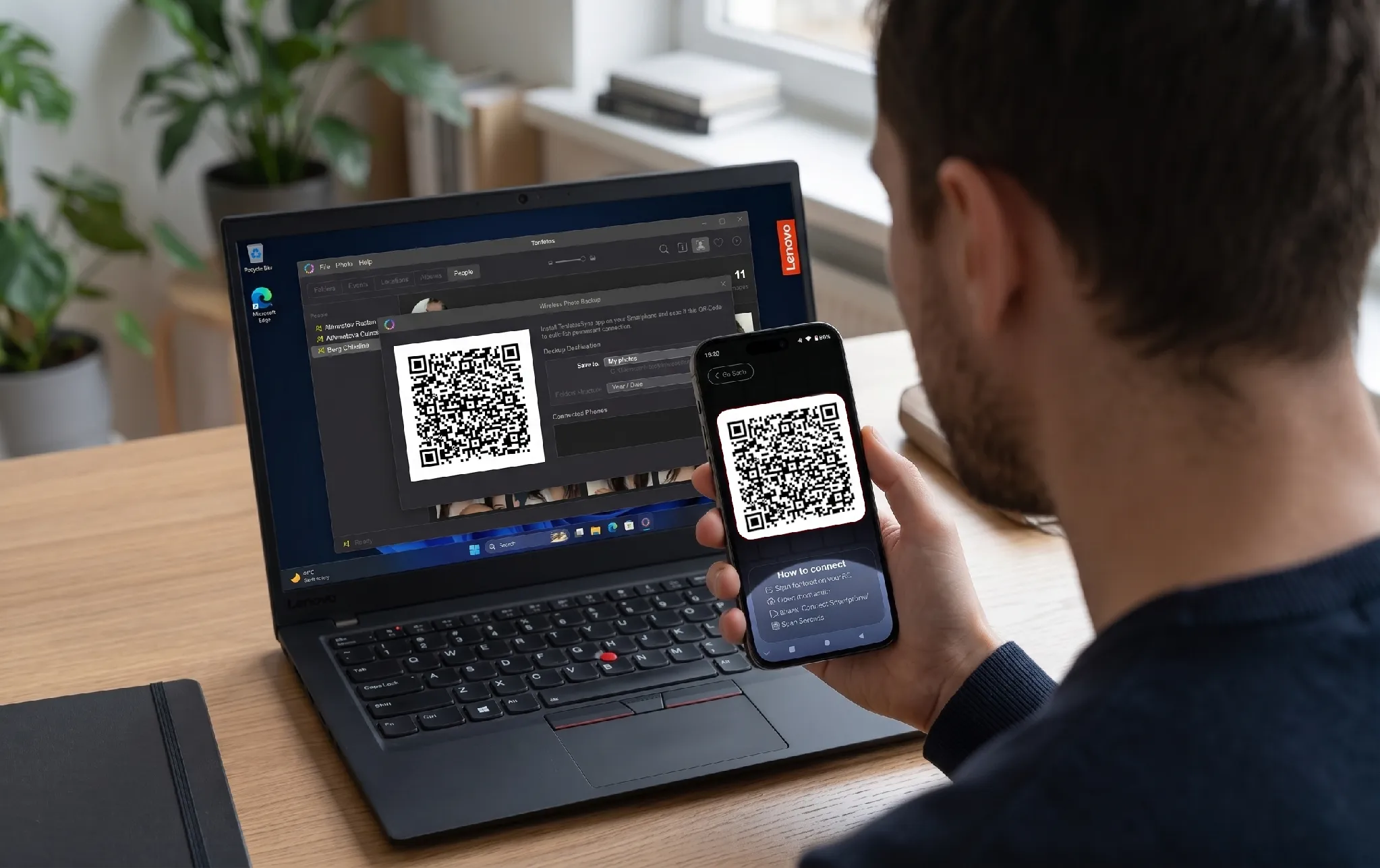
After that, it's enough to periodically launch Tonfotos on both devices to back up all new photos.
The only requirement! The computer and phone must be connected to the same router, within the same local network.
That said, Tonfotos isn't interesting only as a tool for moving photos from a smartphone to a computer. In terms of organizational features, the program has capabilities that made Google Photos popular in the first place. The key difference is that the catalog is stored locally, and the photos remain ordinary files on the computer, NAS, or external drive.
Face recognition and searching photos by person. Tonfotos automatically detects faces in photos and groups shots featuring the same person. The user can assign a name to a person, after which the program suggests other photos with similar faces.
Search by events, dates, and location. Like Google Photos, Tonfotos automatically groups photos into events. It takes into account the date and geographic coordinates recorded in a photo's metadata. Events can be viewed in chronological order, and photos with GPS data can be viewed on an interactive map.
Advanced search and filters. In Tonfotos, you can search for photos by people's names, folders, albums, tags, and file names. Compound filters are also available — for example, you can select several tags at once or sort photos by location and album.
Albums and favorites. Photos can be grouped into virtual albums without moving the actual files on the disk. This lets you build collections for trips, family events, or publishing, and mark your favorite shots.
Working with tags and metadata. Tonfotos lets you add tags, titles, comments, dates, and location information to photos. This data can be used for later search and filtering. Unlike the Google Photos cloud catalog, a significant portion of this information can be stored directly inside the files themselves.
Finding and removing duplicates. Another feature especially useful for a large media library — automatic detection of identical files. The program finds exact copies of photos even across different folders and lets you delete the extra copies.
Even though Tonfotos can replace Google Photos, it's important to keep in mind that it works locally. Accordingly, the entire workload of face search via the internal neural-network algorithm and metadata reading falls on the computer's own processing power. If it's old or has weak hardware, this can result in lengthy indexing — especially on first launch, or when transferring a large number of photos from a phone all at once.
Conclusion
The story with Google Photos shows that the convenience of a cloud service shouldn't be confused with a guarantee of long-term access to your own data. As long as the chosen platform suits the user, everything works seamlessly: photos are automatically uploaded, sorted, and available across devices. But changing a single rule can disrupt the usual way of working.
That's why, for a valuable media library, it's better to set up a system in advance where the cloud service is a convenient tool rather than the sole storage location for the originals. Keep your photos as ordinary files, create independent backups, and choose software that lets you move your archive painlessly whenever needed.
Frequently Asked Questions (FAQ)
Can you fully give up Google Photos without losing your photos?
Yes, if you set up your own storage system in advance. The best approach is to keep a local copy of your photos on a computer, external drive, or NAS, along with a separately configured backup. In that case, a change in the cloud service's policy won't cause you to lose access to your archive.
What's better for storing photos: the cloud or a computer?
Each option has its own advantages. The cloud is convenient for access from different devices and protects against the failure of a local drive, while a computer or NAS gives you more control over your files and archive structure. For important photos, it's wiser not to choose just one, but to combine local storage with a backup copy.
What's the difference between file synchronization and backup?
Synchronization keeps data in the same state across multiple devices. If a file is deleted or changed, that change can propagate to the other copies. Backup works differently: its job is to preserve a separate copy of the data that you can return to after an accidental deletion, a failure, or file corruption.
Can you store photos only on your smartphone?
Technically, yes, but for valuable shots this is a risky approach. Losing or damaging the phone can destroy the only copy of your photos at the same time. That's why it's a good idea to periodically transfer important photos to at least one independent device or separate storage.
Do you need a NAS for a home photo archive?
Not necessarily. A NAS makes sense if your media library is large, needs to be regularly accessed by several devices, or you need centralized storage on your home network. For a small collection, an ordinary computer and an external drive may be enough. That said, a NAS also doesn't replace a backup.
Is it worth moving an old photo archive from Google Photos to a computer?
If the photos have value, creating a local copy is a sensible precaution. Google provides Google Takeout for this, but exporting a large archive requires extra free space and additional work with the resulting archives afterward. So it's better to do the transfer ahead of time, rather than when access to the data has already become urgent.
Can you use several backup methods at the same time?
Yes, and for a large media library, this is one of the most reliable approaches. For example, photos can be stored on a computer, automatically copied to an external drive, and additionally saved to the cloud. It's a good idea to make sure at least one copy is kept separately from the main device.