If your iPhone is running slowly or glitching, you may have run into the same problem I did, when at a critical moment my phone simply refused to take a photo and showed a system warning that storage was full. On top of that it started noticeably lagging, apps opened with a delay, and I had to temporarily forget about shooting 4K video.
When I started digging into the problem, I was pretty surprised to discover that the lion's share of the storage was taken up by ordinary photos and videos. I'd always assumed images barely took up any space, so I'd never paid attention to duplicates.
As it turned out later, my family had the same issue. For example, my wife's phone had accumulated a huge number of identical photos of the kids, which kept causing the iPhone to freeze.
In an era when we take dozens of photos every day, shoot video in 4K, and send gigabytes of content through messaging apps, periodically organizing your photo library and deleting duplicates has stopped being just a nice habit and become a hard necessity.
After doing a thorough review of the available solutions, I want to share the story of my search and take a detailed look at 7 popular apps for clearing duplicate and similar photos off an iPhone. I personally tested each one, examining its key features, AI algorithms, ease of use, pros, cons, and monetization approach so you can get a clear picture of what each offers.
The main challenge with removing duplicates
Before getting into specific solutions, it's worth understanding a key technical distinction between exact duplicates and similar photos. Exact duplicates are shots that are binary, or completely identical — for example, when you accidentally duplicated a file on import or saved the same photo several times. These are easy and safe to delete: they take up extra space without providing any value.
Similar photos are a different matter. These include burst shots, photos taken from a slightly different angle, with a different facial expression, or with slightly different lighting. A simple filename or file-hash comparison won't find these. What's needed here is a local neural network or machine-learning algorithm that can "understand" the scene, judge sharpness, detect smiles, and pick the single best shot out of a series.
CleanMyPhone (by MacPaw)
CleanMyPhone was one of the first utilities I decided to test, mainly because of the developer's solid reputation.
It's a great choice if you want a comprehensive iPhone cleanup built around local AI. All images are processed right on the device without being sent to any cloud service, which keeps your personal data private.
The app's interface is split into two modules.
Cleanup. Instantly scans your whole media library and finds exact duplicates, burst shots, blurry photos, screenshots, and long videos.
Organization. Uses AI to group photos into thematic categories ("Animals," "Food," "Travel," "Portraits," "Text"). Within each group, the app suggests keeping a single best shot and sending the rest to the trash.
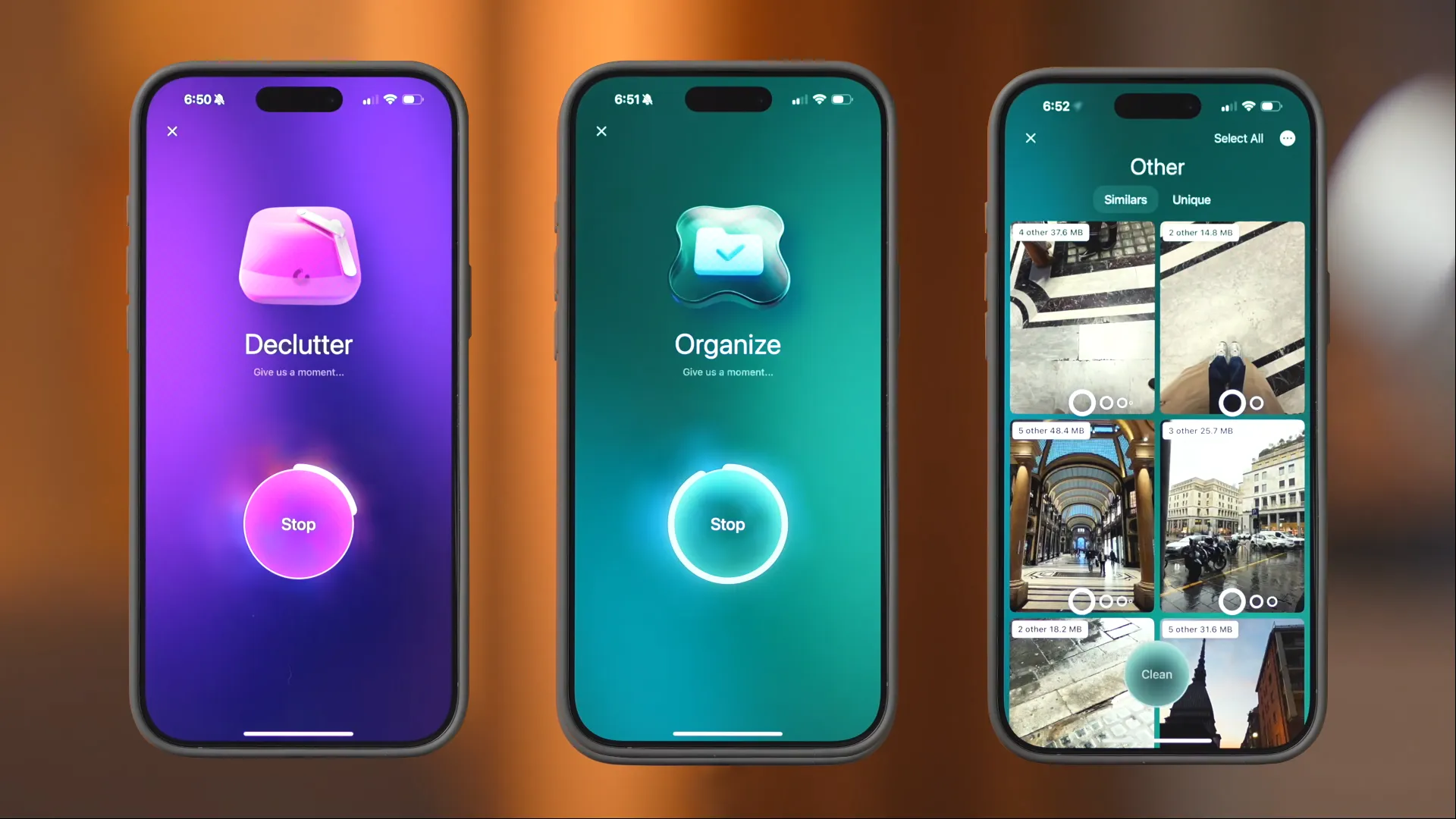
Aside from cleanup features, I'll note that CleanMyPhone has a built-in Wi-Fi and mobile connection tester. At first glance the feature seems unnecessary, but in practice I found the following benefits:
Speed check before uploading to the cloud. Once I'd cleared my gallery of duplicates, I upload the remaining archive of "heavy" 4K videos to iCloud. The built-in test lets me check whether the network has enough bandwidth so the sync doesn't stall.
Checking connection quality while traveling. This feature came in handy on a trip. The app clearly shows what the current connection is good for — texting, Zoom/FaceTime video calls, or online streaming.
Connection security analysis. The tool identifies the Wi-Fi access point's encryption type (Open, WEP, Personal), warning you about the risks of transmitting data over unsecured public networks.
Pros
- Smart AI sorting of photos into thematic categories.
- A high level of privacy — files never leave the device.
- A useful network-check module before uploading large files to the cloud.
- A sleek, modern, and intuitive interface.
- No annoying ads.
Cons
- Requires a paid subscription ($29.99/year).
- A short free trial period (only 3 days).
Clever Cleaner (CleverCleaner AI)
When I was looking for a solution for a relative's phone, my main criterion was no paid subscriptions. Clever Cleaner turned out to be a real find — a completely free tool with no hidden in-app purchases or ads.
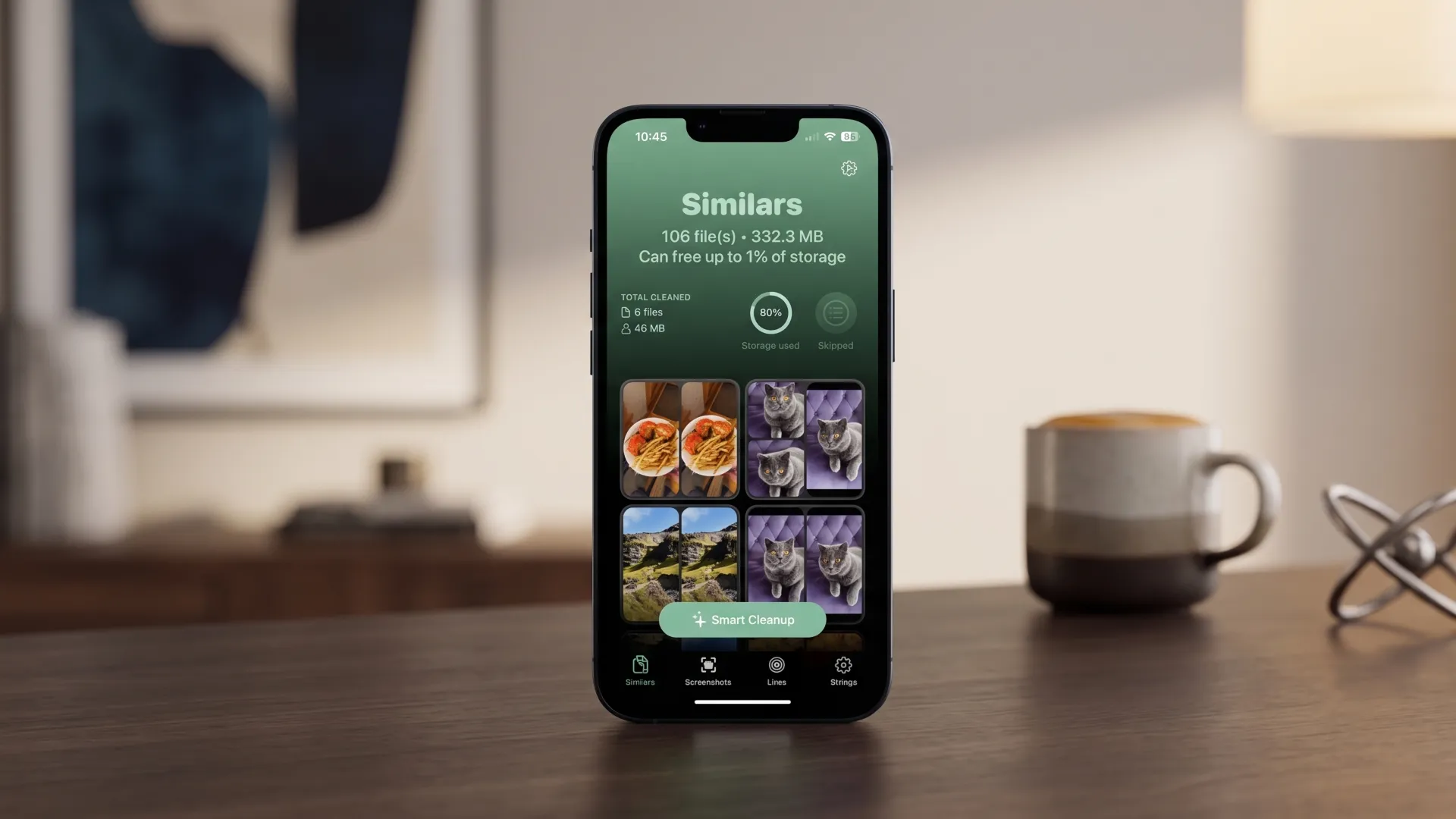
What surprised me was that, despite being free, the app uses advanced AI-based algorithms for fast iPhone cleanup. It offers three modes of operation.
Exact duplicates. Quickly finds and removes copies of photos that have crept into your folders.
Similar shots. The algorithm analyzes a series of photos, automatically picks out the best shot, and suggests deleting the unsuccessful ones.
"Swipe" mode. Lets you go through the remaining photos manually with simple swipes — left to delete, right to keep. A great way to quickly tidy up your library while waiting in line or on a trip.
Besides photo handling, Clever Cleaner can also identify heavy video files, compress Live Photos, and find system junk (like old screenshots).
Pros
- 100% free: no hidden charges, subscriptions, or locked features.
- Completely free of built-in ads.
- A fast, accurate AI scanner for duplicates and similar shots.
- Live Photos compression and a handy Swipe mode.
Cons
- No advanced filters.
- High CPU load.
Cleanup
Cleanup stands out for its minimalist approach. The app scans your media library and instantly sorts files into categories: duplicates, similar photos, burst shots, and blurry photos.
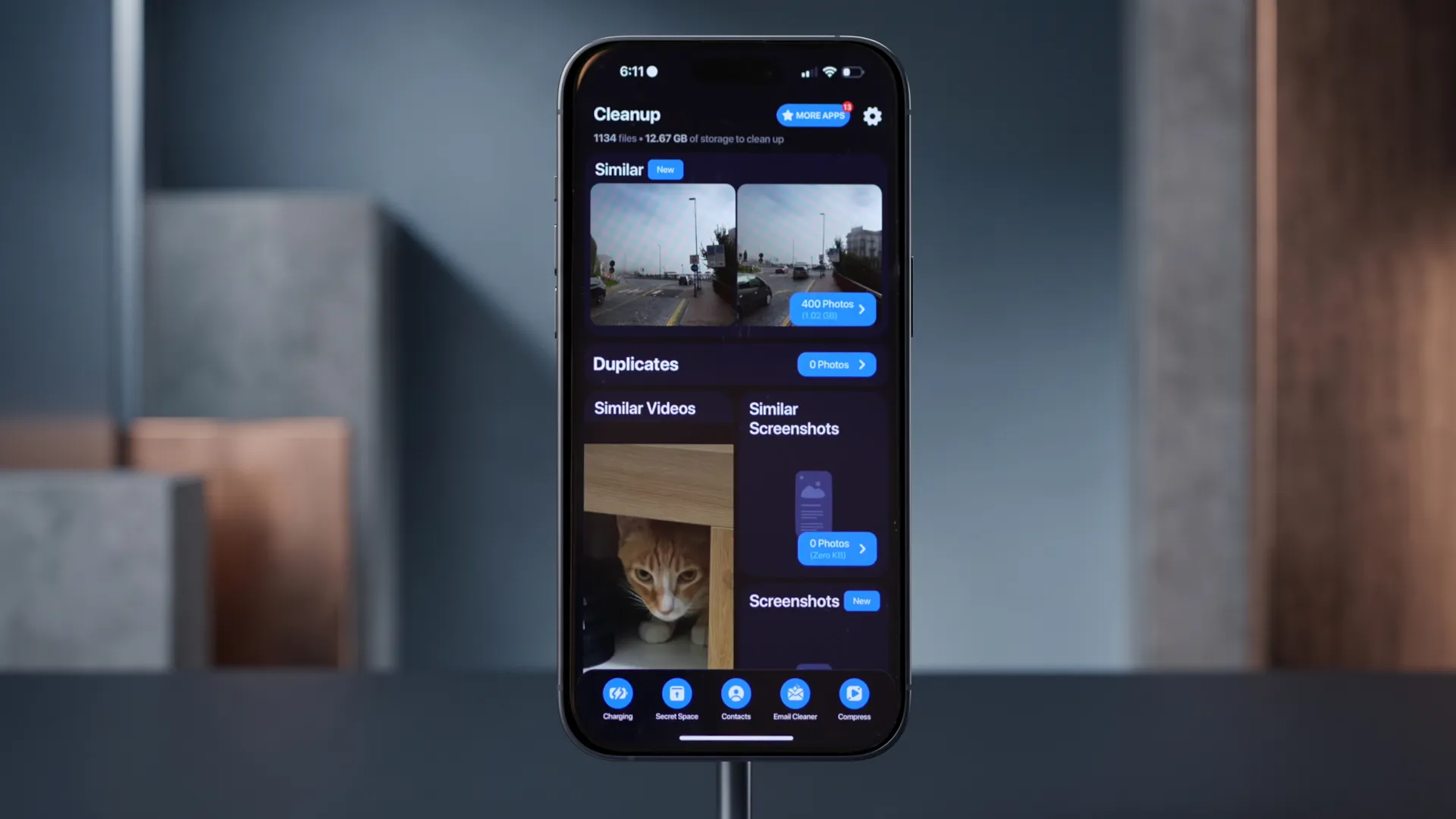
You can trust the app's auto-selection or manually go through the grouped stacks of similar shots and check off the files you want to delete.
Besides finding duplicates, Cleanup has a built-in file converter. It lets you shrink the size of videos and photos with minimal visible loss of quality.
Pros
- Great, clear handling of duplicates for both photos and videos.
- A flexible free trial (7 days instead of the usual 3).
- A built-in media compression feature.
Cons of Cleanup
- Intrusive ads in the free version.
- The similar-photo detection algorithm can sometimes get it wrong and group unrelated shots together.
- A high weekly subscription price ($3.99/week).
Cleaner Kit
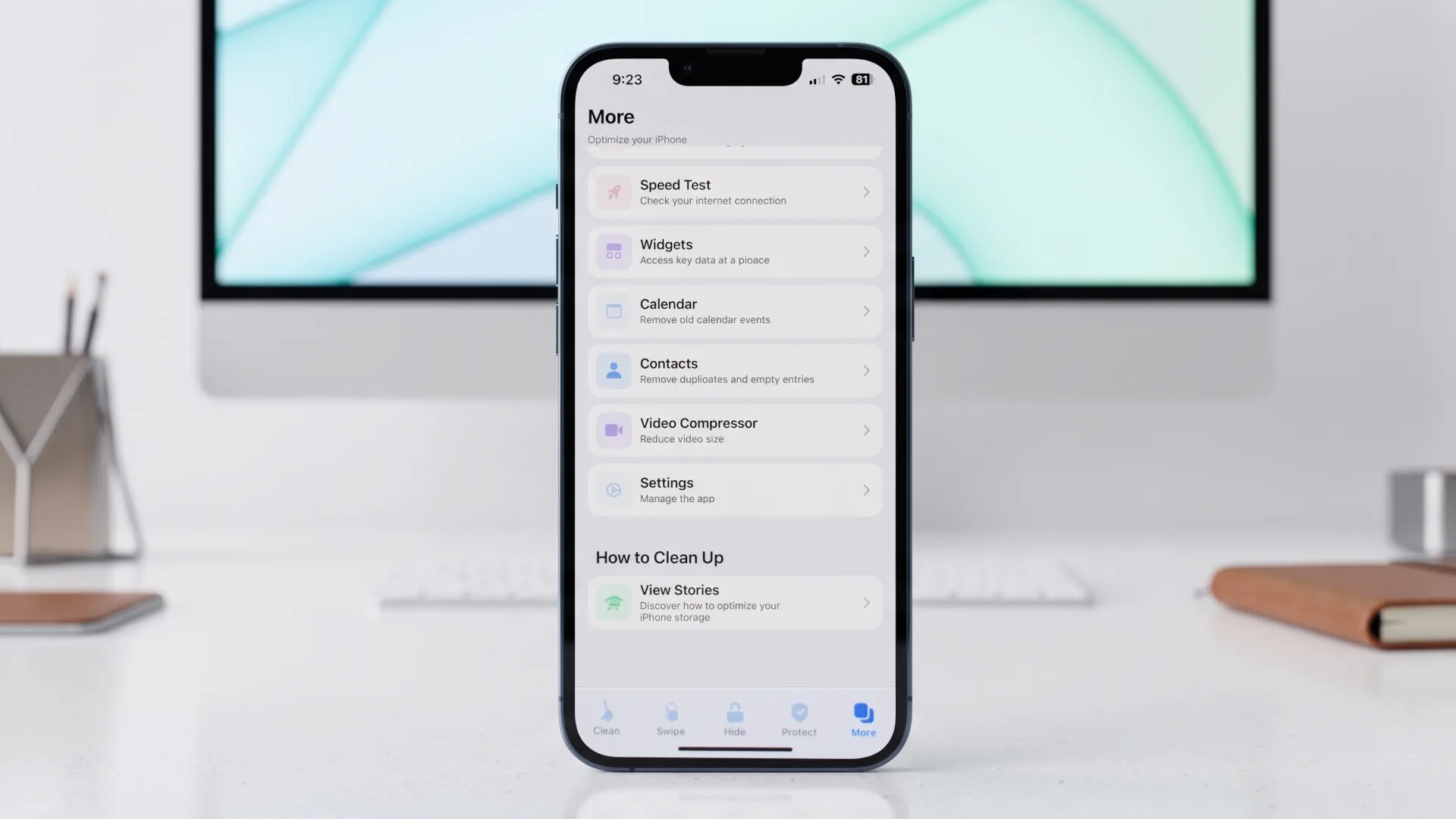
Cleaner Kit positions itself as an all-in-one toolkit for taking care of your phone, where removing duplicate photos is just one of many iPhone cleanup features.
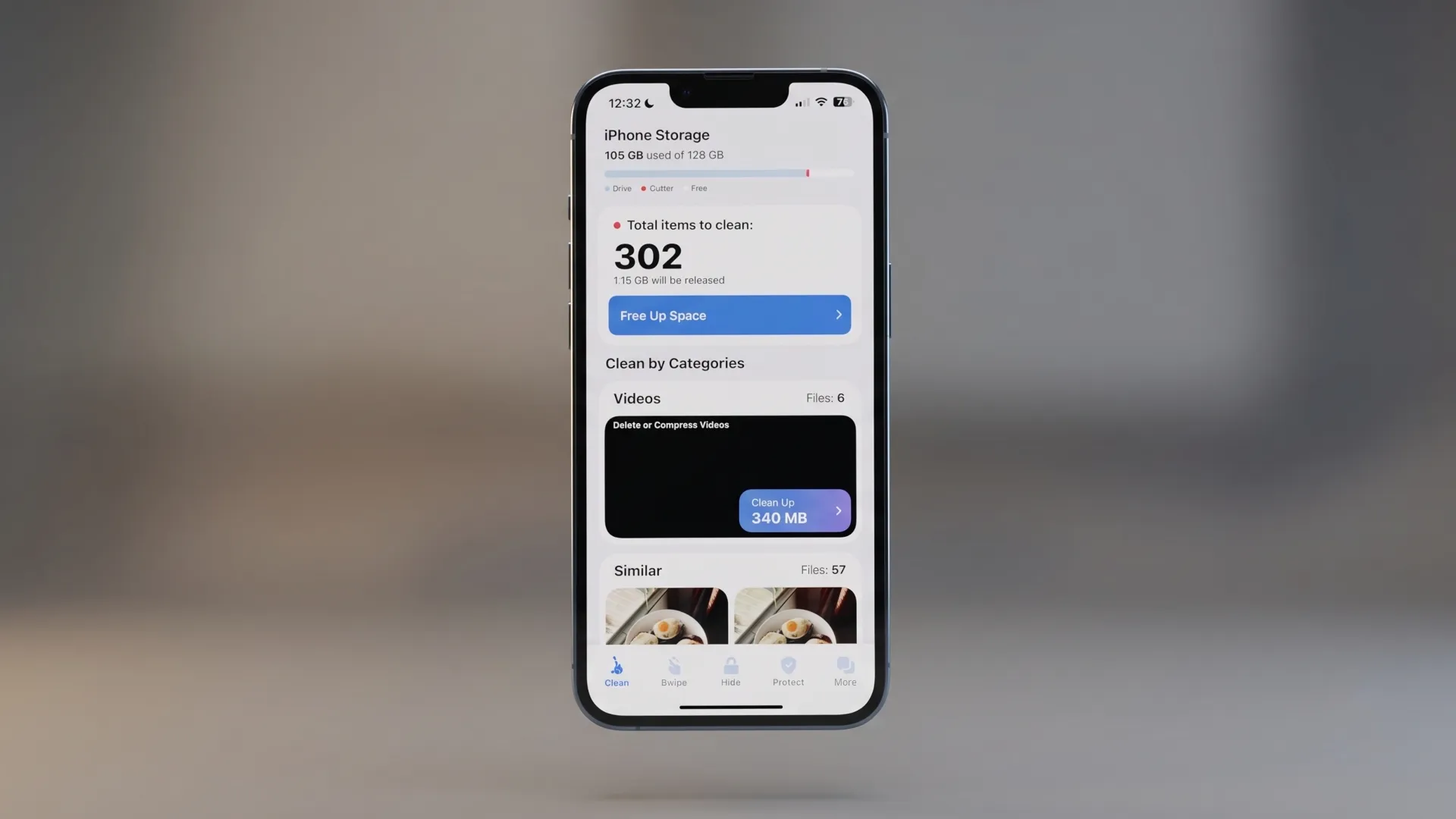
The app offers a Smart Cleaning feature. With one tap, the algorithm scans your gallery, finds exact copies of photos, similar bursts of shots, and screenshots, then suggests a plan for freeing up storage. A manual mode is also available for anyone who wants full control.
I should note that Cleaner Kit's capabilities go well beyond photo cleanup. The app can find and merge duplicate contacts, delete old Calendar events, and compress videos.
Pros
- A huge set of additional features (security, contacts, calendar).
- A handy quick-widgets feature for the iOS home screen.
- A secret folder for private content.
Cons
- A fairly high weekly subscription price (from $6.99/week).
- An interface that feels cluttered if all you want is to delete a couple of duplicates.
Boost Cleaner
Boost Cleaner's home screen greets you right away with a clear chart of used storage. The Smart Photo Cleaning shortcut runs a quick check of your media library. The app finds exact duplicates, identifies bad selfies and series of similar shots, and also lets you manage bulky Live Photos and GIF animations.
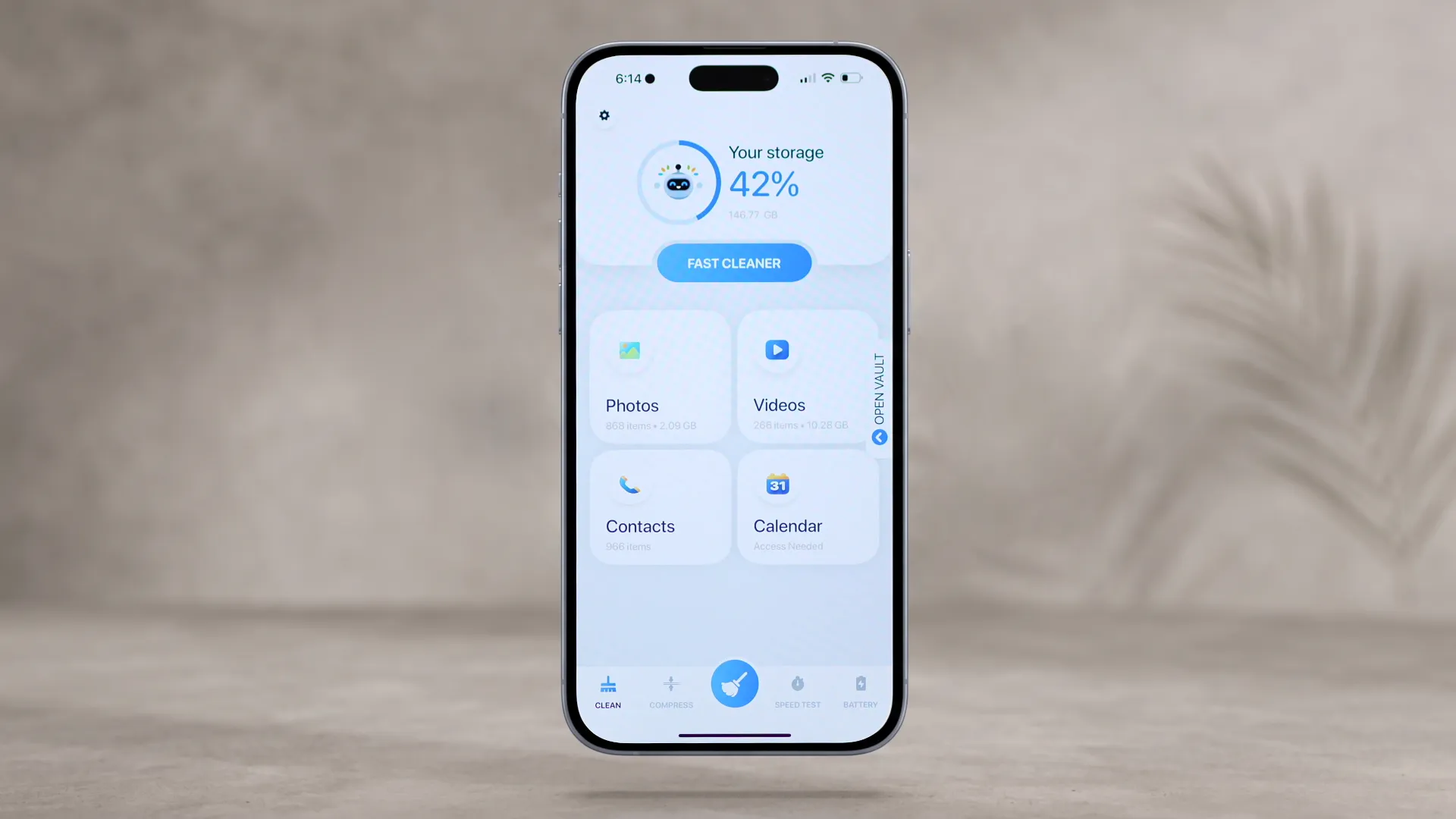
Boost Cleaner's additional features center around advanced address-book management and local control over large files.
The contacts section doesn't just remove duplicates by name, number, or email — it also lets you clean up incomplete entries with missing information, perform bulk (group) contact deletion, and instantly back up your contacts with the option to restore them at any time.
The Large Files Finder module is built for quickly locating and deleting the biggest files on your device. The app also guarantees 100% privacy: all operations on photos and contacts happen strictly on-device, with no data sent to outside servers.
Pros
- Fully local data processing — photos and contacts never leave the device.
- Very fast scanning and a clear visualization of storage.
- An advanced contacts manager with backup support and bulk deletion.
- Convenient filtering of media files by location and date, with support for Live Photos and GIFs.
Cons
- Not every subscription plan includes a free trial.
- No narrowly-specialized features like video compression or password-protected files.
- The interface is clean but falls short of CleanMyPhone's AI-categorization aesthetics.
Phone Cleaner
Phone Cleaner is built for a detailed breakdown of your media library. The app analyzes complex burst photos, screenshots, and similar Live Photos.
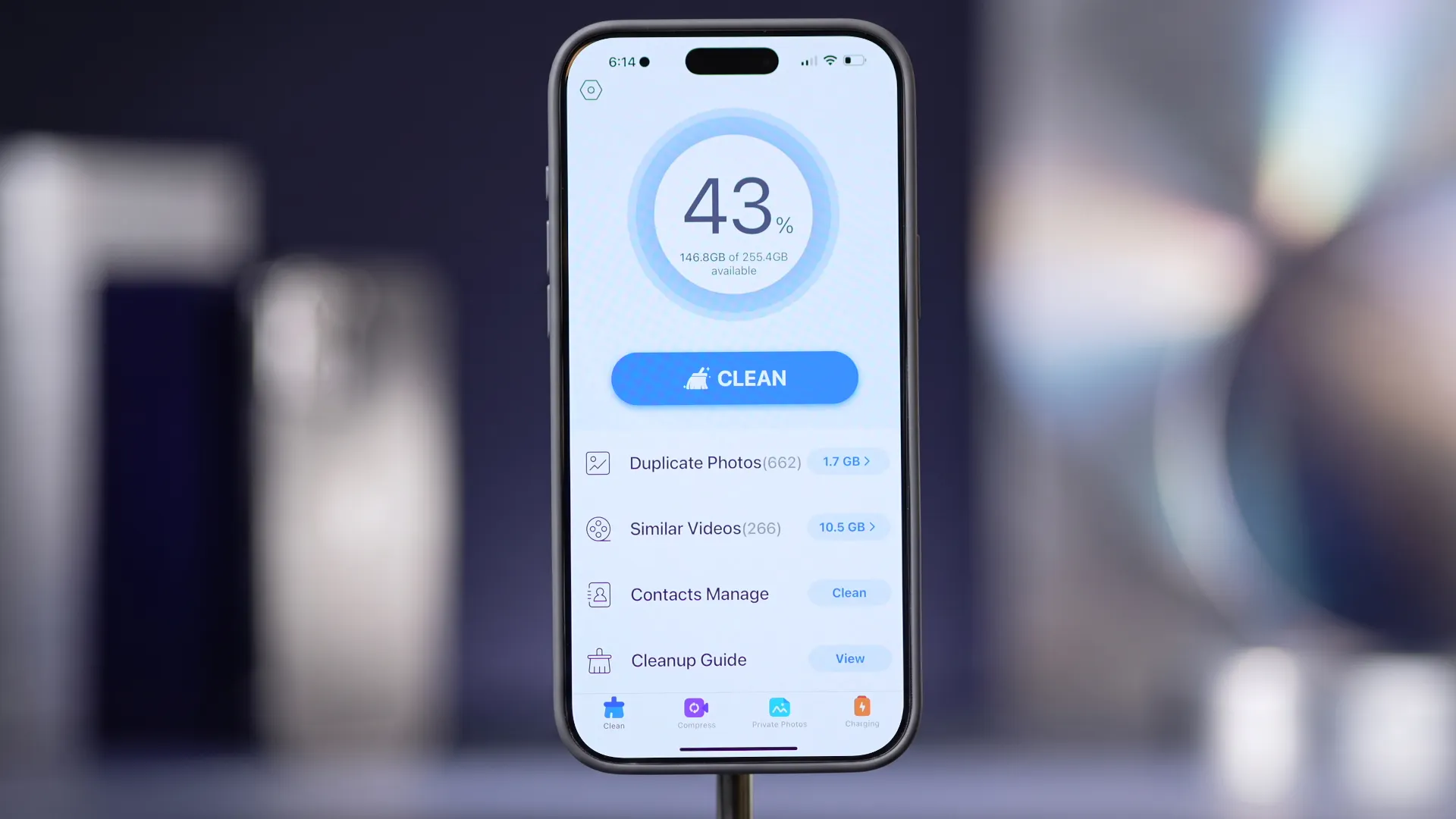
The Similar Video section scans your videos, sorts them by size, and finds matching or similar clips, letting you delete large files in bulk.
The Photo & Video Compressor module offers smart photo and video compression "in one tap" with minimal quality loss, so you keep your valuable footage while saving a lot of space. The app also includes a Calendar & Contacts Cleaner, which lets you clear out old Calendar events and tidy up your address book with a single click.
Pros
- Comprehensive gallery handling: analysis of Live Photos, burst shots, and blurry photos.
- A built-in photo and video compression module with no noticeable quality loss.
- Convenient sorting and removal of similar video files.
- Quick, one-click cleanup of Calendar and contacts.
Cons
- No free trial (all key features immediately require a subscription starting at $3.99/week).
- The interface can feel cluttered given the sheer number of tools.
Cleaner Guru
Cleaner Guru is a storage manager built for comprehensively optimizing your device. It helps keep your iPhone running smoothly and efficiently by clearing out unnecessary digital clutter and helping you organize your content properly.
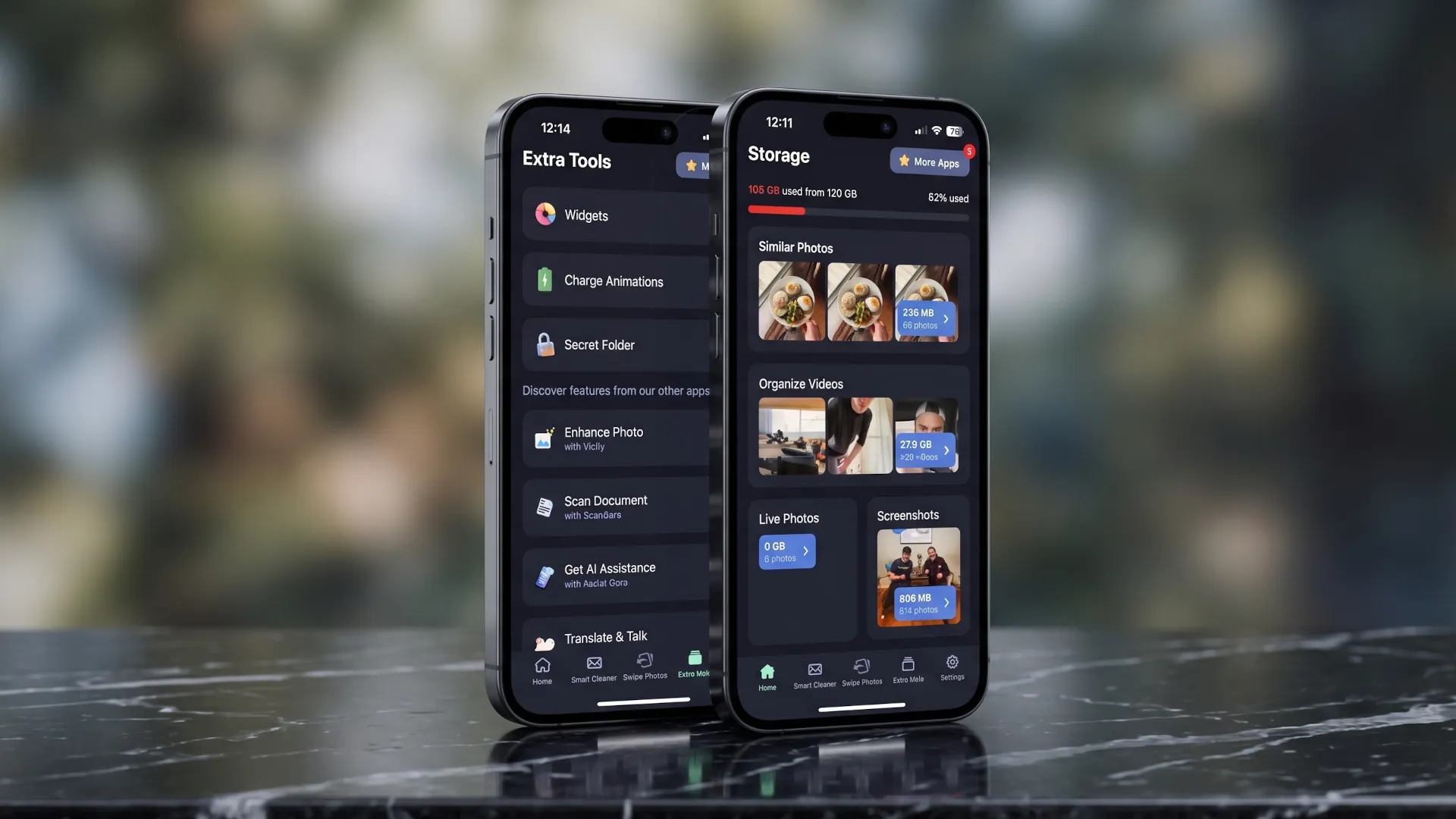
The app is great at recognizing series of similar shots and helps you quickly tidy up your gallery. Cleaner Guru can also work with more complex media formats, such as Live Photos and GIF animations. Since "live photos" take up 2-3 times more space than ordinary shots, finding their duplicates can free up an enormous amount of storage.
The video optimization module identifies the largest files taking up the bulk of your storage and lets you compress video with no noticeable loss of quality.
For tidying up your address book, there's a smart contact-cleaning tool. It lets you merge duplicates with one click and automatically fill in missing fields in contact cards. There's also a built-in Email Cleaner module for quickly clearing digital clutter out of your mailboxes, including promotional mailings and outdated messages.
A built-in Secret Folder lets you protect sensitive photos and videos with a password, keeping them away from prying eyes.
Pros
- Deep duplicate search across Live Photos, GIFs, and similar shots.
- Multi-functional (gallery, video, contacts, email, and large files).
- Personalization tools available (storage/battery widgets and a charging animation).
- A free trial is available.
Cons
- A high weekly subscription price (around $7.99/week).
- An interface cluttered with effects.
- No thematic AI analysis.
Tonfotos, as a Tool for Cleaning an iPhone and Transferring Photos to a Computer
All the apps described above are good in their own way. Some offer deep AI sorting, others are appealing because they're completely free or come with extra features.
However, over the course of testing all these utilities, I ran into another serious problem. Most of my iPhone's storage remained taken up by gigabytes of valuable photos and family videos that I couldn't bring myself to delete. What I needed was a solution that wouldn't just tidy up and remove junk, but would also conveniently move the bulk of my media files to an external drive or PC, fully freeing up the phone for new memories.
That solution turned out to be the photo manager Tonfotos, together with the TonfotosSync mobile app from the same developer.
In the sections below, I'll walk through in detail how to set the program up so that transferred photos and videos aren't dumped into a single folder but are neatly sorted into folders by the date they were shot. I'll also show how to get rid of duplicates right at the copying stage and within the app itself.
Preparing to transfer photos and videos from an iPhone
Tonfotos is a genuinely powerful tool for organizing photos. The program can work efficiently with several sources at once. However, for transferring photos from an iPhone with automatic sorting by date, those capabilities should be narrowed down.
After the first launch, you need to delete all the folders that are used for syncing by default.
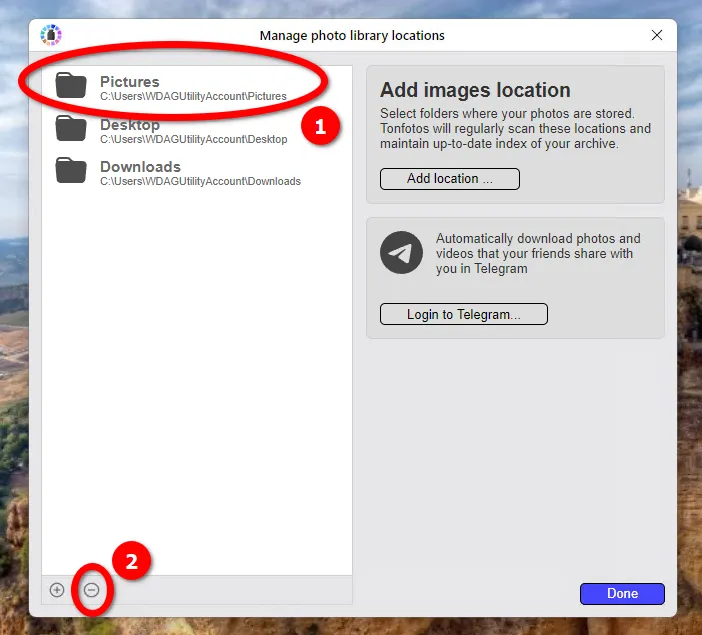
Now create a single folder that will become the main directory for your future photo archive. This is where the hierarchical folder structure will be built.
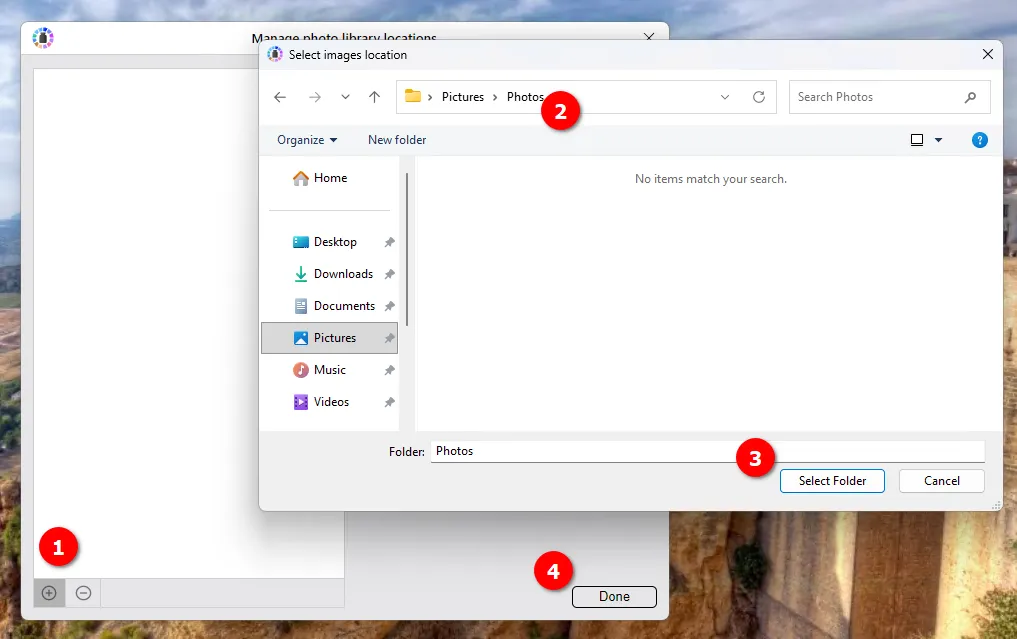
In the end, you should have a completely empty folder ready for photos coming from the iPhone.
Transferring photos with TonfotosSync
TonfotosSync is a mobile app designed for syncing and backing up photos on an iPhone to your main photo archive on a computer. During syncing, only new shots are sent to the main folder, and duplicates are automatically skipped.
So before configuring anything in the main program (Tonfotos), install the mobile app from the App Store.
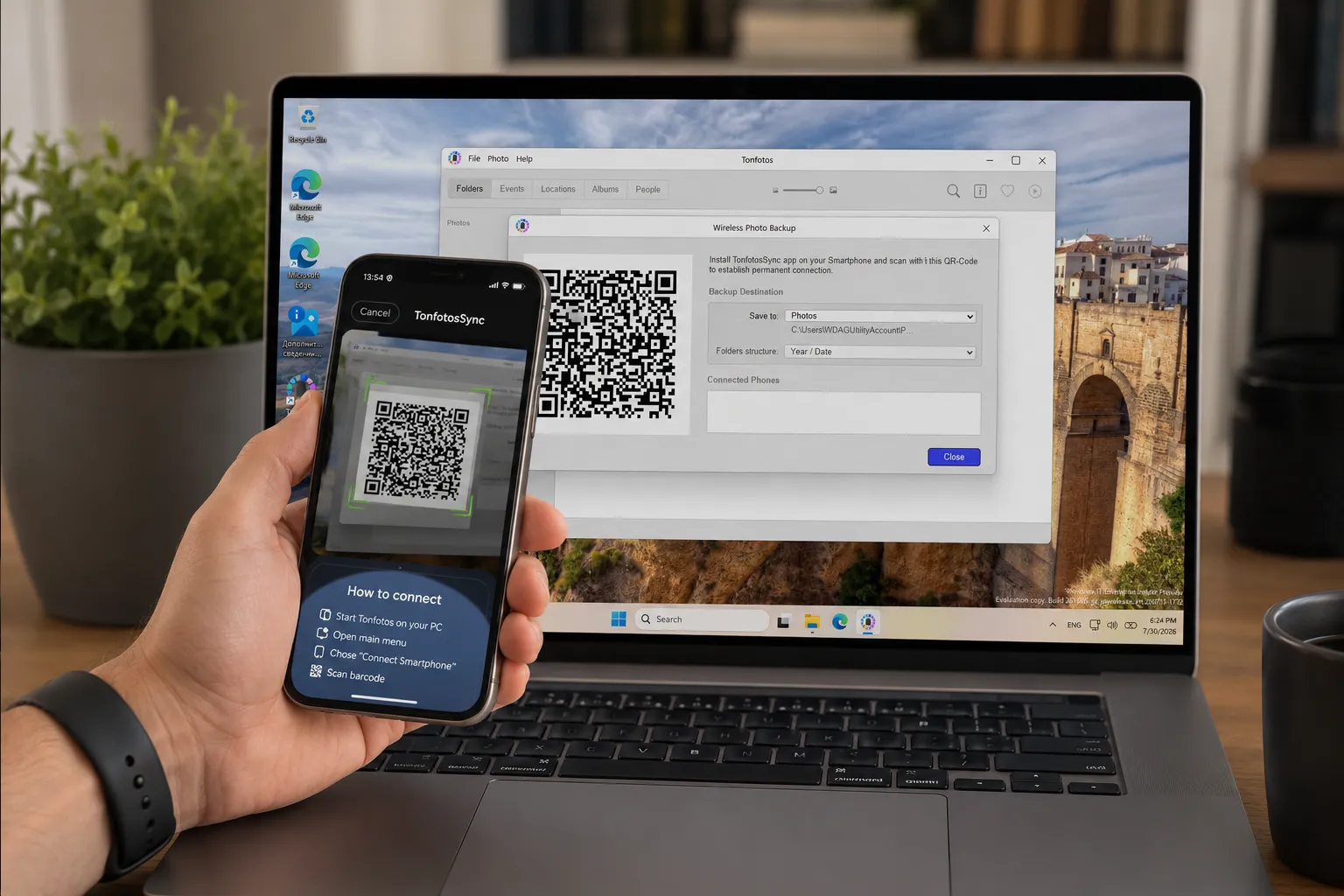
Now, in the Tonfotos interface, click "File" and select "Connect Smartphone." A QR code will appear on screen, which you need to scan with TonfotosSync.
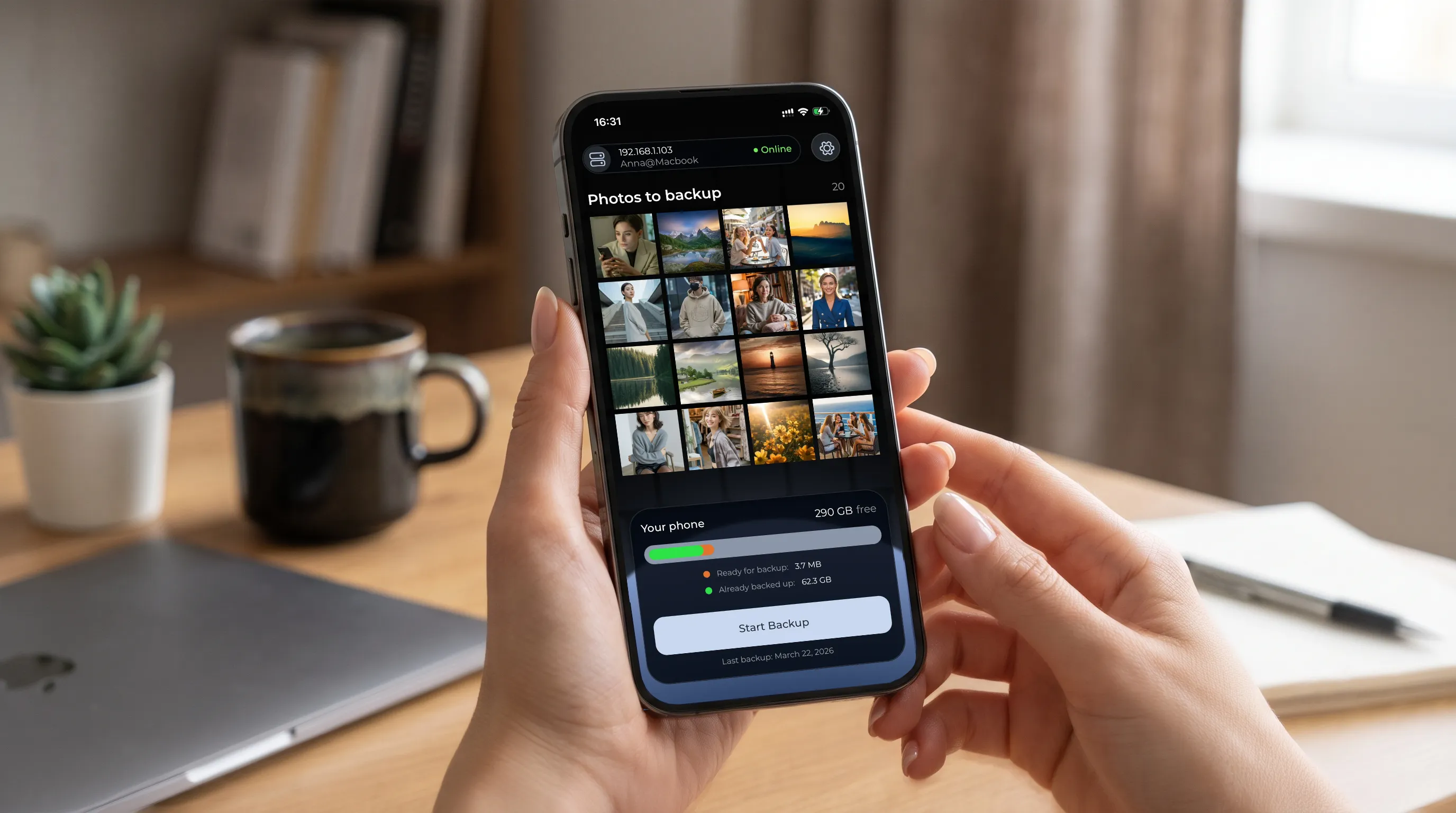
Once connected, thumbnails of your photos will appear on the iPhone, along with how much data is left to sync.
Once the process finishes, both inside the app and physically on your computer's file system, you'll end up with a hierarchical folder structure named after the shooting dates, with no duplicates.
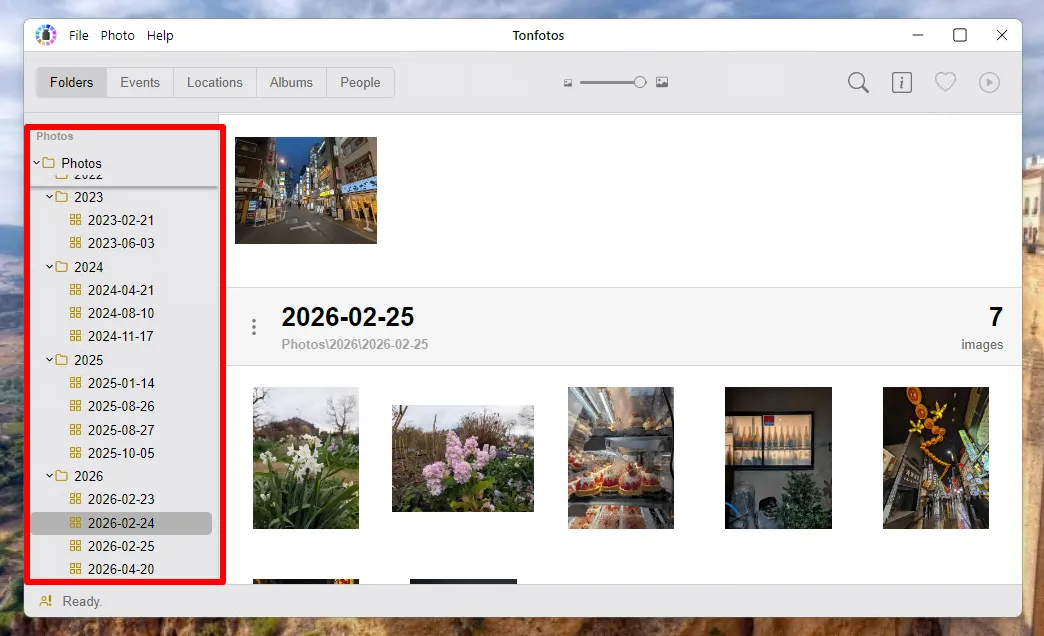
Keep the following two points in mind!
Syncing only works when the iPhone and computer are connected to the same local network.
TonfotosSync does not delete photos from the iPhone after copying them. If you want to free up space on your phone, delete the transferred photos manually.
How to remove duplicates when transferring photos from other sources
Syncing an iPhone through the mobile app is great, but that wasn't the end of my cleanup. Digging through old archives from flash drives, external hard drives, and my laptop, I ran into another problem — duplicates created by merging different sources.
When you've spent years copying folders like "Photos 2022," "Backup," and "From Phone," your disk ends up in complete chaos, full of exact duplicate files. You could try deleting them by hand, but that takes an enormous amount of effort. And here again, Tonfotos saved me a ton of time thanks to its built-in duplicate finder.
I should point out that, unlike simple utilities, the program doesn't just compare filenames (which often change when files are moved). Tonfotos works much smarter than that.
Binary match (exact hash). The program analyzes the actual contents of the file. If you have two absolutely identical shots on different drives, even if one is named IMG_1234.JPG and the other Copy_DCIM001.JPG, the algorithm instantly identifies them as exact duplicates.
Metadata comparison. Tonfotos takes into account the exact time a photo was taken, EXIF parameters, and image characteristics. This helps it find visual copies where the only difference lies in service tags.
The tool doesn't delete anything "behind your back" — the whole process stays under your full control, and the interface itself is built to be as convenient and intuitive as possible.
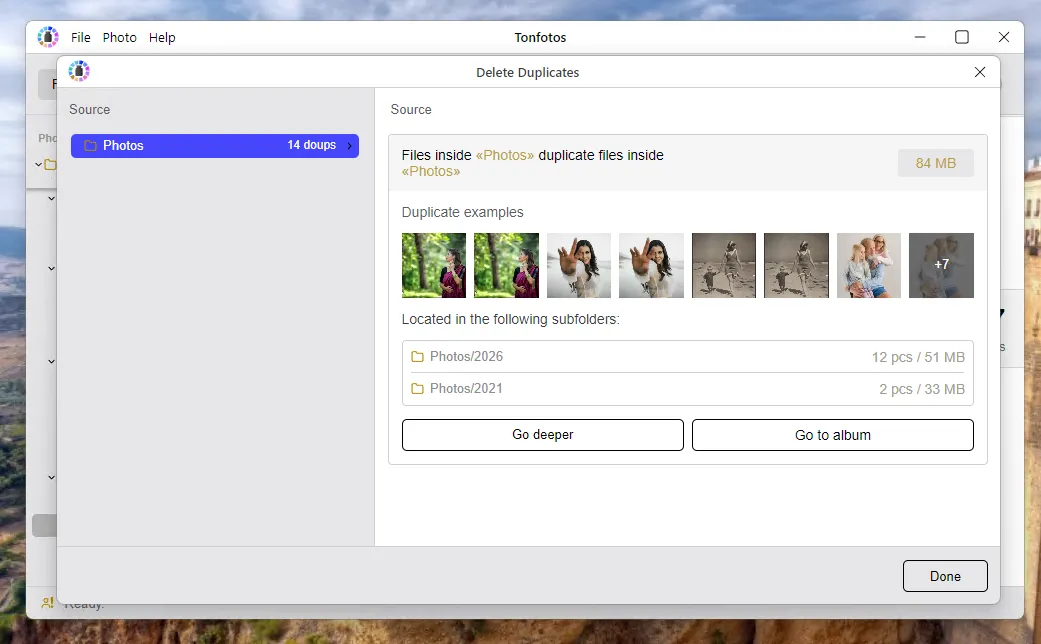
When transferring archives from other storage media, I first copy the whole folder from the flash drive into my main Tonfotos folder, then immediately run a duplicate search. The program automatically highlights only the newly added repeats, letting me keep the library perfectly clean without duplicating gigabytes of data.
Comparison Table of iPhone Cleaner Apps
For convenience, I've gathered all the key parameters of the apps I tested into a single table. It'll let you quickly compare them and pick the best tool for freeing up your iPhone's storage.
| App | Main Focus | Duplicate Search | Photo/Video Compression | Extra Features | Payment Model / Price |
|---|---|---|---|---|---|
| CleanMyPhone | Local AI-based sorting and media library cleanup | Yes (by theme) | No | Wi-Fi/mobile network test | Subscription ($29.99/year) |
| Clever Cleaner | Free duplicate cleanup and swipe sorting | Yes | Yes (Live Photos) | System junk removal | 100% Free (no ads) |
| Cleanup | Minimalist duplicate cleanup and converter | Yes | Yes | Media file converter | Subscription ($3.99/week) |
| Cleaner Kit | All-in-one cleanup and optimization toolkit | Yes | Yes | Contacts, calendar, secret folder, widgets | Subscription (from $6.99/week) |
| Boost Cleaner | Fast storage cleanup and contact manager | Yes | No | Advanced contact manager, backup, large file finder | Subscription |
| Phone Cleaner | Detailed media library and video archive analysis | Yes | Yes | Contacts, calendar, similar video search | Subscription (from $3.99/week) |
| Cleaner Guru | Comprehensive storage and media manager | Yes | Yes | Contacts, email, secret folder, widgets | Subscription ($7.99/week) |
| Tonfotos + TonfotosSync | Archive transfer to PC, backup, and duplicate removal | Yes (on PC) | No | Wi-Fi sync, sorting by date, external drive support, face recognition. | Free version / PC license |
Conclusion
From my own experience, I can say there's no one-size-fits-all way to clean up an iPhone that works for absolutely everyone. The right choice depends on your priorities. Some people need something completely free, others want intelligent photo analysis, and others still need extra tools for handling contacts and video.
That said, the biggest impact doesn't come from a one-time cleanup, but from a systematic approach — regularly sorting your media library, promptly deleting unnecessary files, and moving genuinely valuable photos into a separate archive. These habits not only free up space on your device but also make it much easier to find the photos you need years down the line.
If you turn this kind of organization into a habit, the problem of a full storage will stop catching you off guard, and your iPhone will stay fast and ready to shoot whenever it really matters.
Frequently Asked Questions (FAQ)
1. Is it safe to use third-party apps to clean an iPhone?
Yes, as long as you choose reputable utilities from developers with a solid track record. iOS apps run in an isolated environment (a "sandbox") and only request access to the categories of data they actually need — for example, your photo library or contacts. On top of that, most modern utilities process photos locally on the device itself, which rules out personal photos being uploaded to any third-party servers.
2. How can I remove duplicate photos on an iPhone without third-party apps?
iOS 16 and later versions include a built-in tool inside the Photos app. To access it, go to the "Albums" tab, scroll down to the "Utilities" section, and select "Duplicates." Tap "Merge" to keep a single, high-quality copy.
However, the built-in feature only finds exact matches and can't analyze series of similar shots.
3. Why didn't my free storage increase after I deleted photos?
Deleted photos don't disappear from your phone's storage right away — they're moved to a special "Recently Deleted" album, where they're kept for 30 days. To free up storage instantly, open Photos → Albums → Recently Deleted, tap "Select," and then "Delete All."
4. What's the difference between exact duplicates and similar photos?
Exact duplicates are byte-for-byte identical files. This could be a picture saved twice from the internet, or identical shots created by a failed copy operation.
Similar photos are different frames shot one after another; they may differ in the angle the phone was held at or in facial expression. To find these, apps use machine-learning (AI) algorithms that compare the visual content of each shot.
5. Do cleaner apps actually make an iPhone faster?
These apps don't speed up the processor directly, but they do address the main cause of slowdowns — a lack of free space. When iOS storage is more than 90-95% full, the operating system doesn't have enough room for swap files (virtual memory) and temporary caches. Freeing up 5-10 GB of storage brings back a smooth interface and faster app response times.