Import Photos from Smartphone
Tonfotos makes importing photos from your smartphone or another device easy. You have two main options:
- TonfotosSync mobile app — the recommended way to keep new photos from your phone regularly backed up to the Tonfotos library.
- USB cable import (Windows only) — a convenient option if you prefer to connect your phone with a cable and don't want to install any apps on the phone. This option is also suitable for digital cameras.
In both cases, Tonfotos copies photos from your phone to one of the library locations without touching the files on the device. The copied photos are organized into <Year> folders, each containing subfolders named in the YYYY-MM-DD format. For example, a photo taken on October 29, 2024, is copied to a 2024/2024-10-29 subfolder. Imported photos and videos are then indexed and become available in the main timeline, People view, albums, and search.
Tonfotos can work with several phones in the same library — for example, your own phone, your partner’s phone, and your children’s phones. Each phone is recognised as a separate device, with its own import settings and history. You can direct photos from all family phones to the same library location or to different folders, depending on how you organise your archive.
Option 1: TonfotosSync mobile app
Use this method if you want your new phone photos to appear in Tonfotos regularly with minimal effort and without using a cable. It works with Tonfotos on your computer (Windows or macOS) and a phone running iOS or Android that can reach your computer over Wi‑Fi or the internet.
Pairing your phone with Tonfotos
- Open Tonfotos on your computer.
- From the main menu of the application select File > Smartphone connection... to open Wireless Photo Backup dialog and choose the library location where photos from your phone should be stored. Tonfotos will display a QR code for pairing.
- On your phone, install the TonfotosSync app from the App Store or Google Play if needed, then open it.
- Use TonfotosSync to scan the QR code from the computer screen. After this, a secure connection between the phone and Tonfotos will be established. The phone will appear as a device in Wireless Photo Backup dialog.
You only need to pair each phone once.
To break the pairing, open TonfotosSync on your phone, tap the gear icon in the top‑right corner to open settings, then tap Forget this server.
First backup
After pairing, TonfotosSync scans the media library on your phone and compares it to what is already stored in the Tonfotos archive. Photos and videos that are already present in the library are skipped, and only items that are not yet in the library are queued for transfer.
The first backup may take a long time if you have accumulated many photos on your phone. If the connection is interrupted or the app is closed, the next time you start TonfotosSync it will continue from where it stopped.
Subsequent backups
After the first backup, you can:
- Run backups manually from inside TonfotosSync whenever you like. Only new photos and videos that are not yet in the library will be sent.
- Enable background mode in the TonfotosSync settings (where supported by the mobile operating system) so that the app can periodically send new photos while running in the background, when your computer with Tonfotos is reachable.
The exact behaviour of background transfers depends on the mobile platform and its power‑saving settings. In some cases TonfotosSync may only be allowed to work for a limited time when the app is not in the foreground.
Option 2: Import via USB cable
Use this method if you prefer to connect your phone with a cable, cannot or do not want to install TonfotosSync on the phone, or need a one‑time or occasional import that should run as fast and reliably as possible. The same workflow also applies to importing photos from digital cameras.
Tonfotos detects a connected smartphone, camera, or another USB device and suggests importing your photos. The import feature copies the photos from a device to one of the library locations, without touching the files on the device.
Importing for the first time
Connect the device. Tonfotos will prompt you to start importing. You can also import manually by selecting File > Import...
Select the library location to which you want to copy the photos.
If you want Tonfotos to import photos from this device automatically, check the Next time: Automatically import when connected checkbox 1. The next import will use the same options as the current one. The settings are saved only for this device, as you may want different import settings for your devices.
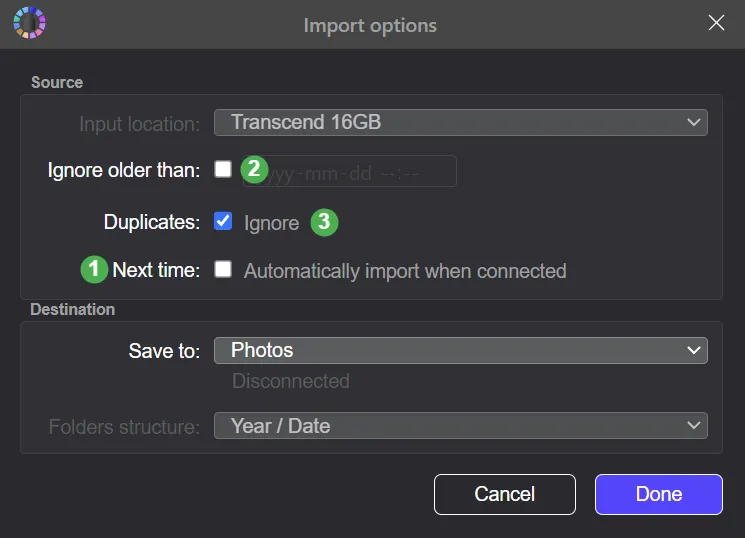
To avoid re-importing old photos, check the Ignore older than: checkbox 2. Enter the date when you last copied photos. If you imported from this device with Tonfotos before, the date of last import is filled in automatically.
The Duplicates: Ignore checkbox 3 will help you avoid re-importing the same photos, together with the previous option. As explained in Duplicates, the photos aren't considered duplicates if you add tags or make changes to metadata.
Click Done to start importing.
HINT: The import will also respect the settings of your target library location. If RAW file support or video scanning is disabled for that location, such files won't be imported even if they are present on your device. To import all file types, check the settings in Library Setup.
Tonfotos will detect all photos on your device and copy those that satisfy the criteria you set, starting from the oldest. The operation may take some time, but you'll be able to see the progress in the status bar. When Tonfotos is done importing, it displays a popup notification to let you know.
If there are filename conflicts, and Duplicates: is set to Ignore, then conflicting files will be skipped. If Ignore is not checked, but files are not exact duplicates, imported file will be quietly renamed to preserve both versions of the files.
Automatically importing next time
When you connect your device again, Tonfotos will remember your settings from the last time for this device.
- If you set the automatic import for next time, the import starts without any actions from your side.
- Only the photos taken after the last import are copied.
Turning off automatic import for a USB device
To change the settings or disable automatic import from this device:
- Connect the device.
- Automatic import will start. Wait for it to finish, but don't disconnect the device.
- Select File > Import... to open the Import options dialog again.
- Change any of the settings. To turn off automatic import, uncheck the Next time: Automatically import when connected checkbox.