Import Photos from Any Folder
Tonfotos makes importing photos and videos from any folder on your computer quick and easy. Unlike library locations which require initial indexing, the import feature lets you copy photos directly from a folder without waiting. The photos are copied to one of your library locations, and the original files in the source folder remain untouched.
This is different from the Move to Archive function, which moves files to organized Year/Date subfolders. With the import feature, files are copied, so you keep the originals, and indexing happens automatically as they are imported.
| Feature | Copies or Moves | Requires Pre-indexing | Best for |
|---|---|---|---|
| Import from Folder | Copies | No | Adding new photos to your library |
| Move to Archive | Moves | Yes (folder must be in library locations) | Organizing and consolidating photos already in your library |
Import options
- Select File > Import...
- In the Import options dialog, check that Input location: is set to Select folder.... This is the default option when opening Import from the menu.
- Click "..." next to Input folder and select the folder containing the photos you want to import.
- Select the library location where you want the photos to be copied in the Save to: drop-down list.
The photos are organized into<Year>folders, each containing subfolders named in theYYYY-MM-DDformat. For example, a photo taken on October 29, 2024, is copied to a2024/2024-10-29subfolder.
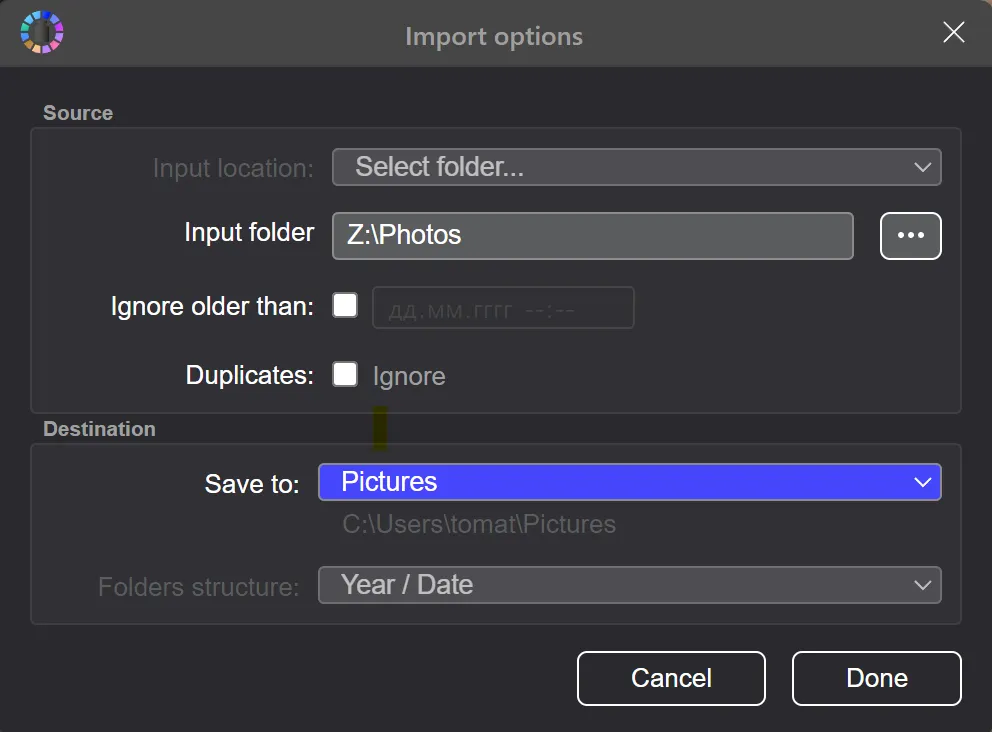
Configure the import options if needed:
- Ignore older than: Enter a date to skip photos taken before that date. This helps avoid re-importing old photos you've already processed.
- Duplicates: Ignore: Check this to skip photos that are already in your Tonfotos library. Photos with added tags or edited metadata are no longer considered exact duplicates, so they will be imported again. For more details, see Duplicates.
Click Done to start importing.
HINT: The import will also respect the settings of your target library location. If RAW file support or video scanning is disabled for that location, such files won't be imported even if they are present in the source folder. To import all file types, check the settings in Library Setup.
Tonfotos will detect all photos and videos in the selected folder and copy those that satisfy your criteria. The operation may take some time depending on the number of files, but you can see the progress in the status bar. When done, Tonfotos displays a notification.
If there are filename conflicts, and Duplicates: is set to Ignore, then conflicting files will be skipped. If Ignore is not checked, but files are not exact duplicates, imported file will be quietly renamed to preserve both versions of the files.