Every time I go through an old batch of holiday photos, the same thing happens: the shot that should have been the keeper has a stranger walking through it, a rubbish bin next to the monument, or a power line cutting across the sky. A few years ago, fixing that meant twenty minutes with the Clone Stamp, and the result was still visible if you knew where to look.
That has changed. Inpainting models don't copy pixels from nearby — they synthesize what "should" be behind the object — and that turned object removal from a skill into a brush stroke. The problem is that there are now dozens of tools calling themselves an AI object remover, and their output ranges from genuinely invisible edits to smeared patches that look worse than the original object.
So I picked six of the most popular web-based tools, ran the same four test photos through each one, and compared the results side by side. Below are the before/after screenshots from my own runs, what each tool does well, where it fails, and which one I'd actually use for a given job.
How I Tested the AI Object Removers
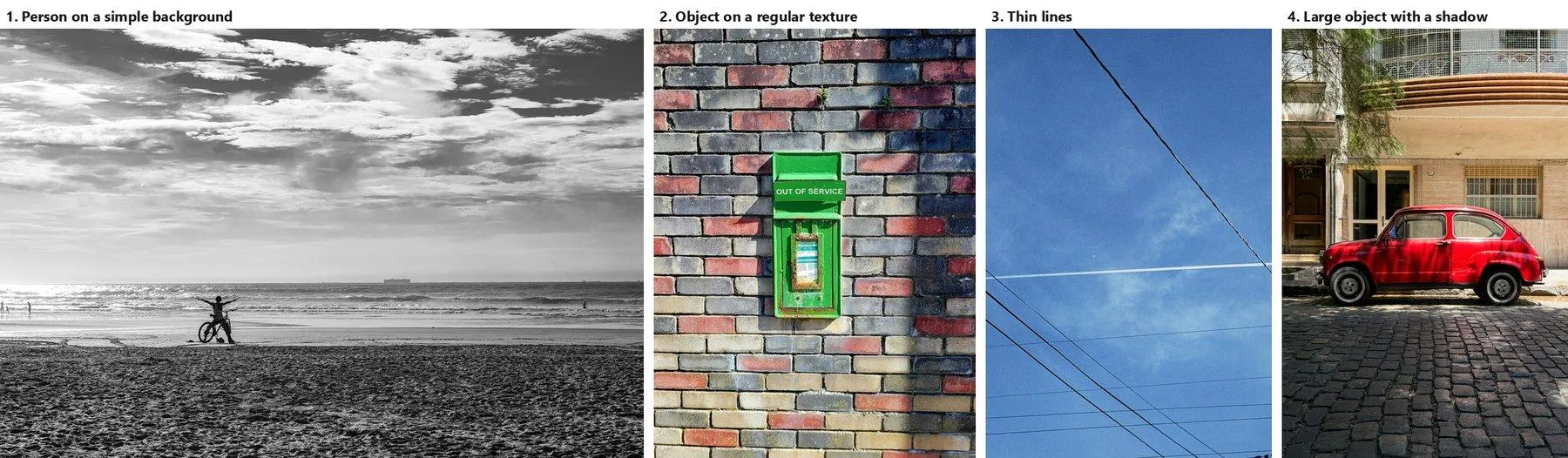
To keep the comparison fair, every tool got the same four images, chosen to cover the failure modes I care about:
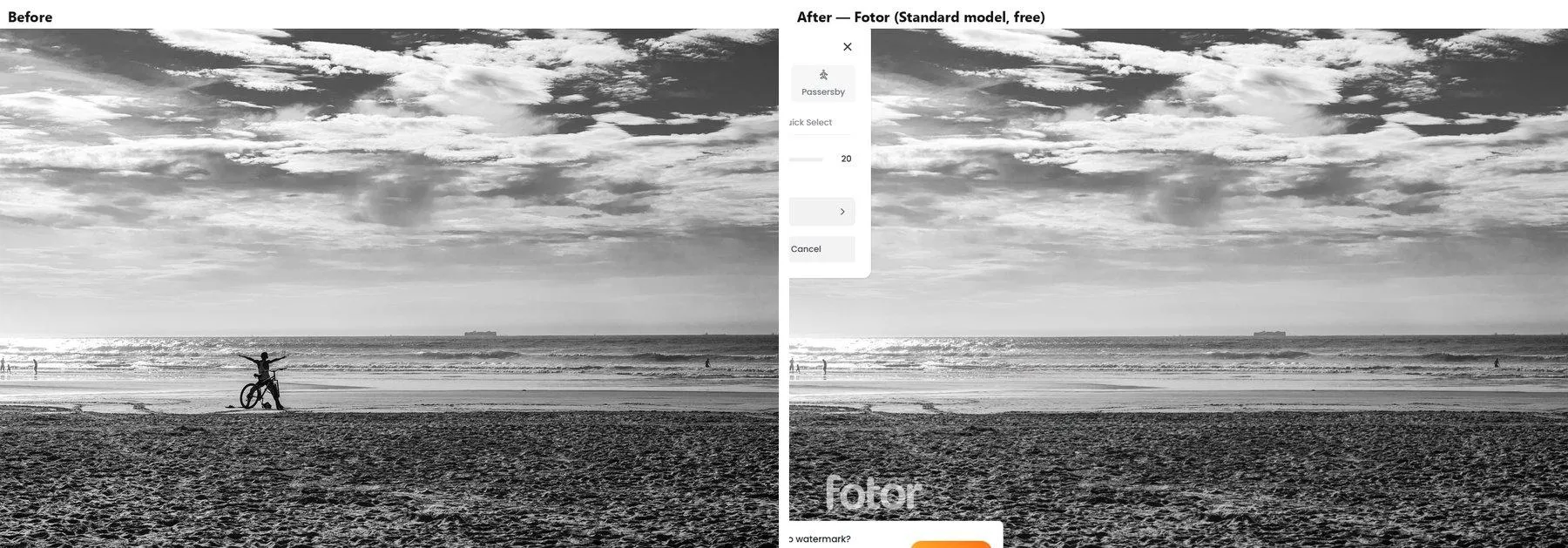
- A person on a simple background — a cyclist on a beach, with sky, sea and wet sand behind them. This is the easy case; any decent tool should pass it.
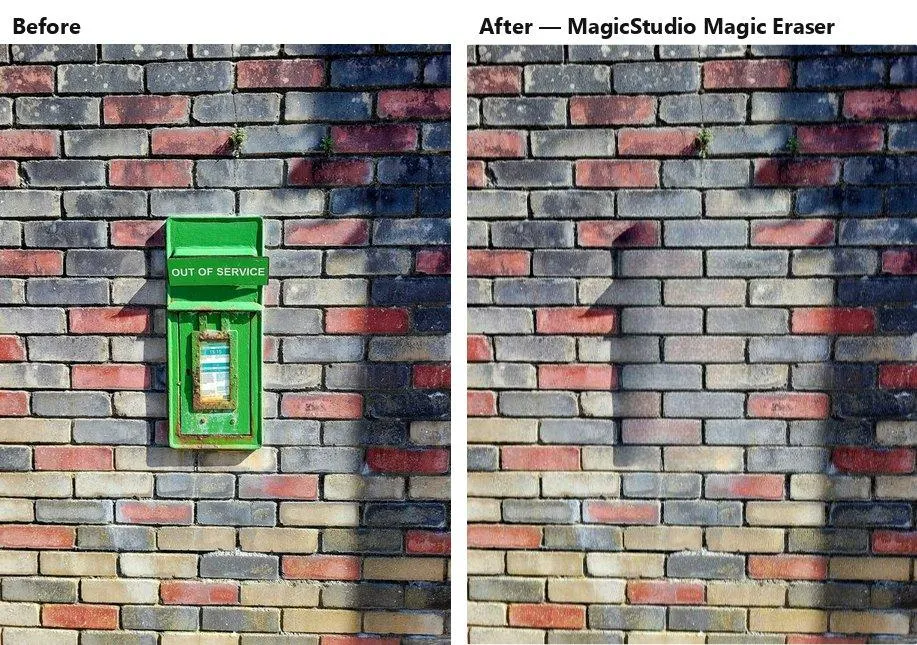
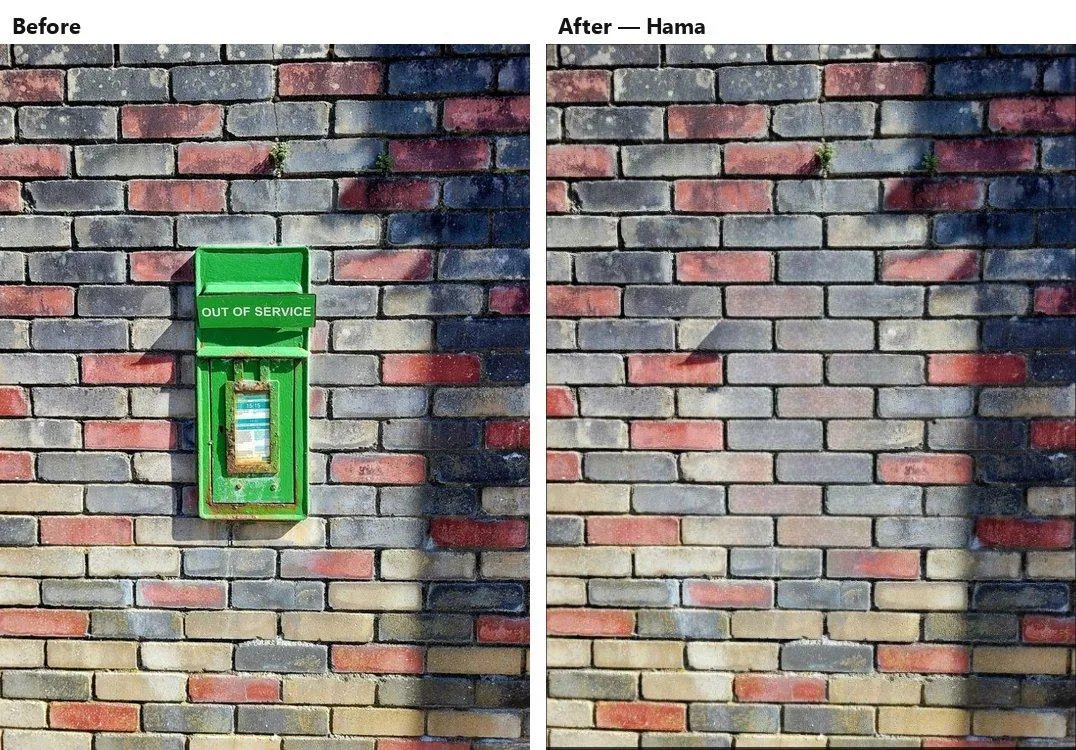
- An object on a regular texture — a green post box on an old brick wall. Brickwork is where inpainting models tend to lose the grid, blur the mortar lines, or invent bricks of the wrong size.
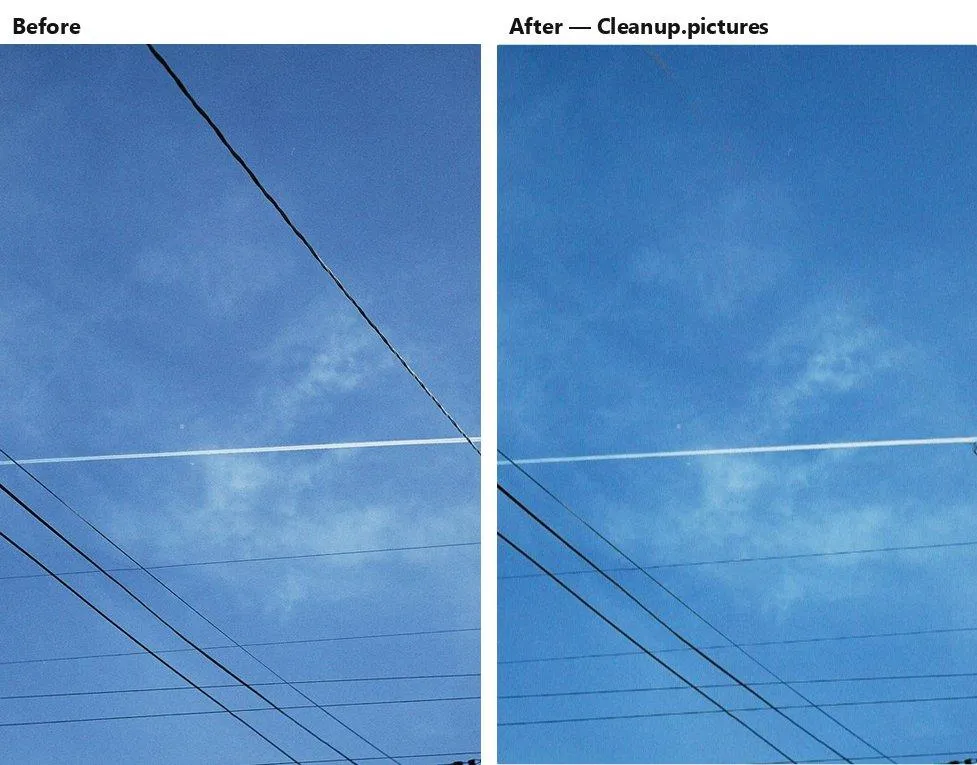
- Thin lines — a set of power lines against a blue sky with faint clouds. Thin objects test the selection tool as much as the model: a brush that's too fat wipes out the clouds around the wire.
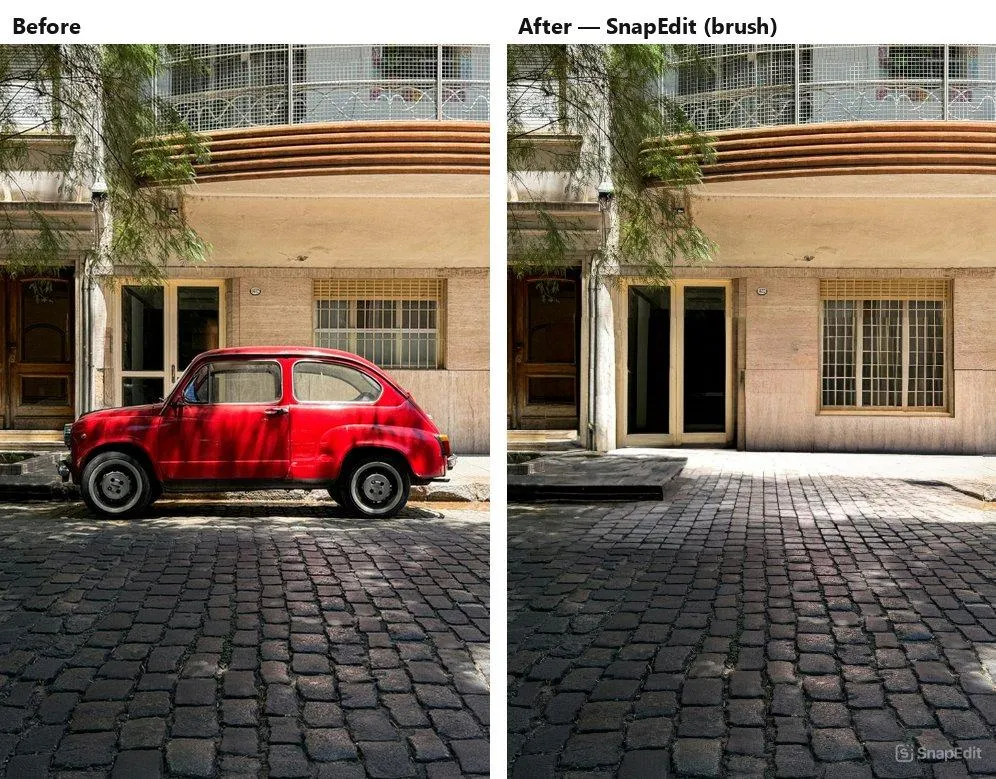
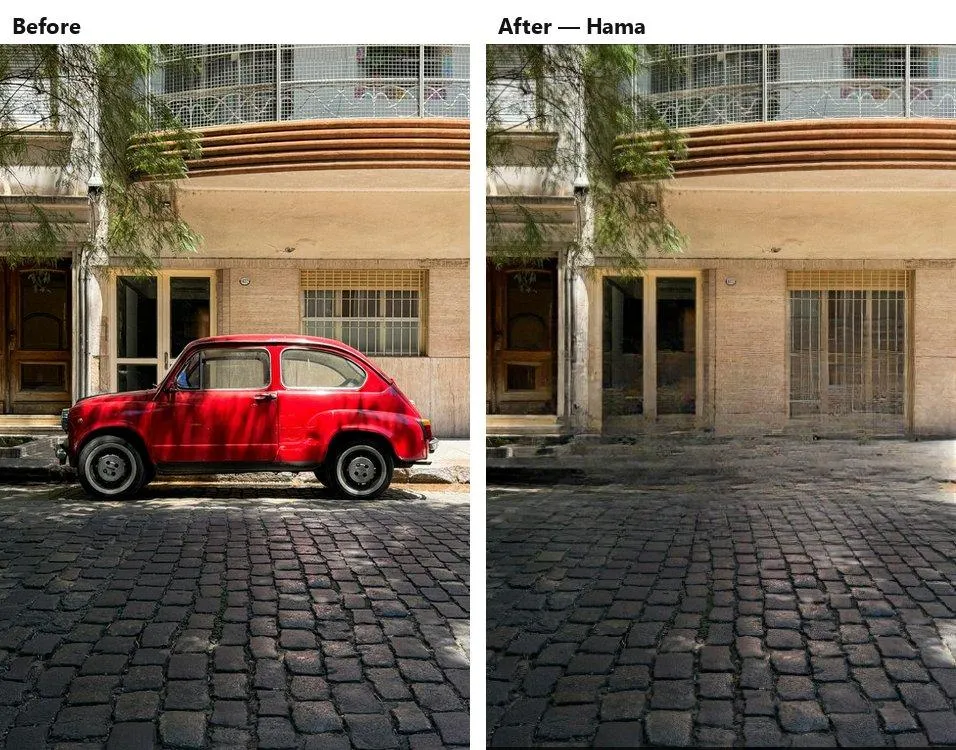
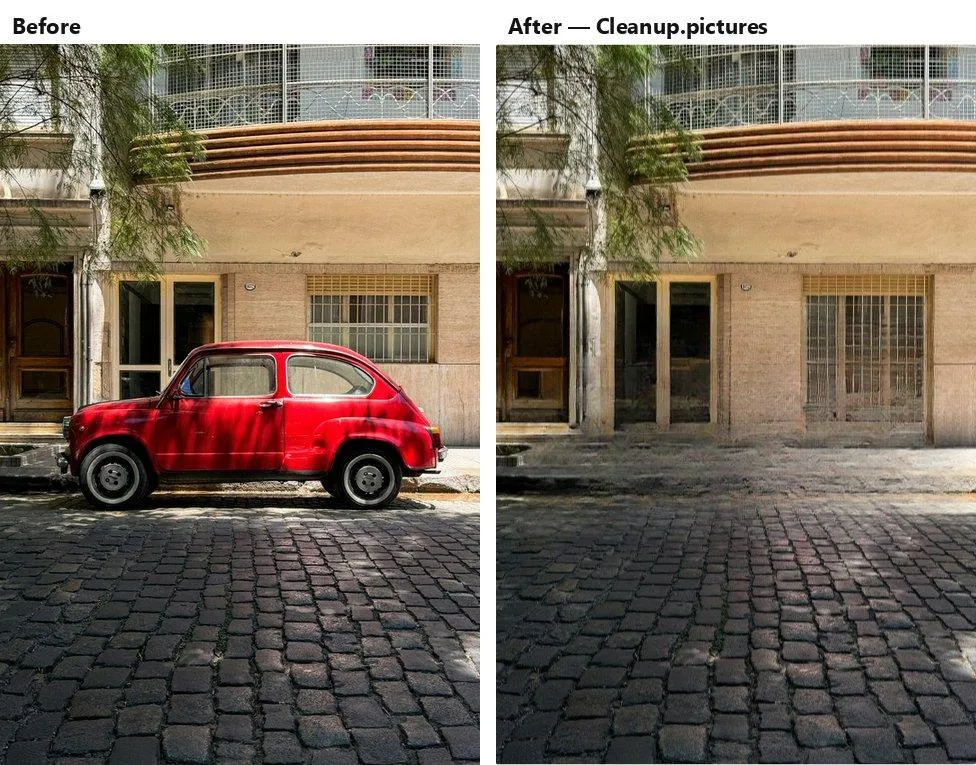
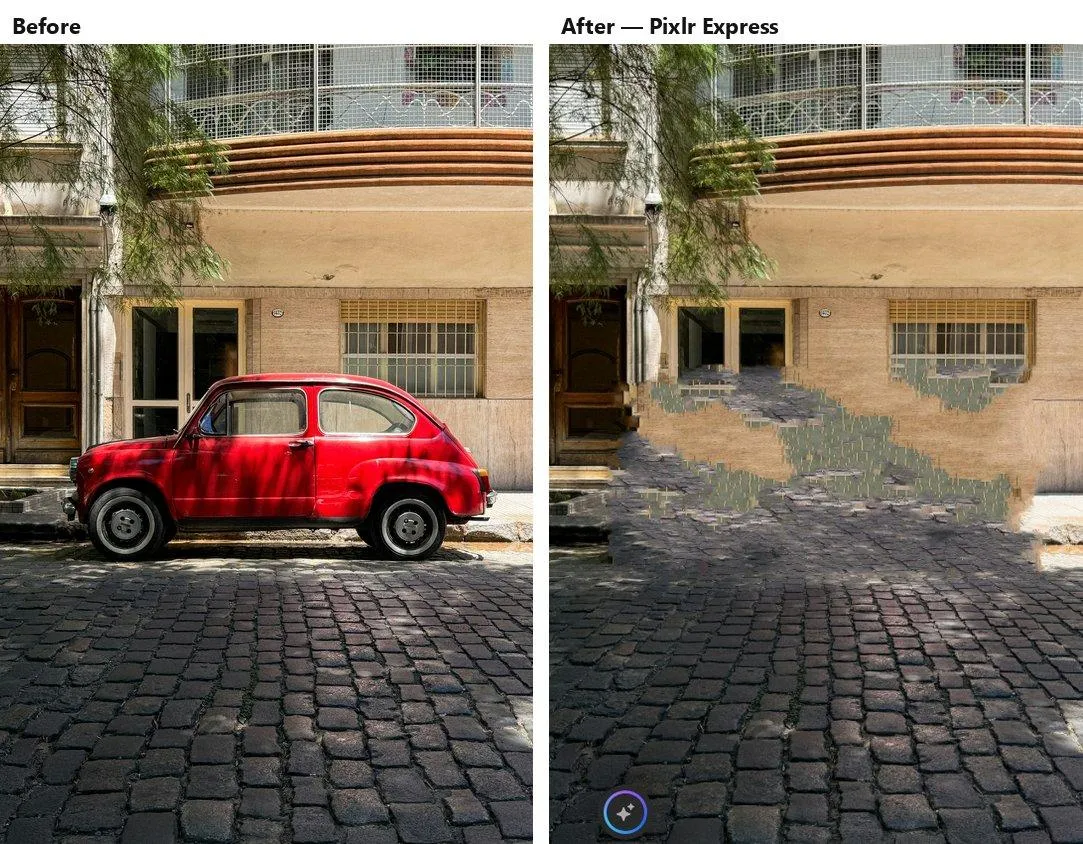
- A large object with a shadow — a red car parked on a cobblestone street, casting a soft shadow, with a house façade behind it. The tool has to reconstruct both the pavement and the building.
For each tool I looked at:
- Fill quality — artifacts, blur, repeated texture, hallucinated objects.
- Shadows — does the removal leave the car's shadow on the ground?
- Selection method — brush, contour, automatic detection — and how precise it is on thin objects.
- Export limits on the free plan — several tools quietly downscale or watermark the output unless you pay.
- Speed — how long a single removal takes on a 3000 px photo.
- Friction — sign-up walls, ads, paywall pop-ups that appear mid-edit.
All tests were done in Chrome on a Windows desktop with 12 MP JPEGs, using the free tier of every service. Where a tool offers a "standard" and a "premium" model, I used the one available without paying.
1. SnapEdit
Platform: Web, iOS, Android.
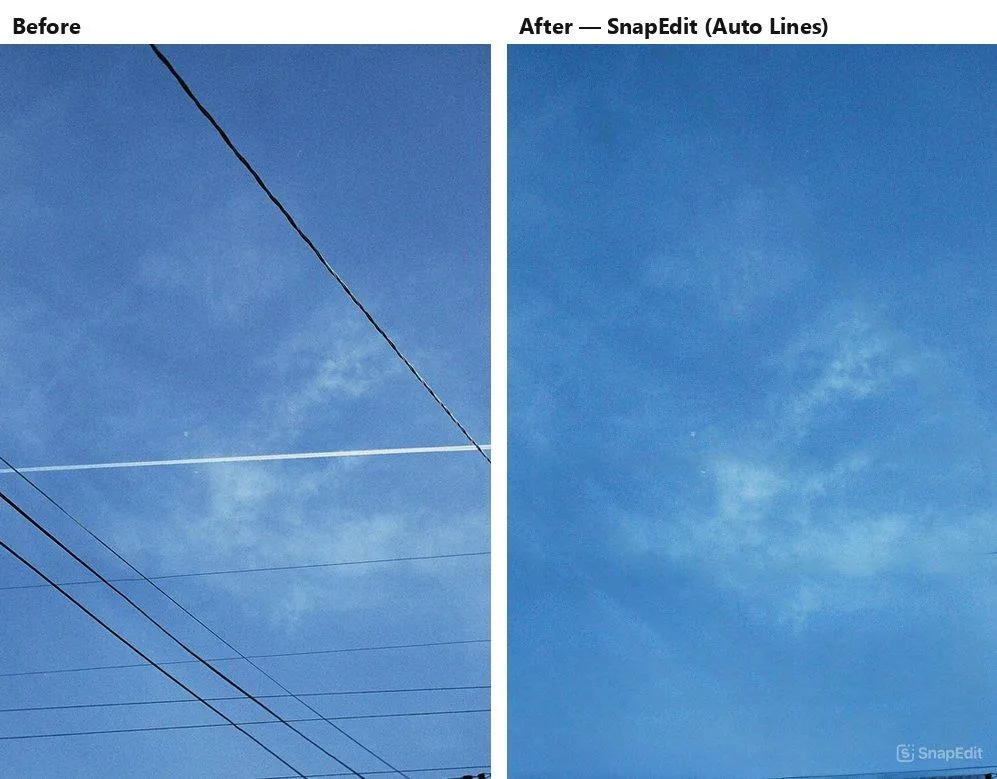
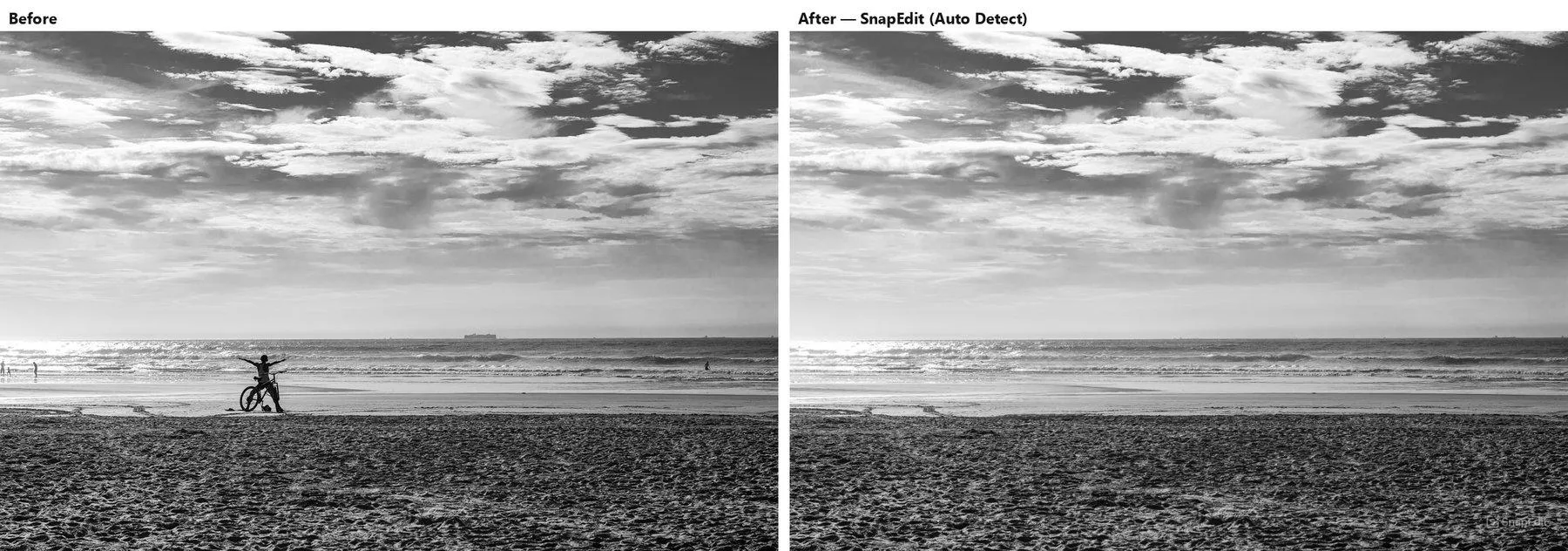
SnapEdit's main idea is that you shouldn't have to paint at all. On upload, it outlines every person and recognizable object it finds and lets you tick the ones you want gone; there's a separate Lines mode for wires and fences, a Text mode, and a manual brush as a fallback.
On the beach photo this worked exactly as advertised: the cyclist was outlined before I touched anything, and a single click removed them with a clean fill in about 3 seconds — sand, waves and horizon all continuous. The brick wall was the first surprise: auto-detect found nothing (a post box is apparently not an "object" for the classifier), so I switched to the brush. The result was the best of the six on this image — the mortar grid stays straight, and the only trace is a slightly smoother patch where the box was. The power-line photo is where SnapEdit pulled ahead of everyone else: the Lines mode detected all the wires — not just the one I wanted — and removed the whole set in one pass, keeping the cloud detail behind them. The car was a manual brush job, and the reconstruction of the façade and the cobblestones was the most convincing of the group; the shadow disappeared with the car because I painted over both. Processing took 3–7 seconds per operation.
The catch is the credit system: the free plan gives 10 credits a month (my counter dropped from 5 to 3 during the test), exports are capped at 1600 px, and the free preview carries a SnapEdit watermark in the corner.
Advantages:
- Automatic detection of people and objects, plus a dedicated mode for wires and fences.
- Best fill quality of the six on textured backgrounds and large objects.
- Fast — 3–7 seconds per removal.
- Clean, uncluttered interface; mobile apps for the same workflow.
Disadvantages:
- Free plan is limited to 10 credits a month and 1600 px exports with a watermark.
- Auto-detect ignores "non-standard" objects like a post box — you're back to the brush.
- Lines mode removes every line it finds; there's no way to keep one wire and drop another.
Pricing: Free (10 credits/month, 1600 px, watermark); Standard $6/month for 4,800 credits a year and exports up to 5600 px without watermark; PRO $12/month.
Best for: Removing people, wires and large objects with the least effort — if you're willing to pay for the full-resolution file.
2. MagicStudio Magic Eraser
Platform: Web.
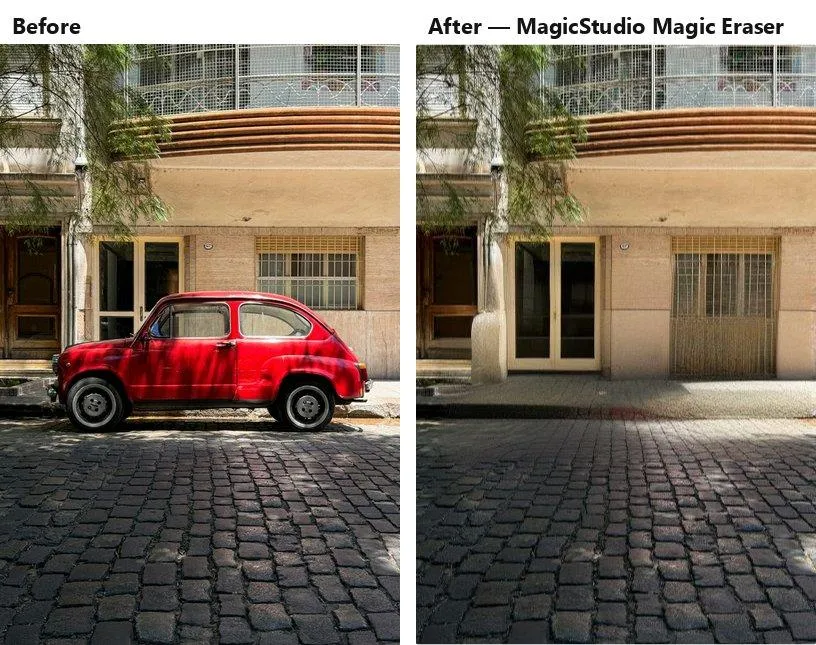
Magic Eraser is a single-purpose page: upload, paint, press Erase. There's a brush-size slider, a zoom tool, and nothing else — no auto-detection, no modes, no account required to try it.
It was the fastest tool in the test: every removal came back in 1–2.5 seconds. The quality surprised me. The beach was clean. On the brick wall the post box vanished and the brick grid stayed intact, with just a faint vertical seam where the two halves of the fill met — visible if you look for it, invisible at normal size. The power line disappeared without touching the clouds. And the car photo was second only to SnapEdit: the doorway behind the car was rebuilt plausibly, the cobblestones continued with the right perspective, and the shadow went with the car.
Then I pressed Download. The free option is "Download at Low Resolution" with a Magic Studio logo; full-resolution export requires PRO. The editor itself works on a 600 px preview, so what you see while painting is not what you'd get in the file anyway.
Advantages:
- Fastest processing of the six (1–2.5 seconds).
- Fill quality close to SnapEdit's on shadows, façades and brickwork.
- No sign-up, no credits, no modes to learn.
Disadvantages:
- Free download is low-resolution and carries a logo.
- Brush only — no auto-detection, no thin-line mode.
- The editing canvas is a small preview; you can't judge fine detail before paying.
Pricing: Free (low-resolution download with logo); PRO $4.99/month billed yearly ($59.99), $12.49/month billed every 6 months, or $14.99 month-to-month.
Best for: Quick, high-quality removals when you're going to pay anyway — or when a low-res version is enough for a preview.
3. Hama
Platform: Web (plus an API).
Hama is another one-page eraser: drop the image, paint, press Remove. The brush-size slider is hidden under a chevron above the toolbar, which took me a minute to find. What sets Hama apart is the price: it's free, and the site's banner says signing up unlocks HD downloads at no charge.
The results were good — better than I expected from a free tool with ads. The beach and the brick wall came out clean; on the brickwork the only trace is a slightly flatter patch of mortar. The car was the standout: the façade, the doorway and the cobblestones were reconstructed almost as well as in SnapEdit, and the shadow went with the car. Processing took 5–6 seconds. The power line was Hama's weak spot: with a thin brush the wire simply stayed in place, and with a wider brush it turned into a faded ghost line — I'd have needed a third pass, which the site's own tip ("erase repeatedly for better performance") more or less admits.
The friction is the ads. Between edits the page opened a full-screen ad, and an ad bar appeared over the toolbar; twice I had to close them before the Remove button would respond.
Advantages:
- Free, with HD downloads after a free sign-up.
- Fill quality on large objects and textures close to the paid tools.
- Simple one-page workflow, 5–6 seconds per removal.
Disadvantages:
- Ads interrupt the editing session.
- Struggles with thin objects; wires needed multiple passes.
- Brush only; the size slider is tucked away.
Pricing: Free; HD downloads after sign-up; PRO plan advertised for high-definition output.
Best for: Free full-resolution removals when you can put up with ads and don't need to remove wires.
4. Cleanup.pictures
Platform: Web; also part of the Clipdrop suite.
Cleanup.pictures is the tool most people find first: one page, one brush, no account. After upload it asks whether to continue in SD or start a 3-day Pro trial; I chose SD, which caps the working image at 720 px.
On the beach photo the result was as good as any — sand and sky are exactly what this model is built for. The brick wall showed the difference from the generative tools: the post box was gone, but the patch was noticeably softer than the surrounding wall, with a diagonal band of blur where the shadow used to be. The power line came out clean as long as I kept the brush at its minimum size. The car was the weakest result: the car and its shadow were removed, but the ground floor of the building on the left dissolved into a smear, and the doorway lost its shape. Processing took 2.5–4 seconds.
Cleanup's free tier is also rate-limited: 20 cleanups per 24 hours, at 720 px.
Advantages:
- No sign-up, no credits; results in a few seconds.
- Clean fills on uniform backgrounds — sky, water, sand.
- Undo per stroke, so you can build up a removal in passes.
Disadvantages:
- Free output is limited to 720 px on the long side.
- Complex backgrounds (façades, doorways) turn into a smear.
- 20 removals per day on the free plan.
Pricing: Free (720 px, 20 cleanups/day); Clipdrop Pro €15/month for high-resolution cleanup and 1,000 operations a day.
Best for: Quick fixes on simple backgrounds when a small file is enough.
5. Fotor Magic Eraser
Platform: Web, Windows, macOS, iOS, Android.
Fotor's remover lives inside its full editor, with three tabs — Object, Watermark, Passersby — a brush, a Quick Select tool, and a choice of two models: Advanced (Pro only) and Standard.
The first removal on the Standard model went through in about 4 seconds and the beach came out clean, apart from a faint vertical streak in the sky above where the cyclist was — the kind of artifact you notice only at 100%. The preview carries a large "fotor" watermark. After that first removal, every subsequent click on Remove opened the "Free Trial to Unlock All Premium Features" dialog, whichever model was selected, so I couldn't complete the brick, wire or car tests without starting the 7-day Pro trial. In practice, the free tier gave me one removal per session.
Advantages:
- Three selection methods, including Quick Select for outlining.
- Choice of models, with a faster Standard model for simple jobs.
- Part of a complete editor with desktop and mobile apps.
Disadvantages:
- Effectively one free removal before the paywall appears.
- Watermark on free previews; HD download is paid.
- The interface is busy — lots of unrelated AI tools around the one you want.
Pricing: Free (limited credits, watermark); Pro €2.83/month billed yearly (€33.99), Pro+ €6.24/month billed yearly (€74.99); 7-day free trial.
Best for: People who already use Fotor and are on a paid plan; not a good free option.
6. Pixlr Express
Platform: Web, iOS, Android.
Pixlr Express takes a different approach: instead of painting over the object, you draw a rough contour around it and the tool removes whatever is inside — "draw a contour around any object and it instantly disappears," says the panel. There's no brush size, no Remove button; the removal starts the moment you close the contour.
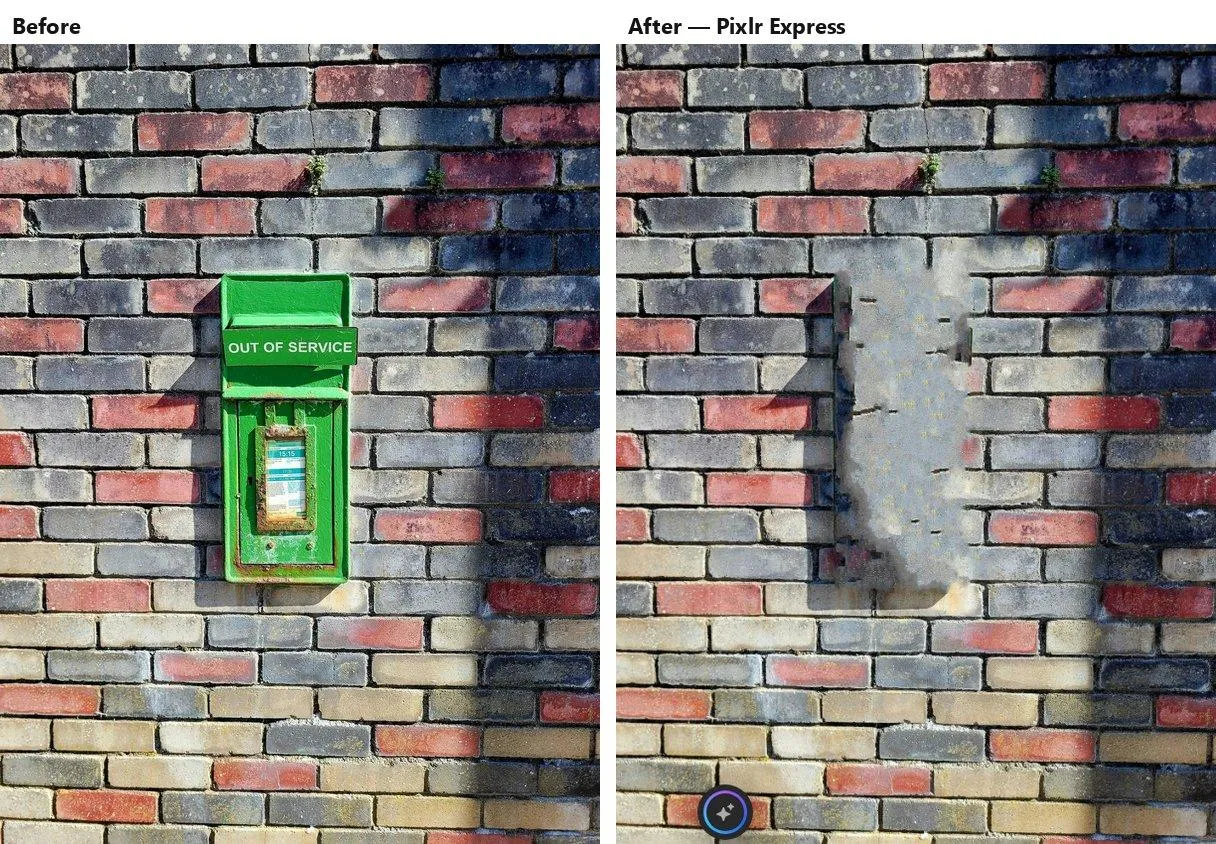
"Instantly" was not my experience. The beach photo took around 35 seconds and came back with the cyclist replaced by a column of smeared, ghost-like fragments. The brick wall was worse: the post box became a flat grey rectangle with yellow speckles. The power line was still partially there after 100 seconds, jagged and broken. The car took over a minute and left a patch of blurred cobblestones sprinkled with what looks like grass. Pixlr also insisted on downscaling every portrait-orientation photo to 1920 px on the long side before editing (the "Original" option only appeared for the 3000×2000 image).
I'd like to give it the benefit of the doubt — the contour tool is a nice idea — but on these four images the results were the worst of the six by a wide margin.
Advantages:
- Contour selection instead of painting; no brush size to manage.
- Part of a full-featured editor with layers, crop and adjustments.
- Free tier without a sign-up wall.
Disadvantages:
- Poor fill quality on all four test images: smears, speckles, leftover fragments.
- Slow — 35 seconds to over a minute per removal.
- Forced downscale to 1920 px for larger portrait images.
Pricing: Free; Plus €2.49/month (€1.99 billed yearly) for ad-free and 80 AI credits; Premium €9.99/month.
Best for: Small objects on flat backgrounds inside a Pixlr workflow; anything harder, use another tool.
AI Object Remover Comparison Table
| Tool | Selection method | Free plan limits | Free export | Shadows / faсade reconstruction | Thin lines | Speed | Fill quality (1–5) | Starting price | Best for |
|---|---|---|---|---|---|---|---|---|---|
| SnapEdit | Auto-detect (people, objects, lines) + brush | 10 credits/month | 1600 px, watermark | Excellent | Excellent (Lines mode) | 3–7 s | 5 | $6/mo | Effortless removal of people, wires, large objects |
| MagicStudio | Brush | Low-res download only | Low-res, logo | Very good | Good | 1–2.5 s | 4 | $4.99/mo (yearly) | Fast high-quality removals if you'll pay |
| Hama | Brush | Ads | HD after free sign-up | Very good | Weak (needs several passes) | 5–6 s | 4 | Free | Free full-res removals |
| Cleanup.pictures | Brush | 20 cleanups/day | 720 px | Poor (smears façades) | Good | 2.5–4 s | 3 | €15/mo (Clipdrop Pro) | Quick fixes on simple backgrounds |
| Fotor | Brush, Quick Select, Passersby | ~1 removal, then paywall | Watermark | Not testable on free | Not testable on free | ~4 s | 3 | €2.83/mo (yearly) | Existing Fotor Pro users |
| Pixlr Express | Contour | Downscale to 1920 px | 1920 px | Poor | Poor | 35–100+ s | 1 | €2.49/mo (Plus) | Small objects on flat backgrounds |
The pattern is clear enough. SnapEdit, MagicStudio and Hama all use current-generation inpainting that reconstructs structure — doorways, cobblestones, brick courses — rather than just blending texture, and the visible differences between them are mostly about selection tools and what the free plan lets you download. Cleanup.pictures is a step behind on complex backgrounds but still fine on sky and sand. Fotor couldn't be evaluated properly without paying, and Pixlr Express simply didn't work on these images.
Which AI Object Remover Should You Choose?
For the least effort on people and wires — SnapEdit. Its auto-detection and Lines mode are the only tools here that remove a set of power lines in one click without touching the clouds, and its fills were the cleanest of the group. Budget for the $6 plan if you want the full-resolution file without the watermark.
For the best free result at full resolution — Hama. It matched the paid tools on the car and the brick wall, and the HD download costs nothing after signing up. You'll pay with ads instead of money, and you'll need several passes on thin objects.
For speed with a paid plan — MagicStudio. It's the fastest tool here and its fills are close to SnapEdit's; it just gives you nothing usable for free beyond a low-res preview.
For a quick fix on a simple background — Cleanup.pictures. Zero sign-up, results in seconds, and 720 px is enough for a social post. Don't use it on buildings.
If you're already paying for Fotor or Pixlr — Fotor's Standard model is competent when it's allowed to run; Pixlr's remover I'd avoid for anything but the smallest objects, at least in its current version.
One caveat applies to all six: every tool did best on objects that were small relative to the frame and on backgrounds it could reasonably guess — sky, sand, an even wall. Large objects that hide structure, repeating patterns like brickwork and fences, and anything close to a face still deserve a careful look at 100% before you share the result.