Best Video Editing Software for Beginners in 2026
Updated: April 2, 2026 Author: Vitaly
This guide gathers video editing programs suitable for beginners with different levels of experience and equipment. It includes both mobile apps and desktop editors. We will explore which features are important in the early stages and which solutions allow you to grow without needing to switch tools immediately.
In 2026, video editing is no longer a skill reserved only for the "chosen few" or industry professionals. Today, it is a fundamental skill that is increasingly becoming a part of digital literacy. Video editing isn't just for bloggers or videographers anymore; it is essential for preparing presentations, creating educational materials, making family greeting videos, producing short clips for social media, or designing business content.
Choosing a program at the start often turns out to be harder than the editing itself. There are dozens of solutions on the market. Some promise “professional results in a couple of clicks,” others require a powerful computer and involve lengthy learning.
In this article, we will review the best beginner-friendly video editing software for 2026 and help you understand which editor suits your needs.
Portrait of a beginner video editor
Before downloading a powerful editor, you need to figure out what tasks it is needed for. Understanding your niche will save dozens of hours of training.
There are three main directions where video editing software skills are needed.
Social media content maker (Shorts, Reels, TikTok). This is the realm of vertical videos and speed. There is no need to spend hours perfecting color grading frame by frame. What matters is that the app can add dynamic subtitles, trendy transitions and one-click background cleanup.
YouTube blogger or course creator. In this niche, videos are long (10 minutes or more), with many conversational pauses that need trimming and a complex structure. Layer work is required so that screenshots, charts or additional footage can smoothly appear behind your face. You need a tool that will not “crash” with hour-long source files and will make it easy to structure large amounts of material.
Family archives and travel. You edit “for the soul”. A friend’s wedding, a child’s first steps, or a report from a mountain trip. Here, millions of special effects are not needed; aesthetics and simplicity are more important.
Program requirements directly depend on the tasks you set and the format of future videos. But it is important to remember that the chosen direction is not a limitation, it is a starting point. Many start with simple clips for social media or family archives and gradually move on to more complex projects. Therefore, when choosing a tool, focus on current needs and a small margin of capabilities.
Selection criteria for beginner video editing software
Regardless of the chosen direction, when selecting a program you should pay attention to the following points:
Interface simplicity. The editor should have a clear menu structure, a convenient timeline, tooltip hints or built-in training, and a minimal number of unnecessary functions at startup.
Availability of basic editing features. Even a simple program should support standard video editing tools: trimming and joining, adding text and titles, inserting music, basic transitions between scenes, volume adjustment, export to popular formats.
Computer requirements. Beginners often use regular home PCs or laptops, so it is important to consider the program's system requirements. Acceptable minimum RAM, stable operation without freezes even on integrated graphics.
Free version or affordable price. For a beginner, it doesn't always make sense to buy expensive software upfront. It is better to start with video editors that offer free versions or trial periods.
A good beginner video editor isn't the one with the most effects, but the one that is comfortable to work with every day. If the interface is intuitive, basic functions are available, and the computer can handle the load, learning will be much faster. Such a tool will let you focus on mastering editing and creating first projects instead of fighting settings and technical limitations.
Mobile video editing apps
Mobile apps are perfect for creating vertical social media videos. You shot it on your phone, you edit it right away. The only drawback is that detailed editing is hard on a small screen.
CapCut
CapCut is the Canva of video editing. The app isn't the first mover, but thanks to its TikTok integration and advanced chroma key, tracking and effects library, it can be called an industry standard for short videos.
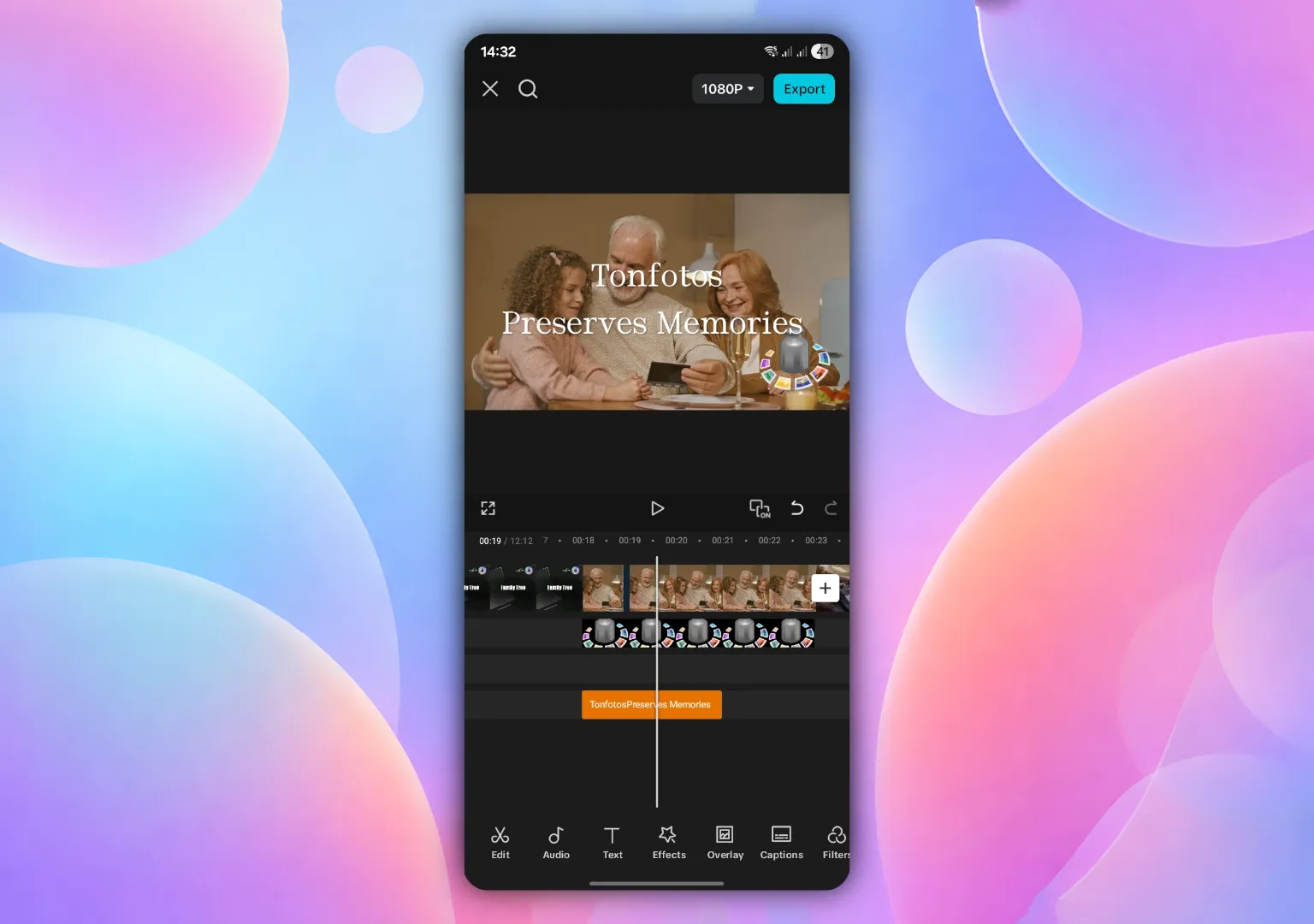
The program has an intuitive interface. Yes, you'll need to learn it a little, but it is not comparable to professional desktop suites. You don't need to dive into complex terminology or color spaces. Just throw video onto the timeline and the app suggests improvement options. A full video with effects can be put together while commuting by metro or standing in line for coffee.
Advantages
- Low entry threshold.
- Huge library of free content.
- No forced watermarks.
- Powerful functionality “in your pocket.”
Disadvantages
- Demands on smartphone hardware.
- Paid features (Pro).
- Regional restrictions.
InShot
The veteran app that makes the content creation process as fast and predictable as possible. InShot is built on linear editing. Everything is simple, visual and without unnecessary nested menus. There is a large set of filters and stickers that do not look “cheap,” and help set the mood of the video.
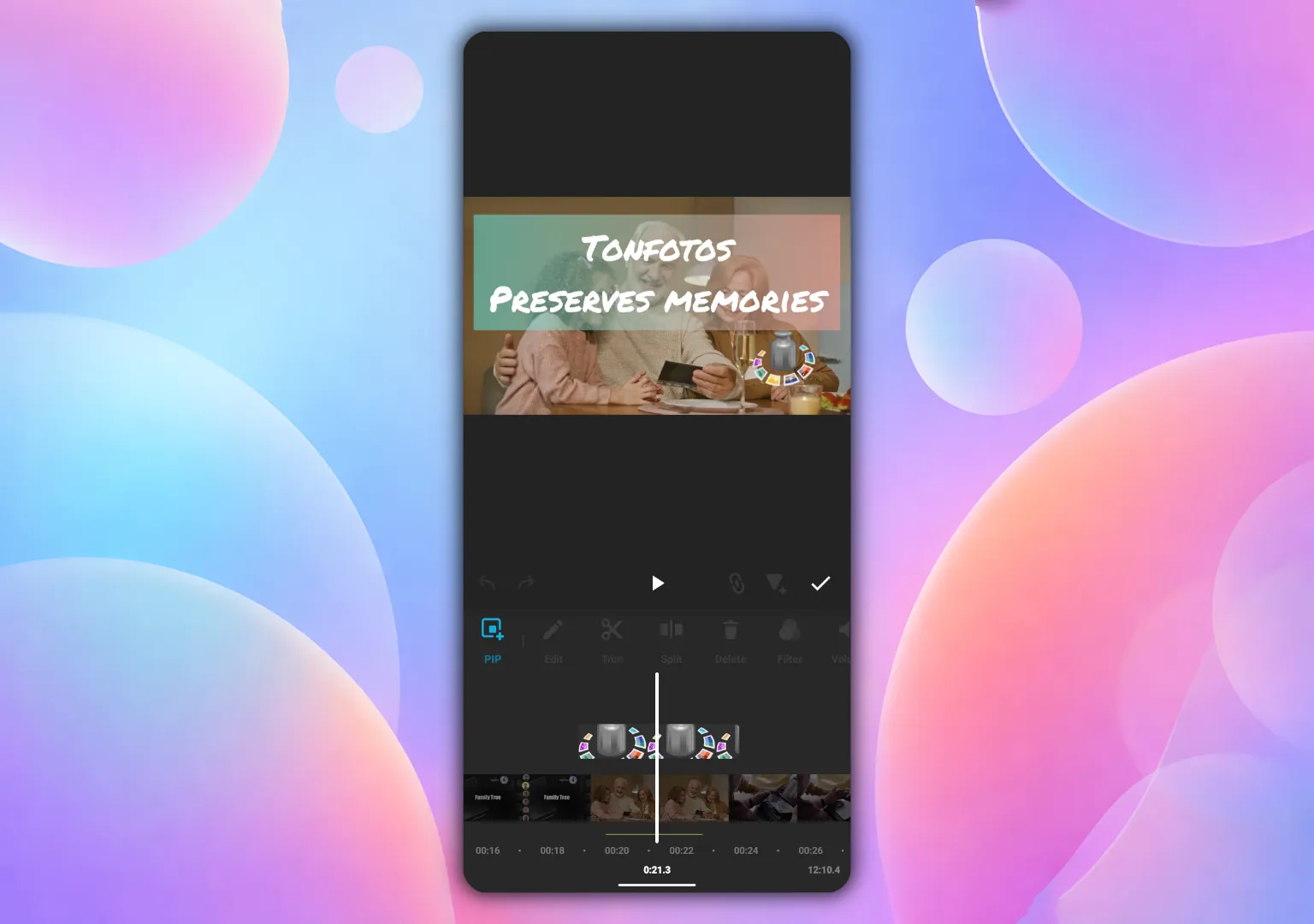
The program is suitable for those who need to prepare a video “here and now.” You can convert horizontal vacation footage into vertical format for Stories with one click, adding a stylish blurred background or neat frames.
Advantages
- Format versatility.
- Ease of learning.
- Photo handling.
Disadvantages
- Layer limitations.
- Watermark.
- Fewer AI features compared to competitors.
VN Video Editor
This is Adobe Premiere for mobile phones. The app provides more control over the frame. It lets you work with speed curves, precise keyframe animation and deep color correction using third-party LUTs.
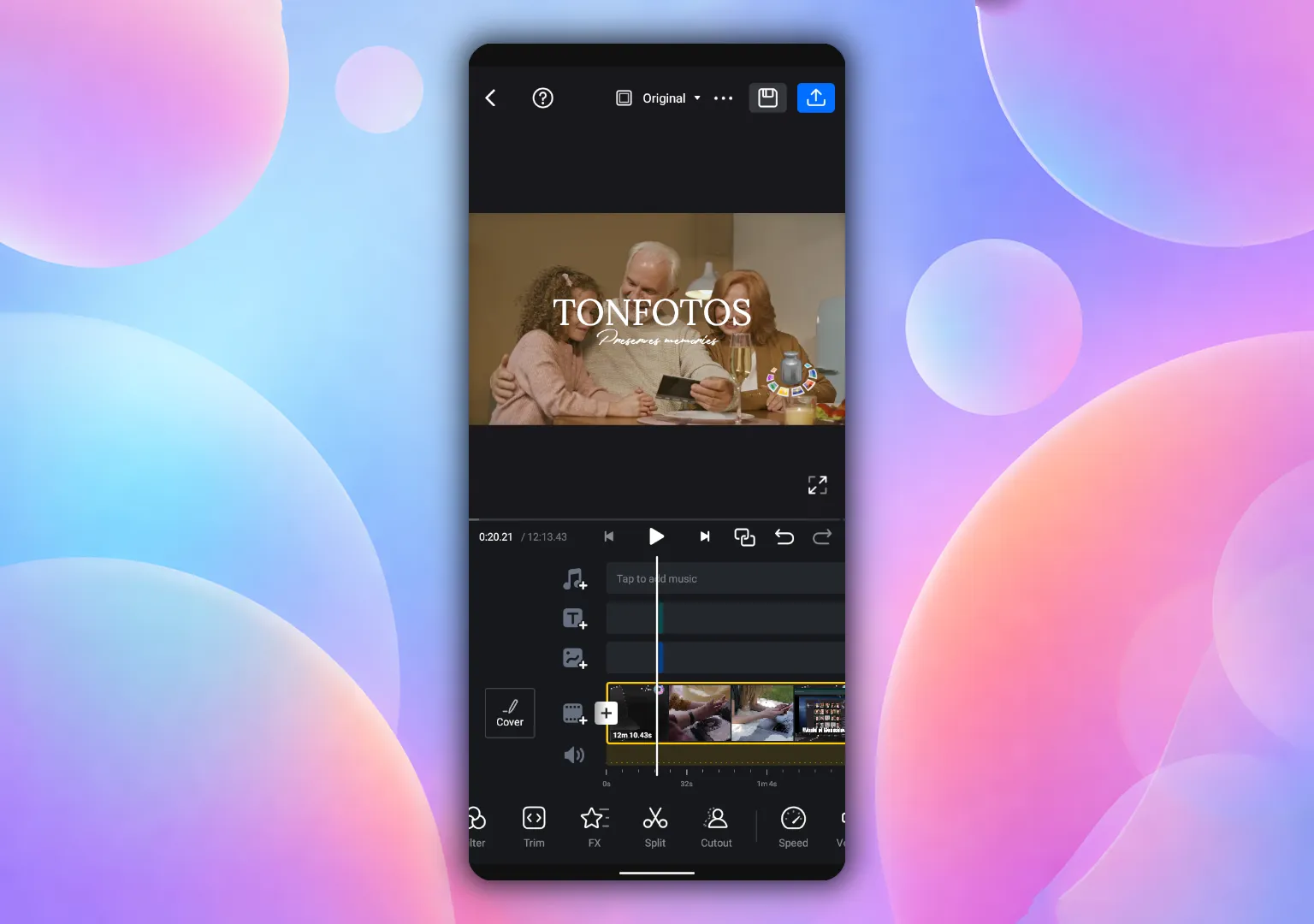
The professional timeline is especially noticeable. It allows you to see all video, audio and text tracks as in desktop programs. This enables complex editing, for example, for a YouTube channel.
However, you should consider the limitations of the free VN Video Editor, which allows editing only 100 projects at a time. For personal needs this is more than enough, but if you plan to release 3-4 clips per day for different platforms, the limit may be reached quickly.
Advantages
- Professional toolkit.
- No watermark.
- Cross-platform.
- Advanced audio work.
Disadvantages
- Export limit.
- PRO effects restrictions.
- Raised system requirements.
VivaCut
A video editor focused on deep effects and artistic styling. The VivaCut interface, although aimed at complex multi-layer editing, is easy to navigate thanks to thoughtful layout.
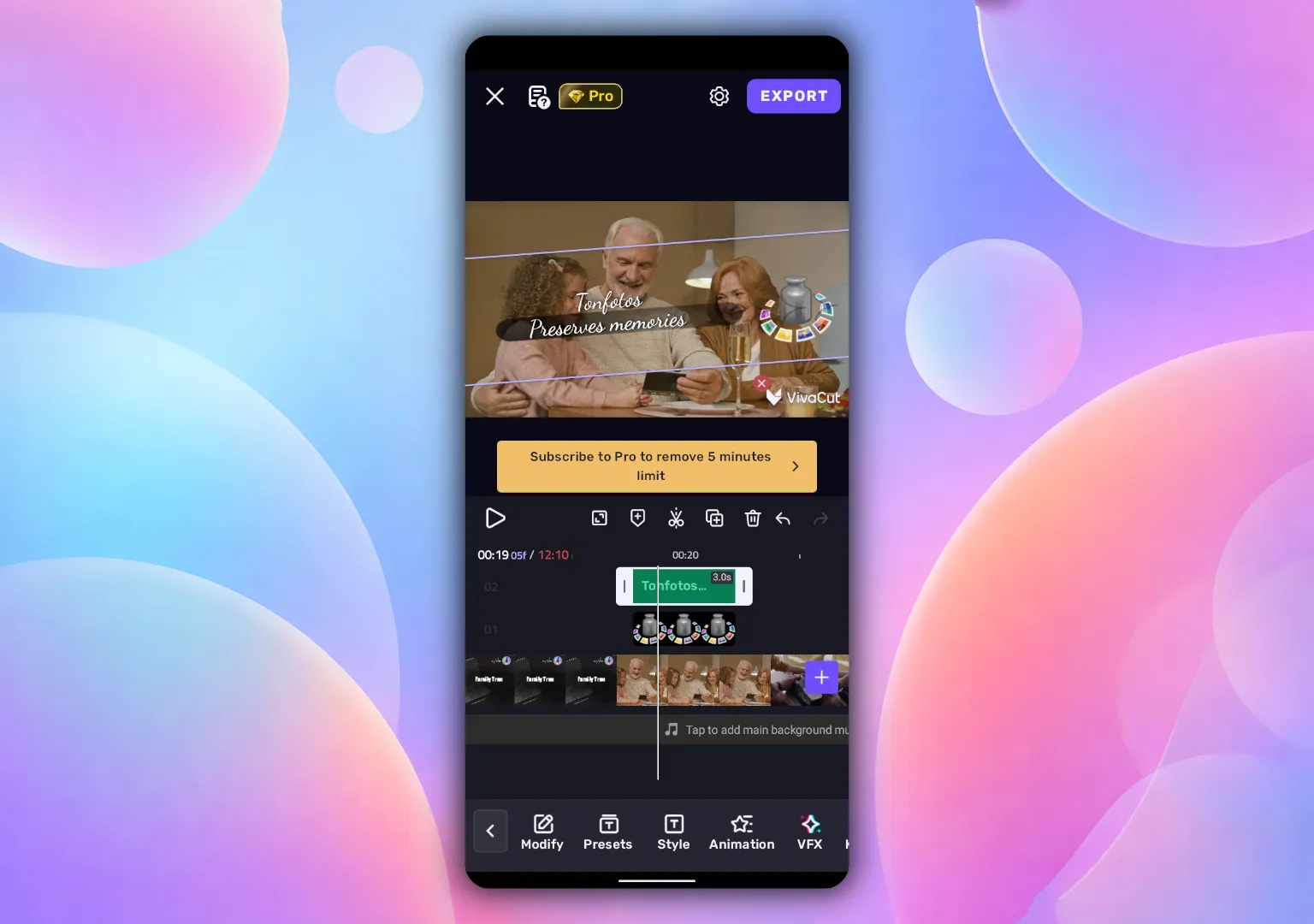
In VivaCut it is easy to overlay video on video, work with masks and use keyframes. The bottom panel gathers tools for creating dynamic content that is hard to distinguish from desktop editing.
However, you pay for powerful functionality. A message in the interface indicates that without a paid subscription you are limited by clip length and will face a watermark.
Advantages
- Professional toolkit.
- VFX effect library.
- Precision control.
Disadvantages
- Strict free-version limits.
- Watermark.
- Overloaded interface for basic tasks.
YouCut
YouCut is for those who just need to cut a clip quickly and simply. The app interface is concise. You won't have to wander through nested menus: all primary tools are just a tap away on the main screen.
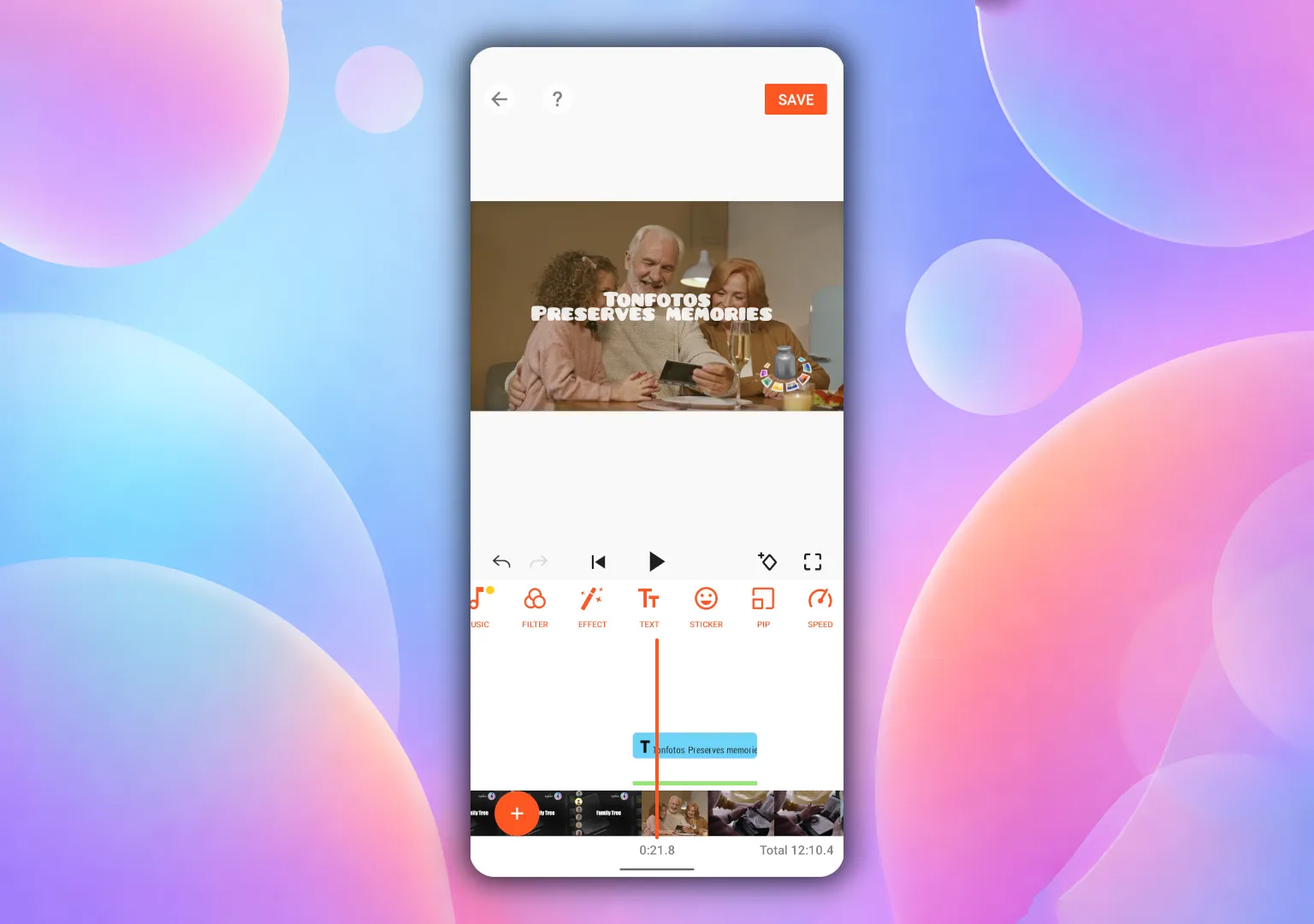
The program handles heavy files well and can export footage in 4K without overheating the phone. It is ideal for someone editing family archive videos where content matters more than effects.
Advantages
- No watermark.
- Stability on weak hardware.
- High export quality.
Disadvantages
- Ad breaks.
- Minimum AI features.
- Limited layering.
Adobe Premiere Rush
The program was created as a lightweight version of the professional Premiere Pro, while retaining Adobe's signature design. It's the perfect bridge for those planning to grow from a mobile editor to a full-fledged videographer.
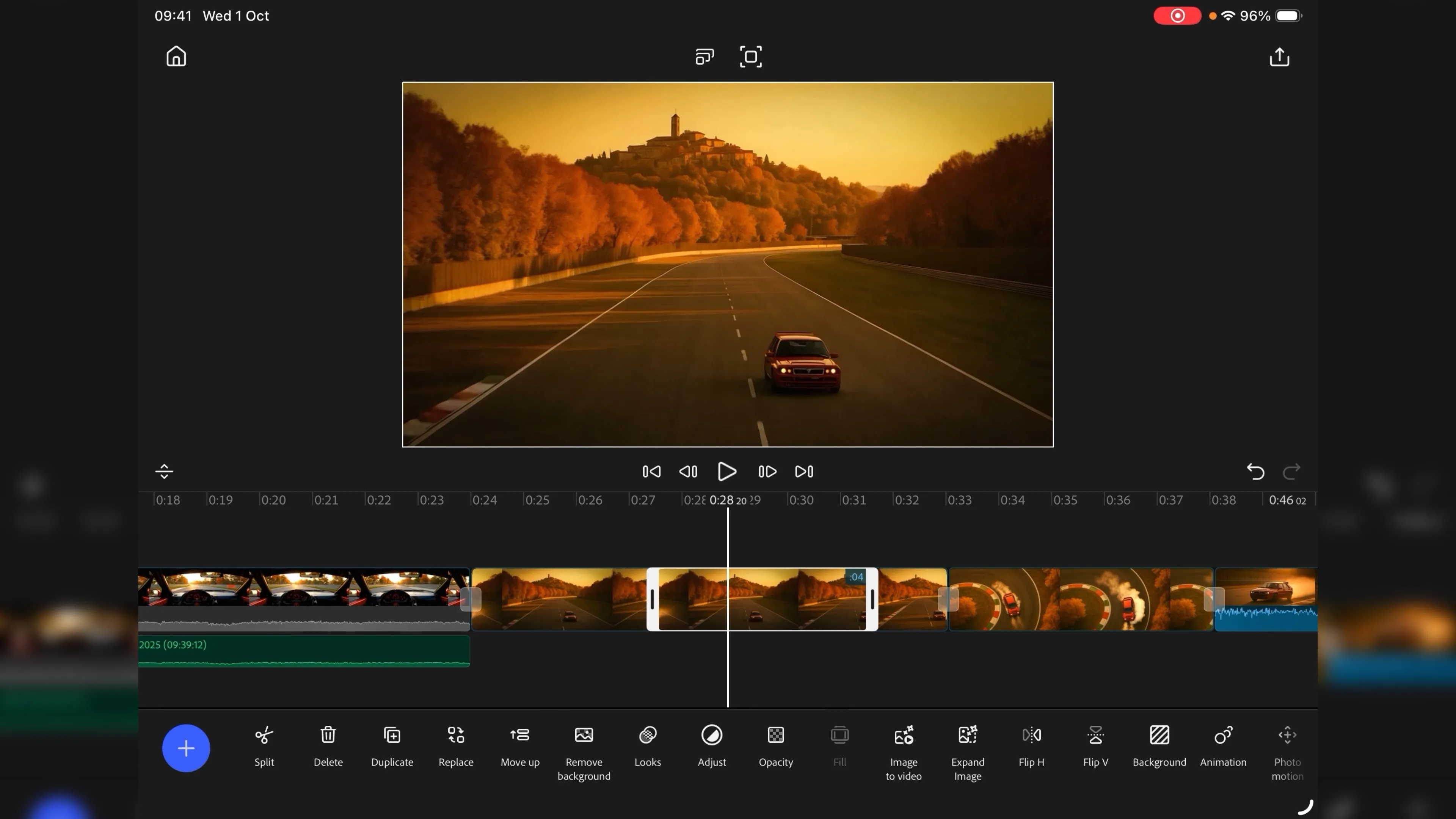
As you'd expect from an Adobe product, Premiere Rush is deeply integrated with the Creative Cloud ecosystem. You can start cutting a video on your phone while stuck in traffic, then open the same project on your computer when you get home and pick up where you left off. The program offers a wide range of tools for working with color and sound. Built-in neural network filters allow you to process your voice, making it sound as if it were recorded in a studio.
Advantages
- Professional continuity.
- Cloud synchronization.
- Picture quality.
- Clean interface.
Disadvantages
- Poor library of effects.
- Most useful features are only available in the paid package.
- The application is available only for iPhone and iPad.
Desktop video editing software for beginners
Despite the significant functionality leap in mobile apps, working on a small screen is inconvenient. Especially when you need to edit a large project with many effects, tracks and transitions.
To work on a computer, you do not need to master complex professional editors; there are solutions suitable for beginners.
CyberLink PowerDirector 365
Unlike Premiere Pro, which is packed with buttons and toggles, CyberLink PowerDirector 365 feels more like an advanced mobile app.
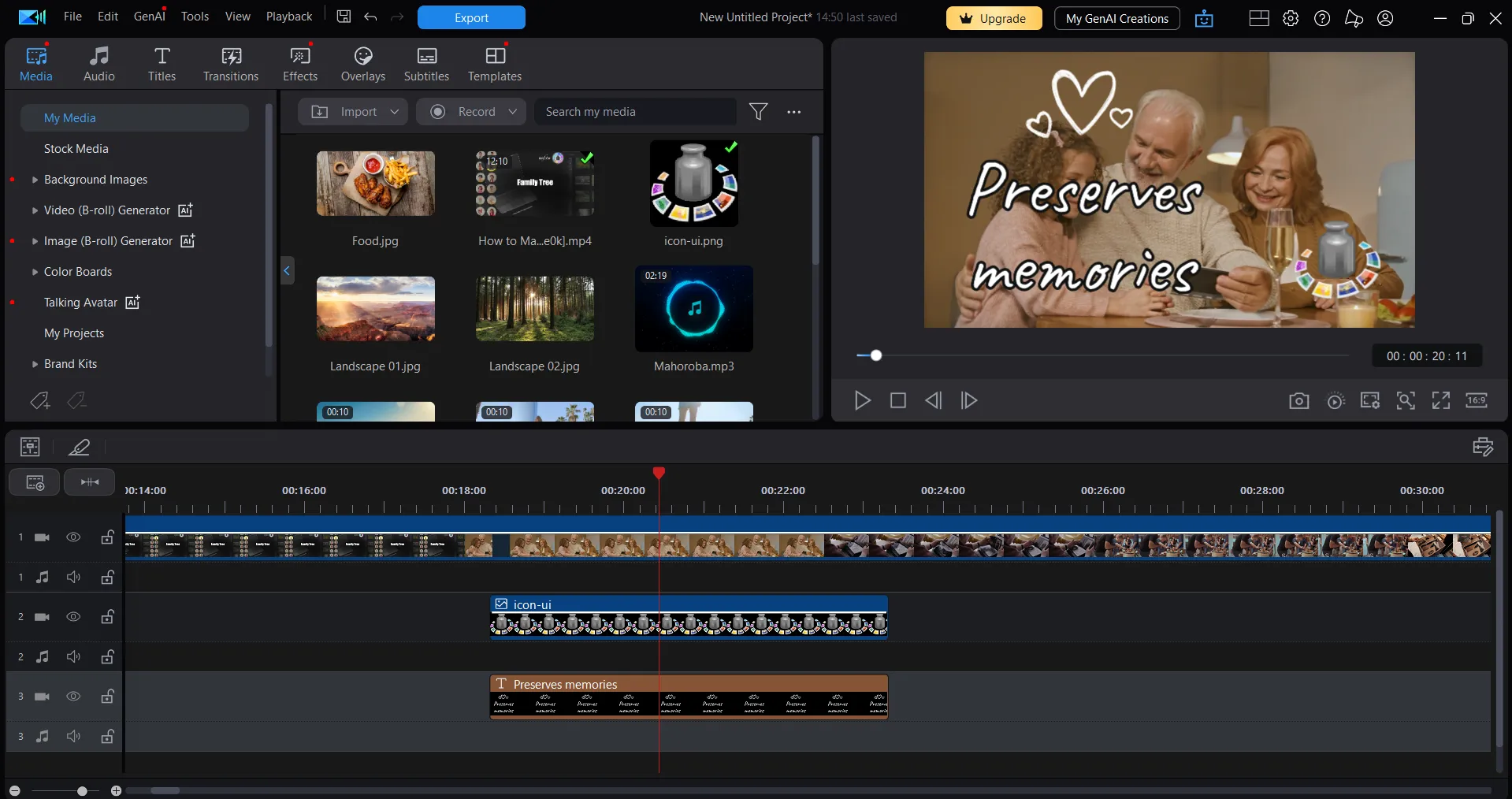
The program is based on a classic timeline, but with a huge number of automated assistants, including generative AI. PowerDirector 365 saves you from manually cutting objects out of frames or spending hours selecting music to match the video tempo. The editor analyzes rhythm and trims the audio track to the length of your clip.
Also, the editor offers built-in access to massive Getty Images and Meta Sound stock libraries. No need to buy separate subscriptions: they are included in PowerDirector premium and available directly in the program search window.
Advantages
- Speed of work.
- AI tools.
- Resource library.
- Support for all popular formats.
Disadvantages
- Subscription model.
- Hardware demands.
- Unconventional layer logic.
ACDSee Luxea Free Video Editor
For many, ACDSee is associated with photo viewing, but since 2017 the company has been developing its own video editor (ACDSee Video Studio), which was completely reworked and renamed Luxea (in 2020).
The program does not claim to be a video editing giant. It is created for those who have outgrown mobile apps but are not yet ready for professional solutions.
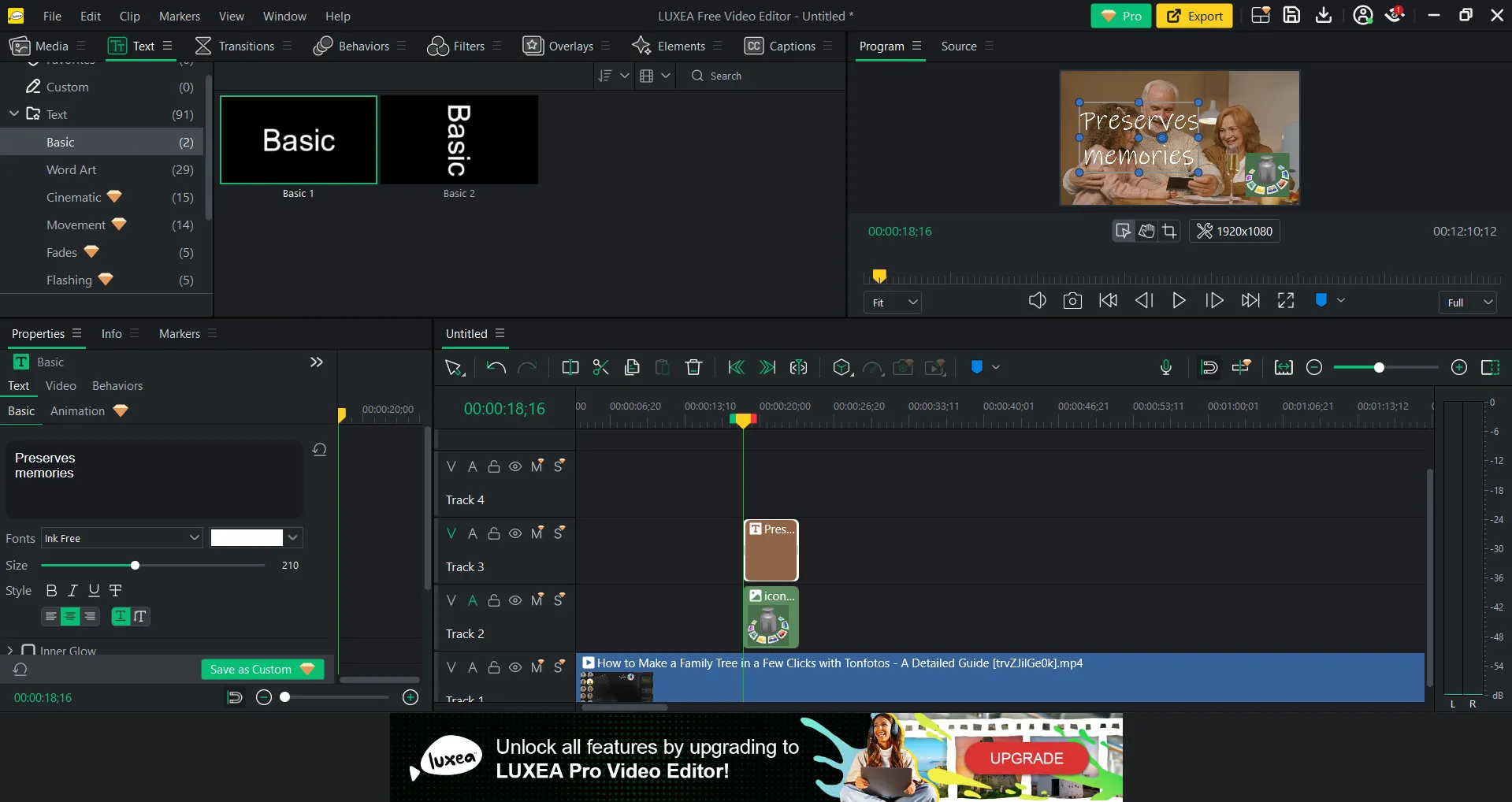
Notably, Luxea does not try to overwhelm users with AI features for marketing. Instead, it offers excellent ergonomics. It has a rare feature for free software: you can add media files directly to the track without pre-importing them into the library. This approach is common in mobile editors, making the program easier to use for beginners.
In addition, it includes a built-in screen recorder that supports 120 FPS, allowing you to record gameplay content and tutorials.
Advantages
- Built-in powerful recorder.
- No watermarks.
- Large selection of editing presets.
Disadvantages
- Many useful features are locked.
- Limited growth in skill development.
- Limited visual effects and VFX.
Wondershare Filmora
Filmora is a powerful enough video editor so you don't feel the limitations of a phone, while having a friendly interface that is easy to learn.
The editor has a wide base of templates and effects, complemented by unlimited AI generation options. You can literally select empty segments on the timeline and type what you want to see there, or use an intelligent silence removal mode.
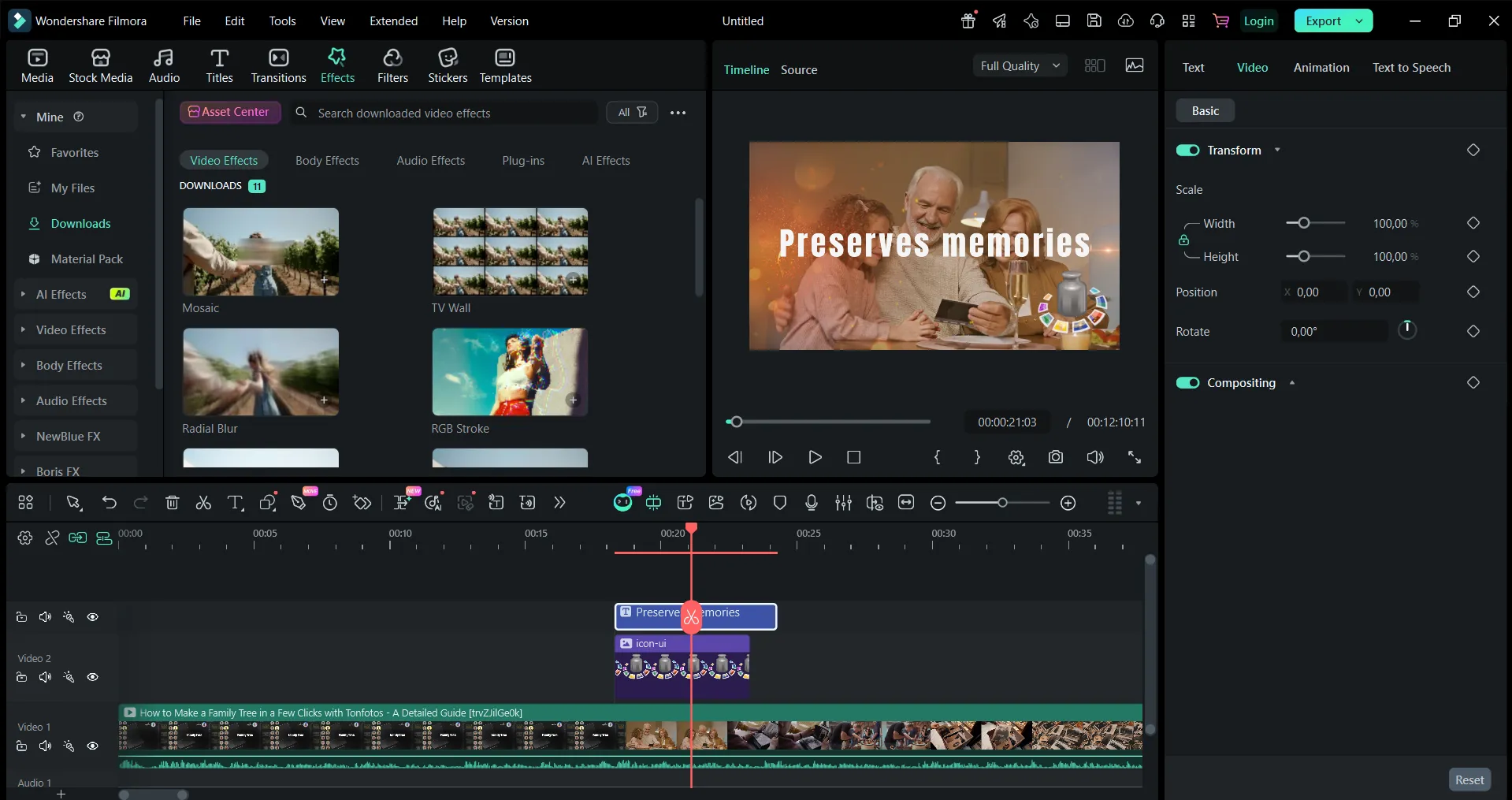
Everything is intuitive: on the left is a huge library of built-in effects, titles and stock footage, in the center is the preview window, and at the bottom is a clear timeline supporting dozens of layers.
Advantages
- Huge resource library.
- AI automation.
- Simple and clear interface.
Disadvantages
- Some effects are available only with a subscription purchase.
- No deep effect settings or color grading, which limits professional capabilities.
- Demanding on the computer.
Adobe Premiere Elements 2026
This program allows you to quickly edit videos without memorizing keyboard shortcuts or delving into color theory. Adobe Premiere Elements is a great start if you plan to develop into a professional.
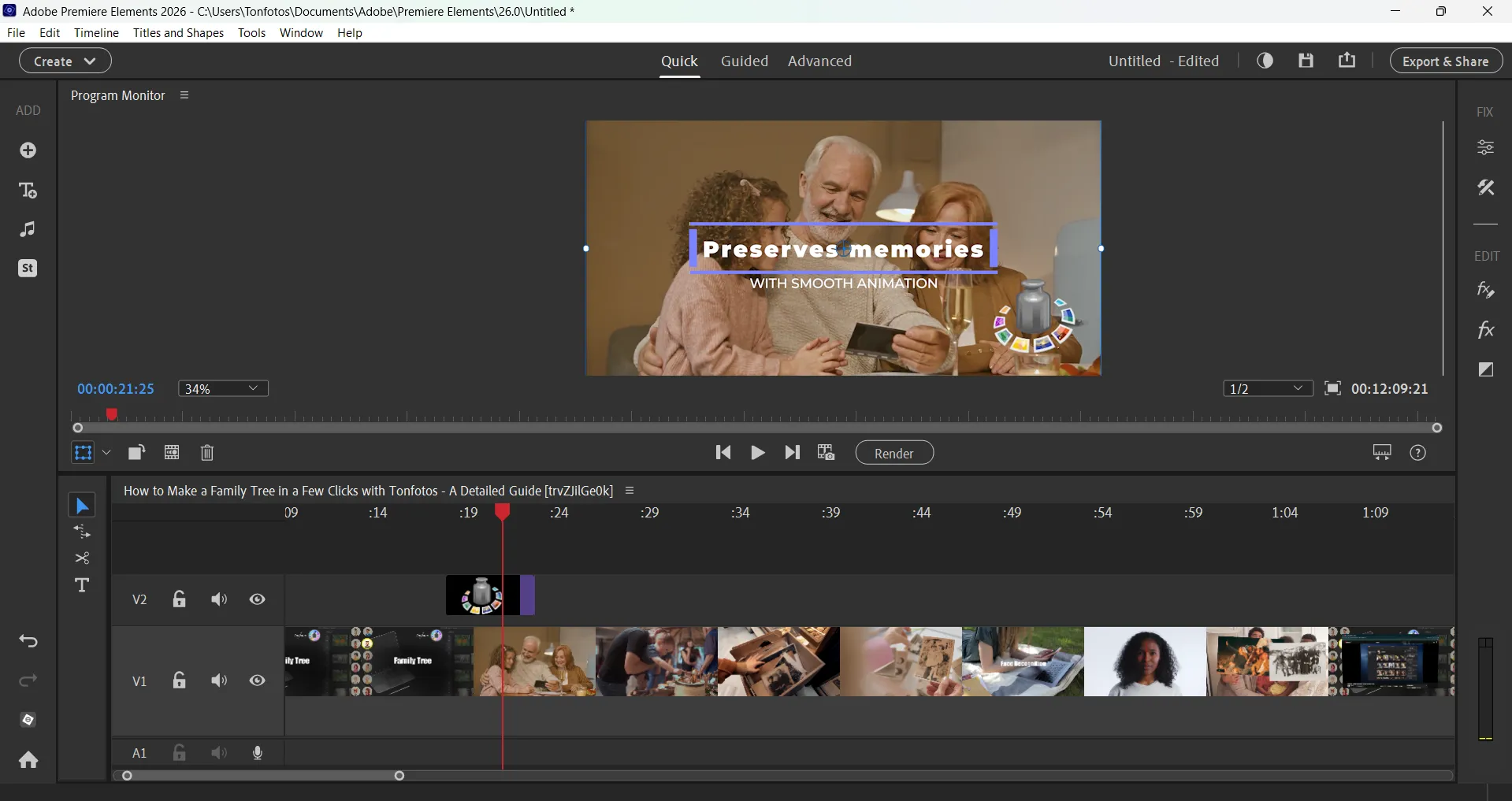
The program's workspace is divided into three difficulty levels:
- Quick. Perfect for when you need to put together a video in 5 minutes. Minimum buttons, maximum automation.
- Guided. A truly interactive tutorial. The program contains over 30 step-by-step scenarios (for example, how to create a picture-in-picture effect or beautifully blur the background), literally leading you by the hand.
- Advanced. A full-fledged timeline that prepares you for the professional level.
Built-in AI can trim videos to music and automatically change the frame format from horizontal to vertical, keeping the subject centered. These options are especially useful when managing a YouTube channel and Reels simultaneously.
The Color Match tool deserves special attention. Simply select a beautiful frame from any film or other video, and the program will instantly adjust the colors of your video to match that reference.
Advantages
- Unique training system.
- Smart export.
- Lots of effects and templates out of the box.
Disadvantages
- The license is only for 3 years.
- Slow performance on weak computers.
- Limited export settings.
Pinnacle Studio 26
Pinnacle Studio 26 is a transitional step between simple editors and true editing. The program doesn't attempt to replicate the interface of mobile video editing apps, but it also doesn't require the user to immediately understand color curves and codecs.
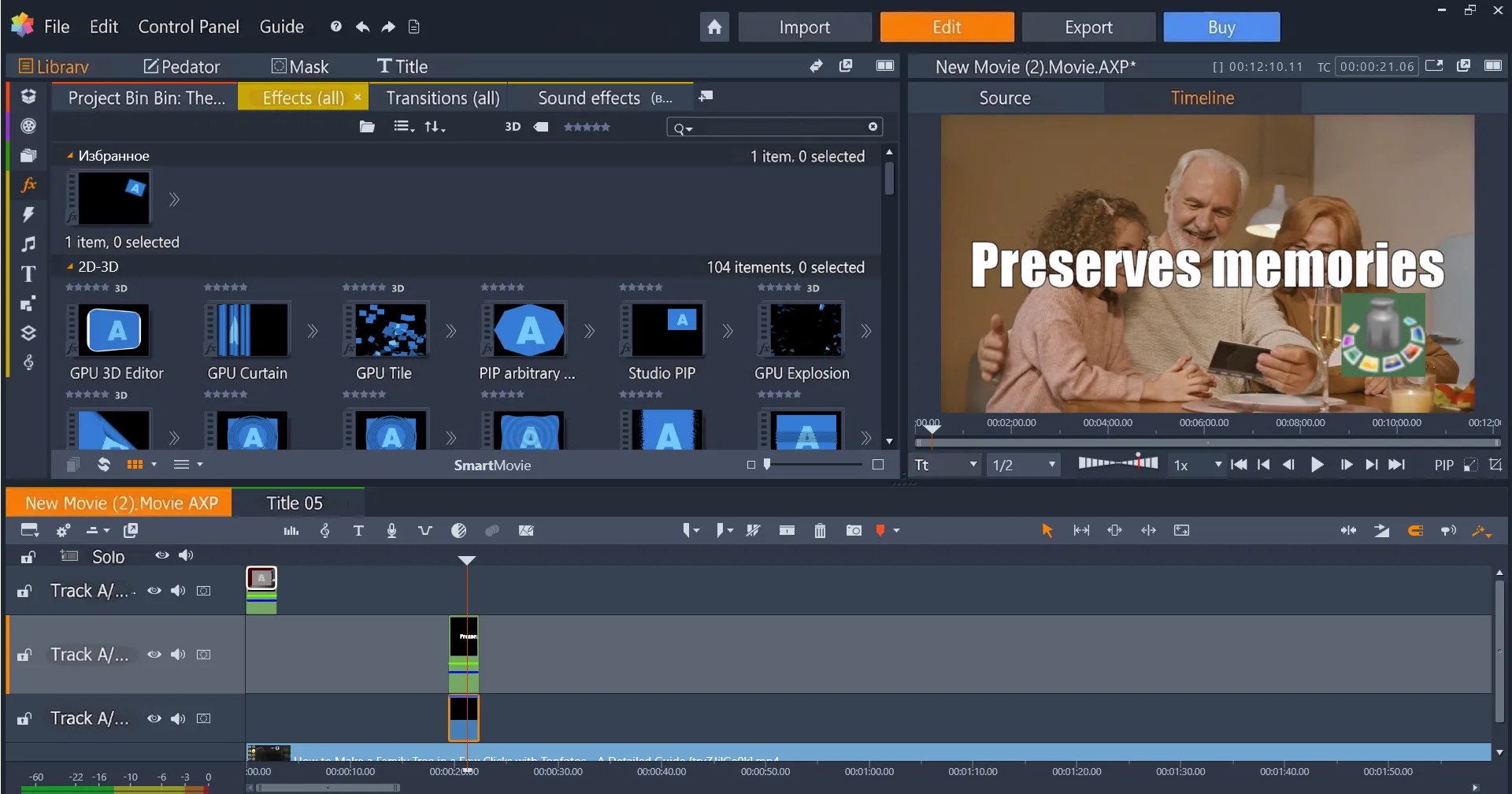
With Pinnacle, you can tackle even complex editing projects without having to study 200 pages of instructions. The program is especially effective with keyframes. Using Pinnacle's intuitive graphs, you can make a title not just appear, but smoothly float around a corner, change color, and dissolve. The Smart Object Tracking tool lets you "link" text or another object to a moving person or vehicle.
Advantages
- Perpetual license.
- Professional sound.
- Large library of effects and transitions.
Disadvantages
- Demanding computer performance.
- Sometimes freezes are possible during complex projects.
- Not the fastest start on weak systems.
- Some advanced features take time to master.
Microsoft Clipchamp
Clipchamp is a modern video editor from Microsoft. It is focused on beginners, bloggers and small businesses, offering a balance of simplicity and functionality. It is a hybrid app. It works right in the browser (Chrome or Edge) or as a built-in app in Windows 11.
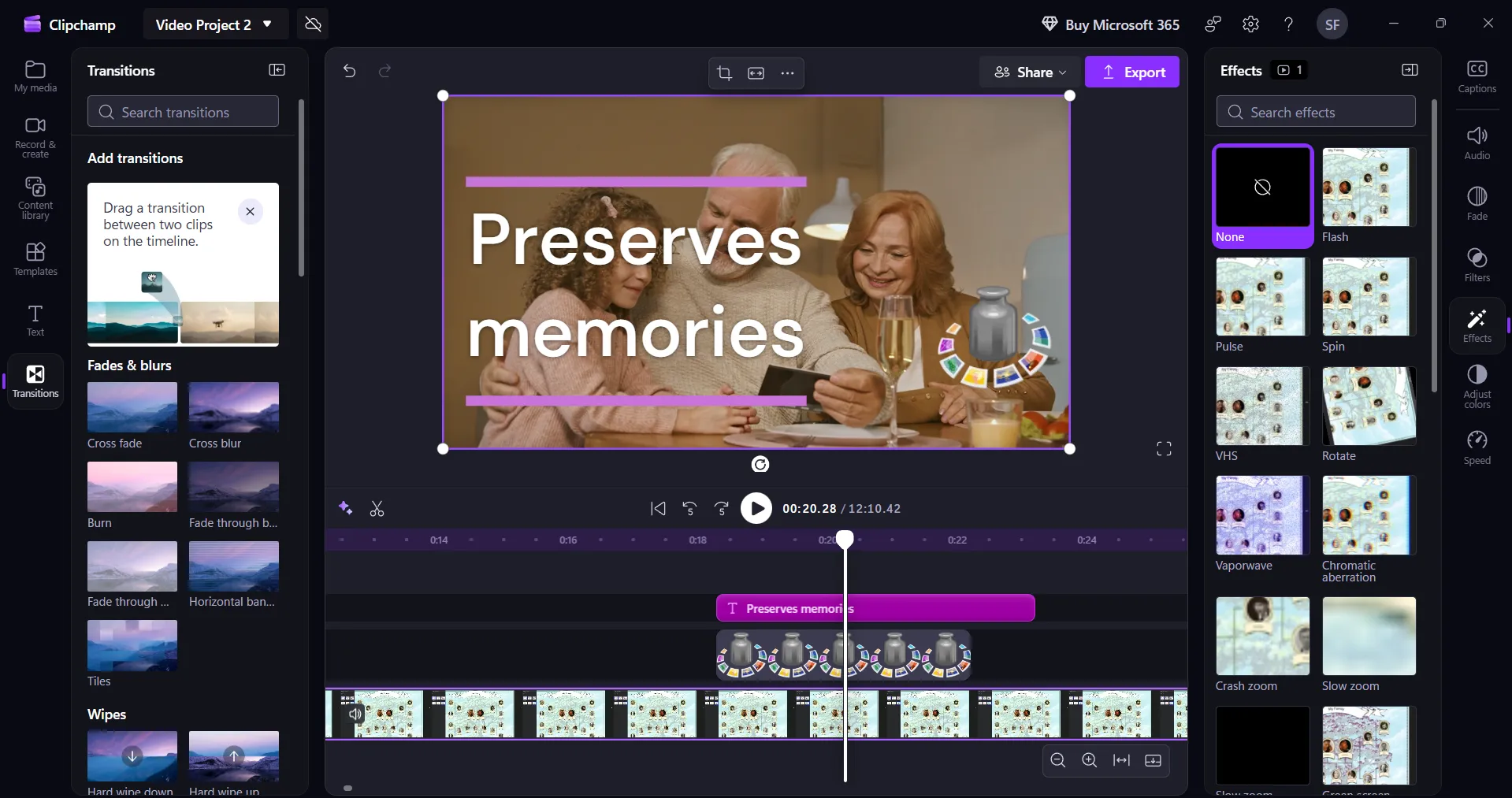
If in professional editors you have to manually adjust each frame, here smart algorithms help. You just upload footage from vacation or a work event, choose a style (for example, “energetic” or “elegant”), and the neural network itself cuts the best moments to the music rhythm.
For blog creators, Clipchamp provides automatic subtitles. It recognizes speech and immediately formats it into stylish captions with style customization options. And the built-in library of stock videos, audio and graphics allows you to assemble a clip even if you only have a couple of shaky phone shots.
Advantages
- Free and accessible.
- Powerful AI functionality.
- Cloud integration.
- Template library.
Disadvantages
- Internet dependency.
- Limited color grading.
- High RAM requirements.
OpenShot
OpenShot is a free video editing software with open source code. It is for those who value freedom and don't want to overpay for features they will never use. There are no hidden payments, half-screen watermarks or length limits. Just download the program and start creating.
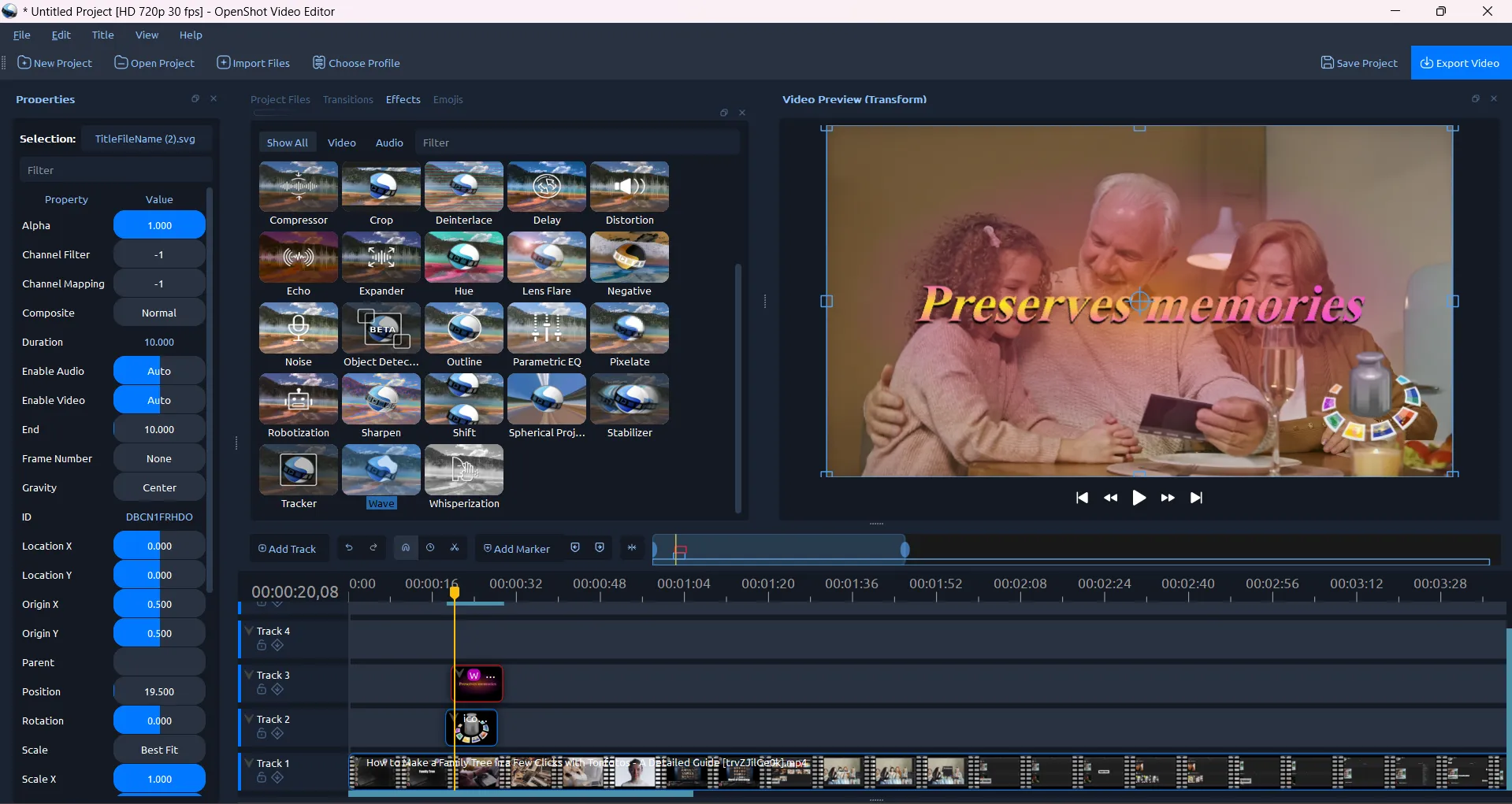
Unlike overloaded professional panels, OpenShot's workspace is organized logically and divided into four clear zones that allow full control of the process:
Properties panel. Once you select a clip or title on the timeline, a list of all its parameters appears there immediately: from alpha to precise position and scale. No need to search for settings in depth menus, everything is in one column.
Central tool hub. Here are tabs with files, transitions and a huge effects library. With one click you can switch to the Effects panel and choose a filter (e.g. stabilization or color correction) by dragging it to video.
Preview window. It works in a “live” transform mode. It lets you not only preview video, but also change text size or image position by dragging object edges.
Multitrack timeline. OpenShot allows creating an unlimited number of tracks.
OpenShot stands out with its keyframe system. You can make any object move smoothly on screen or vanish by setting start and end points on the timeline. And thanks to the Blender engine integration, the program can create impressive 3D titles—like exploding golden text or voluminous captions that look much more impressive than standard flat overlays.
Advantages
- Full freedom.
- Layer flexibility.
- Precision control.
Disadvantages
- Unstable behavior with large files.
- Limited editing capabilities.
- Heavy load on the computer.
Olive Video Editor
Olive Video Editor is an example of software that grows not around marketing and subscriptions, but around the idea of creating a truly free professional-level video editor. The open-source project is gradually becoming an alternative to commercial solutions while remaining accessible to regular users.
At first glance, Olive may seem like a “raw” solution, and partly that is true. The program is in active development, but this is what makes it interesting. Olive does not copy simplified mobile editors; it immediately provides a work environment as close as possible to professional editing systems.
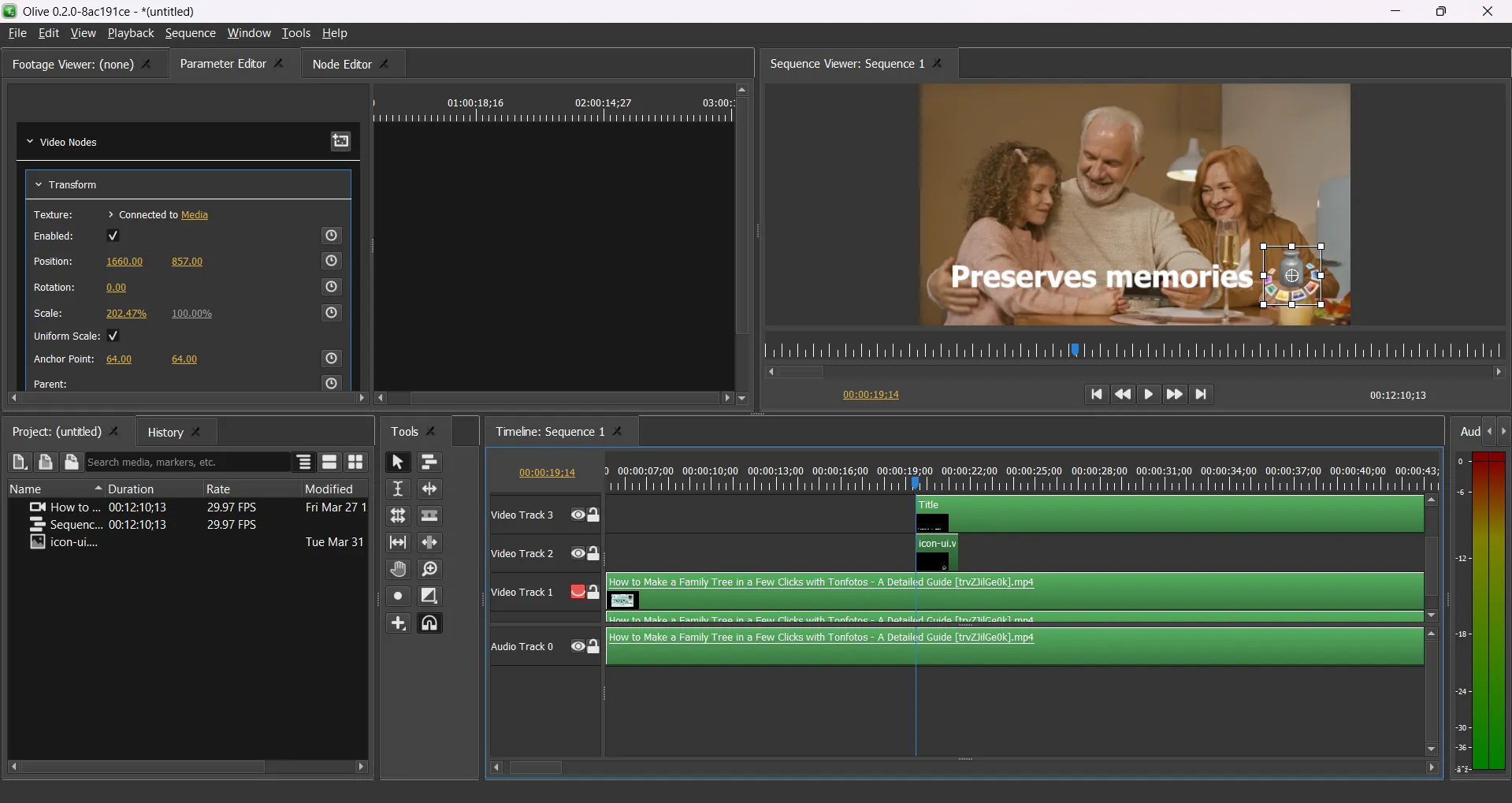
Unlike most programs for beginners, this editor does not try to hide editing complexity behind dozens of automatic buttons. It uses a classic workspace layout.
The interface structure may seem unfamiliar to those who started with mobile apps. But it forms the right editing habits. You gradually understand how editing works at the level of logic and sequence of actions.
Olive supports a node-based video processing system. Effects can be built as chains, creating complex combinations of filters and transformations. This approach is usually used in professional compositing and color grading systems such as Blender. Therefore, for a beginner, the program may not seem immediately intuitive, but it gives a very solid foundation for further growth.
Advantages
- Completely free use with no subscriptions.
- Open source and active project development.
- Support for professional tools (keyframes, nodes, multitrack editing).
- Cross-platform (Windows, macOS, Linux).
Disadvantages
- Active development stage and possible bugs.
- Not the most beginner-friendly interface for absolute novices.
- Limited built-in effects and templates.
- Fewer tutorials than popular editors.
Conclusion
When choosing video editing software, focus not on the maximum number of effects or a loud brand name, but on how well the tool matches your current tasks and offers room to grow. If you shoot short social media clips, mobile apps like CapCut or VN Video Editor allow you to start quickly. For more serious projects and a gradual transition to professional editing, pay attention to desktop solutions like Filmora or Olive. The ideal option is a program with an intuitive interface, basic functions and the ability to expand skills so you don’t have to relearn everything completely in a few months or years.