Cloud Storage vs Local Storage
Updated: December 2, 2025 Author: Vitaly
This material provides a comprehensive analysis of the features, advantages, and disadvantages of storing data in the cloud and local storage. You will learn about the pitfalls of cloud providers, as well as solutions for local data and photo storage.
Until recently, we didn't even think about storing a few documents and photos. But today, with remote work the norm and family archives filled with terabytes of 4K video, the issue of data storage has become a pressing issue. We've become accustomed to relying on cloud services, but the reality of 2025 is changing: subscriptions are becoming more expensive, and the risk of losing access to your files due to policy or outages is becoming increasingly real.
Data has transformed from a byproduct of digital life into an asset that needs to be protected. What should you choose in the current climate: the convenient but increasingly expensive cloud or reliable but expensive local storage?
Accessibility and ease of use
At first glance, cloud storage may seem like the epitome of simplicity and convenience. However, this data storage method has limitations that make creating an on-premises solution seem less of a bad option.
Cloud storage limitations
To start using cloud storage, all you need to do is register an account and install the client app. If the free storage isn't enough, simply purchase an additional subscription. It's truly convenient and simple.
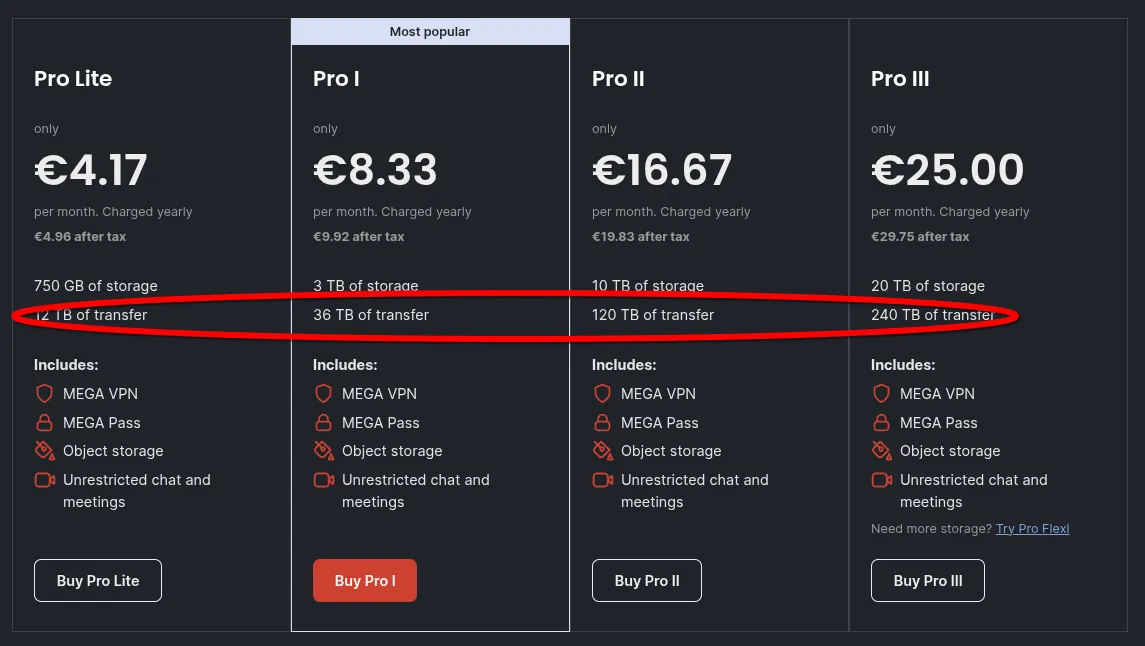
However, there are limitations to using cloud storage, and these limitations aren't limited to the need for constant internet access. This primarily concerns traffic limits, as each user request to retrieve a file requires a certain amount of resources in data centers, which costs money. Therefore, all cloud providers impose limits. Some do this openly (for example, Mega), others covertly (Google Drive).
Google Drive's current storage limits are listed in the user guide. It states that users can upload or copy up to 750 GB within a 24-hour period.
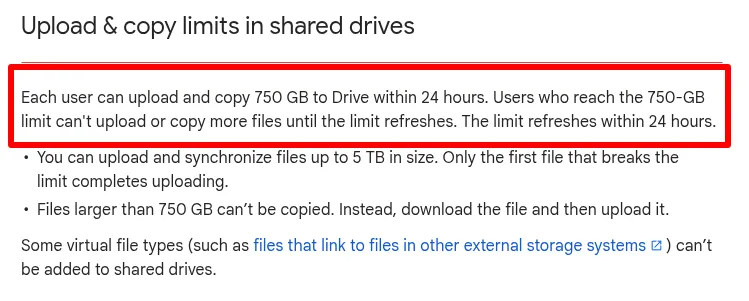
For typical consumer use, when primarily uploading photos from a phone or documents to cloud storage, reaching the limit is difficult, but with professional backups, the situation is different. This is especially true for photographers, videographers, and graphic designers who work with hundreds of gigabytes of images and video footage. For example, if you shoot a 10-hour wedding in 4K 60fps, the volume of rough footage can reach 900 GB, meaning it's impossible to upload all the backups to Google Cloud in a single day.
Furthermore, frequent downloads and uploads of large amounts of data can lead to restrictions from your internet service provider. This is especially true for mobile operators, whose radio channel bandwidth is limited and whose Fair Network Usage Policies are in effect.
Local storage limitations
It's worth noting that local storage is a broad concept. It could be anything from a flash drive to a full-fledged server with features comparable to Google Drive.
The main advantage of this data storage method is immediate, unlimited access, with the only limitation being the capabilities of the hardware itself. The difficulty lies in selecting this hardware, configuring it, and providing technical support. While hired system administrators are responsible for operating cloud storage data centers, with local data storage, this has to be done independently.
This is the most obvious limitation. For local storage to function reliably, you need to choose the right drives, configure the file system, back up your data, and monitor updates. For an inexperienced user, this process can be too labor-intensive. And although these investments pay for themselves after 3-5 years, getting started still requires time and a certain amount of skill.
To access files outside of home, you need to set up a VPN, DDNS, HTTPS certificates, and sometimes even port forwarding. All these tasks are not intuitive for the average user, and errors can lead to access issues or compromised security. Cloud services, however, provide remote access out of the box.
Cost of ownership and maintenance
Cloud providers offer a wide range of plans, so everyone can choose the one that best suits their needs. For document backups alone, free storage is quite sufficient. However, for videographers, designers, or family photo archives, this will clearly not be enough. Therefore, it's important to compare the cost of ownership and maintenance of cloud and local storage with a capacity of 2 TB or more.
Rates for popular services (Google One, iCloud+, Dropbox) remain static or increase, while user data volumes increase. For businesses, the situation is even more complex: enterprise plans are often priced based on the number of users, leading to increased costs as staff scales.
For example, if you purchase a 2 TB Google One subscription, you'll pay about $10 per month, or $120 annually. Even if the price remains constant, after five years you'll still owe Google $600 without any change in your available storage. As a result, the cost of owning 1 GB will only increase with each subsequent year.
With local storage, the initial investment depends heavily on the hardware chosen, whether it's self-hosting or a boxed solution. Since few people will build a NAS computer and configure the operating system themselves, we'll consider ready-made solutions.
Buying a NAS ($300) + two 4TB drives ($200) = $500. So, in less than five years, local storage pays for itself. It also offers features that rival Google's, particularly when it comes to photo cataloging, like Synology Photos.
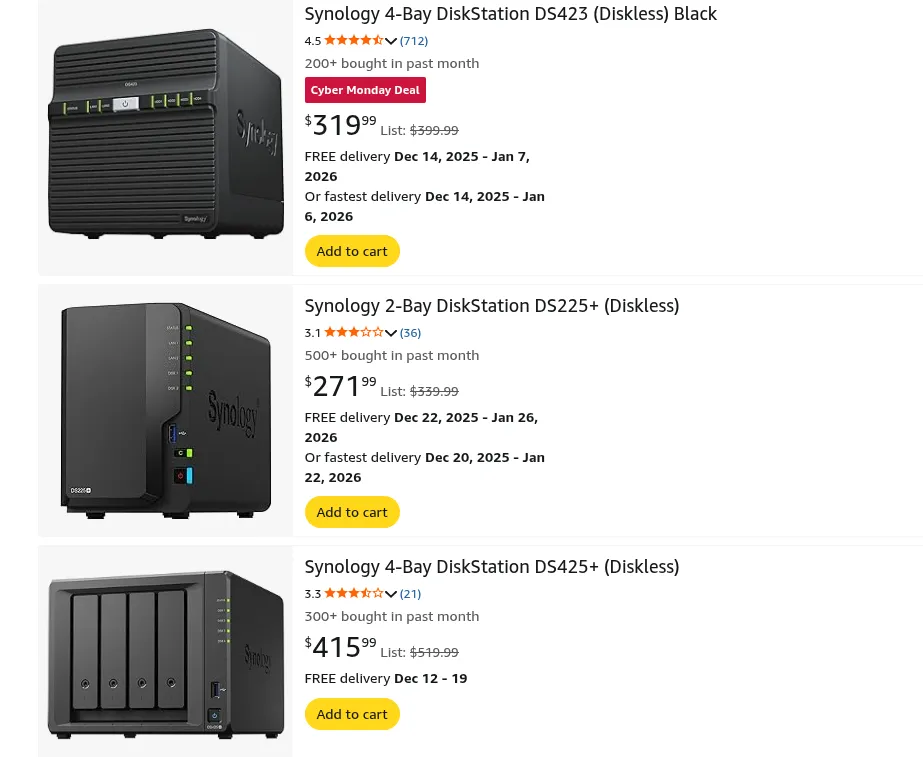
Furthermore, the cost of hard drives (HDDs) has historically demonstrated a steady decline in price per gigabyte. Analysts predict that by mid-2025, the market price of high-capacity HDDs (22-24 TB) will approach the psychological mark of $0.01 per GB (or $10 per TB). This means that a 22 TB drive could be purchased for approximately $220. By comparison, storing this amount of data in the cloud at standard rates would cost thousands of dollars annually.
Ultimately, cloud services are only profitable for small volumes, offering a low entry barrier without capital expenditures. However, over a 3-5-year period, especially when working with archives of 2 TB or more, local storage becomes the undisputed leader in terms of cost-effectiveness. By purchasing a NAS, you lock in the cost of ownership, while the cloud remains an endless subscription, with the price of each stored gigabyte only increasing over time.
Security and privacy
Some people believe that storing data locally guarantees its security and confidentiality, but in practice this method also has problems.
Security of using cloud storage
Most mass-market cloud services use server-side encryption. This means the encryption keys are stored by the provider. Technically, they have the ability to decrypt and view user data. This is necessary for search functions, AI photo analysis, and scanning content for illegal materials or copyright infringement. There have been cases of user accounts being blocked for storing content that algorithms have incorrectly flagged as prohibited.
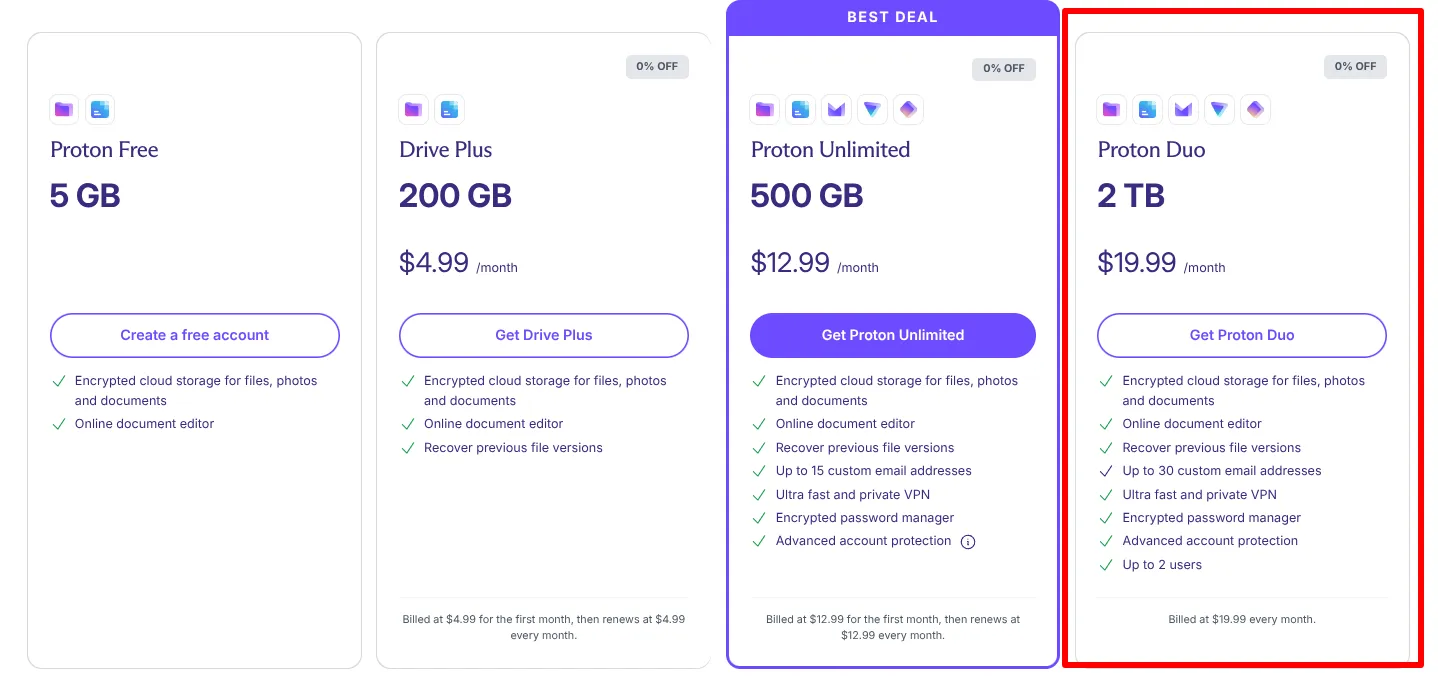
Additionally, there's an alternative way to access cloud storage using zero-knowledge encryption. This means keys are generated and stored only on the user's device. The problem is that there aren't many cloud storage providers that offer this model, and their services are more expensive. For example, Proton Drive charges around $20 for the same 2 TB (Google One charges around $10 for the same amount).
It's worth noting that the physical location of servers determines not only access speed but also the jurisdiction under which the data falls. For example, a US federal law passed in 2018 allows US law enforcement agencies to demand access to user data stored by US companies (Google, Microsoft, AWS), regardless of the country in which the servers are physically located.
Local storage ≠ reliability and security
Cloud providers use redundant coding techniques. A file is split into multiple fragments, which are distributed across thousands of disks in different availability zones. This allows for reliability rates of 99.99%. The probability of data loss in the cloud due to hardware failure is statistically close to zero. For a file to be lost, equipment in several geographically dispersed data centers would need to fail simultaneously.
A similar scheme is impossible to implement with local storage. The most a NAS can offer is combining multiple drives into a RAID array. RAID 5, 6, or 10 configurations allow the system to survive the physical failure of one or more drives without data loss. However, no one is immune to hardware failure due to malfunction, fire, or even theft.
Don't forget about viruses. Local network storage mapped as a network drive in Windows or macOS is vulnerable to ransomware. If the computer is infected, the virus can also encrypt files on the NAS. Vulnerabilities in the software itself should also be considered. This is especially true for ready-made solutions, where the user's options in choosing the OS or individual programs are severely limited.
The 3-2-1 Backup Rule
Peter Krogh (a photographer and digital asset management expert) published his book "Digital Asset Management for Photographers" back in 2006, in which he outlined the "3-2-1" backup rule, which was ahead of its time. After all, the first consumer cloud in the modern sense appeared two years later (Dropbox launched in 2008).
The concept is simple and remains the "gold standard" of reliability even in 2025. It transforms random file copying into a strict algorithm that minimizes the risk of irreversible data loss. The rule is deciphered as follows:
- 3 copies of data. You should have at least three copies of any important file: one primary (the one you're working on) and two backups. The logic here is simple: the probability of three independent devices failing simultaneously is negligible compared to the failure of a single drive.
- Two different storage media. Copies must be stored on two different types of devices or media. In today's reality, this means that you can't store the original and backup copy on the same hard drive (even in different folders) or within the same array, unless they are separate physical devices. For example, a work laptop (SSD) and a home NAS (HDD). Different storage technologies protect against specific failures inherent to a particular type of hardware.
- One copy off-site (in the cloud). This is the key link between on-premises and cloud technologies. One copy of the data must be physically located elsewhere. This provides insurance against local disasters: fire, flooding by neighbors, a power surge that destroys all the electronics in the apartment, or equipment theft.
In this configuration, local storage serves as a fast and large-capacity archive, saving money on traffic and subscriptions (after all, it's not necessary to upload absolutely everything to the cloud, only critical materials). The cloud also acts as a "safe" in case of emergency, protecting local equipment from physical destruction.
The problem of organizing data on local storage and how to solve it
The optimal local storage option doesn't solve the problem of digital chaos. Uploading 100,000 photos to a reliable RAID array will ensure their safety, but it won't make it easy to find a photo you need five years ago.
Owners of ready-made NAS (such as Synology) often rely on built-in solutions like Synology Photos. These are excellent tools for photo organization, but they have their drawbacks: they lock you into a single vendor's ecosystem and consume the storage's resources, slowing down its performance for other tasks. An alternative and more versatile approach is to use specialized desktop software that accesses the storage over the network. Let's consider this scenario using Tonfotos as an example.
The program is a powerful cataloger that can quickly organize any volume of photos. All you need to do is add the NAS folder containing the photos to the Tonfotos library. This can be done either through the dialog box that appears when you first launch the program or by selecting File – Library Location.
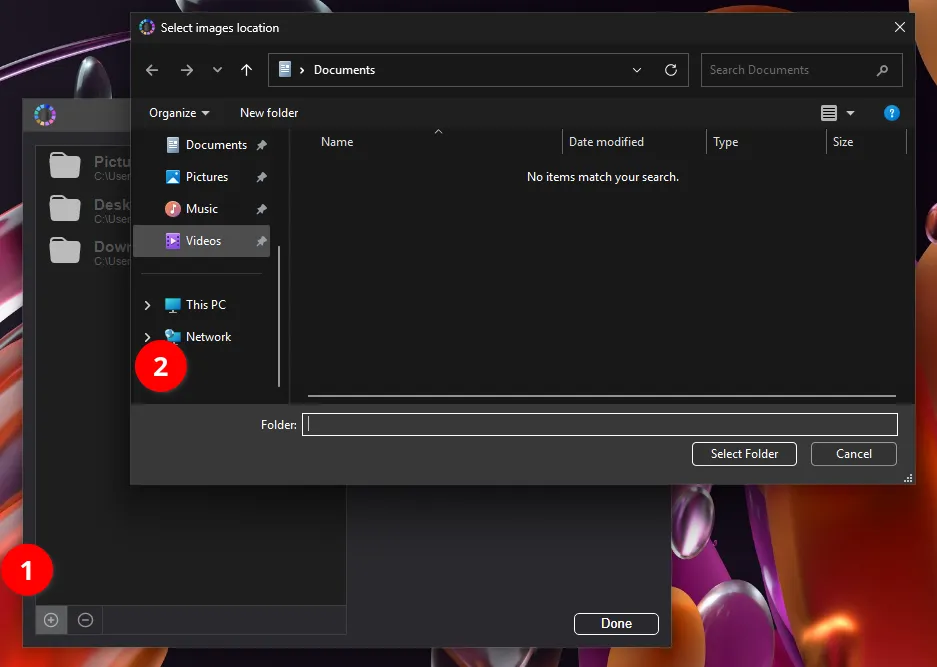
After adding a network folder, you need to wait while the program indexes the files. This process places the entire load on your computer, and the processing time depends on your computer's performance and the connection speed to the NAS.
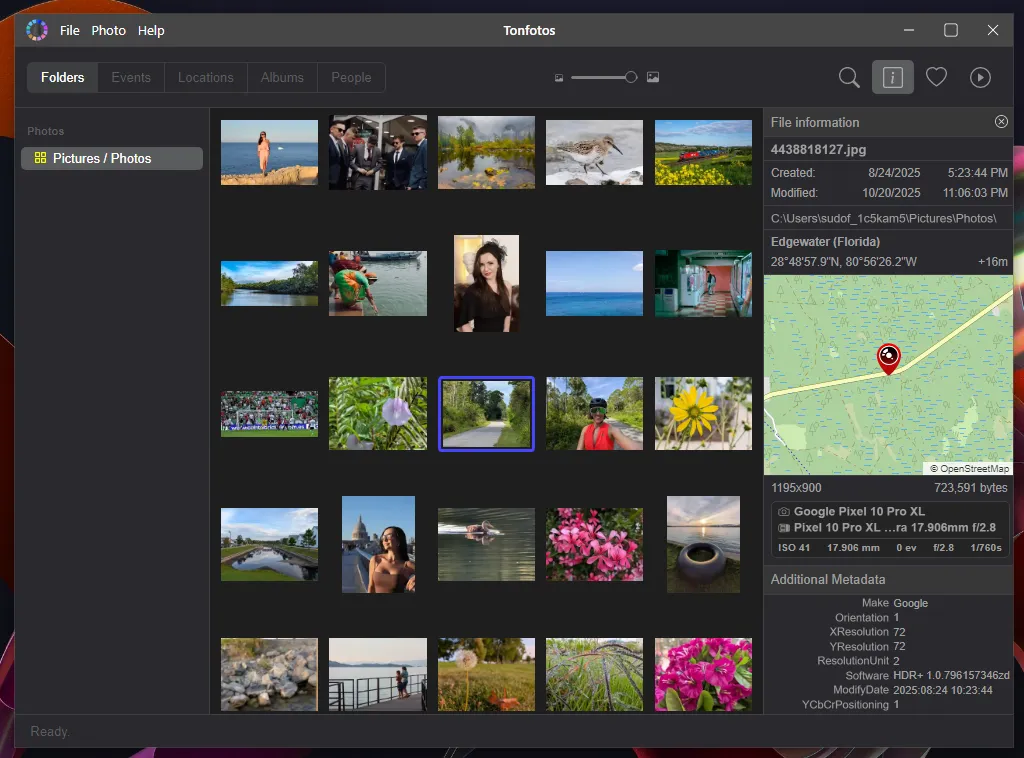
Unlike built-in solutions, Tonfotos is a cross-platform program available for all desktop operating systems: Windows, macOS, and Linux distributions. This means that if you replace your NAS, you'll always have access to your photo archive and modern cataloging features.
With Tonfotos you can:
- Browse the archive chronologically. The intuitive timeline lets you instantly navigate through years and months, finding the events you need, even if they happened decades ago.
- View the geography of your photos on a map. If your photos contain GPS tags (which is standard for smartphones), the app will display them on an interactive world map. This is a great way to remember your travels and trips.
- Create virtual albums. You can group photos by events or themes without physically moving files. This is critical when working with a NAS, as the original folder structure on the drive remains intact and files are not duplicated, saving space.
- Automatically recognize faces. Built-in artificial intelligence scans your archive and groups photos by the people in them, eliminating the need to manually sort through thousands of photos.
- Maintain a family history. The unique persona creation feature allows you to not only name people but also build family connections between them and add biographical notes. This transforms a simple photo archive into a structured family tree.
Additionally, with Tonfotos you can view basic metadata and edit photo titles and descriptions.
Conclusion
The choice between cloud and on-premises data storage is no longer clear-cut in 2025. The cloud remains the most convenient tool for quick access, collaboration, and storing critical backups off-premises. However, rising subscription costs, traffic restrictions, and the risk of account suspension make it difficult to rely entirely on an external provider. On-premises storage, on the other hand, requires an initial investment and basic technical literacy, but provides complete control, high performance, and a predictable cost of ownership.
The optimal strategy is not to pit these approaches against each other, but to combine them. A local NAS serves as the primary high-volume archive, while the cloud becomes a reliable "lifeline," protecting data from unforeseen circumstances. This hybrid approach allows you to retain the convenience of the cloud, avoid overpaying for terabyte subscriptions, and simultaneously ensure maximum reliability and privacy.