Best Photo Restoration Software in 2026
Updated: March 6, 2026 Author: Vitaly
We'll tell you how to restore old photos without losing their soul and historical authenticity. We've compiled a review of the best photo recovery software and created an optimal restoration algorithm.
Digitizing old paper photographs helps preserve them in their current form and protect precious memories from further deterioration. But family archives often contain truly unique shots—those very photos that you want to not just store in a folder on your computer or in the cloud, but to revisit, share, and even print in an album or hang on your wall.
The problem is that along with the image, all the defects accumulated over the years—scratches, dust, fading, cracks—are transferred to the digital copy. In this state, a photograph is rarely suitable for high-quality printing. Therefore, before sending photos to the printer, it's worth selecting the best shots and restoring them.
However, if you've never worked with image restoration before, choosing the right tool can be a daunting task. In addition to traditional image editors, specialized solutions and neural networks are now available that significantly simplify the process.
To make your choice easier, we've compiled a list of the best programs for restoring old photos and provided practical tips on how to use them.
Selection of old digitized photographs for restoration
High-quality restoration of old photographs is a labor-intensive, multi-step process that requires time and attention, even when using AI-powered tools. Therefore, in the initial stage, it's important to select truly valuable and promising images to avoid wasting resources on photos that are irrecoverable or of little value.
There are many photo-selection programs available, but not all of them are suitable for casual users who have never had to sort and filter photos before. In such cases, not only advanced features but also a user-friendly interface are important.
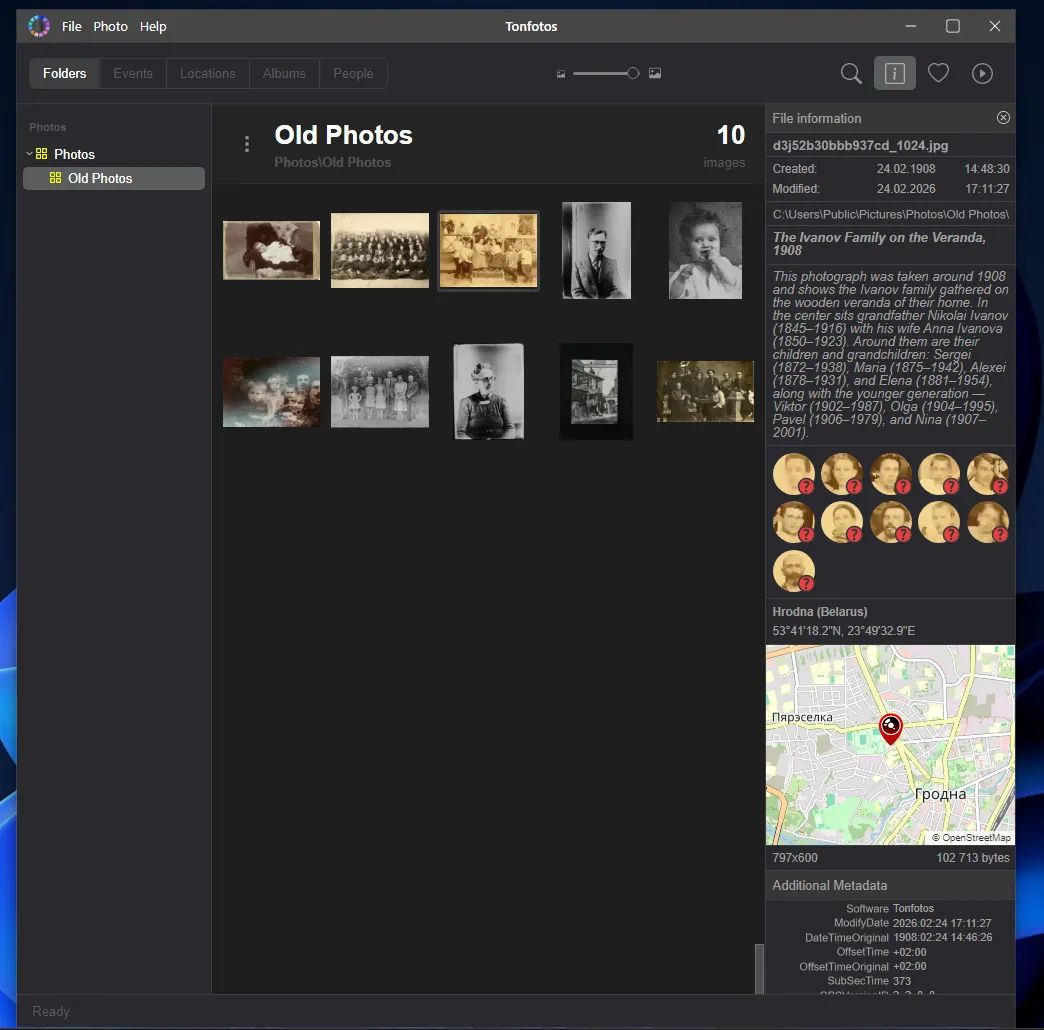
Tonfotos is a photo manager designed for quick and easy photo selection. The program combines a user-friendly interface with intelligent features, making it an excellent choice for beginners.
Compared to professional suites like Lightroom, Tonfotos' interface may seem overly simple. However, this simplicity conceals powerful tools, more than sufficient for the initial screening of digitalized photographs prior to restoration.
- Quickly sort and select photos. The program allows you to quickly select the best photos by adding them to Favorites (hearts) or to a corresponding rating album. This is convenient for initial selection: you can mark promising photos for restoration, reject undesirable shots, and group photos by priority.
- Find duplicates and similar images. Tonfotos analyzes images, finding exact duplicates and very similar shots. This is especially useful during digitization, when the same photo may have been scanned multiple times with different settings. This feature helps retain only the best versions.
- Facial recognition. Built-in facial recognition algorithms and photo grouping help you find photos of specific relatives or family events in large archives without manual sorting.
The ability to edit metadata is worth mentioning separately, since this is where important information such as the date the photo was taken, title, or description is recorded.
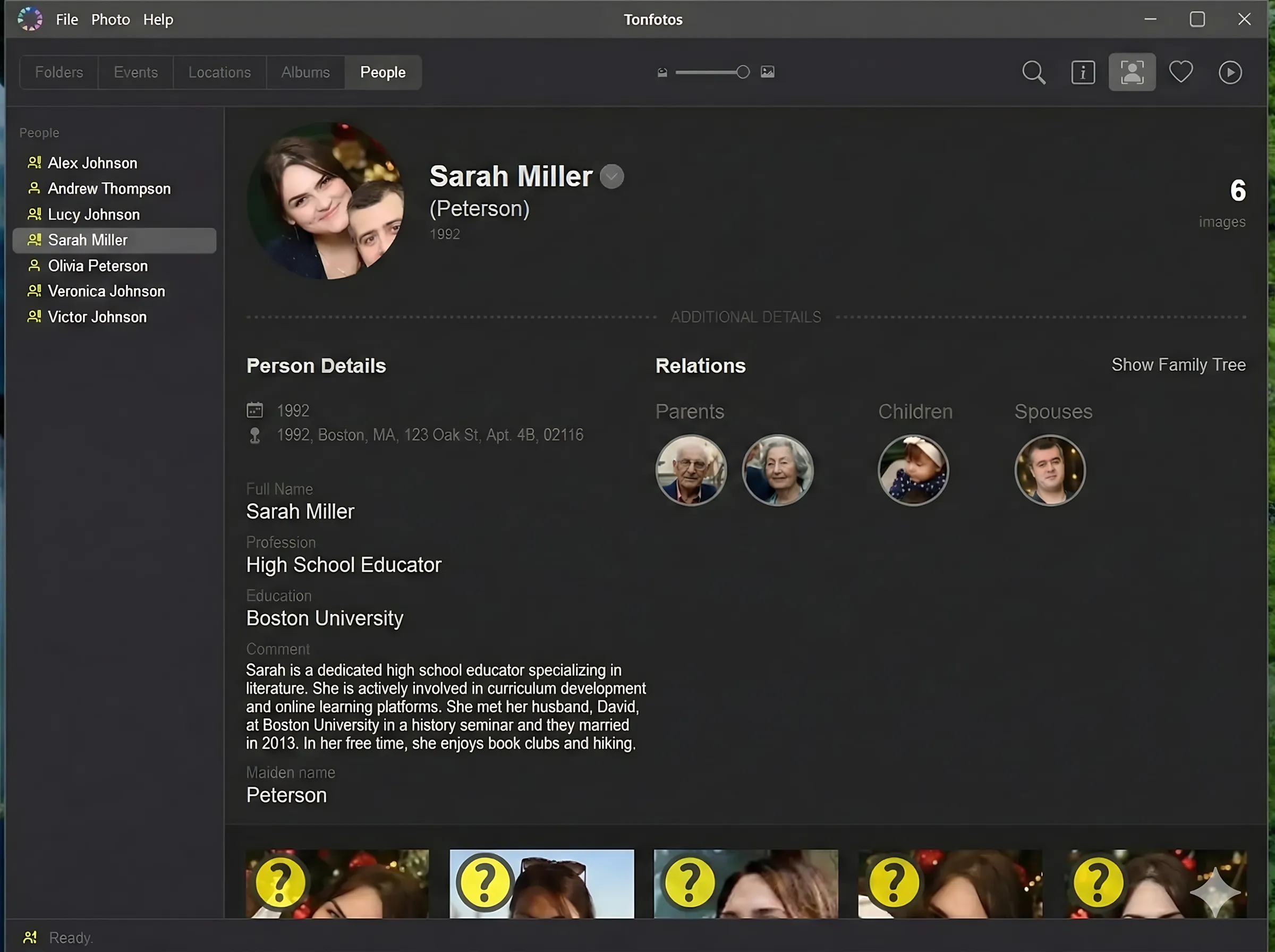
In the "People" section, a separate profile is created for each selected person, where you can add additional information, such as date of birth/death, family ties, residential address, and education.
Tonfotos is a convenient pre-restoration filter that helps you organize your digital archive and focus on truly valuable photos. The program allows you to quickly select promising photos, remove duplicates and poor scans, organize your family archive by people, events, and dates, and enrich them with important metadata and historical information.
Primary photo correction
Before moving on to more in-depth restoration, removing scratches, stains, and other defects, the photograph's foundation should be leveled. Crop (cut away empty edges), straighten the horizon, and adjust exposure and contrast to bring out detail in highlights and shadows.
Remarkably, you don't need complex graphics editors to do this. You can use the built-in tools of your computer or phone's operating system.
Windows Photos
Microsoft has expanded the functionality of the default image viewer in Windows 11. It now includes basic editing tools, including AI-powered ones, which are sufficient for preparing digital photos for further processing.
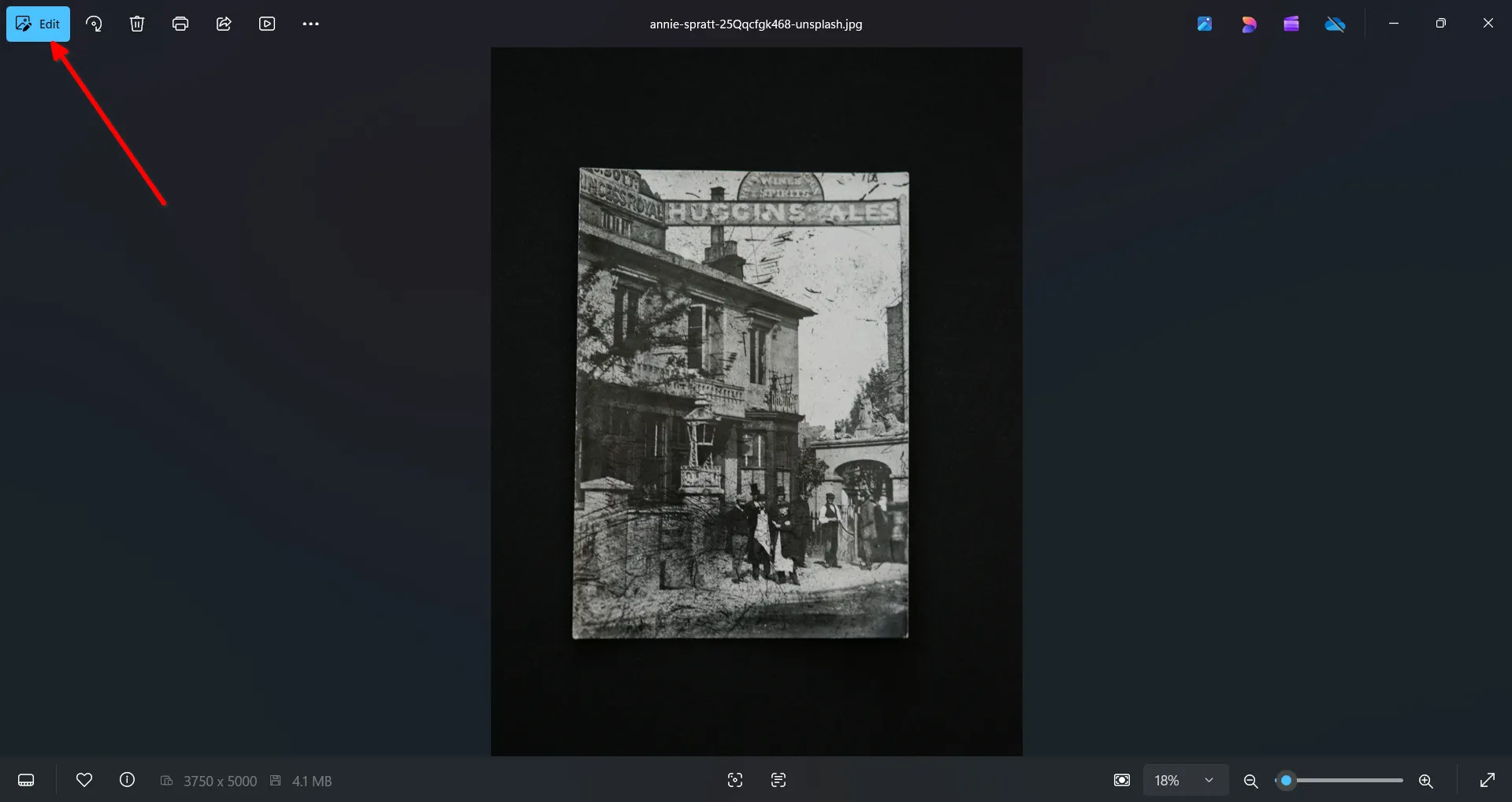
Open the photo and click the "Edit" button in the upper right corner of the app.
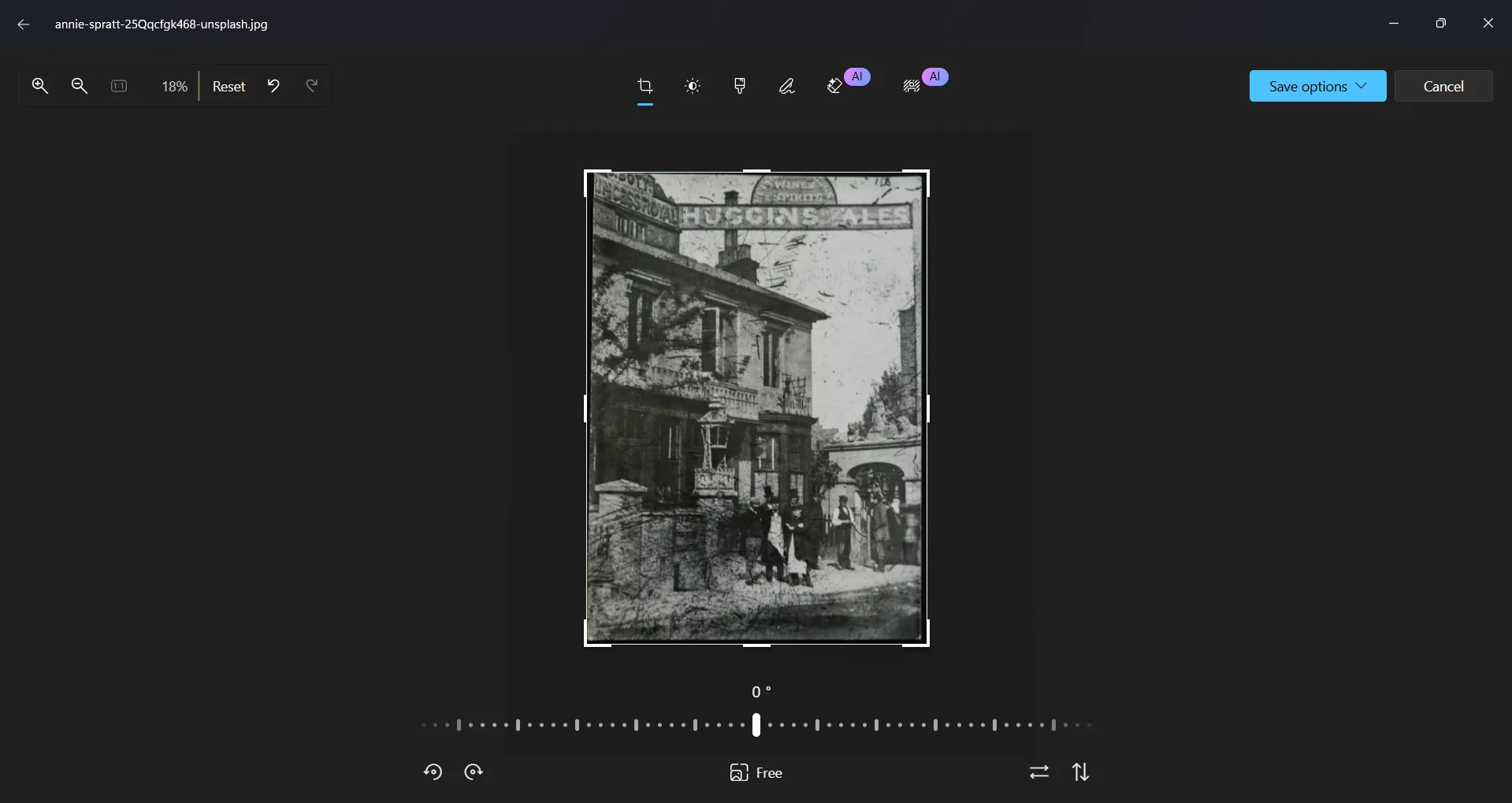
The crop tool will immediately open, where you can align the horizon or crop the photo.
In the next tab you can adjust the exposure, brightness, and contrast of the image.
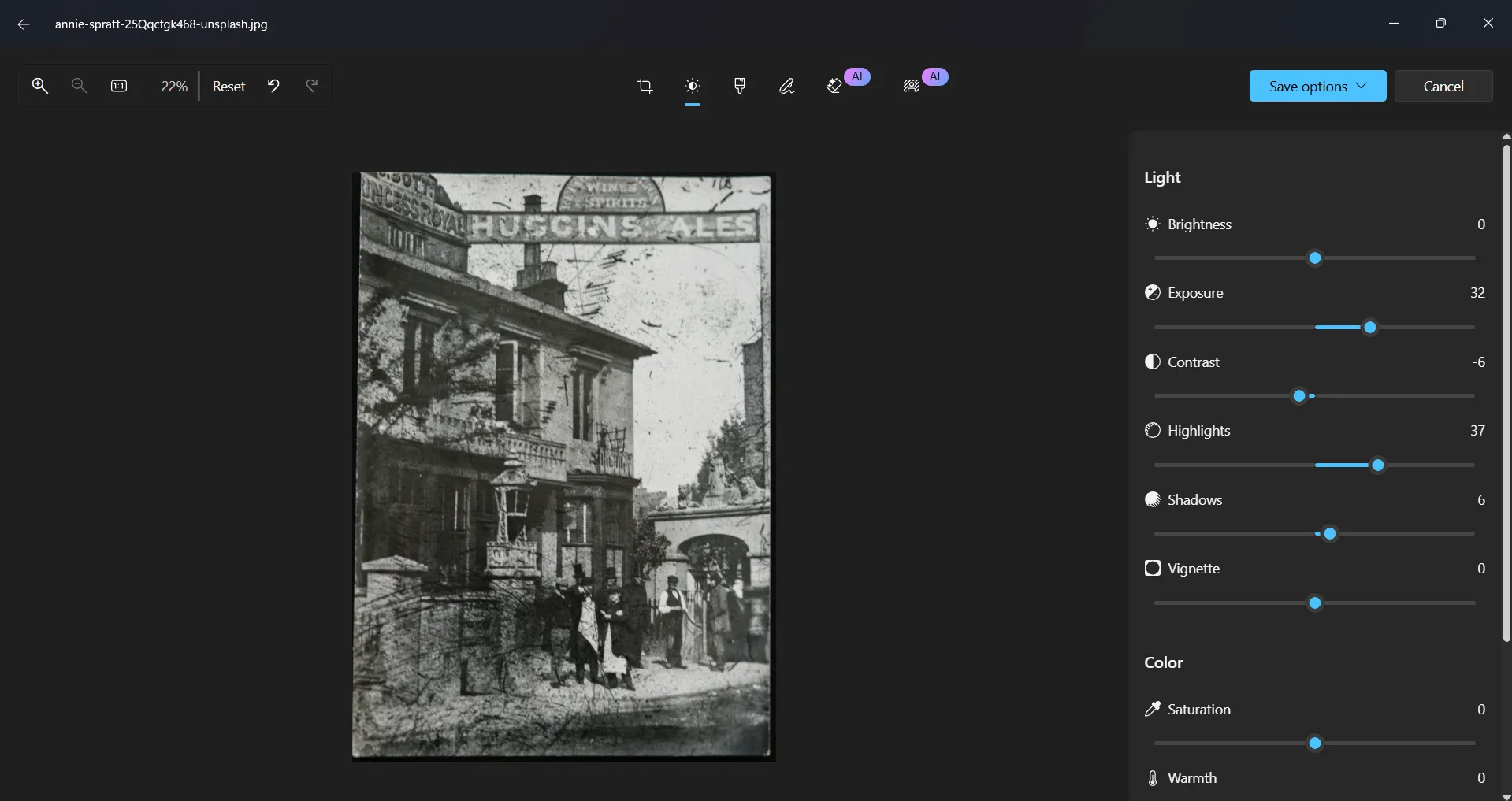
Windows Photos is a great tool for preparing old digital photographs for restoration. It allows you to quickly straighten frames, crop unwanted areas, and adjust lighting, simplifying subsequent work in specialized restoration programs.
Benefits of Windows Photos
- Accessibility and simplicity. The program is preinstalled on Windows 11 and requires no third-party software or additional skills.
- Quick basic editing. Allows you to quickly crop, straighten, and adjust brightness, contrast, and exposure.
- AI-powered tools. New versions feature automatic enhancements that help improve the visibility of details in older images.
Disadvantages of Windows Photos
- Limited control over color correction. Fine-tuning color and white balance is inferior to specialized editors.
- Not suitable for final processing. Windows Photos is best viewed as a supplementary tool rather than a full-fledged recovery tool.
Google Photos
Google Photos is primarily perceived as a cloud storage service, convenient for preserving digital photos. However, the mobile and web versions of the app offer built-in tools for basic editing.
Open the photo and find the settings button. In the mobile app, it's located at the bottom, and in the top right corner on the web.
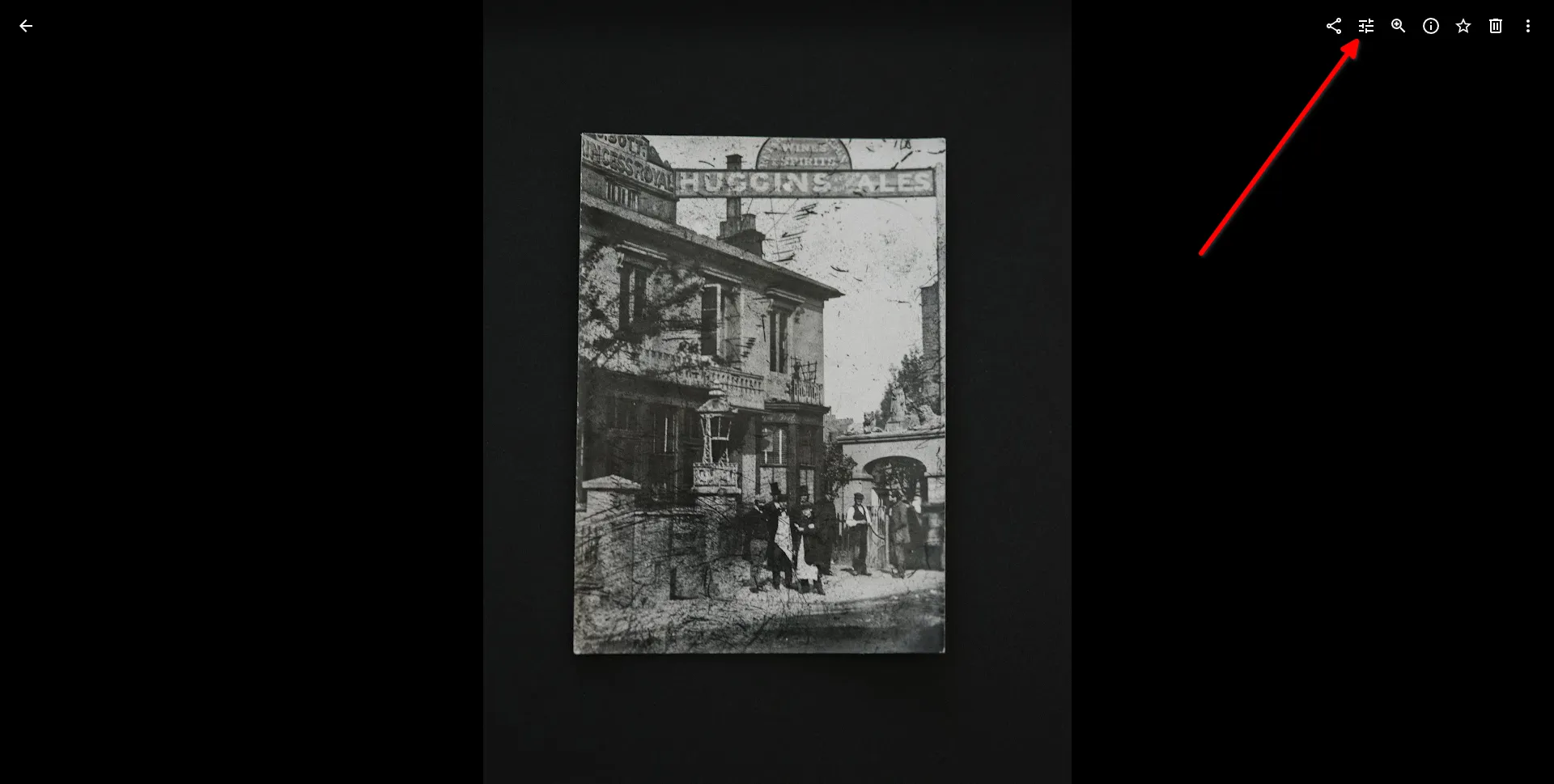
As with Windows Photos, you can crop, adjust exposure, adjust brightness, contrast, and try to extract additional detail from dark and light areas.
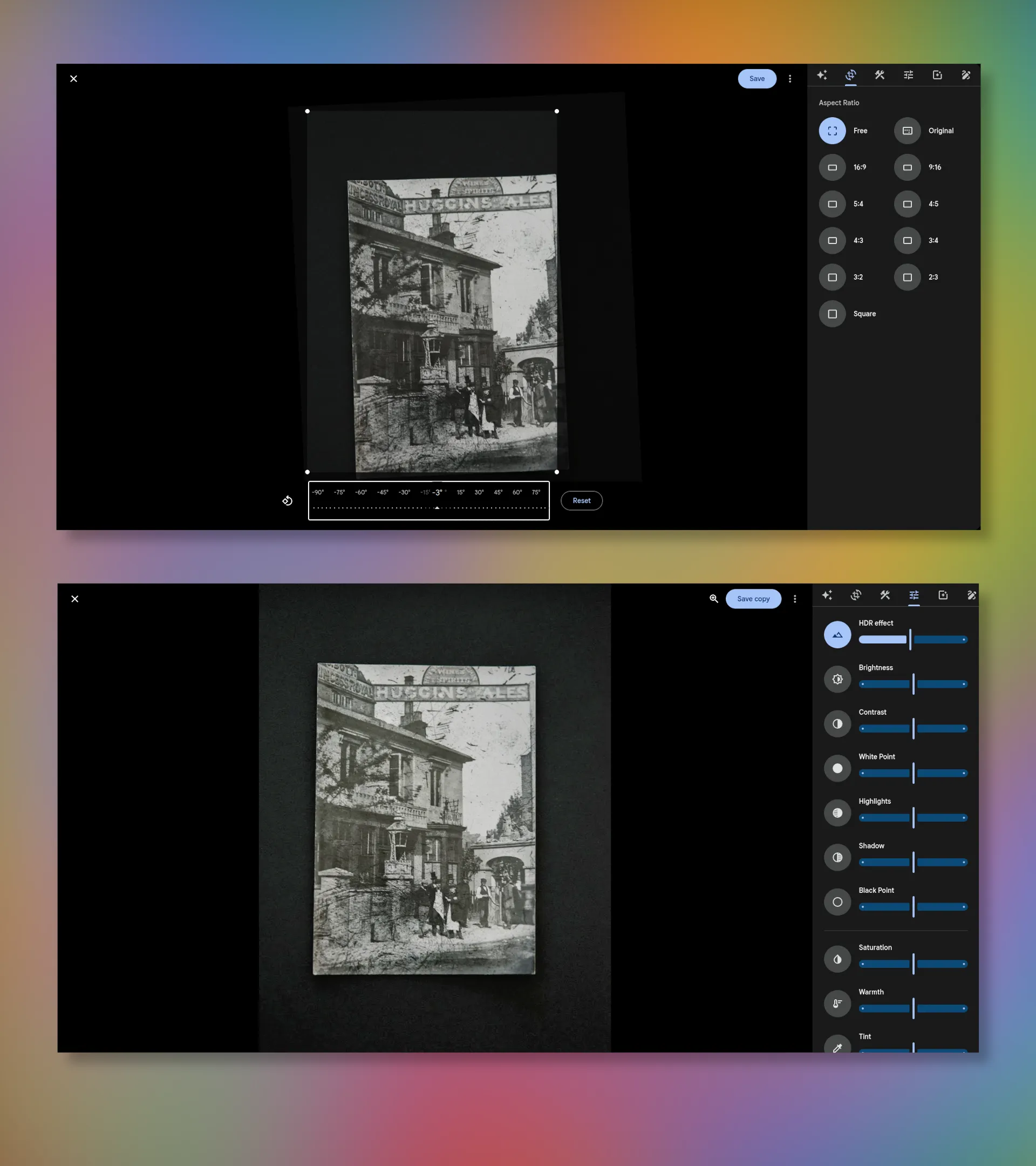
You're not tied to a specific location. You can start working on your computer and finish it on your mobile phone. All you need is an internet connection.
Overall, Google Photos allows you to quickly make minimal adjustments to your photos to make them look neat and technically acceptable before further processing them in specialized programs or AI-powered restoration services.
Benefits of Google Photos
- Simplicity and accessibility. The interface is intuitive, and basic editing tools are accessible even to users without experience using graphic editors.
- Cross-platform. Works on computers, smartphones, and tablets, and all changes are synced automatically.
- Cloud storage. Photos are stored in the cloud, reducing the risk of data loss and simplifying work with large archives.
Disadvantages of Google Photos
- Internet dependence. Editing and synchronization require an internet connection, which can be inconvenient when working with large archives.
- Automatic compression and processing. Using default settings, the quality of original images may be reduced due to compression and automatic optimization algorithms.
- Limited control over color and detail. Unlike professional editors, Google Photos doesn't offer fine-tuning color correction or local editing.
- Paid cloud storage extension. Free cloud storage is limited, and storing large archives of old photos may require a paid Google One subscription.
Removing defects from a photograph
After initial processing, you can move on to more complex editing—defect removal. The choice of solution depends directly on the extent of the photo's damage.
LetsEnhance
LetsEnhance is a service that offers various AI-powered tools for restoring and enhancing photos. It's ideal for situations where speed, rather than detail, is the primary concern.
To use LetsEnhance, simply upload one or more photos and select the appropriate algorithm. The entire recovery process is completely automatic.
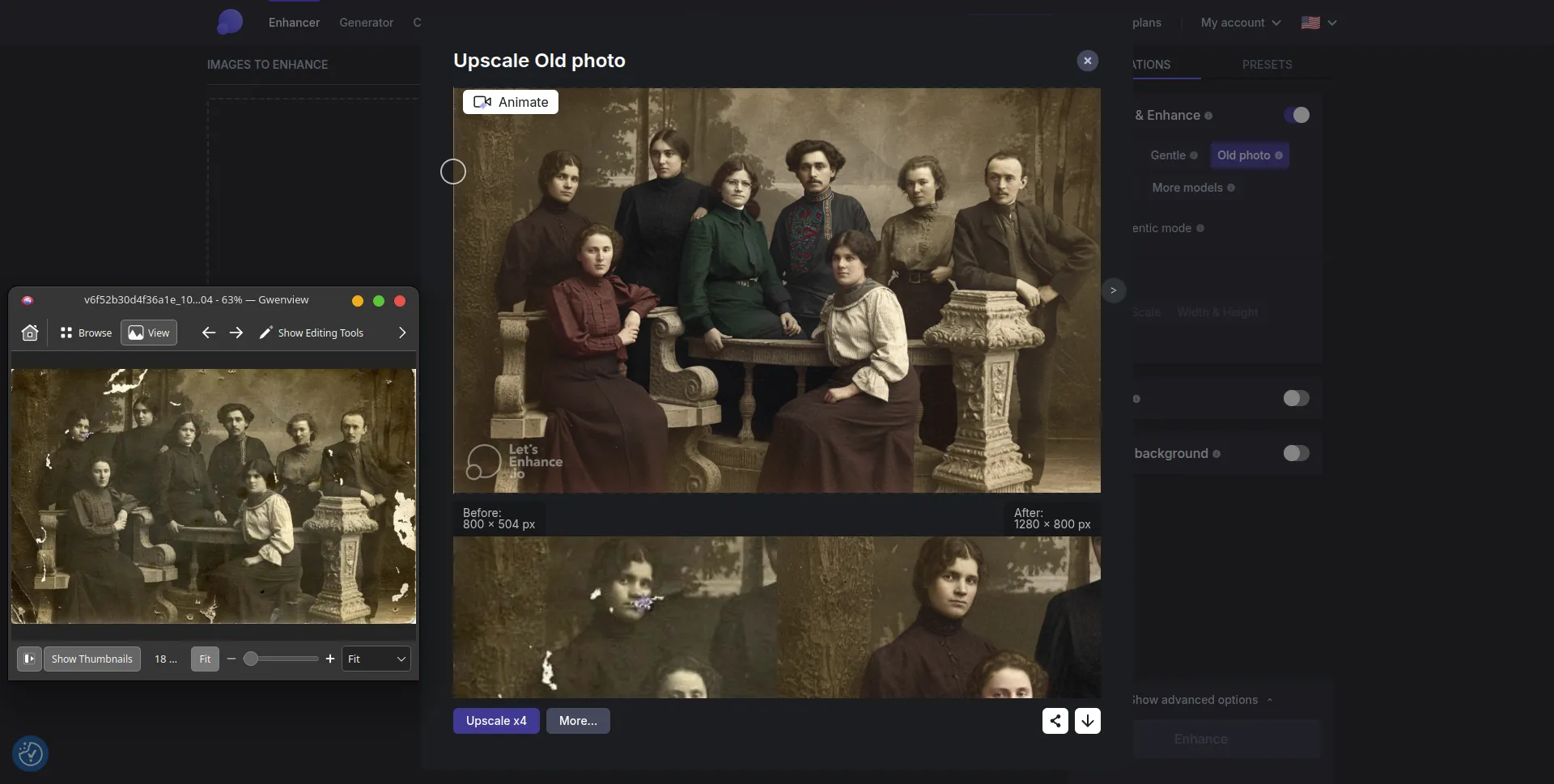
Interestingly, the service also performs colorization along with defect removal. The only drawback of LetsEnhance is its monetization model. Instead of a subscription, it uses credits, deducted for each processed photo. The minimum purchase is 100 credits for $12, enough to restore 100 photos.
LetsEnhance is an excellent solution for quickly restoring digital photos with moderate defects, such as scratches, dust, abrasions, and minor creases. The service is fully automated and requires no manual retouching skills. However, if the damage is complex or requires precise, accurate work, the results may be inferior to manual restoration using professional editing software.
Advantages
- Automatic processing. The entire recovery process occurs without manual intervention: simply upload photos and select the appropriate algorithm.
- High processing speed. Processing takes minimal time, which is especially convenient when working with large numbers of images.
- Simultaneous defect removal and quality enhancement. This service not only removes scratches and noise but also improves sharpness, detail, and overall image quality.
- Ease of use. The interface is intuitive and suitable even for users with no editing experience.
Disadvantages
- Limited control over the result. The user cannot make targeted adjustments to specific areas, as all changes are performed by the algorithm.
- Detailing isn't always accurate with severe damage. With serious defects, AI can smooth out textures or "invent" details.
- Credit-based payment model. Payment is made using a credit system, which is debited for each processed photo.
PhotoRestore
Unlike LetsEnhance, PhotoRestore is a free photo recovery service, but its results are limited. It doesn't allow you to choose a processing algorithm.
Despite the developer's claimed effectiveness, PhotoRestore barely copes with even minor scratches. Furthermore, after running the service's algorithms, a significant loss of detail is observed.
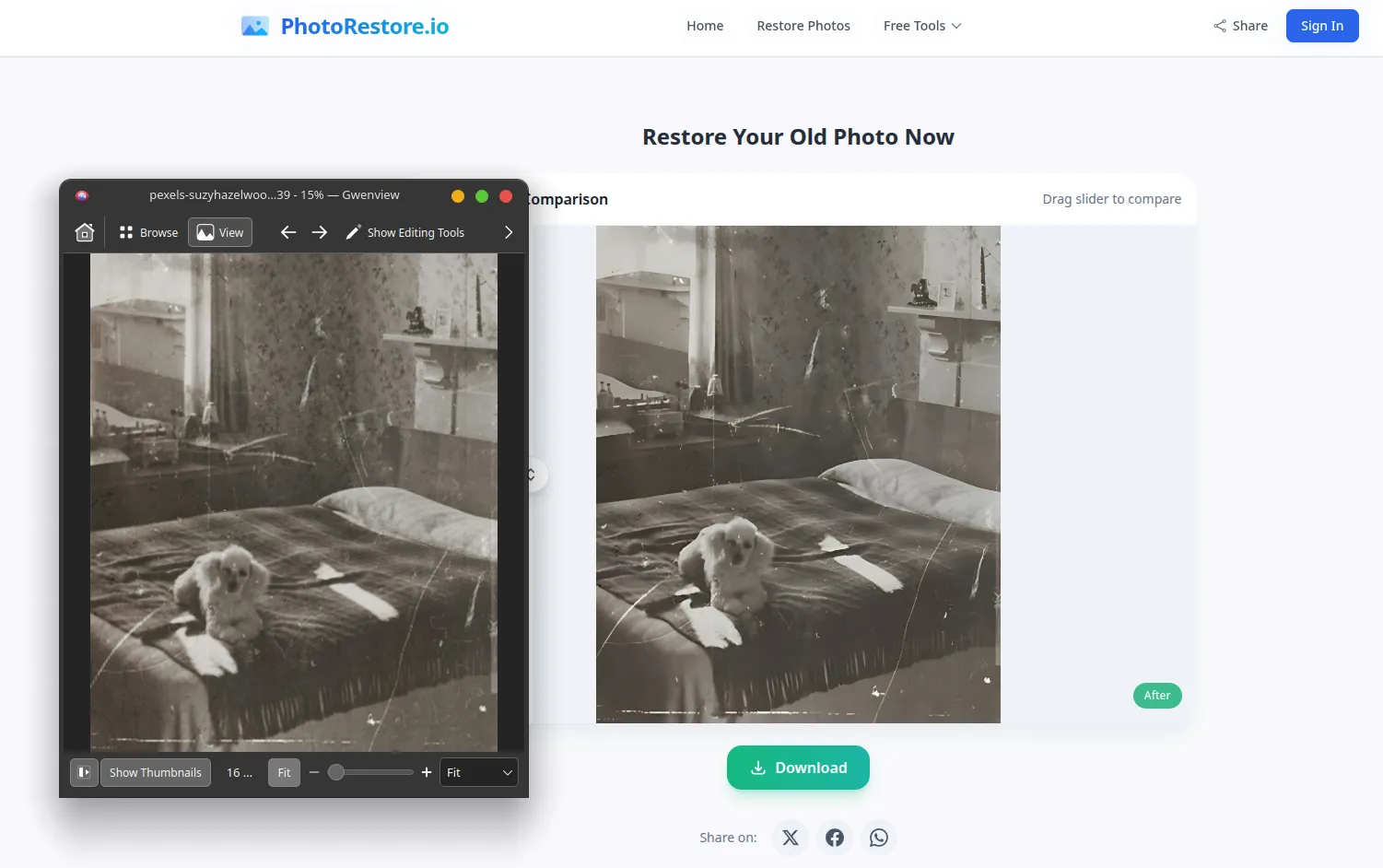
PhotoRestore should be considered a tool for quick "cosmetic" enhancements of photos rather than a full-fledged service for serious restoration. It's suitable for cases where minor defects need to be quickly removed. However, for restoring valuable archive photos with significant scratches, cracks, and loss of detail, the service's capabilities are clearly insufficient. The results are inferior to both more advanced AI solutions and manual retouching.
Advantages
- Free to use. No subscription or credits required.
- Fully automated processing. No editing skills or settings required.
- Fast operation. Recovery takes less than a minute.
- Simple interface. Suitable for users with no image processing experience.
Disadvantages
- Weak effectiveness. Doesn't work well even on minor scratches and damage.
- Reduced detail. After processing, the image may appear blurrier.
- Lack of settings. You can't select the algorithm or the level of impact.
- Unpredictability of results. Full automation makes it difficult to control the final quality.
Luminar Neo
A graphics editor that combines manual and automated photo editing tools. This combination allows Luminar Neo to handle professional-level image processing without spending countless hours on manual retouching or color correction. Its built-in AI features aren't just for show; they're truly effective solutions that significantly speed up your workflow.
Starting with version 1.25.1, released in November 2025, Luminar Neo added a new AI mode that allows you to restore photos in just a few clicks. Add photos to the program's library and drag them to the corresponding window on the toolbar, specifying the desired processing level.
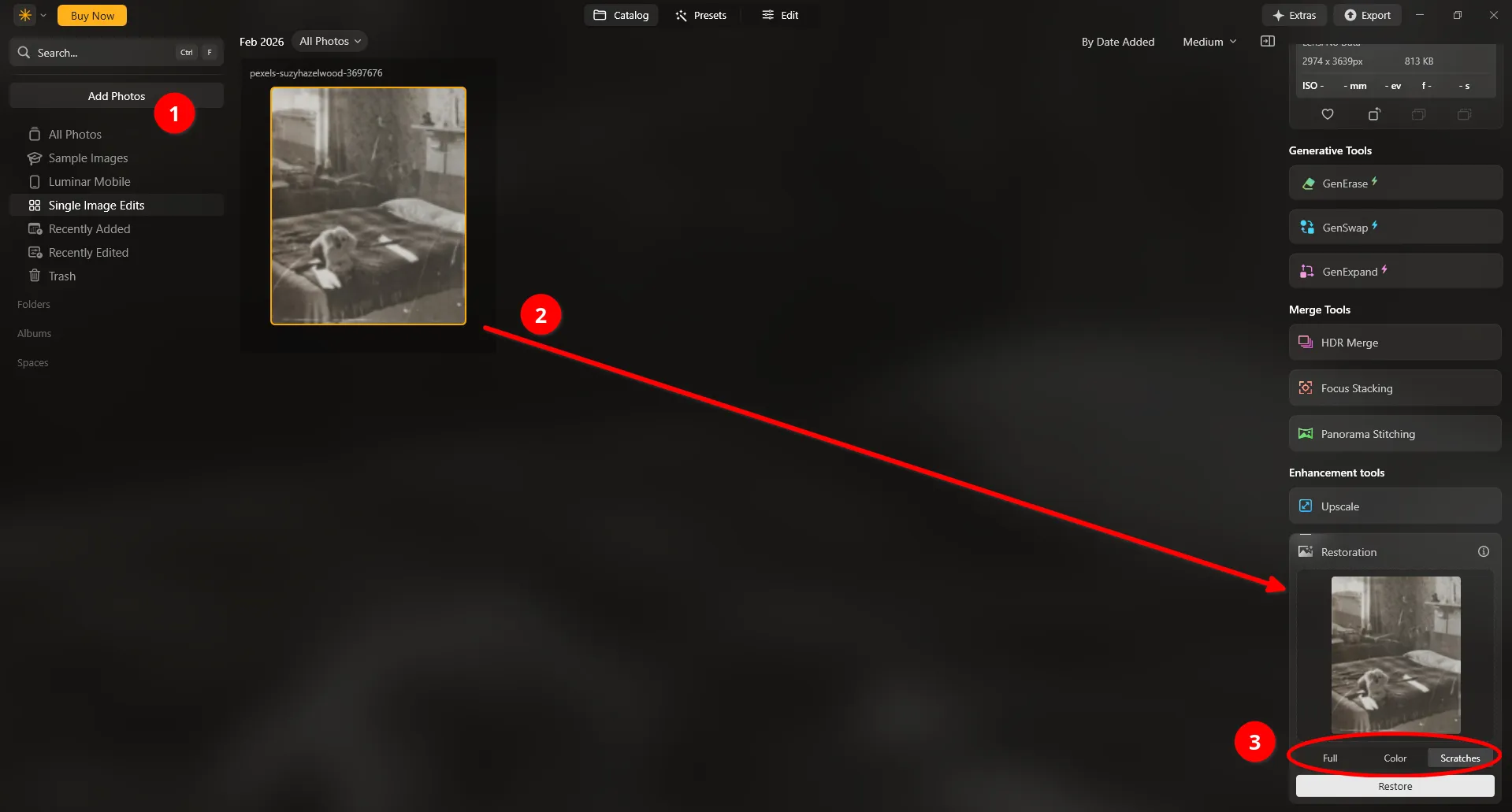
It's worth noting that the program copes well with removing both scratches and complex defects, such as damage to the face.
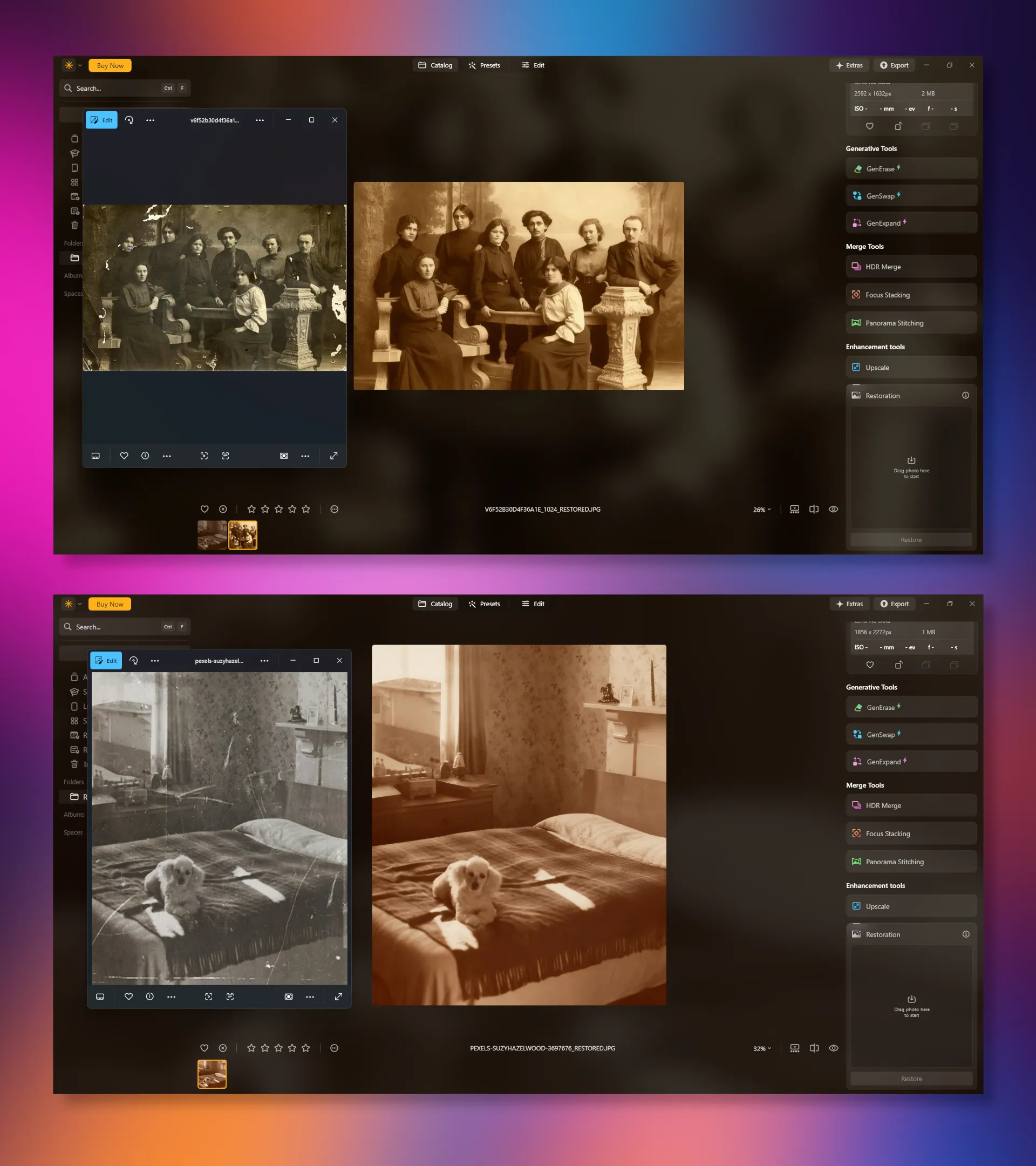
However, for the tool to work, the computer must be connected to the internet. Photo processing is performed on a remote server, not locally on the user's computer. However, the program is distributed under a perpetual license, the price of which depends on the availability of the mobile version and access to the creative library.
Luminar Neo is one of the most convenient solutions for restoring old photos among all-in-one photo editors. The program successfully combines automatic AI restoration with tools for precise manual retouching, which is especially important when working with complex defects. It is suitable for both advanced users and those who want high-quality results without the need for professional retouching.
Advantages
- Effective AI restoration. Automatically removes scratches, blemishes, and even complex damage, including the facial area.
- A combination of automated and manual retouching. Quickly get a basic result and then refine it manually if needed.
- Professional-level processing. Advanced tools for color correction, detailing, and lighting.
- Easy to use. Recovery is completed in just a few clicks.
- Perpetual license. One-time purchase with no mandatory subscription.
Disadvantages
- Processing on the server. Speed depends on connection quality.
- Price. The cost is higher than that of basic editors, especially if you purchase the extended version with mobile access and a creative library.
Adobe Photoshop
Adobe Photoshop is a professional graphics editor, rightfully considered the industry standard for photo processing and raster graphics creation. However, with the advent of neural network filters, working with the program has become easier. Now even beginners can perform professional-level photo restoration.
To use Photo Restoration, open a photo in the editor, go to “Filters” – “Neural Network Filters”.
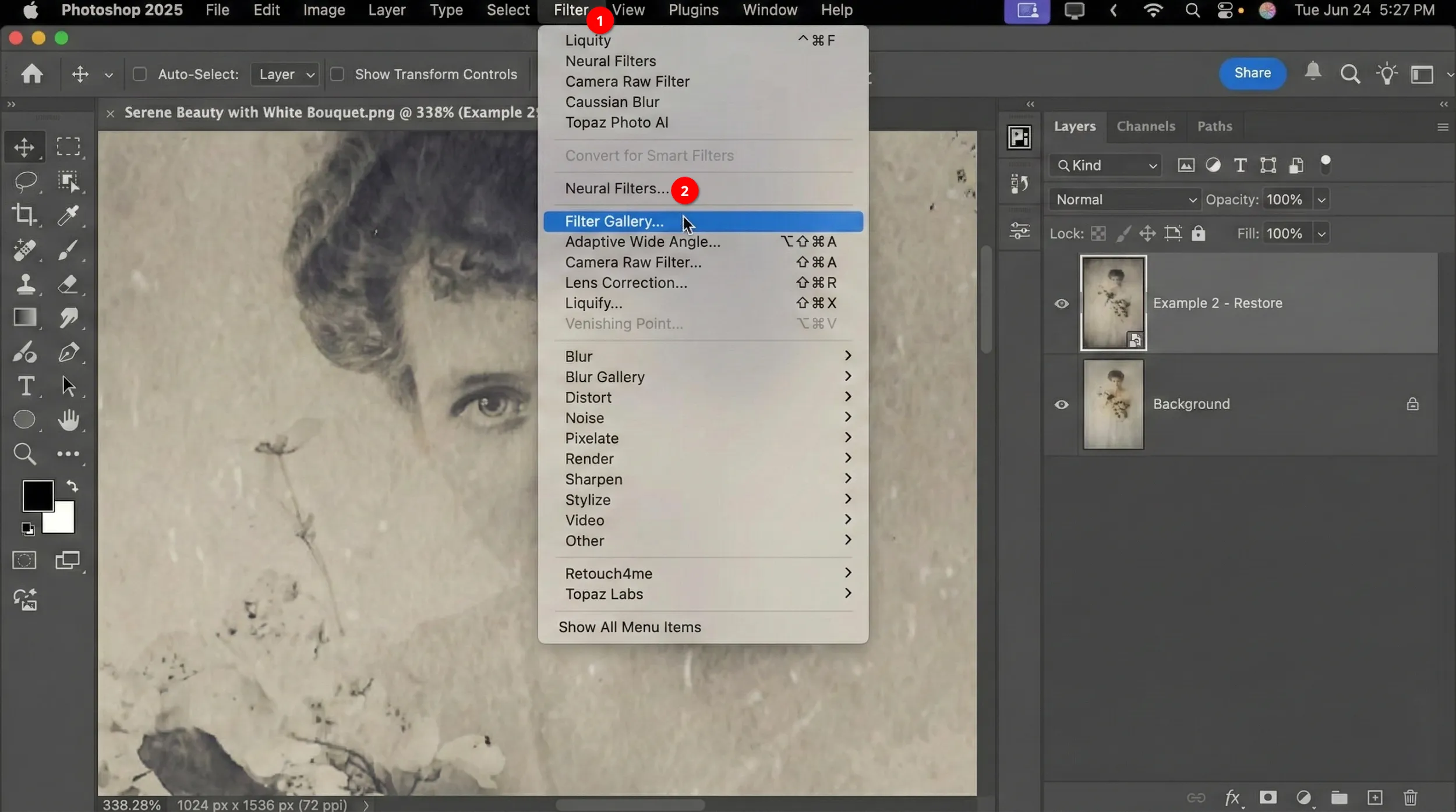
In the menu that appears, find Photo Restoration, which is located at the very bottom of the list of available tools. Then, simply adjust the sliders until you achieve the best result.
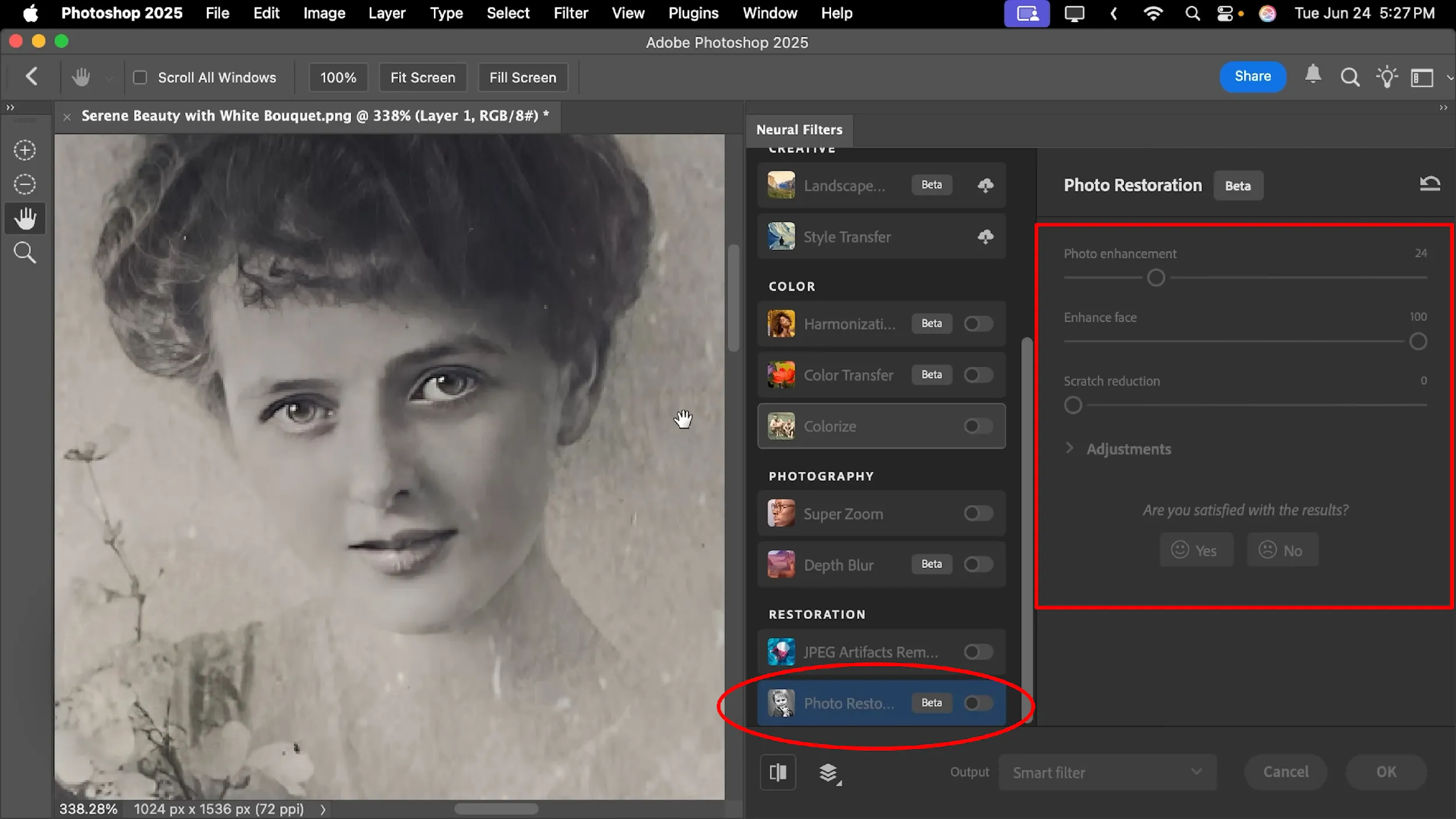
Unlike other neural networks, this tool performs well at restoring faces in old photographs, with virtually no distortion of human features.
Adobe Photoshop is the best choice for restoring old photos, especially when you need more than just automatic enhancements, but a comprehensive and accurate restoration. The Photo Restoration neural network filter significantly simplifies the process and allows you to quickly remove major defects, and if necessary, you can manually refine the result using the editor's professional tools.
Advantages
- High-quality restoration. The AI filter effectively removes scratches, noise, and defects.
- Flexible results customization. Sliders allow you to control the algorithm's impact.
- Professional enhancement tools. After automatic processing, you can manually adjust specific areas of the image.
- Industry standard. Widely distributed and supported by a wealth of training materials.
Disadvantages
- Paid subscription. Adobe Creative Cloud subscription required.
- High resource requirements. A sufficiently powerful computer is required for comfortable operation.
- Redundancy for simple tasks. Minor defects can make a program's capabilities excessive.
Colorization of old photographs
The next step in photo restoration, after removing all defects, is colorization. This isn't an attempt to "fix" a black-and-white image, but rather a different way of perceiving it. Color makes a scene more "living" and contemporary. People find it easier to connect emotionally with an image when it resembles how we see the world today. This is especially true for portraits of family members: in color, they seem less like distant history and more like real people.
Moreover, black-and-white photographs are associated with the past, the archive, and documentary quality. Colorization "shortens the distance" in time, creating the feeling that events took place not so long ago.
Palette
This is a deep learning-based cloud service that transforms black-and-white photos into color. Unlike many free bots that simply overlay a color layer on top of a photo, Palette is more sophisticated. Immediately after uploading, the service offers around 20 "palette" options. These aren't just filters, but different interpretations of lighting and materials: from "Studio Light" to "Clear Day."
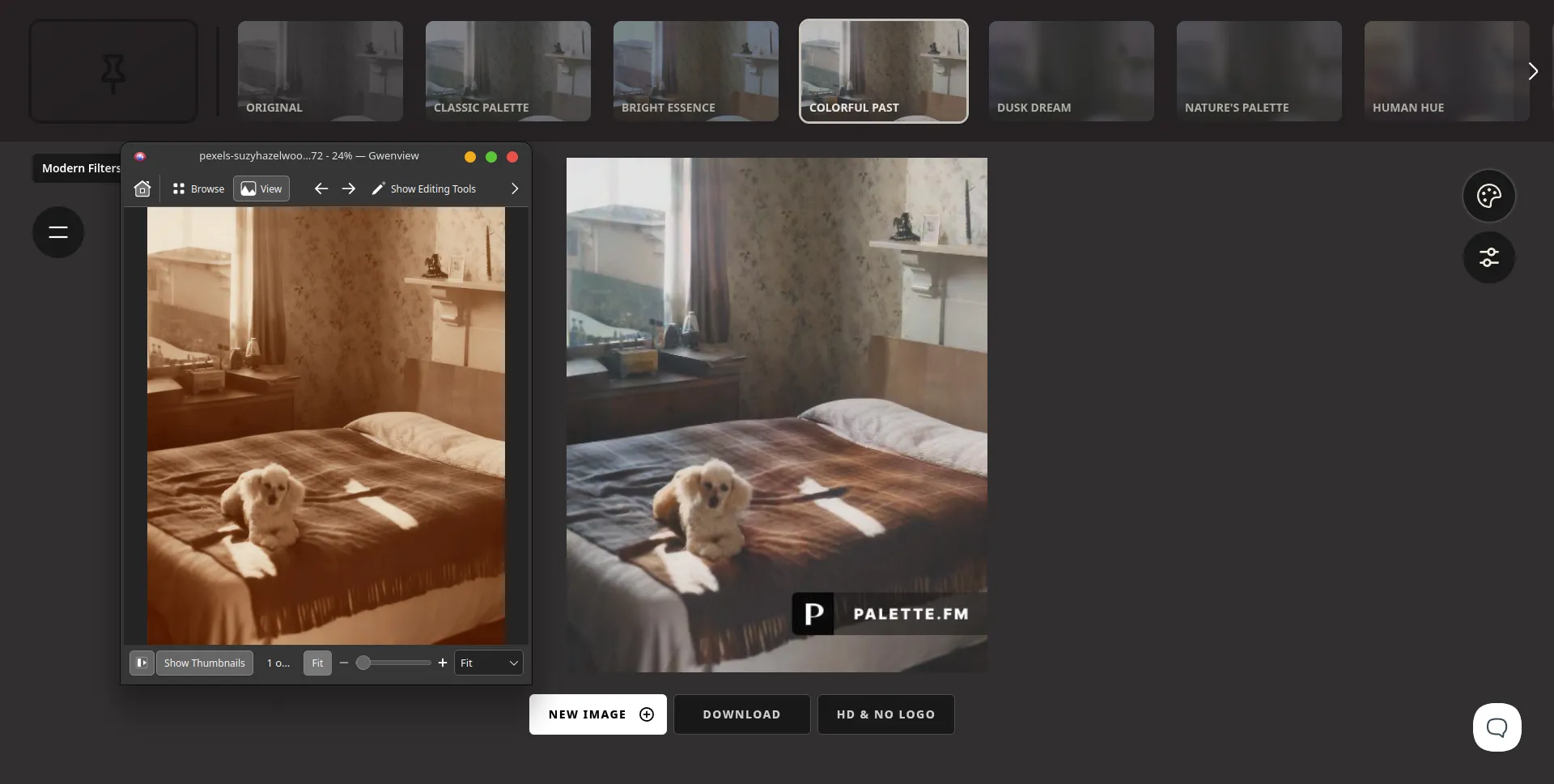
One of the main problems with AI colorization is the "zombie effect," or gray spots on the skin. Palette's algorithms were trained on a huge dataset of portrait paintings and photographs, so skin gradients look very vibrant.
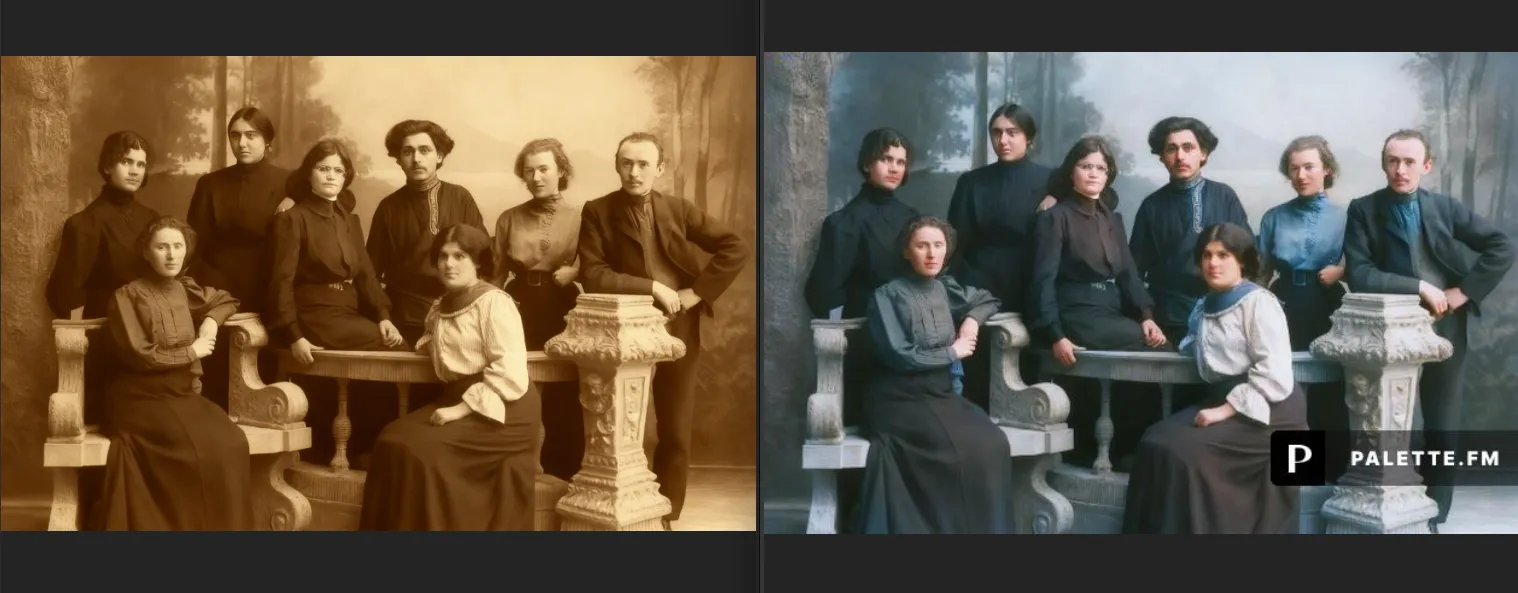
According to online publications, Palette is one of the best solutions for photo colorization. Its diverse palettes and high-quality skin tone rendering make it especially effective for portraits and family photos.
Advantages
- High-quality colorization. Colors appear natural, without harsh fills or unnatural transitions.
- A wide range of palettes. Around 20 lighting and ambiance interpretation options allow you to find the perfect result.
- Fully automated processing. No editing skills required.
- Cloud-based. Works directly in your browser, no software installation required.
Disadvantages
- Narrow specialization. The service only handles colorization, without tools for removing defects or enhancing detail.
- Internet addiction. Can't work offline.
- Free version limitations. Full functionality and high resolution are available only with a subscription.
- AI interpretation. Colors may not correspond to historical reality if documentary accuracy is important.
MyHeritage
MyHeritage In Color is a specialized tool on the MyHeritage platform designed for automatic colorization of black-and-white photos and restoring natural colors to faded images. The service uses DeOldify technology, developed by AI experts Jason Antic and Dana Kelly.
The algorithm was trained on millions of photographs to "understand" what colors look like in the real world. When processing photos, the AI analyzes objects and textures, selecting the most likely shades.
Despite its complex image processing mechanisms, MyHeritage In Color is extremely easy to use. Simply upload a photo and wait a short time for the algorithm to colorize it.
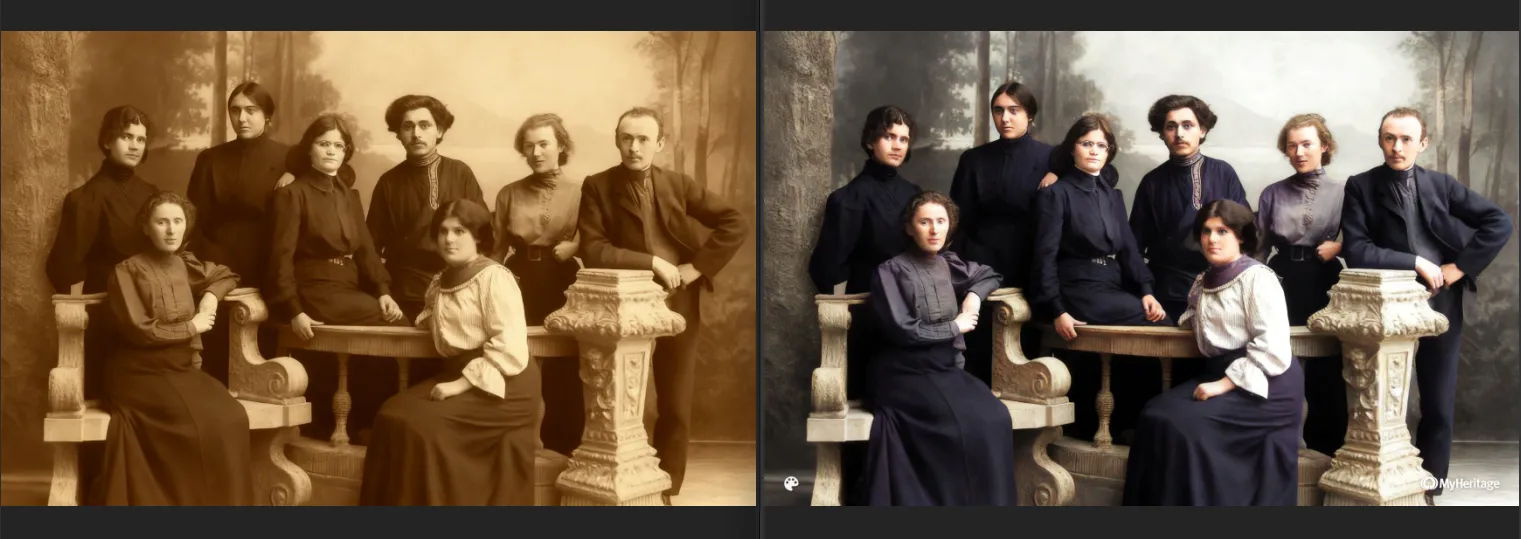
The service is completely free, and you'll receive images in the same resolution as the original. The only exception is a watermark.
MyHeritage In Color is ideal for those who want to "revive" family archives without complex manual processing and the need for professional editing tools. It's not designed for extensive restoration of defects (scratches, tears, noise), but it does a high-quality and realistic job of restoring natural colors.
Advantages
- Automatic processing. The user simply uploads a photo, and all colorization is performed without manual settings or complex steps.
- High-quality AI algorithms. The technology is trained on a large number of images, allowing it to select natural and visually plausible colors.
- Fast processing. Processing takes minimal time and is suitable for mass colorization of family archives.
- Maintaining the original resolution. The final image retains no loss in quality compared to the original.
- Free access. You can process any number of photos at no extra cost.
Disadvantages
- Watermark. A watermark is automatically added to the finished image, limiting the use of the restored photo.
- No manual correction. The user cannot change shades or adjust the result if the algorithm makes any inaccuracies.
- This service does not provide full restoration. It does not remove scratches, stains, or other physical defects from the photo.
- Probability of color inaccuracies. The algorithm selects the most probable colors, which do not always match historically accurate ones.
ImageColorizer
An AI-powered online service specializing in restoring, colorizing, and enhancing old or damaged photos. It automates complex retouching processes that previously required professional graphics skills. Simply add a photo, and ImageColorizer will automatically colorize it.
However, using the default settings, AI "hallucinations" are observed, particularly noticeable on faces. In the resulting photograph, the people depicted no longer resemble themselves.
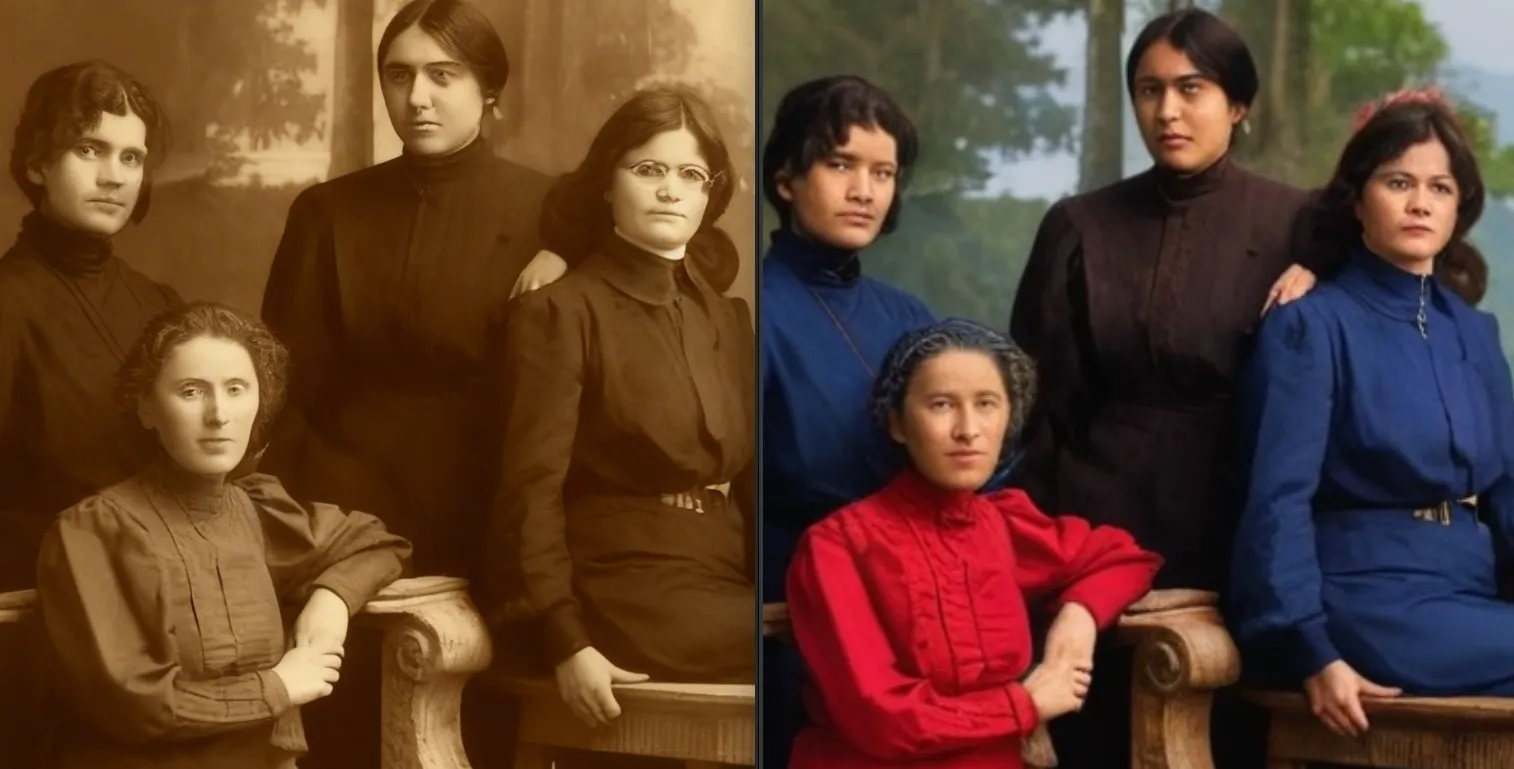
However, the service allows the user to influence the algorithm's operation and the final result by entering positive and negative prompts.
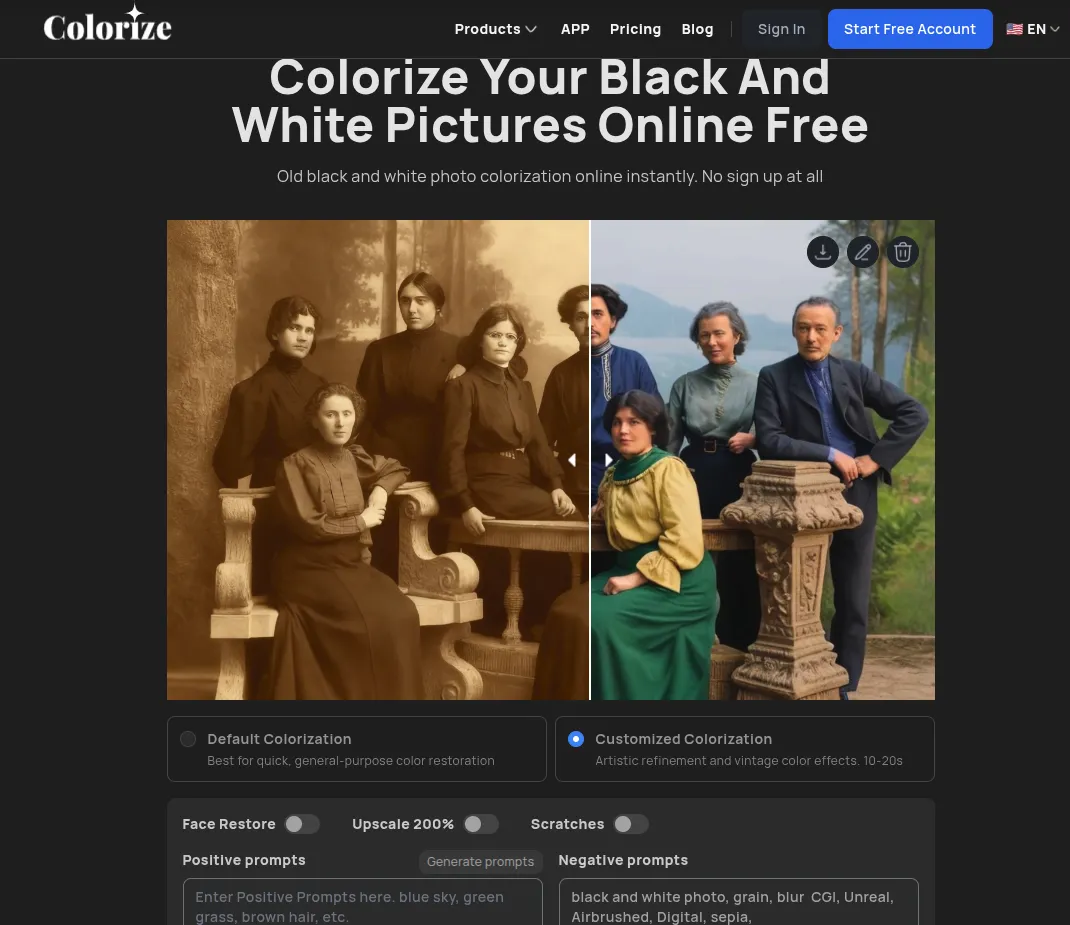
The service can truly revive faded photos and give them a modern look without complex manual retouching. However, when working with significant portraits, the risk of facial distortion should be considered. The ability to use positive and negative prompts partially solves the problem, but it requires time and experimentation.
Advantages
- Automation. The service performs colorization and basic restoration without the need for manual work or professional skills.
- Ease of use. The interface is clear, and loading and processing take minimal time.
- Prompt support. The ability to set positive and negative prompts helps influence the final result.
- A comprehensive approach. In addition to colorization, quality improvement and defect removal tools are available.
Disadvantages
- Facial distortion. With default settings, AI "hallucinations" are noticeable, causing people in photos to lose their resemblance to the original.
- Unpredictability of the result. The final result depends heavily on the original image quality and the correct selection of prompts.
- Limited control. Despite the presence of tooltips, precise manual adjustment of details is not possible.
- Not suitable for all tasks. Professional or archival recovery may require more precise manual processing in a graphics editor.
Enlargement of a photo after restoration
The final step in restoring old digitized photographs is image upscaling. This technique can reduce artifacts and improve clarity and detail. Both on-site and online AI-based tools are available for this purpose.
VanceAI Image Enlarger
VanceAI Image Enlarger is an online service and AI-powered software designed to increase image resolution (upscaling) without losing quality. Unlike standard resizing methods that simply stretch pixels, this tool uses deep learning to restore detail.
The built-in AI model studies the image structure, identifying textures, edges, and details. Instead of simply duplicating pixels, the algorithm fills in missing information based on millions of examples it was trained on.
The user doesn't need to worry about complex settings. The entire process is automatic. Simply add a photo and specify the desired zoom level.
However, despite the claimed advantages, the result obtained with VanceAI Image Enlarger is hardly satisfactory. Apart from the actual increase in image size, the image appears virtually unchanged.
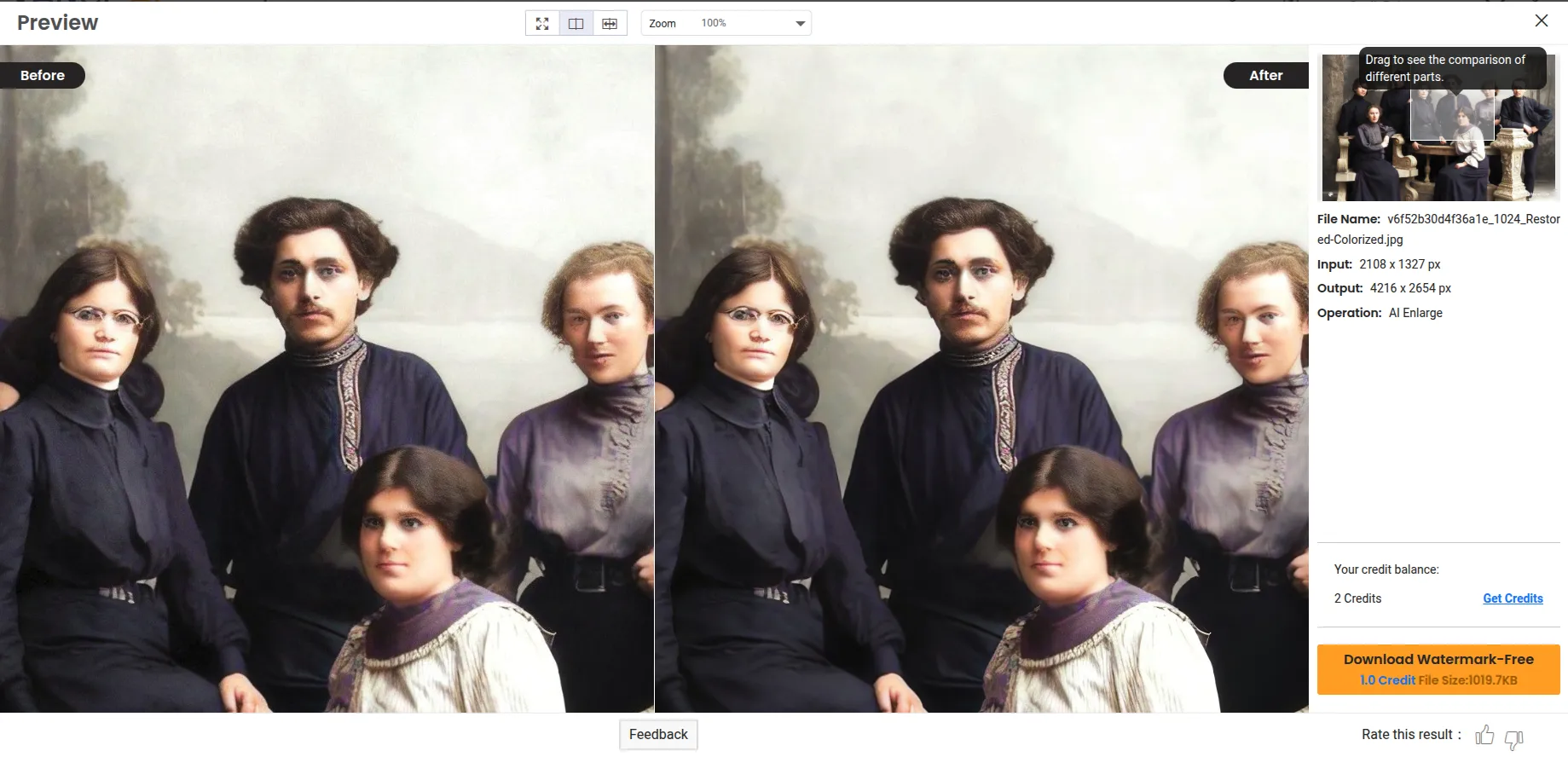
Even if you ignore the mediocre processing results, it's worth considering the service's payment model. VanceAI operates on a credit system: a certain number of credits are debited for each processing, and free attempts are severely limited. When calculated for the actual number of photos in a family archive, the cost of recovery is quite high. Especially if you need to process dozens or hundreds of photos, the credit model makes using the service financially unjustifiable. Ultimately, given the mediocre results, the price seems frankly inflated.
Advantages
- Automation. Fully automated processing without the need for manual adjustments.
- Ease of use. Clear interface and fast loading and scaling.
- AI upscaling. Using neural network algorithms instead of standard image stretching.
Disadvantages
- Mediocre results. Visual improvement in quality is often barely noticeable.
- Credit payment model. High final cost when processing large quantities of photos.
- Limited free version. Limited number of free trials for a full evaluation of the service.
Topaz Gigapixel AI
Topaz Gigapixel AI is a specialized program for increasing the resolution and improving the quality of photos. It features several integrated algorithms for each task.
- Wonder Model. A versatile one-click model that simultaneously increases resolution, removes noise, and restores clarity. Ideal for very poor source material.
- Standard MAX. Provides the most natural color rendition and detail without the "plastic" effect.
- High Fidelity. Designed for working with high-quality source files (such as RAW files) where the microtexture of skin or fabric needs to be preserved.
- Text & Shapes. Ideal for logos, blueprints, and architectural photography where clear lines and no halos around letters are important.
- Face Recovery. Intelligent facial restoration. Choose between Creative (completes missing details) and Realistic (stays true to the original).
All models run locally, so to quickly increase the resolution, your computer must be equipped with modern hardware and have sufficient free space. During installation, Topaz Gigapixel AI downloads an additional 20 GB of data for AI operation.
Overall, the program performs well. Even with the default settings, I was able to significantly improve the image of the recovered photo.
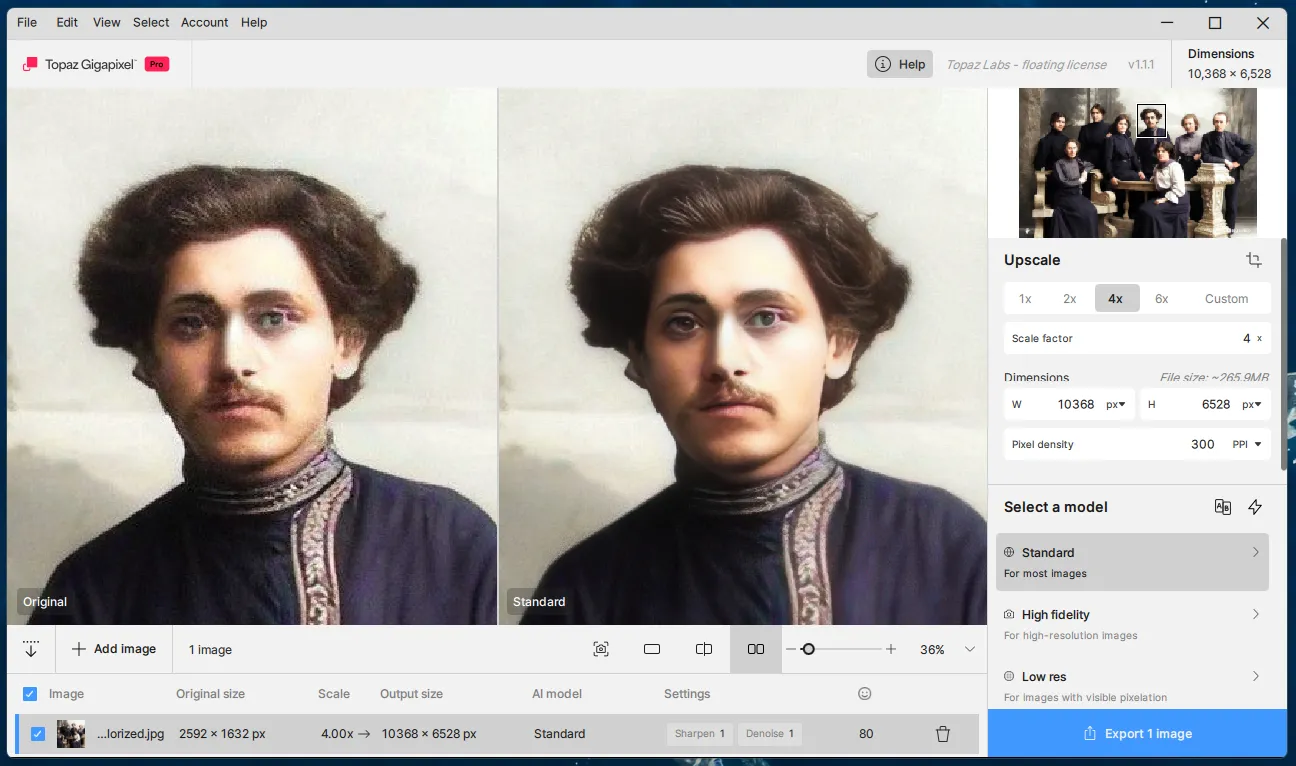
Topaz Gigapixel AI excels at upscaling, sharpening, and partial texture restoration, while its Face Recovery model can significantly improve portraits. When paired with programs like Adobe Photoshop, this tool can be a powerful tool for final detailing and enhancing images for print or digital archiving.
Advantages
- High-quality upscaling. Significantly increases resolution without noticeable artifacts or blurring.
- Several AI models. You can select an algorithm based on the image type: portrait, architecture, text, or RAW file.
- Effective facial restoration. Face Recovery helps make portraits clearer and more expressive.
- Local processing. All calculations occur on the user's computer without uploading files to the cloud.
- Ease of use. Even with default settings, the program provides a noticeable increase in quality.
Disadvantages
- High system requirements. A powerful processor and graphics card are required for fast operation.
- Large installation size. The additional download of AI models (approximately 20 GB) takes up disk space.
- Subscription model. Topaz Gigapixel AI is a subscription service, not a one-time purchase, meaning you must pay regularly (monthly or annually). This increases the overall cost of photo processing, especially with long-term use or in a professional environment.
Upscayl
Upscayl is a free, open-source program for upscaling photos and other images. Unlike other open-source projects, the tool has a modern, simple, and intuitive interface. A version is available for Windows and macOS, as well as Linux.
However, compared to Topaz Gigapixel AI, Upscayl performs significantly worse. This is especially noticeable on faces, where textures become noticeably blurry.
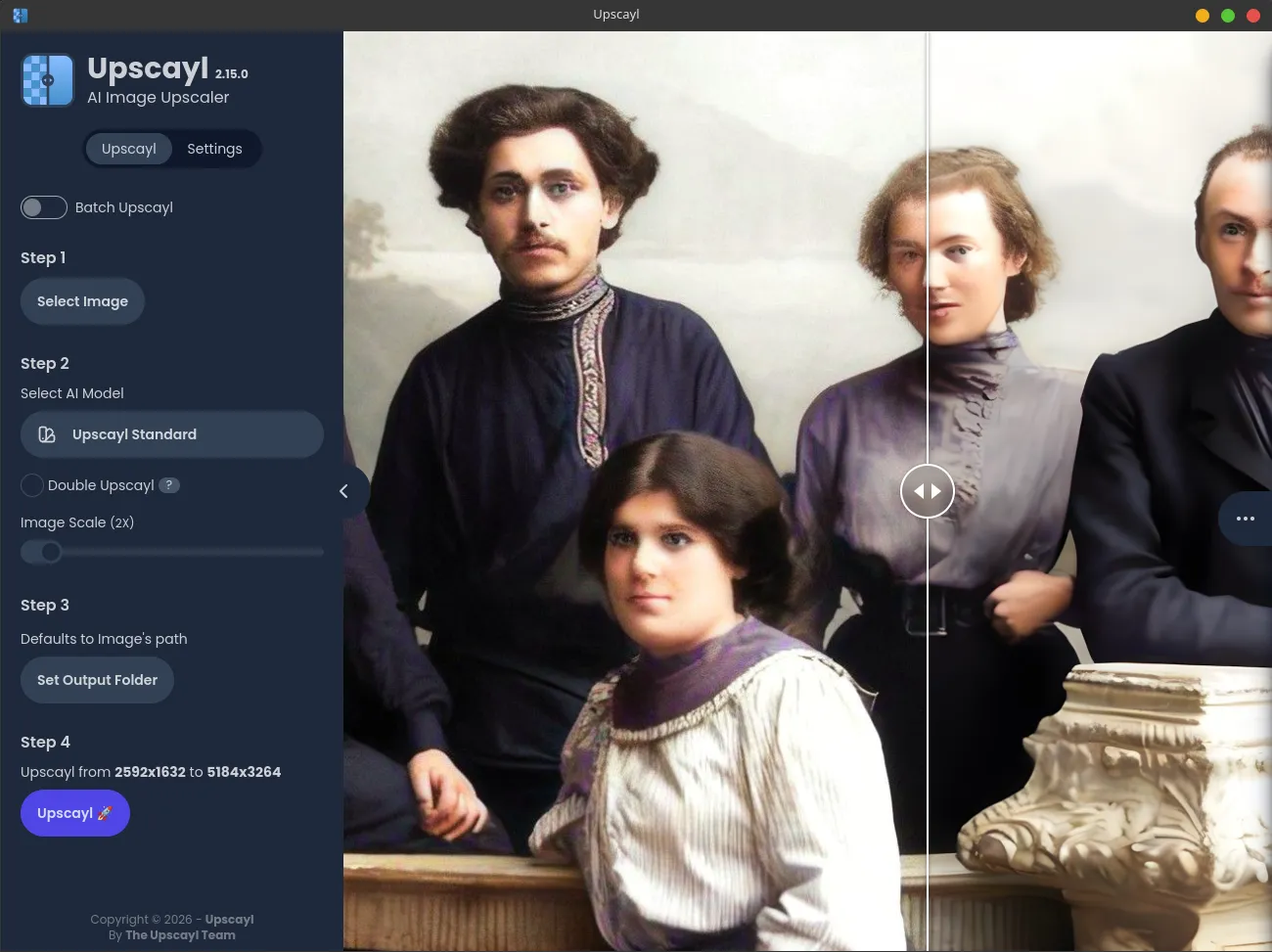
This tool is suitable for basic enhancements of old digital photographs, requiring increased resolution and a slight improvement in overall image clarity. However, for deep restoration, especially for portraits with fine facial details, the program is significantly inferior to specialized commercial solutions. Upscayl's algorithms can smooth out skin textures, lose natural detail, and do not always correctly restore complex areas.
Advantages
- Free. Completely free, open-source software with no subscriptions or limitations.
- Cross-platform. Available for Linux, Windows, and macOS.
- Simple interface. The minimalist and intuitive design allows even a beginner to quickly get started.
- Offline work. All operations are performed locally without uploading images to the cloud.
- Suitable for basic upscaling. Works well for increasing the resolution of landscapes, still life photos, and graphics.
Disadvantages
- Poor facial detail. Portraits show noticeable blurring and loss of skin texture.
- Results are inconsistent. The final result depends heavily on the original quality of the photograph.
- Inferior to commercial solutions. In terms of recovery quality, it's significantly inferior to advanced AI programs.
Conclusion
Restoring old photographs is more than just a technical procedure; it's a careful process at the intersection of history, technology, and personal memory. Modern AI tools can significantly reduce restoration time, but the best results are achieved not through a single "magic" service, but through a well-thought-out sequence of steps and the careful combination of various solutions.
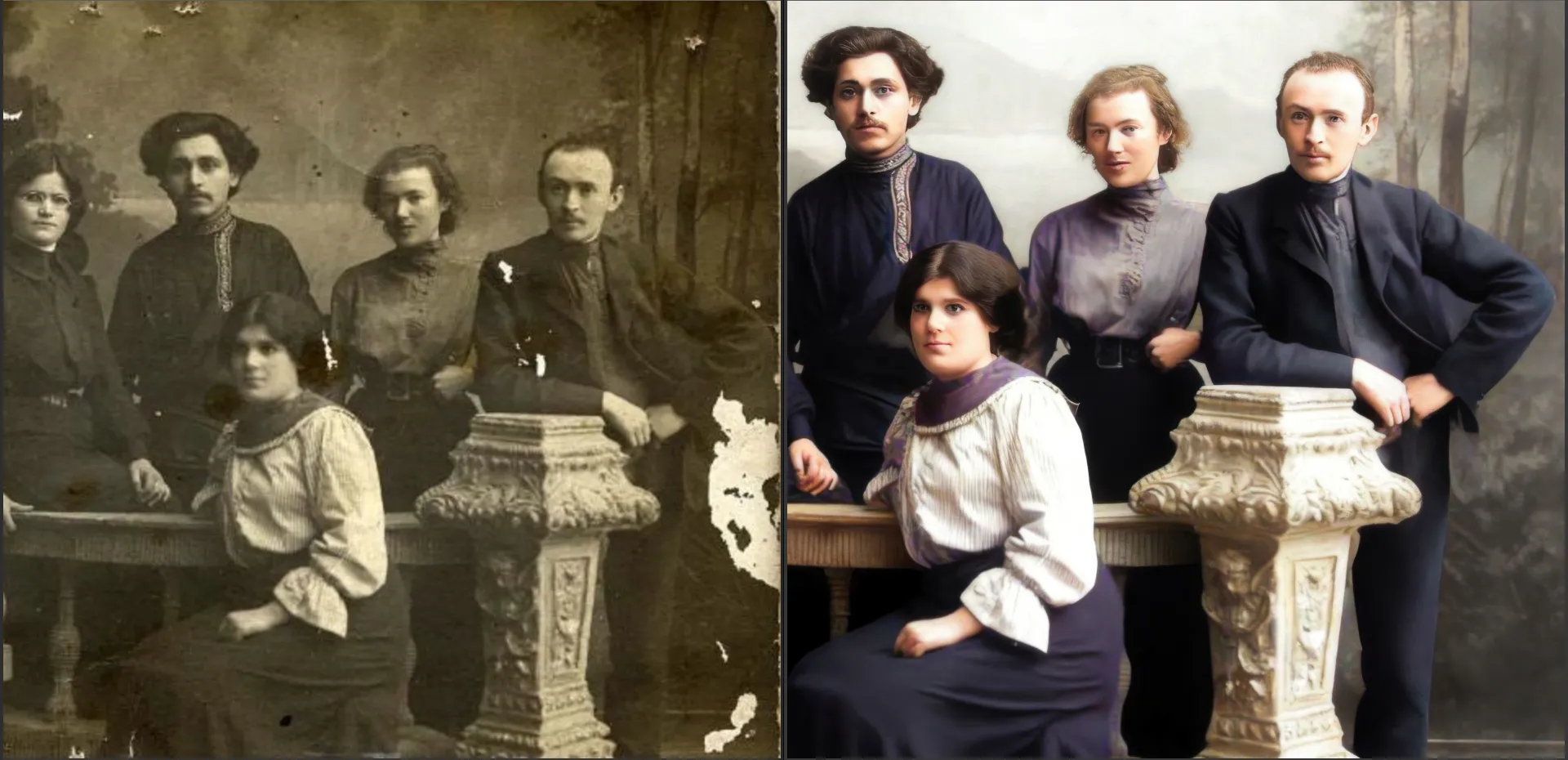
The combination of Luminar Neo, MyHeritage, and Topaz Gigapixel AI proved to be the most effective. This combination of solutions allows for a balance between automation and control, speed and quality, artistic expression, and respect for the original. As a result, the restored photograph remains recognizable and historically valuable, yet appears clear and vibrant enough to deserve a place in a modern family archive or photo album.